1. Entwodiksyon
Thank you for choosing the Cherry KW 9100 Slim Wireless Keyboard. This manual provides essential information for setting up, operating, and maintaining your new keyboard. The KW 9100 Slim is designed for both work and home office environments, offering flexible connectivity options and a comfortable typing experience with its silent SX Scissor Mechanism.

Figi 1.1: Anwo-anba view of the Cherry KW 9100 Slim Wireless Keyboard, showcasing layout konplè li yo ak konsepsyon elegant li yo.
2. Pake kontni
Tanpri verifye ke tout atik yo prezan nan pakè ou a:
- Cherry KW 9100 Slim Wireless Keyboard
- Kab USB (USB-A pou USB-C)
- USB Receiver (2.4 GHz RF dongle)
- Manyèl Enstriksyon (dokiman sa a)
- Magnetic Support Bar (pre-attached or separate)
3. Karakteristik kle
- Doub Koneksyon: Seamlessly switch between wireless RF (2.4 GHz) and Bluetooth transmission modes.
- Batri rechargeable: Built-in lithium rechargeable battery with USB-C connection for convenient charging.
- SX Scissor Mechanism: Cherry's proprietary low-profile scissor technology ensures a quiet and precise typing experience.
- Slim and Stable Design: Features a thin profile with a built-in metal plate for maximum stability and rigidity.
- Adjustable Typing Angle: Includes a removable magnetic support bar for a steeper typing angle preference.
- LED estati: Integrated LEDs for CAPS LOCK, NUM, and SCROLL keys.
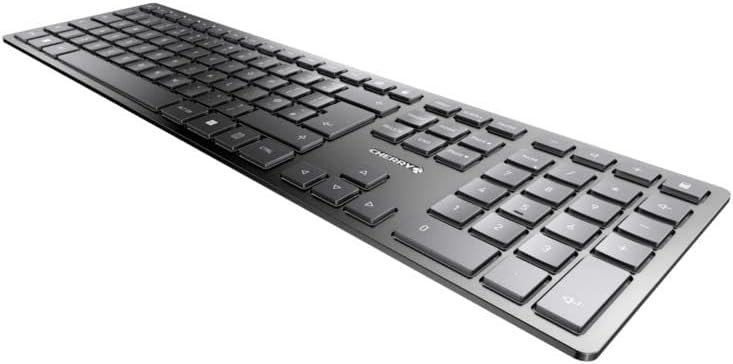
Figi 3.1: Angle view highlighting the slim profile and key layout of the keyboard.

Figi 3.2: Close-up view of the keys, illustrating the low-profile design and quiet SX Scissor Mechanism.
4. Enstalasyon ak Koneksyon
4.1 Chaje klavye a
Before first use, it is recommended to fully charge the keyboard.
- Connect the supplied USB-A to USB-C cable to the USB-C port on the keyboard.
- Connect the other end of the cable to a USB-A port on your computer or a compatible USB power adapter.
- The charging indicator LED will illuminate. The keyboard can be used while charging.

Figure 4.1: Location of the USB-C charging port on the Cherry KW 9100 Slim keyboard.
4.2 Connecting via 2.4 GHz RF Wireless
For a stable and fast wireless connection, use the included USB receiver.
- Locate the USB receiver (dongle) in the package.
- Branche reseptè USB a nan yon pò USB-A ki disponib sou òdinatè w la.
- On the keyboard, locate the connectivity switch (usually on the back or side) and set it to the "RF" or 2.4 GHz icon position.
- Klavye a ta dwe konekte otomatikman ak òdinatè w la.
4.3 Konekte via Bluetooth
The keyboard supports Bluetooth connectivity for devices with Bluetooth capabilities.
- On the keyboard, set the connectivity switch to the "Bluetooth" icon position.
- The Bluetooth indicator LED on the keyboard will start blinking, indicating it's in pairing mode.
- Sou òdinatè w la oswa aparèy ou an, ouvri paramèt Bluetooth yo.
- Chèche pou new devices and select "Cherry KW 9100 Slim" from the list.
- Swiv nenpòt envit ki sou ekran pou konplete pwosesis kouple a.
4.4 Attaching the Magnetic Support Bar
The keyboard comes with a magnetic support bar that can be attached to adjust the typing angle.
- Locate the magnetic support bar.
- Align the bar with the magnetic strip on the underside of the keyboard.
- The magnets will snap the bar into place, providing an elevated typing angle.
- To remove, simply pull the bar away from the keyboard.

Figi 4.2: Side view of the keyboard demonstrating the elevated angle with the magnetic support bar attached.

Figure 4.3: Illustration of how the magnetic support bar attaches to the keyboard's underside.
5. Operasyon
5.1 Itilizasyon debaz
Once connected, the Cherry KW 9100 Slim functions as a standard keyboard. Type as you normally would.

Figure 5.1: A user demonstrating typing on the Cherry KW 9100 Slim keyboard in an office setting.
5.2 Function Keys (F-Keys)
The F-keys (F1-F12) on the top row may have secondary functions accessible by pressing the Fn key simultaneously. Refer to the keycap legends for specific functions such as media control, volume adjustment, or brightness control.
5.3 Ki ap dirije Status
The keyboard features indicator LEDs for:
- MAJISKIL: Li limen lè Caps Lock la aktive.
- NUM: Illuminates when Num Lock is active.
- SCROLL: Illuminates when Scroll Lock is active.
- Battery/Charging: Indicates charging status or low battery.
6. Antretyen
6.1 Netwaye klavye a
Pou kenbe aparans ak fonksyonalite klavye a:
- Dekonekte klavye a nan òdinatè w la anvan ou netwaye li.
- Sèvi ak yon ti moso twal mou, ki san pèl dampfini ak dlo oswa yon solisyon netwayaj twò grav.
- Evite twòp imidite epi pa flite pwodui netwayaj dirèkteman sou klavye a.
- Pou pousyè ak debri ant kle yo, sèvi ak lè konprese.
6.2 Swen Batri
The built-in rechargeable battery is designed for long life.
- Recharge the keyboard when the battery indicator shows low power.
- Evite dechaje batri a nèt souvan pou pwolonje dire lavi li.
- Sere klavye a nan yon kote ki fre epi sèk si ou pa itilize li pou yon bon bout tan.
NAN. Depanaj
| Pwoblèm | Kòz posib | Solisyon |
|---|---|---|
| Keyboard not responding (RF) | USB receiver not plugged in; keyboard not in RF mode; low battery. | Ensure USB receiver is securely plugged in. Set keyboard switch to RF mode. Charge the keyboard. Try a different USB port. |
| Klavye a pa reponn (Bluetooth) | Keyboard not in Bluetooth mode; not paired; out of range; low battery. | Set keyboard switch to Bluetooth mode. Ensure keyboard is paired with the device. Move keyboard closer to the device. Charge the keyboard. |
| Kle yo kole oswa yo pa reponn | Debris under keys; liquid spill. | Clean the keyboard using compressed air. If liquid spill, disconnect immediately and allow to dry completely before use. Do not attempt to disassemble. |
| Batri pa chaje | Faulty USB cable or port; power source issue. | Try a different USB cable and/or USB port. Ensure the power source is active. |
8. Espesifikasyon
| Karakteristik | Detay |
|---|---|
| Nimewo Modèl | JK-9100US-2 |
| Koneksyon | Bluetooth, 2.4 GHz RF (with USB receiver), USB-C (for charging) |
| Deskripsyon klavye | Wireless, Full-size |
| Mekanis kle | SX Scissor Mechanism |
| Kantite kle | 108 |
| Koulè | Nwa |
| Materyèl | Metal (built-in plate) |
| Pwa atik | 1.49 liv (apeprè 676 gram) |
| Dimansyon pake | 18.19 x 6.69 x 1.26 pous |
| Manifakti | CHERRY |
| Aparèy konpatib | PC |
| Itilizasyon Rekòmande | Gaming, Office, Work |
9. Garanti ak sipò
For warranty information and technical support, please refer to the official Cherry website or contact Cherry customer service. Keep your proof of purchase for warranty claims.
Official Cherry Websit: www.cherry.de/en/
Sèvis Kliyan: Gade seksyon kontak la sou paj ofisyèl la. websit la pou plis detay sou sipò rejyonal la.


