Entwodiksyon
This manual provides comprehensive instructions for setting up, operating, maintaining, and troubleshooting your TP-Link Archer AX10000 WiFi 6 Tri-Band Gaming Router. Designed for large homes, this router offers advanced wireless capabilities, high-speed connectivity, and robust security features to ensure an optimal network experience.
Kontni pake
Verifye ke tout atik yo prezan nan pakè ou a:
- WiFi 6 Gaming Router Archer AX10000
- Adaptè pouvwa
- RJ45 Ethernet kab
- Gid Enstalasyon Rapid
Pwodwi souview
The TP-Link Archer AX10000 is a high-performance router featuring a distinctive design with multiple antennas for enhanced coverage. It is equipped with various ports for wired connections and advanced internal components for efficient data handling.

Figi 1: Top-desann view of the TP-Link Archer AX10000 router, showcasing its eight extended antennas and central design.
Koneksyon Fizik
The rear panel of the router provides multiple connectivity options for both internet and local network devices.
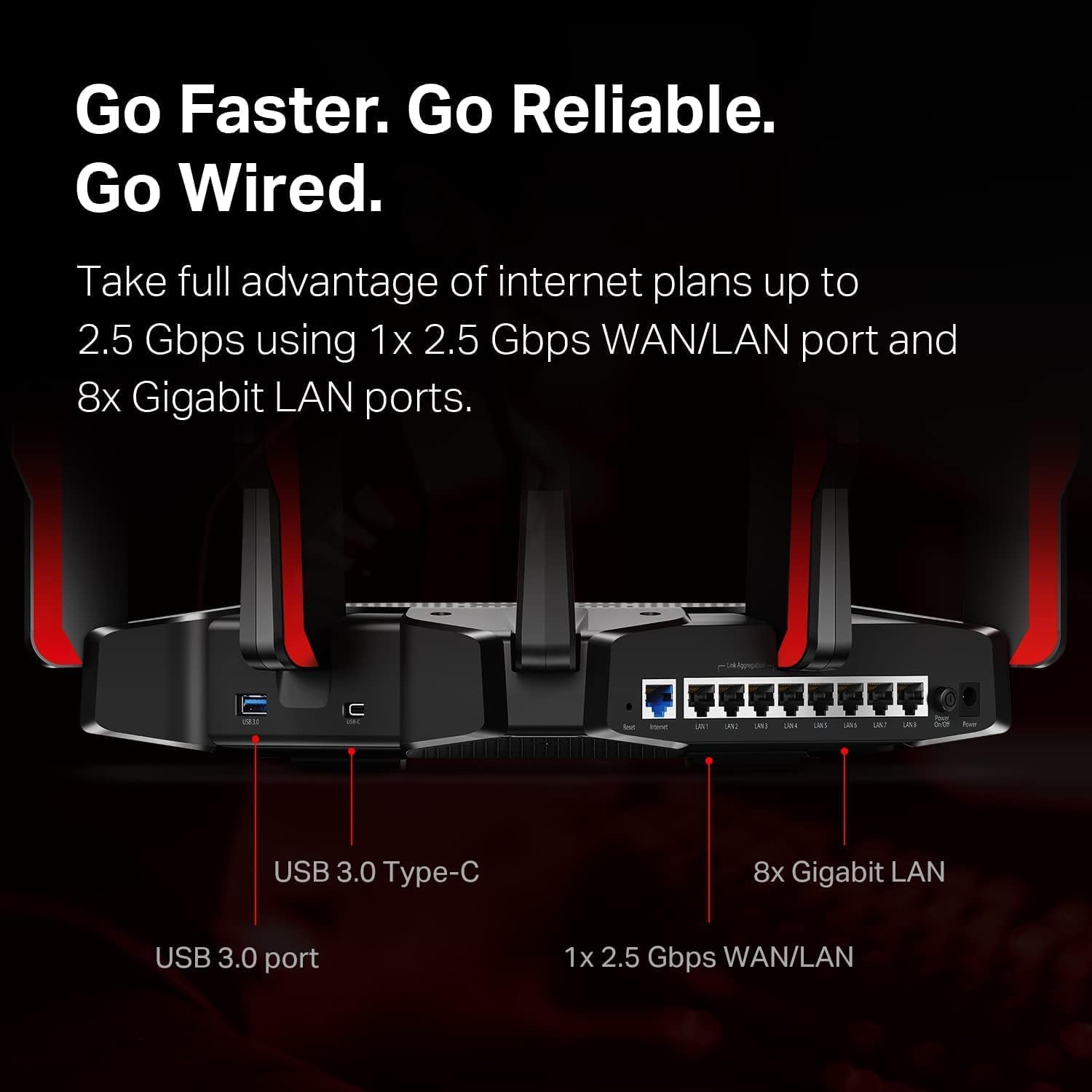
Figi 2: Rear panel of the router, highlighting the USB 3.0 Type-C port, USB 3.0 port, 1x 2.5 Gbps WAN/LAN port, and 8x Gigabit LAN ports.
The bottom label contains essential information for initial setup and network access.
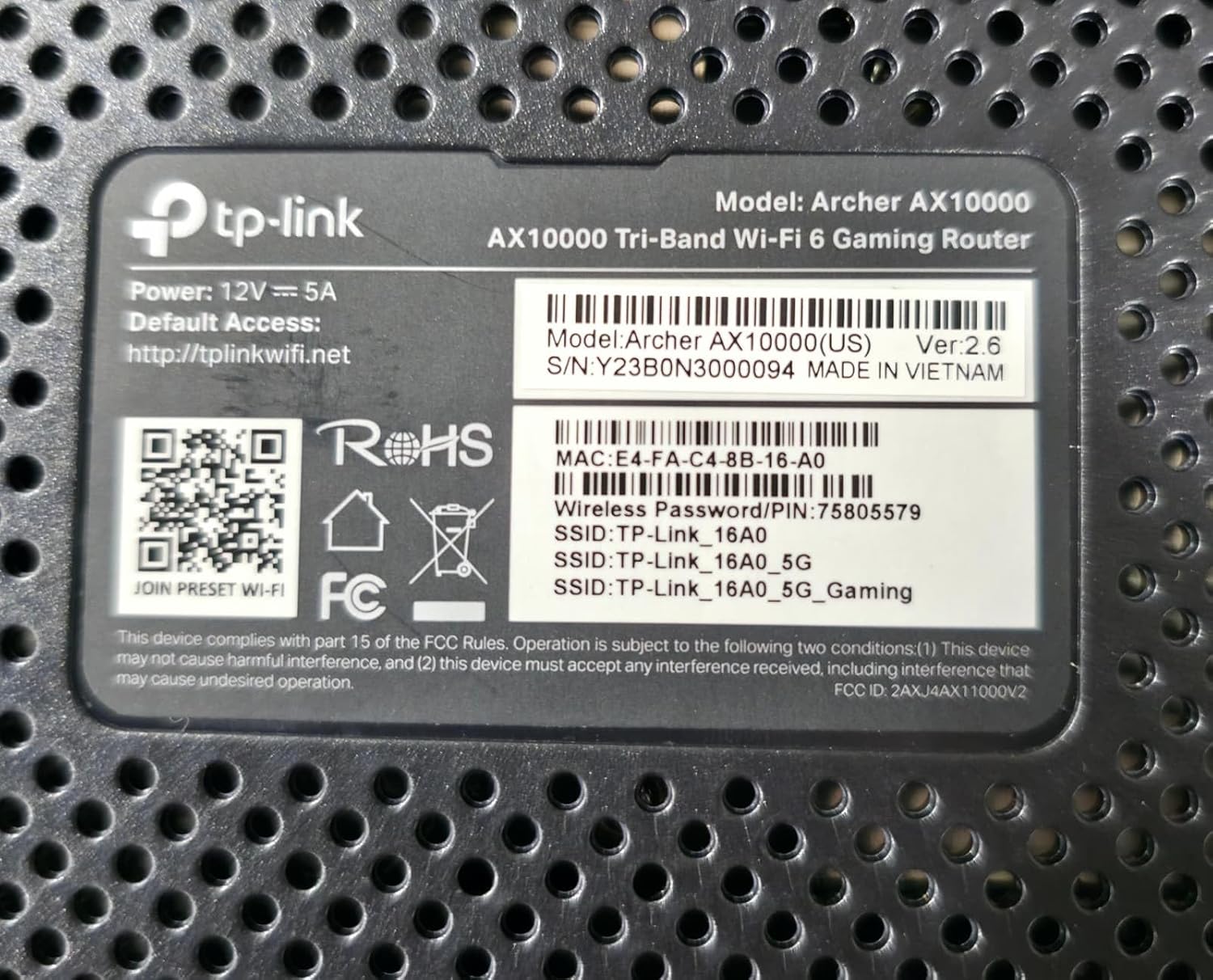
Figi 3: Product label on the bottom of the router, displaying model number, default access information, and wireless password/PIN.
Enstalasyon
Swiv etap sa yo pou konfigire routeur TP-Link Archer AX10000 ou a:
- Depakete routeur la: Retire routeur la ak tout akseswa yo nan anbalaj la avèk prekosyon.
- Pozisyone routeur la: Place the router in a central location in your home, away from obstructions and devices that may cause interference. Ensure antennas are oriented for optimal signal.
- Konekte Materyèl:
- Connect your modem's Ethernet cable to the router's 2.5G WAN/LAN port.
- Konekte adaptè pouvwa a nan routeur la epi ploge li nan yon priz kouran.
- Power on the router. Wait for the LED indicators to stabilize, typically indicating a successful boot-up and internet connection.
- Konekte ak routeur la:
- San fil: Connect to the default Wi-Fi network (SSID) printed on the router's label using the provided password.
- Branche: Connect a computer to one of the router's Gigabit LAN ports using an Ethernet cable.
- Konfigirasyon routeur la:
- Louvri a web navigatè a epi antre adrès aksè pa defo a (pa egzanp, http://tplinkwifi.net) or use the TP-Link Tether app.
- Follow the on-screen instructions to create a new password, set up your Wi-Fi network name (SSID) and password, and complete the initial setup.
Videyo 1: A user demonstrating the unboxing and initial setup of a TP-Link Tri-Band Wi-Fi 6 Router, highlighting its components and connectivity options.
Enstriksyon Operasyon
Once your router is set up, you can optimize its performance and utilize its features:
- Aksè a Web Entèfas Jesyon: Louvri a web navigatè epi navige nan http://tplinkwifi.net. Log in with your router password to access advanced settings.
- Lè w ap itilize aplikasyon TP-Link Tether la: Download the TP-Link Tether app from your mobile app store. The app allows for easy management of your network, including device prioritization, parental controls, and guest network setup.
- Optimizing for Gaming: The Archer AX10000 features a dedicated gaming band. Ensure your gaming devices are connected to this band for reduced latency and improved performance. Utilize the router's Quality of Service (QoS) settings to prioritize gaming traffic.
- Pwoteksyon laj: The router's 8 high-performance antennas and Beamforming technology ensure strong and stable Wi-Fi signals throughout your home.
- Kontwòl paran yo: Configure parental controls through the web interface or Tether app to manage internet access times and filter content for specific devices.
- Rezo Guest: Create a separate guest Wi-Fi network to provide internet access to visitors without sharing your main network password.
- VPN sèvè: The router supports VPN functionality, allowing you to securely access your home network from remote locations.
- Sekirite amelyore: Your security is a priority with features like Game Protector and WPA3 encryption.
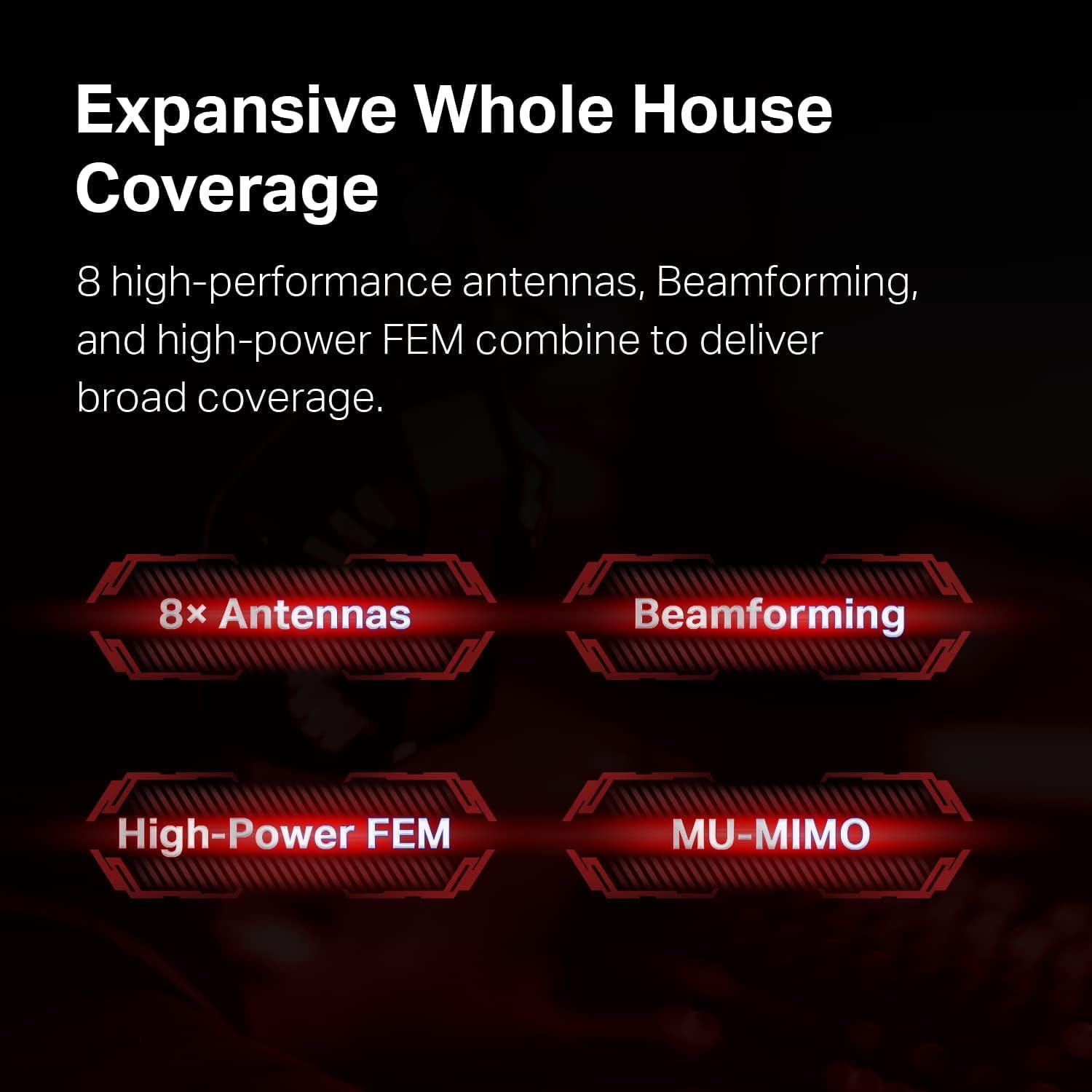
Figi 4: Illustration of the router's features contributing to expansive whole house coverage, including 8 antennas, Beamforming, High-Power FEM, and MU-MIMO.

Figi 5: Visual representation of the router's security features, HomeCare and WPA3, safeguarding connected devices.
Antretyen
Regular maintenance ensures optimal performance and longevity of your router:
- Mizajou mikrolojisyèl: Tcheke epi enstale mizajou firmwèr yo regilyèman atravè routeur la. web management interface or the Tether app. Updates often include performance improvements and security patches.
- Redemaraj regilye: Rebooting your router every few weeks can help clear its memory and resolve minor performance issues.
- Plasman Optimal: Ensure the router remains in an open, central location, free from physical obstructions or electronic devices that could cause interference.
- Netwayaj: Kenbe routeur la pwòp epi san pousyè pou anpeche li chofe twòp. Sèvi ak yon twal mou epi sèk pou netwaye.
Depanaj
If you encounter issues with your router, try the following solutions:
- Pa gen aksè entènèt:
- Check all cable connections between the router, modem, and power source.
- Rdemare modèm ou ak routeur.
- Verifye koneksyon founisè sèvis entènèt ou a (ISP) aktif.
- Vitès Wi-Fi ki ba:
- Asire w aparèy ou yo konekte ak bon bann Wi-Fi a (5 GHz pou vitès ki pi rapid, 2.4 GHz pou yon pwoteksyon ki pi laj).
- Redui entèferans lan lè w deplase routeur la lwen lòt aparèy elektwonik yo.
- Check for bandwidth-intensive applications running in the background.
- Mizajou firmwèr routeur la ak chofè aparèy yo.
- Dekoneksyon souvan:
- Ensure the router is placed optimally and not obstructed.
- Check for conflicting Wi-Fi channels and adjust if necessary via the router settings.
- Mizajou firmwèr routeur la.
- M pa ka jwenn aksè nan paj jesyon routeur la:
- Verify your device is connected to the router's network.
- Ensure you are using the correct default access address (http://tplinkwifi.net) ak modpas.
- Eseye efase kach navigatè w la oubyen itilize yon lòt navigatè.
Espesifikasyon
Detailed technical specifications for the TP-Link Archer AX10000 router:

Figi 6: Internal hardware specifications, highlighting the 1.8 GHz Quad-Core CPU and 1 GB RAM for robust performance.
| Karakteristik | Detay |
|---|---|
| Dimansyon pwodwi | 12 x 10 x 4 pous |
| Pwa atik | 5.7 liv |
| Nimewo Modèl Atik | Archer AX10000 |
| Mak | TP-Link |
| Non modèl | Archer AX10000 |
| Karakteristik espesyal | WPS |
| Gwoup Gwoup Frekans | Tri-Band |
| Wireless Kominikasyon Creole | 2.4 GHz Radio Frequency, 5 GHz Radio Frequency, 802.11ax |
| Aparèy konpatib | Odinatè pèsonèl |
| Itilizasyon Rekòmande Pou Pwodwi | Gaming |
| Konpozan ki enkli | Power Adapter, Quick Installation Guide, RJ45 Ethernet Cable, WiFi 6 Gaming Router Archer AX10000 |
| Koneksyon Teknoloji | Ethernet, USB, Wi-Fi |
| Koulè | Nwa ak Wouj |
Garanti ak sipò
Pou enfòmasyon sou garanti a ak sipò teknik, tanpri al gade sa ki annapre yo:
- Règleman retounen: Pwodui sa a kalifye pou yon politik ranbousman/retounen ranplasman nan 90 jou.
- Manifakti: TP-Link. For detailed warranty terms and technical assistance, please visit the official TP-Link support websit oswa kontakte sèvis kliyan yo.


