1. Entwodiksyon
This manual provides detailed instructions for the installation, operation, and maintenance of your AMOCAM TF2 Metal Fingerprint Door Access Control Keypad System. Please read this manual thoroughly before installation and use to ensure proper functionality and safety.

Image: The AMOCAM TF2 Fingerprint Door Access Control Keypad System, including the keypad unit and five blue ID key fobs.
2. Pwodwi Features
- Multiple User Capacity: Supports up to 10,000 users with options for fingerprint identification, EM IC ID key cards, and password access.
- Advanced Biometric Fingerprint Sensor: Features semiconductor biometric fingerprint technology for rapid 1-second unlocking.
- Konstriksyon dirab: Constructed with strong zinc alloy electroplated technology, epoxy encapsulated for anti-vandal and weatherproof performance (IP68 rated). Suitable for both indoor and outdoor use.
- Mòd Operasyon Fleksib: Can function as a standalone keypad or as a card reader.
- Sekirite amelyore: Compatible with all electric locks and includes full programming capabilities directly from the keypad.
- Feedback itilizatè: Built-in buzzer and Light Dependent Resistor (LDR) provide sound and light feedback for clear operation.
- Backlit Touch Keypad: Touch keypad panel with LED indication and 3-color LEDs to display working status. Backlight ensures visibility in low-light conditions.
- Wiegand Entèfas: Supports Wiegand 26/34 input and output for integration with other access control systems.

Image: The AMOCAM TF2 keypad highlighting its IP68 weatherproof rating and backlit keys, shown with water droplets on its surface.
3. Pake kontni
The AMOCAM TF2 system package includes the following items:
- Access Control Keypad Unit
- 5 x ID Key Fobs
- Tèminal fil elektrik
- Manyèl itilizatè
Image: The AMOCAM TF2 Fingerprint Door Access Control Keypad System, including the keypad unit and five blue ID key fobs.
4. Espesifikasyon
| Karakteristik | Detay |
|---|---|
| Mak | AMOCAM |
| Nimewo Modèl | TF2 |
| Kalite fèmen | Byometrik, Klavye |
| Dimansyon (L x W x H) | 5.3 x 1.8 x 0.9 pous (135mm x 47mm x 23mm) |
| Materyèl | Metal, Zenk |
| Itilizasyon Rekòmande | Andedan kay la / Deyò |
| Kapasite itilizatè | 10,000 |
| Wiegand Entèfas | WG26/34 Input and Output |
| Metòd kontwòl | Manyen |
| Pwa atik | 15.5 ons (0.44 kilogram) |
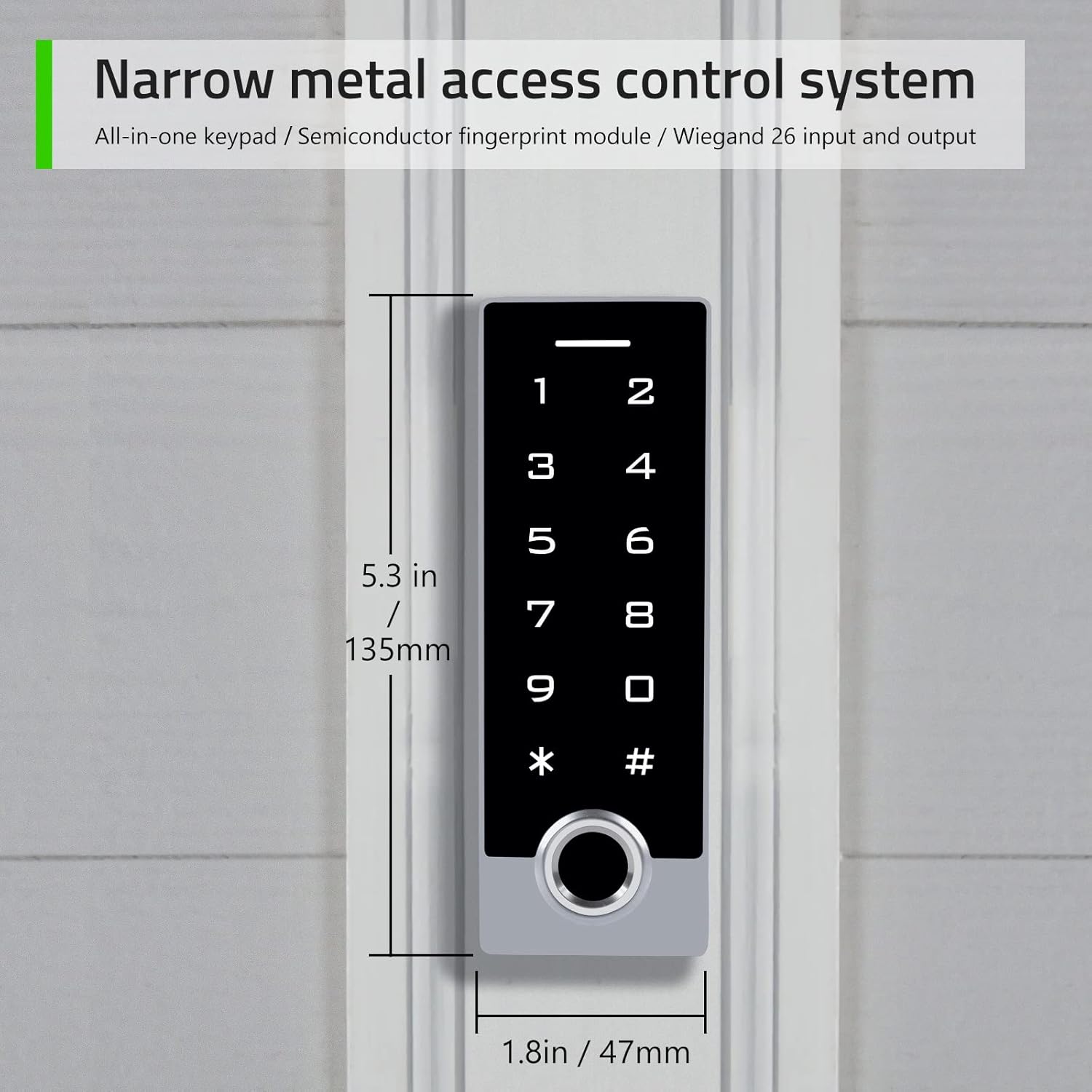
Image: The AMOCAM TF2 keypad showing its narrow shell design and dimensions (5.3 inches in length, 1.8 inches in width).
5. Enstalasyon ak Enstalasyon
Proper installation is crucial for the optimal performance and security of your access control system. It is recommended to consult a professional for complex wiring setups.
5.1 Dyagram fil elektrik
Refer to the following diagrams for connecting the AMOCAM TF2 keypad to your access control system or garage/sliding door opener.

Image: Detailed wiring diagrams for connecting the AMOCAM TF2 keypad to a power supply control, exit button, and various lock types (NC Magnetic Lock, NO Strike Lock), as well as to a garage/sliding door opener.
5.2 Montaj
The keypad is designed for both indoor and outdoor use. Ensure the mounting surface is flat and secure. Use appropriate screws and anchors for your wall type. The anti-prying hexagonal star screw provides additional security.
6. Operasyon Enstriksyon
The default administrator code is "999999". Always change this code immediately after initial setup for security purposes.
6.1 Ajoute Anprent Itilizatè
Follow these steps to add a new user fingerprint to the system:
- Ensure the indicator red light is on (standby status).
- Peze *Admin code # (Default admin code is "999999"). The red light will flash, indicating entry into administrator mode.
- Peze 11 (Menu code for adding fingerprints).
- Place the user's finger on the fingerprint sensor. Lift and place again (typically twice for successful capture).
- Peze # pou konfime.
- Peze * to exit administrator mode.
6.2 Adding User Passcodes
To add a new user passcode (4 to 6 digits) to the system:
- Ensure the indicator red light is on (standby status).
- Peze *Admin code # (Default admin code is "999999"). The red light will flash, indicating entry into administrator mode.
- Peze 11 (Menu code for adding user codes).
- Enter a 1 to 4 digit independent user ID (e.g., 35), then press #.
- Enter a 4 to 6 digit user passcode (e.g., 2468), then press #.
- Peze * twice to exit administrator mode.
6.3 Adding ID Cards (Key Fobs)
To add new ID cards or key fobs to the system:
- Ensure the indicator red light is on (standby status).
- Peze *Admin code # (Default admin code is "999999"). The red light will flash, indicating entry into administrator mode.
- Peze 11 (Menu code for adding cards).
- Present each ID card/key fob to the keypad's reader. Cards can be added continuously.
- Peze # to end card reading.
- Peze * to exit administrator mode.
6.4 Debloke Pòt la
The AMOCAM TF2 offers multiple methods for unlocking the door:
- Anprent: Mete yon dwèt ki anrejistre sou Capteur anprent.
- Paskod: Enter a registered user passcode followed by #.
- ID Card/Key Fob: Present a registered ID card or key fob to the keypad's reader.
- Bouton Sòti: Press the connected exit button from inside the premises.
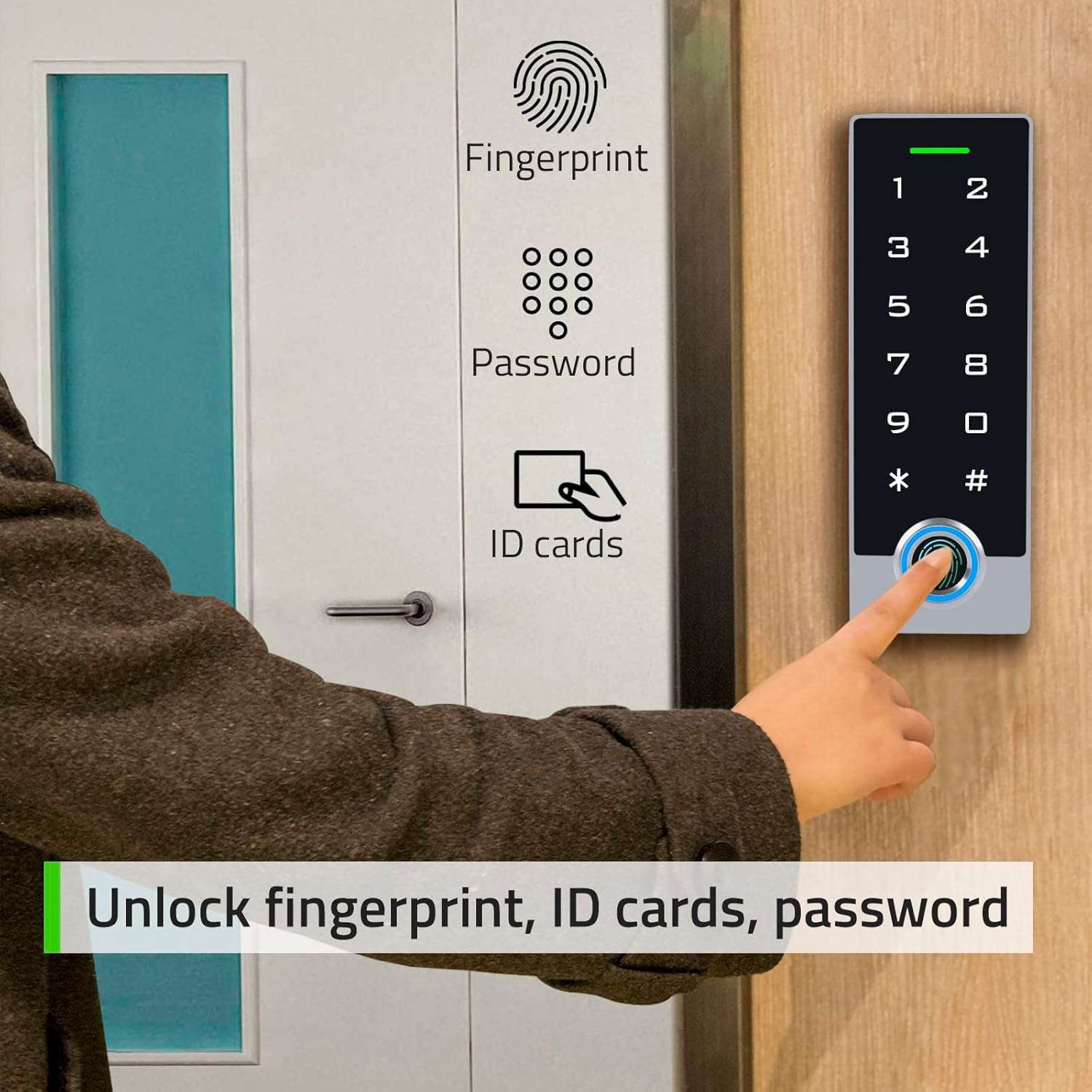
Image: A person using the AMOCAM TF2 keypad to unlock a door via fingerprint, with icons indicating fingerprint, password, and ID card unlock options.
6.4.1 Fingerprint Unlock Demonstration
6.4.2 Exit Button Unlock Demonstration
7. Antretyen
- Netwayaj: Use a soft, dry cloth to clean the keypad surface. Avoid abrasive cleaners or solvents that may damage the finish or electronic components.
- Swen Capteur: Keep the fingerprint sensor clean and free of dirt or moisture to ensure accurate readings.
- Tèks regilye: Tcheke tout koneksyon fil elektrik yo detanzantan pou asire yo byen fèm epi yo pa gen korozyon.
- Mizajou mikrolojisyèl: Tcheke manifakti a websit la pou nenpòt mizajou firmwèr ki disponib pou asire pèfòmans ak sekirite optimal.
NAN. Depanaj
| Pwoblèm | Kòz posib | Solisyon |
|---|---|---|
| Klavye pa reponn | No power, loose connection, or system error. | Check power supply and wiring. Restart the system by disconnecting and reconnecting power. |
| Anprent pa rekonèt | Dirty sensor, incorrect finger placement, or unregistered fingerprint. | Clean the sensor. Ensure proper finger placement. Re-register fingerprint if necessary. |
| Passcode not working | Incorrect passcode, unregistered passcode. | Verify the passcode. Ensure the passcode is correctly registered. |
| ID card not working | Unregistered card, card damage. | Ensure the card is registered. Try another card. Re-register the card if needed. |
| Door does not unlock | Lock malfunction, wiring issue, insufficient power. | Check the lock mechanism and wiring. Ensure adequate power supply to the lock. |
9. Garanti ak sipò
AMOCAM products are designed for reliability and performance. For warranty information, technical support, or service inquiries, please refer to the official AMOCAM website or contact customer service directly. Keep your purchase receipt for warranty claims.
Pou plis asistans, vizite AMOCAM Store on Amazon.


