1. Entwodiksyon
The ICY BOX IB-DK8801-TB4 is a versatile Thunderbolt 4 docking station designed to expand the connectivity of your laptop or Mac. It offers a 10-in-1 solution, enabling connection of multiple peripherals, external displays, and providing power delivery through a single Thunderbolt 4 cable. This manual provides instructions for setup, operation, and maintenance to ensure optimal performance.

Figure 1: The IB-DK8801-TB4 docking station integrated into a workspace, demonstrating universal PC connectivity.
2. Pake kontni
- 1x ICY BOX IB-DK8801-TB4 Thunderbolt 4 Docking Station
- 1x pouvwa adaptè
- 1x Thunderbolt 4 kab
- 1x manyèl itilizatè
3. Pwodwi souview
The IB-DK8801-TB4 docking station features a comprehensive array of ports for various connectivity needs. Familiarize yourself with the port layout before connecting devices.

Figure 2: Port layout and daisy-chaining illustration of the docking station.
Pò panèl devan:
- Lektè kat SD 4.0: For high-speed data transfer from SD cards.
- USB 3.1 Kalite-A Port: Connect USB peripherals.
- USB-C pò: Connect USB-C devices.
- Pò Thunderbolt 4 an amon: Connects to your host laptop/Mac.
- Bouton pouvwa: Pou limen/etenn estasyon docking la.
Pò panèl dèyè:
- DC IN: Konekte adaptè pouvwa a enkli.
- HDMI Port: Konekte yon ekspozisyon ekstèn.
- Ethernet Port: Pou koneksyon rezo filaire.
- 2 pò Thunderbolt 4 Downstream: Connect additional Thunderbolt devices or displays, supporting daisy-chaining.
- 3x USB 3.1 Type-A Ports: Connect additional USB peripherals.
4. Enstalasyon
Follow these steps to set up your ICY BOX Thunderbolt 4 Docking Station:
- Konekte pouvwa: Plug the power adapter into the DC IN port on the rear of the docking station, then connect it to a power outlet.
- Konekte ak aparèy lame a: Use the provided Thunderbolt 4 cable to connect the Thunderbolt 4 Upstream port on the front of the docking station to a Thunderbolt 4 port on your laptop or Mac.
- Konekte Ekran yo:
- For a single 8K@30Hz display, connect it to one of the Thunderbolt 4 downstream ports using a compatible cable.
- For dual 4K@60Hz displays, connect one display to the HDMI port and the other to a Thunderbolt 4 downstream port (using a compatible adapter/cable if necessary).

Figure 3: Connecting external monitors to the docking station.
- Konekte periferik: Connect your USB devices (keyboard, mouse, external drives) to the available USB 3.1 Type-A or USB-C ports. Insert SD cards into the SD 4.0 card reader as needed.
- Konekte rezo: For a wired internet connection, connect an Ethernet cable from your router/modem to the Ethernet port on the rear of the docking station.
5. Operasyon Enstriksyon
Limen/Etenyen:
Press the power button on the front panel to turn the docking station on or off. The LED indicator will illuminate when the device is powered on.
Montre konte genyen:
Your host device should automatically detect connected displays. You can configure display settings (resolution, orientation, extended/mirrored mode) through your operating system's display settings.
Livrezon pouvwa (PD):
The docking station provides up to 96W Power Delivery through the Thunderbolt 4 upstream port to charge your connected laptop or Mac. Ensure your device supports charging via Thunderbolt 4.

Figure 4: The docking station providing 96W Power Delivery to a laptop.
Thunderbolt 4 Capabilities:
The Thunderbolt 4 ports support data transfer speeds of up to 40 Gbit/s. They are compatible with DisplayPort, PCIe, and USB 4, and are backward compatible with previous Thunderbolt versions. This allows for high-speed external storage, external graphics cards, and other high-bandwidth devices.
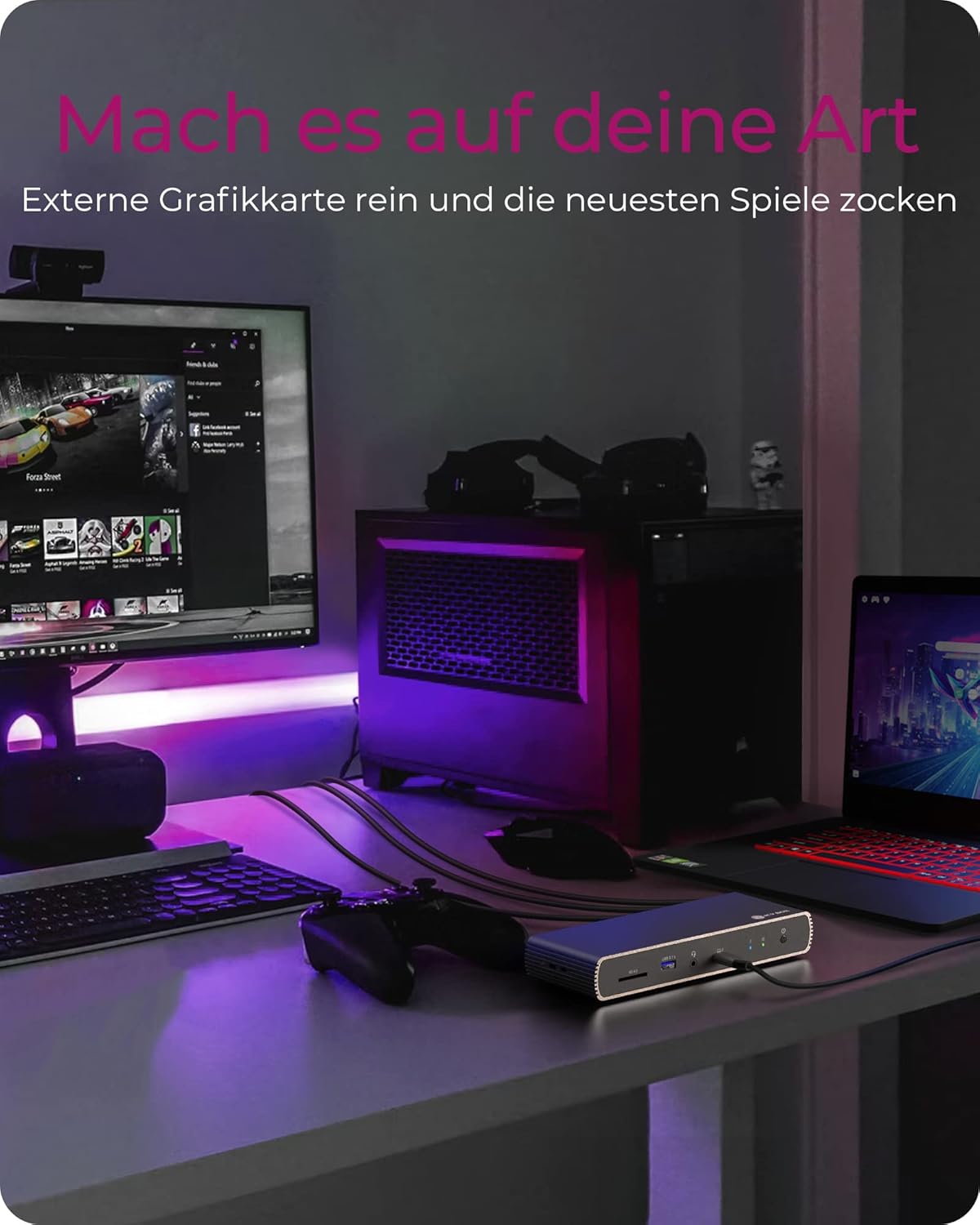
Figure 5: Using the docking station with an external graphics card for enhanced performance.

Figure 6: The docking station facilitating creative workflows with various connected devices.
6. Antretyen
Pou asire lonjevite ak pèfòmans optimal estasyon docking ou a:
- Keep the device in a dry, well-ventilated area, away from direct sunlight and heat sources.
- Avoid exposing the device to liquids or excessive moisture.
- Netwaye deyò a avèk yon twal mou epi sèk. Pa sèvi ak pwodui chimik ki agresif oswa pwodui netwayaj abrazif.
- Asire w tout kab yo byen konekte epi yo pa anba tansyon.
NAN. Depanaj
Si ou rankontre pwoblèm ak estasyon ancrage ou a, gade pwoblèm ak solisyon komen sa yo:
| Pwoblèm | Solisyon posib |
|---|---|
| No power to the docking station. | Ensure the power adapter is securely connected to both the docking station and a working power outlet. Check the power button status. |
| Pa gen ekspozisyon sou monitè ekstèn lan. | Verify display cables are securely connected. Ensure the docking station is powered on and connected to your host device. Check your host device's display settings. Try a different display cable or port. |
| Aparèy USB yo pa rekonèt. | Ensure the docking station is powered on and connected to your host device. Try connecting the USB device to a different port on the dock or directly to your host device to rule out device issues. |
| Laptop la pa chaje. | Confirm your laptop supports charging via Thunderbolt 4. Ensure the Thunderbolt 4 upstream cable is correctly connected. Check the power adapter connection. |
| Pwoblèm koneksyon rezo. | Check the Ethernet cable connection. Verify your router/modem is working correctly. Ensure network drivers are up to date on your host device. |
8. Espesifikasyon
| Karakteristik | Detay |
|---|---|
| Non modèl | IB-DK8801-TB4 |
| Mak | ICY BOX |
| Entèfas Materyèl | DisplayPort, HDMI, Thunderbolt, USB, USB Type C |
| Aparèy konpatib | MacBook Air, MacBook Pro, Thunderbolt 4 enabled laptops |
| Kantite pò | 10 |
| Total pò USB | 4 (USB 3.1) + 1 (USB-C) |
| Total pò HDMI | 1 |
| Thunderbolt 4 pò | 2x Downstream, 1x Upstream |
| Livrezon pouvwa | Jiska 96W |
| Sòti videyo | Single 8K@30Hz or Dual 4K@60Hz |
| Ethernet | Wi |
| Lektè kat SD | SD 4.0 |
| Dimansyon pwodwi | 50 x 50 x 28 cm |
| Pwa atik | 440 g |
9. Garanti ak sipò
ICY BOX products are designed for reliability and performance. For warranty information and technical support, please refer to the official ICY BOX websit la oubyen kontakte détayan lokal ou a. Kenbe prèv acha ou pou reklamasyon garanti.


