1. Entwodiksyon
Thank you for choosing the NETVIP N300 WiFi Extender. This device is designed to extend the coverage of your existing wireless network, eliminating Wi-Fi dead zones and providing a stable, high-speed internet connection throughout your home or office. It supports both Repeater Mode for extending wireless signals and Access Point (AP) Mode for converting a wired connection into a wireless hotspot.

Image 1.1: The NETVIP N300 WiFi Extender, a compact wall-plug device with indicator lights and an Ethernet port.
2. Enfòmasyon sou Sekirite
- Pa ekspoze aparèy la nan dlo oswa imidite.
- Pa eseye demonte oswa repare aparèy la tèt ou.
- Use only the power adapter provided or specified by the manufacturer.
- Asire bon vantilasyon alantou aparèy la pou anpeche surchof.
- Kenbe aparèy la lwen limyè solèy la dirèk ak sous chalè.
3. Pake kontni
Tanpri tcheke pake a pou atik sa yo:
- NETVIP N300 WiFi Extender (Model WN519)
- Manyèl itilizatè
- RJ45 Ethernet Cable (may vary by package)
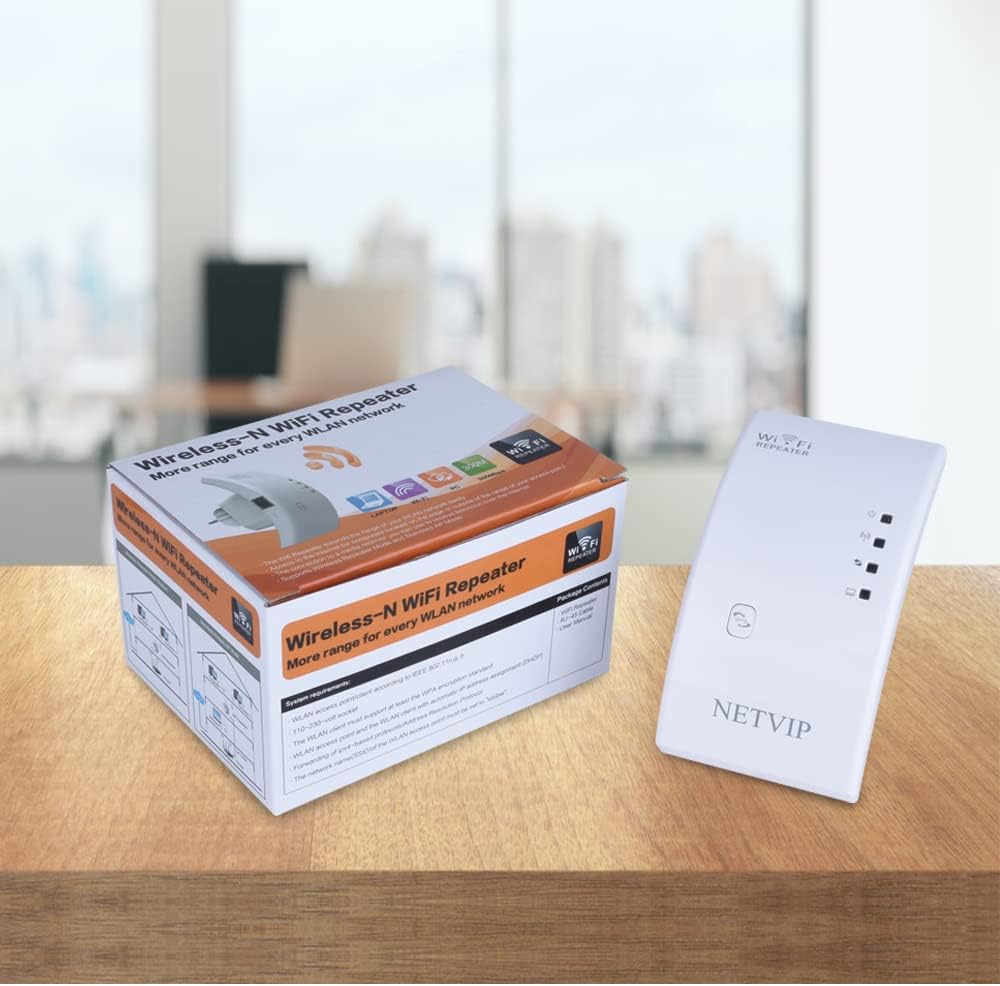
Image 3.1: The NETVIP N300 WiFi Extender and its retail packaging.
4. Pwodwi souview
The NETVIP N300 WiFi Extender features a compact design with essential indicators and ports for easy operation.
4.1. Konpozan aparèy
- Pouvwa dirije: Endike estati pouvwa.
- WLAN dirije: Endike aktivite san fil.
- LAN dirije: Endike aktivite pò Ethernet.
- WPS bouton: For quick setup with WPS-enabled routers.
- Bouton Reyajiste: Itilize pou retabli paramèt defo faktori yo.
- Ethernet Port: For wired connections in AP mode or for connecting a wired device in Repeater mode.

Image 4.1: Detail of the Ethernet port, Reset button, and WPS button on the extender.
5. Gid Enstalasyon
The NETVIP N300 WiFi Extender can be set up in two main modes: Repeater Mode and Access Point (AP) Mode.
5.1. Repeater Mode Setup (Extending Existing WiFi)
Repeater Mode extends the range of your existing wireless network.
- Pouvwa sou: Plug the extender into an electrical outlet near your main router. Wait for the Power LED to light up.
- Konekte ak ekstansyon an: On your computer or mobile device, connect to the extender's default Wi-Fi network (e.g., "Wireless-N" or "NETVIP_Ext"). No password is required initially.
- Aksè Paj Konfigirasyon: Louvri a web navigatè epi antre adrès IP default la (egzanp, 192.168.10.1) or the default web address (e.g., wifi.repeater or netvip.cc) into the address bar. If the page doesn't load, try clearing your browser cache or using a different browser.
- Konekte: Antre non itilizatè ak modpas defo a (anjeneral admin/admin).
- Select Repeater Mode: On the setup page, select "Repeater Mode". The extender will scan for available Wi-Fi networks.
- Choose Network: Select your home Wi-Fi network (SSID) from the list.
- Antre modpas: Enter the Wi-Fi password for your home network. You can also change the extender's SSID if desired (e.g., "YourNetwork_EXT").
- Aplike Anviwònman yo: Klike sou "Aplike" oswa "Save". Ekstandè a pral rekòmanse.
- Deplase ekstansyon: Once restarted, unplug the extender and move it to a location halfway between your router and the Wi-Fi dead zone. Ensure the signal strength from your router is still good at this location.
- Verifye Koneksyon: Konekte aparèy ou yo ak nouvo rezo Wi-Fi pwolonje a.


Image 5.1: Visual guide for WPS setup, showing the steps to connect the extender to a router using the WPS button.
5.2. Access Point (AP) Mode Setup (Creating a New WiFi Hotspot)
AP Mode converts a wired internet connection into a wireless hotspot.
- Pouvwa sou: Ploge ralonj la nan yon priz elektrik.
- Konekte kab Ethernet la: Connect an Ethernet cable from your router (or modem) to the Ethernet port on the extender.
- Konekte ak ekstansyon an: On your computer or mobile device, connect to the extender's default Wi-Fi network.
- Aksè Paj Konfigirasyon: Louvri a web browser and enter the default IP address or web adrès.
- Konekte: Antre non itilizatè a ak modpas default.
- Chwazi mòd AP: On the setup page, select "AP Mode".
- Konfigirasyon WiFi: Set a new SSID (Wi-Fi name) and password for your new wireless network.
- Aplike Anviwònman yo: Klike sou "Aplike" oswa "Save". Ekstandè a pral rekòmanse.
- Verifye Koneksyon: Connect your devices to the new Wi-Fi network created by the extender.

Image 5.2: The Ethernet port of the extender, illustrating a wired connection for AP mode.
6. Operasyon Modes
The NETVIP N300 WiFi Extender offers versatile operating modes to suit various networking needs.
6.1. Mòd Repeater
In Repeater Mode, the device acts as a wireless signal booster, taking an existing Wi-Fi signal from your main router and rebroadcasting it to extend its coverage area. This is ideal for eliminating Wi-Fi dead zones in larger homes or offices.

Image 6.1: Visual representation of Repeater Mode and Access Point Mode functionality.
6.2. Mòd Pwen Aksè (AP)
In AP Mode, the device connects to a wired network (e.g., from a router or Ethernet wall port) and transforms it into a new wireless network. This is useful for adding Wi-Fi capability to a wired-only network or creating a separate Wi-Fi hotspot.
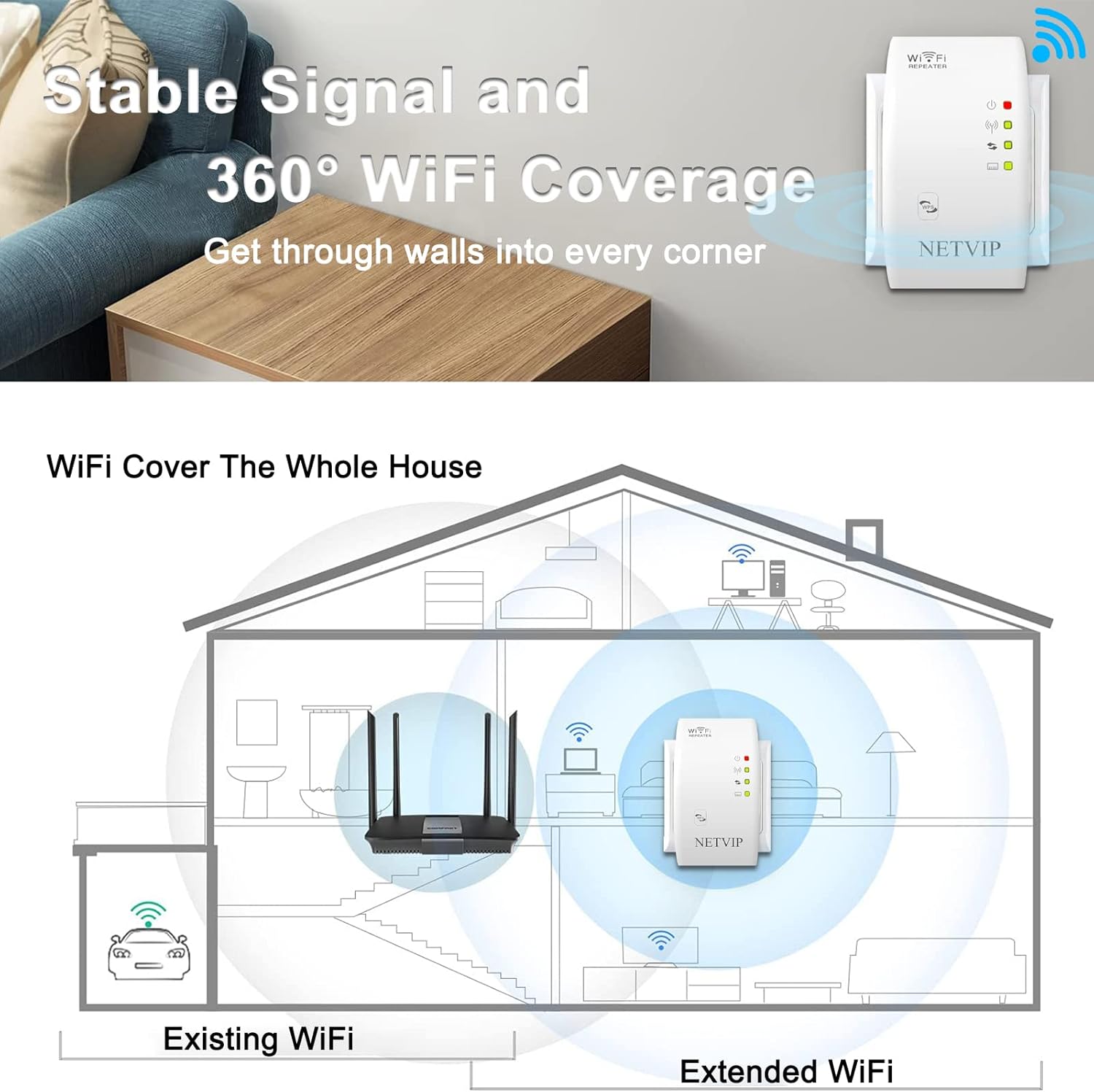
Image 6.2: Illustration of how the extender provides stable signal and 360° WiFi coverage throughout a home.
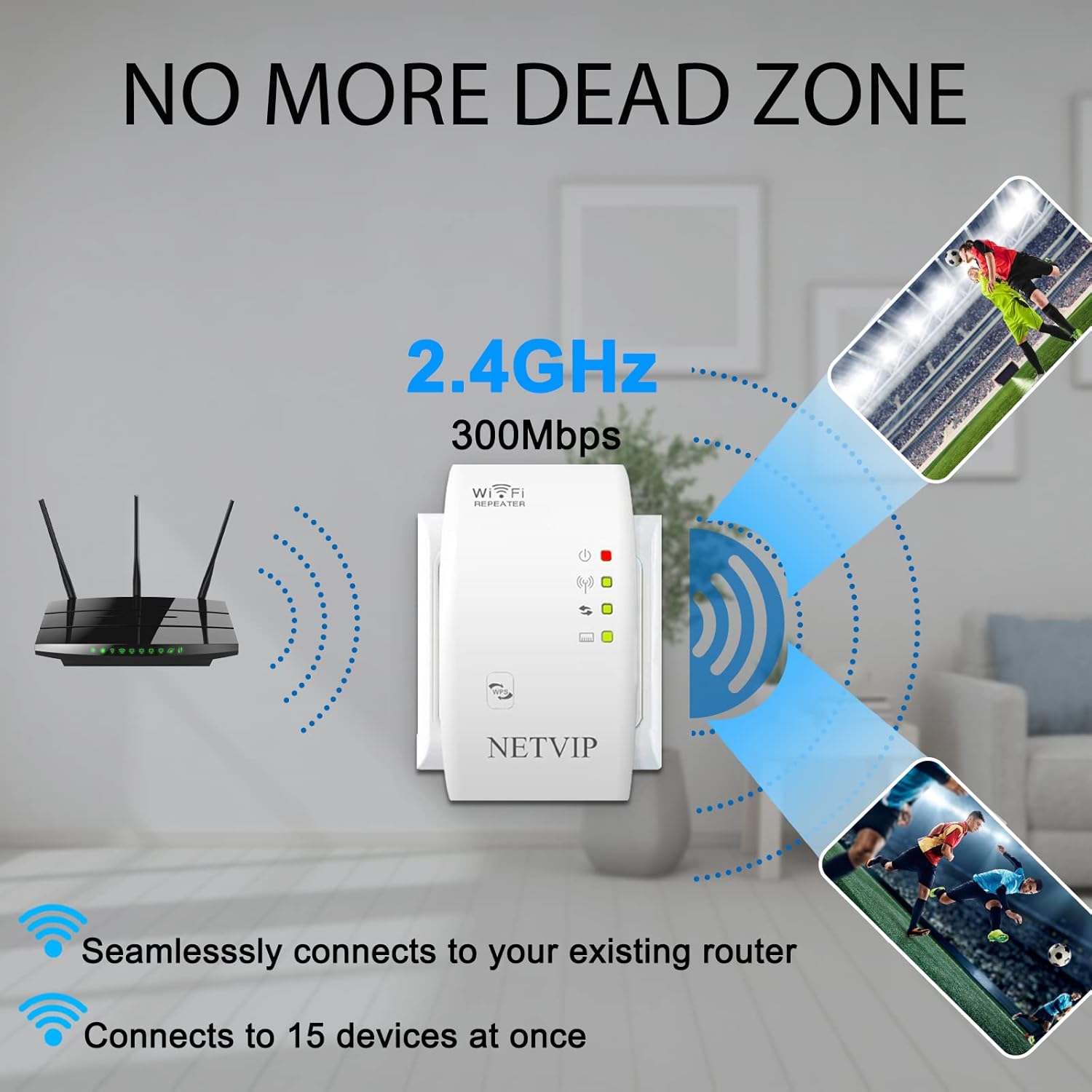
Image 6.3: The extender's ability to eliminate dead zones and connect multiple devices simultaneously.
NAN. Depanaj
If you encounter issues with your NETVIP N300 WiFi Extender, please refer to the following common problems and solutions:
| Pwoblèm | Kòz posib | Solisyon |
|---|---|---|
| Cannot access the setup page (192.168.10.1) | Incorrect IP address, device not connected to extender's Wi-Fi, IP conflict, browser cache issue. | Ensure your device is connected to the extender's default Wi-Fi. Try wifi.repeater or netvip.cc. Clear browser cache or try a different browser. Restart the extender. |
| No internet access after setup | Incorrect Wi-Fi password entered for the main router, extender placed too far from the router, main router issues. | Verify the Wi-Fi password for your main router. Relocate the extender closer to the main router. Check if your main router has internet access. |
| Weak signal or frequent disconnections | Extender placed too far from the main router or in an area with too many obstructions. | Move the extender to a location halfway between your router and the desired coverage area. Avoid placing it near large metal objects or thick walls. |
| Forgot login password for setup page | Custom password set and forgotten. | Perform a factory reset by pressing and holding the Reset button for 5-8 seconds. This will revert all settings to default. |

Image 7.1: Common Wi-Fi issues that the extender aims to resolve.
8. Espesifikasyon
Technical specifications for the NETVIP N300 WiFi Extender (Model WN519):
| Karakteristik | Detay |
|---|---|
| Nimewo Modèl | WN519 |
| Wireless Creole | IEEE 802.11b/g/n |
| Bann Frekans | 2.4 GHz |
| Pousantaj Transfè Done | Jiska 300 Mbps |
| Mòd fonksyònman | Repeater Mode, Access Point (AP) Mode |
| Ethernet Port | 1 x 10/100 Mbps LAN Port |
| Sekirite | WPA-PSK/WPA2-PSK chifreman |
| Konsomasyon pouvwa | Ba konsomasyon pouvwa |
| Dimansyon | Approx. 5 x 3.7 x 2.91 pous |
| Pwa atik | Apeprè. 5.6 ons |
9. Antretyen
To ensure optimal performance and longevity of your NETVIP N300 WiFi Extender, follow these maintenance guidelines:
- Netwayaj: Sèvi ak yon twal mou epi sèk pou netwaye aparèy la. Pa sèvi ak pwodui netwayaj likid oswa ayewosòl.
- Vantilasyon: Asire w ke aparèy la mete nan yon zòn ki byen ayere epi ke ouvèti vantilasyon li yo pa bouche.
- Mizajou mikrolojisyèl: Tcheke manifakti a regilyèman website for firmware updates. Updating firmware can improve performance and security.
- Rekòmanse: If the device experiences performance issues, try restarting it by unplugging it from the power outlet for 10 seconds and then plugging it back in.
10. Garanti ak sipò
NETVIP products are designed for reliability and performance. For specific warranty details, please refer to the warranty card included with your product or visit the official NETVIP websit.
If you require technical assistance or have questions about your product, please contact NETVIP customer support through the contact information provided on their official websit entènèt la oubyen atravè revandè w la.
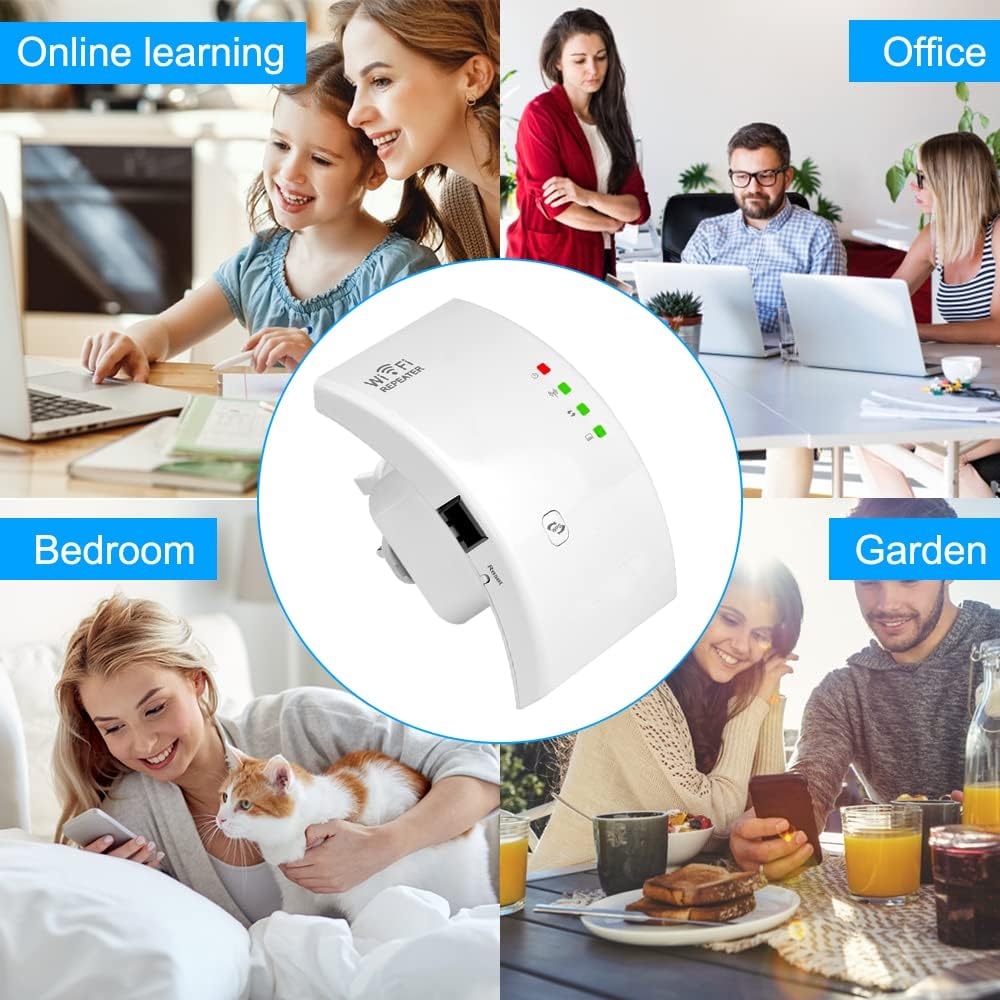
Image 10.1: The NETVIP N300 WiFi Extender supports various activities and environments.

Image 10.2: The extender enhances connectivity for various demanding online activities.


