1. Entwodiksyon
This manual provides comprehensive instructions for the HP LaserJet MFP M140w, a compact multifunction monochrome laser printer designed for efficient printing, scanning, and copying. It features Wi-Fi, Wi-Fi Direct, and USB 2.0 connectivity, offering a print speed of up to 20 pages per minute (ppm).

Imaj 1.1: Devan view of the HP LaserJet MFP M140w printer.
2. Enfòmasyon sou Sekirite
Please read all safety instructions before using the printer to prevent damage or injury. Keep this manual for future reference.
- Mete enprimant lan sou yon sifas ki estab e ki plat.
- Asire bon vantilasyon alantou aparèy pou enprime a.
- Sèvi ak sèlman kòd kouran ki vini ak enprimant lan.
- Pa ekspoze enprimant lan nan dlo oswa imidite twòp.
- Kenbe men w lwen pati k ap deplase pandan operasyon an.
- Only use original HP toner cartridges to ensure optimal performance and avoid potential damage.
3. Pake kontni
Verifye ke tout atik yo prezan nan pakè a:
- HP LaserJet MFP M140w Printer
- Original HP Toner Cartridge
- Kòd pouvwa
- Gid Enstalasyon
4. Enstalasyon
4.1 Debalaj ak plasman
- Retire enprimant lan nan anbalaj li epi retire tout tep pwoteksyon ak materyèl anbalaj yo.
- Mete enprimant lan sou yon sifas ki plat ki estab.
4.2 Enstale Katouch Toner la
- Louvri pòt aksè toner la.
- Retire nouvo katouch toner a nan anbalaj li epi souke l dousman pou distribye toner a.
- Insert the cartridge into the printer until it clicks into place.
- Fèmen pòt aksè toner la.
4.3 Chaje Papye
- Rale plato a antre.
- Adjust the paper guides to the correct paper size (e.g., A4).
- Load up to 150 sheets of paper into the input tray.
- Pouse plato antre a tounen nan enprimant lan.

Image 4.1: The printer with paper loaded and ready for use.
4.4 Koneksyon pouvwa
- Konekte kòd kouran an nan enprimant lan epi answit nan yon priz miray.
- Peze bouton pouvwa a pou limen enprimant lan.
4.5 Enstalasyon lojisyèl ak koneksyon
For full functionality, install the HP Smart App on your computer or mobile device. The app guides you through connecting the printer to your network.
- Koneksyon Wi-Fi: The printer supports dual-band Wi-Fi with automatic reset. Follow the on-screen instructions in the HP Smart App to connect to your wireless network.
- Wi-Fi Dirèk: This feature allows direct connection from your mobile device to the printer without a router. Consult the HP Smart App for setup.
- USB 2.0: Konekte enprimant lan dirèkteman ak òdinatè w la avèk yon kab USB 2.0 (li pa enkli).
- Bluetooth: The printer supports Bluetooth connectivity for certain functions.
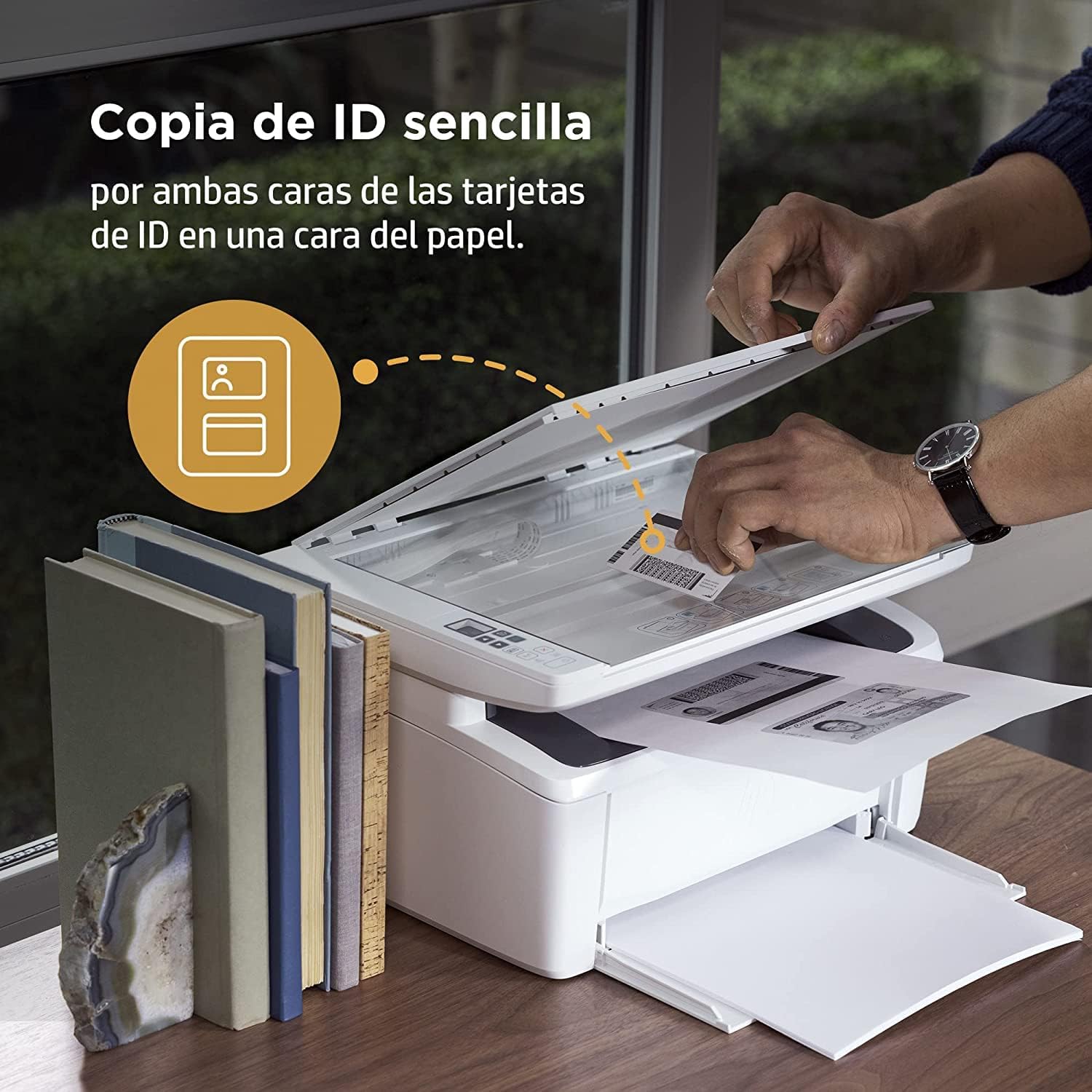
Image 4.2: The compact HP LaserJet MFP M140w printer with a mobile device displaying the HP Smart App interface.
5. Operasyon Enstriksyon
5.1 Enpresyon
The HP LaserJet MFP M140w prints at speeds up to 20 ppm in monochrome. It supports A4 paper size.
- Soti nan yon òdinatè: Select the HP LaserJet MFP M140w from your printer list in any application. Adjust print settings as needed (e.g., paper size, quality).
- From a Mobile Device (HP Smart App): Use the HP Smart App to easily print documents and photos directly from your smartphone or tablet.
- Enpresyon manyèl doub: For two-sided printing, the printer supports manual duplex. Follow the prompts on your computer or the HP Smart App to reinsert the paper to print the second side.
5.2 Analyse
The printer features a flatbed scanner for digitizing documents and images.
- Leve kouvèti eskanè a.
- Place the document face down on the scanner glass, aligning it with the guides.
- Fèmen kouvèti eskanè a.
- Initiate the scan from your computer or the HP Smart App. You can choose scan settings such as resolution and file fòma.
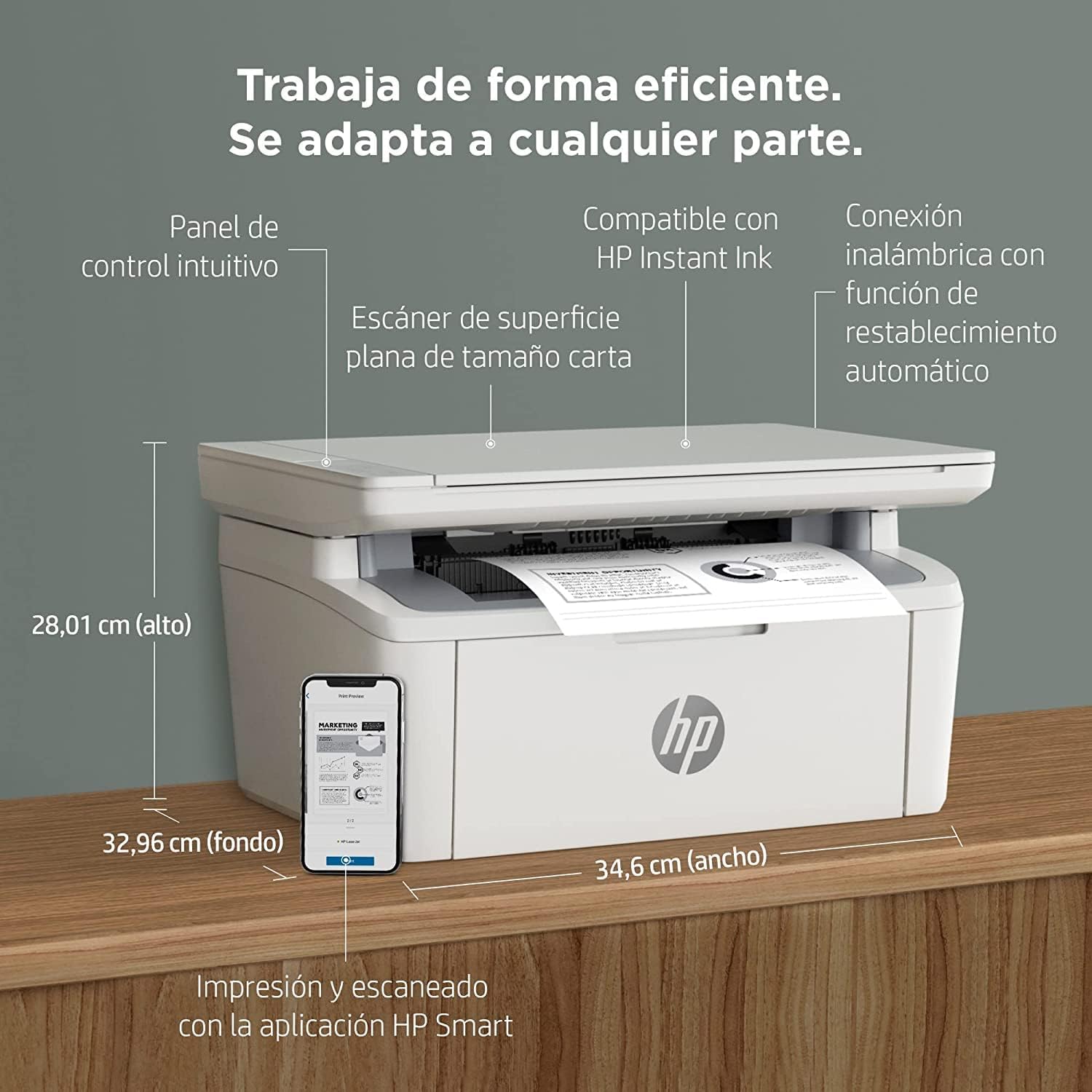
Image 5.1: Using the scanner for ID card copying.
5.3 Kopi
The printer can make up to 150 copies per job.
- Place the original document on the scanner glass.
- Use the control panel on the printer or the HP Smart App to select the number of copies and start the copying process.
- ID Copy Function: This feature allows you to copy both sides of an ID card onto a single side of paper. Follow the instructions on the printer's control panel or the HP Smart App.
6. Antretyen
6.1 Ranplasman Katouch Toner
When the toner level is low, replace the cartridge with an original HP 142A Black (W1420A) toner cartridge. Using non-HP cartridges may void your warranty and affect print quality.
- Louvri pòt aksè toner la.
- Remove the old toner cartridge.
- Unpack the new HP 142A toner cartridge and gently shake it.
- Mete nouvo katouch la jiskaske li bloke nan plas li.
- Fèmen pòt aksè toner la.
6.2 Netwaye aparèy pou enprime a
Netwayaj regilye ede kenbe bon jan kalite enprime a epi pwolonje lavi enprimant lan.
- Siye deyò enprimant lan avèk yon twal mou ki pa gen pousyè.
- Netwaye vit eskanè a avèk yon twal mouampened with glass cleaner (apply cleaner to cloth, not directly to glass).
- Gade aplikasyon HP Smart la oswa sipò HP a website for specific cleaning instructions for internal components.
6.3 Mizajou Firmware
HP periodically releases firmware updates to improve printer performance and security. Ensure your printer is connected to the internet and check for updates via the HP Smart App or the printer's embedded web sèvè.
NAN. Depanaj
This section addresses common issues you might encounter with your HP LaserJet MFP M140w printer.
7.1 Pwoblèm koneksyon
- Printer not found on network: Ensure the printer is powered on and connected to the correct Wi-Fi network. Use the HP Smart App's troubleshooting tools or try resetting the Wi-Fi connection on the printer.
- Wi-Fi connection drops: The printer features dual-band Wi-Fi with automatic reset. If issues persist, ensure your router is functioning correctly and the printer is within range.
- USB connection not recognized: Verify the USB cable is securely connected to both the printer and the computer. Try a different USB port or cable.
7.2 Printing Problems
- Pa gen okenn rezilta enprime: Check if the printer is online and there are no error messages. Ensure paper is loaded correctly and the toner cartridge is installed.
- Move kalite enprime: Replace the toner cartridge if it's low. Ensure you are using original HP toner. Clean the printer if necessary.
- Konfiti papye: Follow the instructions on the printer's display or in the HP Smart App to clear any jammed paper. Ensure paper is loaded correctly and not overfilled.
7.3 Scanning/Copying Issues
- Scanner not responding: Ensure the scanner lid is fully closed and the document is placed correctly. Restart the printer and your computer/mobile device.
- Poor scan/copy quality: Clean the scanner glass. Ensure the original document is clean and flat.
7.4 Toner Cartridge Issues
The printer is designed to work exclusively with original HP toner cartridges. Firmware updates may affect the functionality of non-HP cartridges. If you experience issues with a non-HP cartridge, replace it with an original HP cartridge.
8. Espesifikasyon
| Karakteristik | Spesifikasyon |
|---|---|
| Non modèl | M140w |
| Nimewo Modèl Pwodwi | 7MD72F |
| Fonksyon | Enprime, eskane, kopye |
| Enprime Teknoloji | Lazè |
| Sòti Enprime | Monokrom |
| Vitès Enpresyon (Monochrome) | Jiska 20 ppm |
| Max Print Resolution (Monochrome) | 1200 dpi |
| Duplex Enpresyon | Manyèl |
| Kalite eskanè | Flatbed |
| Max Kapasite Fèy Antre | 150 dra |
| Max Copies per Run | 150 |
| Koneksyon | Wi-Fi (Dual-band, auto-reset), Wi-Fi Direct, USB 2.0, Bluetooth |
| Vitès processeur | 500 MHz |
| memwa | 64 MB |
| Sistèm operasyon konpatib | Mac OS 10.15 Catalina (and later), Android |
| Dimansyon (W x P x H) | 34.6 x 32.96 x 28.01 cm (apeprè) |
| Pwa | 5.4 kg |
| Konsomasyon pouvwa | 60 Kilowatts (operating), 3600.0 Watts (peak) |
| Toner konpatib | HP 142A Black (W1420A) |
9. Garanti ak sipò
9.1 Enfòmasyon sou Garanti
The product includes a 2-year availability of spare parts in the EU. For specific warranty terms and conditions, please refer to the documentation provided with your printer or visit the official HP support websit.
9.2 Mizajou lojisyèl
Software updates are guaranteed until April 13, 2030. These updates ensure continued functionality and security for your printer.
9.3 Sipò pou Kliyan
Pou plis asistans, sipò teknik, oswa pou jwenn aksè a lòt resous, tanpri vizite sit sipò ofisyèl HP a. website or use the HP Smart App. The HP Smart App provides guided troubleshooting and access to support documentation.
Ou ka jwenn plis enfòmasyon ak sipò nan Sipò HP Websit.