1. Pwodwi souview
The HUAWEI WiFi AX2 is a high-performance wireless router designed to provide fast and reliable internet connectivity throughout your home. It supports Wi-Fi 6 technology, offering speeds up to 1500 Mbps, with a 5GHz band supporting up to 1201 Mbps and a 2.4GHz band supporting up to 300 Mbps. This router features HarmonyOS Mesh+ for seamless multi-router setups, comprehensive parental controls, and an advanced antenna design for stable connections.
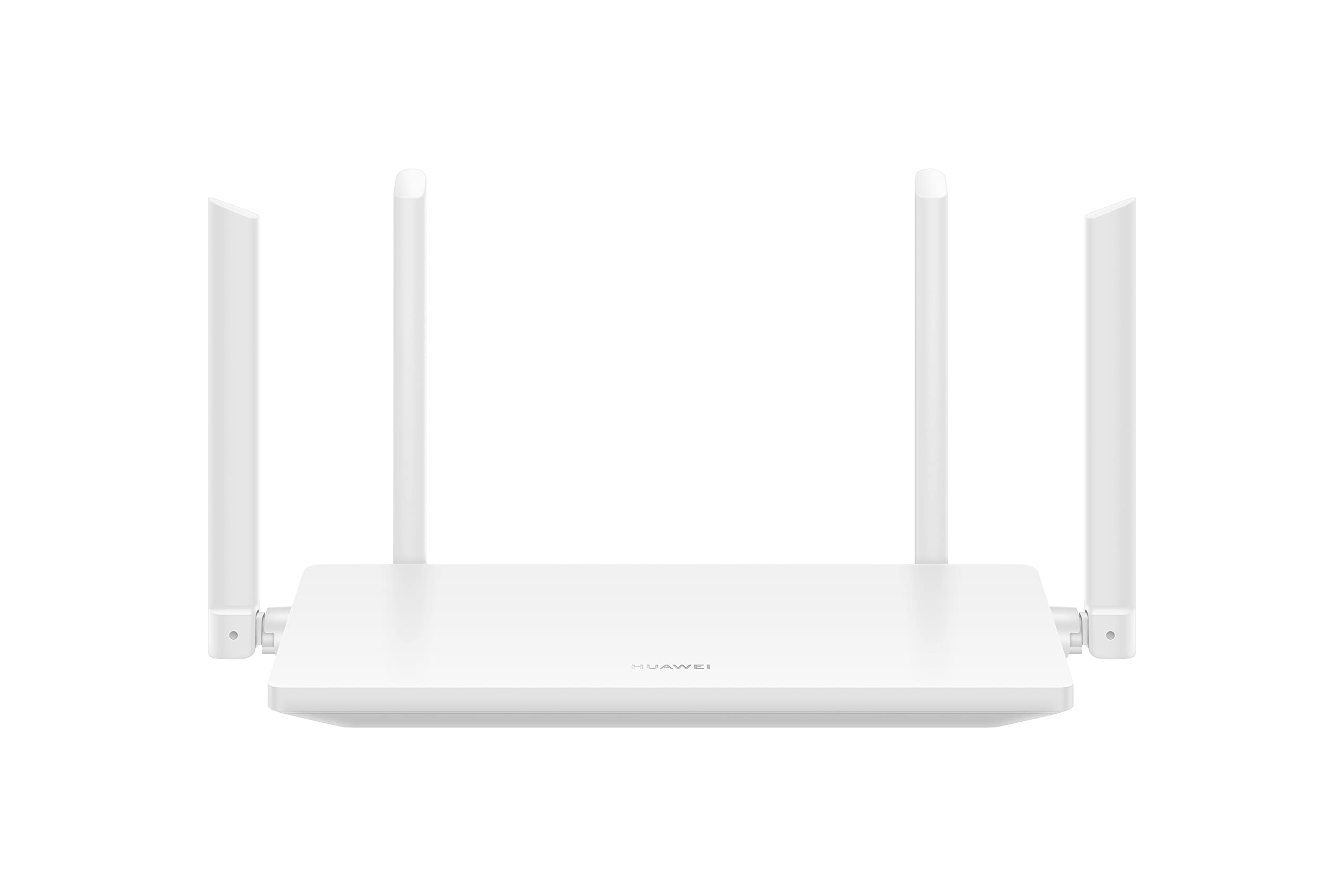
Imaj 1.1: Devan view of the HUAWEI WiFi AX2 Wireless Router, showing its sleek white design and four external antennas.
2. Pake kontni
Anvan ou kontinye ak enstalasyon an, tanpri asire w ke tout bagay yo prezan nan pake a:
- HUAWEI WiFi AX2 Wireless Router (WS7001-20)
- Adaptè pouvwa
- Ethernet kab
- Gid Quick Start
- Kat Garanti
3. Enstriksyon Enstalasyon
Follow these steps to set up your HUAWEI WiFi AX2 Router:
- Konekte adaptè pouvwa a: Plug the power adapter into the router's power port and then into a wall outlet. The power indicator light on the router should turn on.
- Konekte sou Entènèt la: Connect one end of the Ethernet cable to the WAN port (usually labeled 'WAN' or a globe icon) on your router and the other end to your modem's LAN port.
- Konekte aparèy ou yo:
- Koneksyon filaire: Connect your computer or other network devices to any of the LAN ports (labeled 1, 2, 3) on the router using an Ethernet cable.
- Koneksyon san fil: On your Wi-Fi enabled device (smartphone, tablet, laptop), search for the Wi-Fi network name (SSID) printed on the label at the bottom of your router. Select it and enter the Wi-Fi password (also on the label).
- Aksede a WebPaj Jesyon ki baze sou: Louvri a web browser on a connected device and enter 192.168.3.1 in the address bar. Follow the on-screen instructions to complete the initial setup, including setting up your Wi-Fi name and password.
- Telechaje aplikasyon HUAWEI AI Life la: For easier management and advanced features, download the HUAWEI AI Life app from your device's app store. Use the app to configure settings, manage connected devices, and utilize parental controls.

Imaj 3.1: Dèyè view of the HUAWEI WiFi AX2 Router, showing the power port, three LAN/WAN ports, and the WPS/Reset button.
4. Operasyon Enstriksyon
4.1 Dual-Band Automatic Switching
The HUAWEI WiFi AX2 operates on both 2.4GHz and 5GHz bands simultaneously. It intelligently switches your devices between these bands to ensure optimal connection quality and speed at all times. This means you don't need to manually select between 2.4GHz and 5GHz networks.
4.2 HarmonyOS Mesh+
If you have multiple HUAWEI routers that support HarmonyOS Mesh+, you can group them under a single Wi-Fi name. This creates a unified mesh network, allowing your devices to automatically switch between routers as you move around your home, ensuring continuous and strong Wi-Fi coverage.
4.3 Comprehensive Parental Control
Manage your family's internet usage with the built-in parental control features. Through the HUAWEI AI Life app, you can:
- Bloke aksè a bagay ki pa apwopriye websit.
- Limit internet access time for specific devices.
- View internet usage statistics for connected devices.
5. Antretyen
Pou asire pèfòmans optimal ak lonjevite routeur ou a, konsidere konsèy antretyen sa yo:
- Plasman: Place the router in a central location, away from obstructions, large metal objects, and other electronic devices that may cause interference. Ensure adequate ventilation around the router.
- Mizajou mikrolojisyèl: Regularly check for and install firmware updates through the HUAWEI AI Life app or the web-based management page. Updates often include performance improvements and security patches.
- Rdemare: Si w gen pwoblèm ak rezo a, eseye rekòmanse routeur la lè w debranche adaptè kouran an pandan 10 segonn epi branche l ankò.
- Netwayaj: Kenbe routeur la pwòp epi san pousyè. Sèvi ak yon twal mou epi sèk pou siye deyò a. Pa sèvi ak pwodui netwayaj likid.

Imaj 5.1: Kote view of the HUAWEI WiFi AX2 Router, highlighting the ventilation slots for proper heat dissipation.
NAN. Depanaj
If you encounter issues with your HUAWEI WiFi AX2 Router, refer to the following common problems and solutions:
| Pwoblèm | Kòz posib | Solisyon |
|---|---|---|
| Pa gen Aksè Entènèt | Incorrect cable connection, modem issue, or incorrect router settings. | Check that the Ethernet cable is securely connected to the WAN port and your modem. Reboot both the modem and the router. Verify internet settings via the web-based management page or AI Life app. |
| Vitès Wi-Fi ki ba | Interference, too many connected devices, outdated firmware, or poor router placement. | Ensure the router is placed optimally (see Maintenance section). Reduce the number of active devices. Update router firmware. Consider if your internet service provider (ISP) speed is the bottleneck. |
| Wi-Fi dekonekte souvan | Signal interference, distance from router, or channel congestion. | Move closer to the router. Check for sources of interference (e.g., microwaves, cordless phones). Use the AI Life app to analyze Wi-Fi channels and switch to a less congested one. |
| M pa ka jwenn aksè nan paj paramèt routeur la | Incorrect IP address, device not connected to router, or browser issue. | Ensure your device is connected to the router's Wi-Fi or via an Ethernet cable. Verify you are entering 192.168.3.1 correctly. Try a different web navigatè. |
If the problem persists, perform a factory reset by pressing and holding the WPS/Reset button on the back of the router for approximately 10 seconds until the indicator light flashes. Note that a factory reset will erase all your custom settings.
7. Espesifikasyon
| Karakteristik | Detay |
|---|---|
| Mak | HUAWEI |
| Non modèl | WS7001-20 |
| Nimewo Modèl Atik | WS7001-20 |
| Dimansyon pwodwi | 25.76 x 16.35 x 2.9 cm |
| Pwa atik | 580 g |
| Kalite san fil | 802.11ax (Wi-Fi 6) |
| Gwoup Gwoup Frekans | Doub-Band (2.4GHz ak 5GHz) |
| Koneksyon Teknoloji | Wi-Fi |
| Sistèm operasyon | RouterOS |
| Kantite pò | 3 (LAN/WAN auto-sensing) |
| Karakteristik espesyal | Aksè Point Mode |
| Aparèy konpatib | Smartphone, tablèt |
| Itilizasyon Rekòmande Pou Pwodwi | Lakay |
| Batri enkli | Non |
| Dat Premye Disponib | 7 septanm 2023 |
8. Garanti ak sipò
8.1 Enfòmasyon sou Garanti
For detailed warranty information, please refer to the warranty card included in your product package or visit the official HUAWEI websit. Tèm ak kondisyon garanti yo ka varye selon rejyon an ak détayan an.
8.2 Sipò teknik
If you require further assistance or have technical questions not covered in this manual, please contact HUAWEI customer support. You can find contact details on the official HUAWEI website or through the HUAWEI AI Life app.


