1. Entwodiksyon
This manual provides detailed instructions for the setup, operation, and maintenance of your MOES Smart Temperature Humidity Monitor with IR Remote Control. This device integrates temperature and humidity sensing with universal infrared remote control capabilities, allowing you to monitor your environment and control various IR-enabled appliances via a smartphone application or voice commands.
2. Pwodwi souview
The MOES Smart Temperature Humidity Monitor is a compact device designed to provide real-time environmental data and smart control. It features an LCD display for immediate readings and connects to your home Wi-Fi network for remote access and automation.

Image 2.1: MOES Smart Temperature Humidity Monitor displaying temperature and humidity, alongside a smartphone showing the companion app interface.
Karakteristik kle:
- Siveyans an tan reyèl: Displays current temperature and humidity on an LCD screen.
- IR Remote Control: Controls various infrared appliances such as TVs, air conditioners, and fans.
- Koneksyon Wi-Fi: Connects to 2.4GHz Wi-Fi for remote access via the Tuya Smart or Smart Life app.
- Otomatik entelijan: Create rules to automatically control IR devices based on temperature and humidity changes.
- Kontwòl vwa: Konpatib ak Amazon Alexa ak Google Assistant pou operasyon men lib.
- Chanjman Inite Tanperati: Chanje fasilman ant degre Sèlsiyis ak degre Farennayt.
3. Espesifikasyon
Detailed technical specifications for the MOES Smart Temperature Humidity Monitor.

Image 3.1: Product dimensions and component labels for the MOES Smart Temperature Humidity Monitor.
| Karakteristik | Spesifikasyon |
|---|---|
| Non pwodwi | Smart IR Remote Control |
| Nimewo Modèl | WR-TY-THR-BK-MS |
| Dimansyon | 65mm x 65mm x 17mm (2.56 x 2.56 x 0.67 pous) |
| Pwa atik | 3.2 ons |
| Antre pouvwa | DC 5V/1A (Micro USB, adapter not included) |
| Endikatè ki ap dirije | Ble |
| Presizyon Tanperati | ±1°C |
| Ranje Mezi Tanperati | 0 ° C - 60 ° C |
| Travay imidite | ± 5% RH |
| Enfrawouj Frekans | 38KHz |
| Distans IR | <10m |
| Koneksyon | 2.4GHz Wi-Fi |
| Aparèy konpatib | Air Conditioner, Humidifier, Fan, TV, Set-top Box, Projector, etc. |
| Karakteristik espesyal | Voice Search, App Control, Automation |
4. Enstalasyon
4.1 Sa ki nan bwat la
- MOES Smart Temperature Humidity Monitor
- Mikwo USB kab
- Manyèl Itilizatè (dokiman sa a)
4.2 Enstalasyon fizik
- Koneksyon pouvwa: Connect the provided Micro USB cable to the Micro USB port on the device and plug the other end into a 5V/1A USB power adapter (not included). The device will power on and the LCD display will activate.
- Plasman: Place the monitor in a central location within the room where you intend to measure temperature and humidity and control IR devices. Ensure there are no obstructions between the monitor and the IR-controlled appliances. The IR distance is typically up to 10 meters.
4.3 Enstalasyon ak koneksyon aplikasyon an
The MOES Smart Temperature Humidity Monitor works with the Tuya Smart or Smart Life app.
- Telechaje App a: Chèche pou "Tuya Smart" or "Smart Life" in your smartphone's app store (iOS App Store or Google Play Store) and download it.
- Enskri/Konekte: Louvri aplikasyon an epi kreye yon nouvo kont oubyen konekte si ou deja genyen youn.
- Ajoute Aparèy:
- Asire w ke telefòn entelijan ou an konekte ak yon rezo Wi-Fi 2.4GHz.
- Nan aplikasyon an, tape ikòn "+" ki nan kwen anwo dwat la pou ajoute yon aparèy.
- Select "Sensor" or "Universal Remote Control" from the device list, or use the auto-scan feature.
- Antre nan Mode Pè: On the MOES monitor, press and hold the "Reset Button" (located at the back, often labeled 'C/F Switch' or 'Reset') for 5-7 seconds until the Wi-Fi icon on the LCD display starts blinking rapidly.
- Follow the on-screen instructions in the app to connect the device to your Wi-Fi network. This usually involves confirming the blinking indicator and entering your Wi-Fi password.
- Once successfully paired, the Wi-Fi icon on the monitor will stop blinking and remain solid.
5. Operasyon Enstriksyon
5.1 LCD Display Overview
The LCD display provides essential information at a glance:

Imaj 5.1: Detaye view nan ekran LCD a ak endikatè li yo.
- Ekspozisyon Tanperati: Shows the current temperature (in °C or °F).
- Ekspozisyon imidite: Shows the current relative humidity (%).
- Siyal Wi-Fi: Endike sitiyasyon koneksyon Wi-Fi.
- Lè ak Dat: Montre lè ak dat aktyèl la.
- Week/AM/PM: Shows the day of the week and AM/PM indicator.
5.2 Chanjman Inite Tanperati (°C/°F)
To switch between Celsius and Fahrenheit, briefly press the "Reset Button" on the back of the device. The unit on the LCD display will change accordingly. This can also be adjusted within the Tuya Smart/Smart Life app.

Image 5.2: Switching temperature units via the Smart Life app.
5.3 IR Remote Control Functionality
The device can learn and emit IR signals to control various home appliances.
- Adding IR Devices:
- In the Tuya Smart/Smart Life app, navigate to your MOES monitor device.
- Look for an option like "IR Remote Control" or "Add Remote".
- Select the type of appliance you want to control (e.g., TV, Air Conditioner, Fan, Set-top Box).
- Follow the app's instructions to either select from a pre-programmed library of remote codes or use the "DIY" (Do It Yourself) function to learn commands from your original remote control.
- For DIY learning, point your original remote at the MOES monitor and press the desired button when prompted by the app.
- Aparèy kontwòl: Once an IR device is added, you can control it directly from the app interface, even when you are away from home.
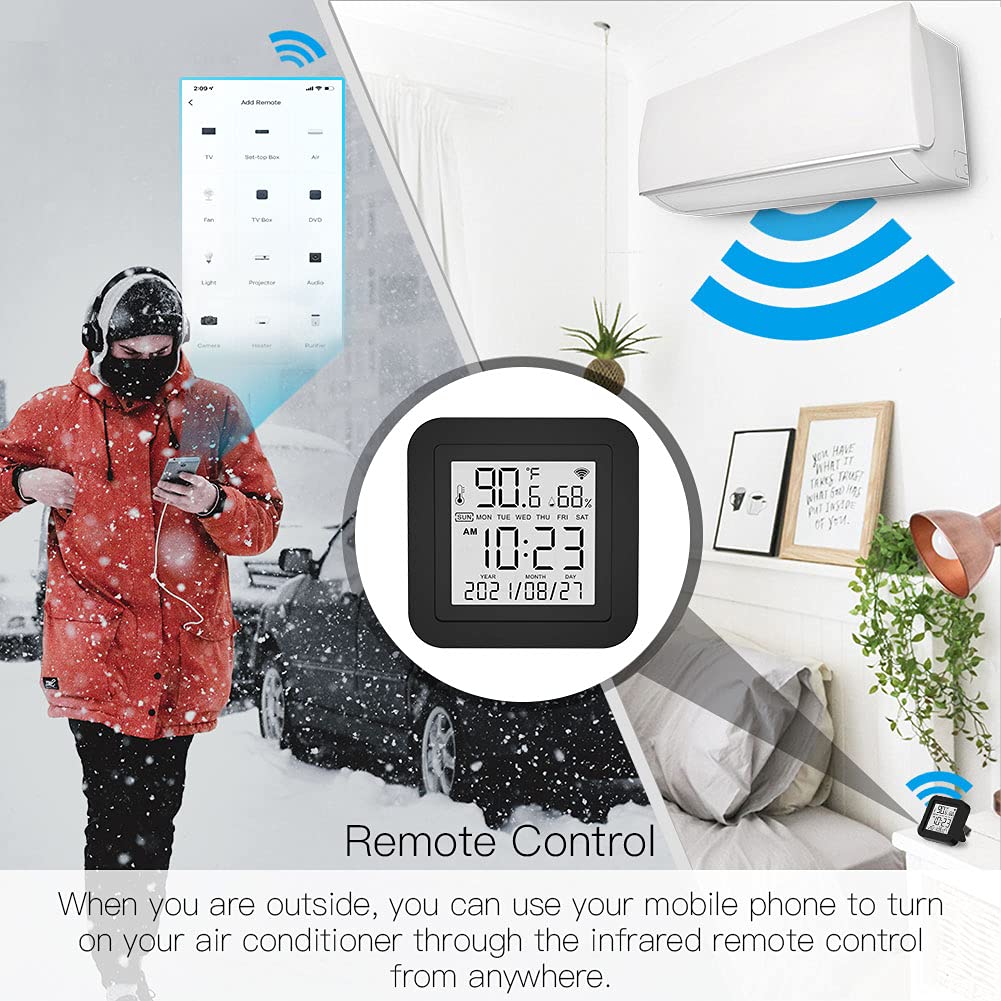
Image 5.3: Remote control functionality via the smartphone app.
5.4 Smart Automation
Leverage the temperature and humidity data to create automated routines for your IR-controlled devices.
- Access Automation: In the Tuya Smart/Smart Life app, go to the "Smart" or "Automation" section.
- Create a Scene/Automation:
- Select "When device status changes" or "Schedule" as the condition.
- Choose your MOES monitor and set a condition based on temperature or humidity (e.g., "Temperature rises above 26°C" or "Humidity drops below 50%").
- For the task, select "Run the device" and choose the IR-controlled appliance (e.g., Air Conditioner, Humidifier). Set the desired action (e.g., "Turn On", "Set Temperature to 24°C").

Imaj 5.4: Egzanpample nan automatisation ki baze sou tanperati pou yon èkondisyone.

Imaj 5.5: Egzanpample nan automatisation ki baze sou imidite pou yon imidifikatè.
5.5 Kontwòl vwa
The MOES Smart Temperature Humidity Monitor is compatible with Amazon Alexa and Google Assistant.
- Kont Konekte: Nan aplikasyon Alexa oswa Google Home la, aktive konpetans/sèvis "Tuya Smart" oswa "Smart Life" la epi konekte kont ou a.
- Dekouvri Aparèy: Once linked, ask your voice assistant to discover new devices. Your MOES monitor and any configured IR devices will appear.
- Kòmandman vwa: You can now use voice commands to control your IR appliances. Examples:
- "Alexa, limen televizyon an."
- "Hey Google, mete èkondisyone a sou 22 degre."
- "Alexa, etenn vantilatè a."

Image 5.6: Voice control integration with Amazon Alexa and Google Assistant.
6. Antretyen
- Netwayaj: Use a soft, dry cloth to clean the device. Do not use liquid cleaners or sprays, as they may damage the internal components.
- Plasman: Avoid placing the device in direct sunlight, near heat sources, or in areas with high humidity to ensure accurate readings and optimal performance.
- Mizajou mikrolojisyèl: The device's firmware may be updated periodically via the Tuya Smart/Smart Life app. Ensure your app is up-to-date and follow any prompts for device firmware updates.
NAN. Depanaj
| Pwoblèm | Solisyon posib |
|---|---|
| Aparèy pa limen | Ensure the Micro USB cable is securely connected and the power adapter is working. Try a different USB port or adapter. |
| Pa ka konekte ak Wi-Fi |
|
| IR remote control not working |
|
| Lekti tanperati/imidite ki pa egzak |
|
| Kontwòl vwa a pa reponn |
|
| Device unresponsive / needs reset | Press and hold the "Reset Button" on the back of the device for approximately 10 seconds until the device restarts or enters pairing mode. You may need to re-pair it with the app. |
8. Garanti ak sipò
MOES products are designed for reliability and performance. For warranty information, technical support, or further assistance, please refer to the official MOES websit la oubyen kontakte sèvis kliyan yo dirèkteman. Kenbe resi acha w la kòm prèv acha pou reklamasyon garanti.
Resous sou entènèt:
- Vizite la Magazen MOES sou Amazon for product updates and related accessories.


