1. Entwodiksyon
This manual provides comprehensive instructions for the installation, operation, and maintenance of your TP-Link Archer C5 AC1200 Dual-Band Gigabit Wireless Wi-Fi Router. The Archer C5 is designed to provide seamless Wi-Fi coverage with its dual-band capabilities, offering speeds up to 750Mbps on the 5GHz band and up to 300Mbps on the 2.4GHz band. It features four external antennas for stable wireless connections and full Gigabit ports for high-speed wired connections.
Please read this manual carefully before using the device to ensure proper setup and optimal performance.
2. Pake kontni
Verifye ke pake ou a gen atik sa yo:
- Routeur TP-Link Archer C5
- Power Adapter (DC Adapter)
- Kab Ethernet (RJ45)
- Quick Installation Guide (may be a separate document)
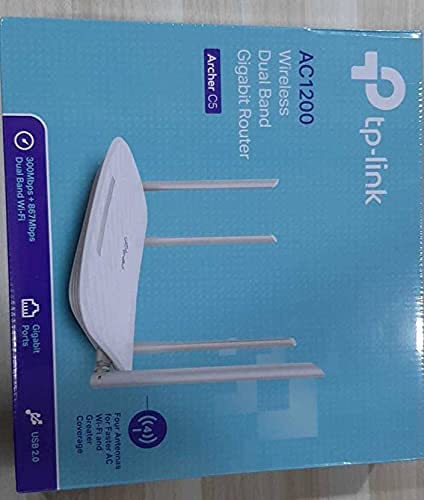
3. Pwodwi souview
3.1 Panèl devan

The front panel features LED indicators that provide information about the router's status, including power, internet connectivity, Wi-Fi status for both 2.4GHz and 5GHz bands, and LAN port activity.
3.2 Panèl dèyè

The rear panel includes all physical connection ports and buttons:
- Antre pouvwa: Konekte ak adaptè kouran ki founi an.
- Bouton pouvwa: Limen oswa etenn routeur la.
- Pò USB: Pou konekte aparèy depo USB pou pataje files atravè rezo a.
- Pò WAN (Ble): Connects to your modem for internet access. This is a Gigabit port.
- Pò LAN (Jòn): Kat pò Gigabit Ethernet pou konekte aparèy branche tankou òdinatè, konsola jwèt, oswa televizyon entelijan.
- Bouton Reyajiste: Itilize pou retabli routeur la nan paramèt defo faktori a.
- Bouton WPS/Wi-Fi: Peze pou aktive WPS (Wi-Fi Protected Setup) pou koneksyon fasil, oubyen peze epi kenbe pou aktive/dezaktive Wi-Fi a.
4. Gid Enstalasyon
Follow these steps to set up your TP-Link Archer C5 router:
- Etenn modèm ou a: Dekonekte kouran an nan modèm ou genyen an.
- Konekte routeur la:
- Connect one end of the provided Ethernet cable to the WAN port (blue) on your Archer C5 router.
- Konekte lòt bout kab Ethernet la nan pò Ethernet modèm ou an.
- Pouvwa sou aparèy:
- Konekte adaptè kouran an nan antre kouran routeur la epi branche li nan yon priz kouran.
- Power on your modem, then wait for it to fully boot up (usually indicated by stable LED lights).
- Power on the Archer C5 router. Wait for the LED indicators to stabilize, particularly the Internet LED.
- Konekte ak rezo Wi-Fi routeur la:
- Jwenn non rezo Wi-Fi a (SSID) ak modpas ki enprime sou etikèt ki anba routeur ou a.
- Sou òdinatè w la oswa aparèy mobil ou a, chwazi rezo Wi-Fi routeur la epi antre modpas la pou konekte.
- Aksede a Web Entèfas Jesyon:
- Louvri a web navigatè (pa egzanp, Chrome, Firefox) epi tape
http://tplinkwifi.netor192.168.0.1nan ba adrès la. - Konekte avèk non itilizatè ak modpas default la (anjeneral
adminpou toude, oubyen jan sa espesifye sou etikèt routeur la). - Follow the Quick Setup wizard to configure your internet connection and personalize your Wi-Fi network name and password.
- Louvri a web navigatè (pa egzanp, Chrome, Firefox) epi tape
- Optional: Use the TP-Link Tether App: Download the TP-Link Tether app from your mobile device's app store for easy setup and management.
5. Operasyon Enstriksyon
Once your router is set up, you can manage its functions through the web koòdone jesyon an oubyen aplikasyon TP-Link Tether la.
Wi-Fi 5.1 Doub-Band
The Archer C5 operates on two Wi-Fi bands:
- Bann 2.4 GHz: Bay yon pwoteksyon pi laj ak pi bon penetrasyon nan mi yo, apwopriye pou itilizasyon entènèt jeneral ak aparèy ki pi ansyen.
- Bann 5 GHz: Ofri vitès ki pi rapid ak mwens entèferans, ideyal pou aktivite ki mande anpil Pleasant tankou jwèt sou entènèt ak difizyon videyo HD.
You can configure separate SSIDs (network names) and passwords for each band or use a single SSID with Band Steering enabled (if available in your firmware) to allow the router to automatically assign devices to the best band.
5.2 Jesyon rezo
Atravè a web koòdone, ou kapab:
- Change Wi-Fi settings (SSID, password, security type).
- Set up a Guest Network for visitors.
- Configure parental controls to manage internet access for children.
- Prioritize devices or applications using Quality of Service (QoS).
- Jere aparèy ki konekte.
- Access advanced settings like port forwarding, VPN server, and dynamic DNS.
6. Antretyen
Antretyen regilye ede asire lonjevite ak pèfòmans optimal routeur ou a.
- Mizajou mikrolojisyèl: Tcheke enfòmasyon ofisyèl TP-Link yo detanzantan. websit pou mizajou firmwèr. Mizajou firmwèr ka amelyore pèfòmans, ajoute nouvo fonksyonalite, epi ranje vilnerabilite sekirite.
- Plasman fizik: Mete routeur la nan yon kote santral, lwen obstak ak aparèy ki emèt entèferans elektwomayetik (pa egzanp, mikwo ond, telefòn san fil). Mete routeur la anlè kapab amelyore distribisyon siyal la tou.
- Netwayaj: Keep the router clean and free from dust. Ensure ventilation holes are not blocked to prevent overheating.
- Rdemare: If you experience slow speeds or connectivity issues, try rebooting the router by unplugging its power adapter for 10 seconds and then plugging it back in.
NAN. Depanaj
Seksyon sa a adrese pwoblèm komen ou ka rankontre ak routeur Archer C5 ou a.
7.1 Pa gen Aksè Entènèt
- Tcheke Koneksyon Kab: Asire w ke kab Ethernet ki soti nan modèm ou an byen konekte ak pò WAN ble routeur la.
- Estati Modem: Verifye ke modèm ou a ap fonksyone byen epi li gen yon koneksyon entènèt aktif.
- LED routeur yo: Check the Internet LED on the router. If it's off or red, there might be an issue with your internet service provider (ISP) or modem connection.
- Rekòmanse Aparèy yo: Power cycle your modem and then your router.
- Klone Adrès MAC: Gen kèk founisè sèvis entènèt ki mande pou klonaj adrès MAC. Jwenn aksè nan routeur la web interface and check WAN settings for this option.
7.2 Wi-Fi Signal Drops or is Weak
- Plasman Routeur: Deplase routeur la nan yon kote santral, lwen obstak ak sous entèferans.
- Oryantasyon antèn: Adjust the four external antennas for optimal signal reception.
- Entèferans Chanèl: Nan routeur la web koòdone a, eseye chanje chanèl Wi-Fi a pou tou de bann 2.4GHz ak 5GHz yo pou yon chanèl ki mwens ankonbre.
- Mizajou mikrolojisyèl: Asire w ke firmwèr routeur ou a ajou.
7.3 Forgot Router Login Password
Si ou bliye modpas la pou web management interface, you will need to reset the router to its factory default settings. Locate the Reset button on the rear panel, press and hold it for about 10 seconds until the LEDs flash, then release. The router will reboot with default settings (usually admin for username and password).
8. Espesifikasyon
| Karakteristik | Detay |
|---|---|
| Mak | TP-Link |
| Non modèl | ArcherC5 |
| Wireless Creole | IEEE 802.11ac/n/a 5 GHz, IEEE 802.11n/b/g 2.4 GHz |
| Wi-Fi vitès | AC1200 (867 Mbps sou 5 GHz, 300 Mbps sou 2.4 GHz) |
| Gwoup Gwoup Frekans | Doub Band (2.4 GHz ak 5 GHz) |
| Pò Ethernet | 1 pò Gigabit WAN, 4 pò Gigabit LAN |
| Port USB | 1x USB 2.0 Port |
| Antèn | 4x antèn ekstèn |
| Pwotokòl Sekirite Sosyal | WPA2-PSK |
| Sistèm operasyon | RouterOS (as per product data, typically TP-Link custom firmware) |
| Karakteristik espesyal | Aksè Remote |
| Pwa atik | 710 g |
| Konpozan ki enkli | Router, DC Adapter, RJ45 Ethernet Cable |
9. Garanti ak sipò
9.1 Enfòmasyon sou Garanti
The TP-Link Archer C5 router typically comes with a 1 ane garanti. Please refer to the warranty card included in your product packaging or visit the official TP-Link websit la pou wè kondisyon garanti detaye ki espesifik pou rejyon ou an.
9.2 Sipò teknik
For technical assistance, firmware updates, or further information, please visit the official TP-Link support website. You can usually find FAQs, troubleshooting guides, and contact information for customer support there.
TP-Link Ofisyèl Websit: www.tp-link.com