1. Entwodiksyon
This manual provides detailed instructions for the proper installation, operation, and maintenance of your Hollyland Mars 400S Pro SDI/HDMI Wireless Video Transmission System. Please read this manual thoroughly before using the product to ensure optimal performance and safety. The Mars 400S Pro is designed for professional video transmission, offering low-latency, long-range capabilities, and versatile monitoring options.
2. Enfòmasyon sou Sekirite
- Pa ekspoze aparèy la nan dlo oswa imidite twòp.
- Evite lage aparèy la oswa soumèt li a gwo enpak.
- Use only power adapters and batteries specified by the manufacturer.
- Pa eseye demonte oswa modifye aparèy la. Konfye tout antretyen bay pèsonèl kalifye.
- Asire bon vantilasyon pou anpeche surchof.
3. Pake kontni
The standard package for the Hollyland Mars 400S Pro (1 TX with 1 RX) typically includes the following items:
- 1x Mars 400S Pro Transmitter (TX)
- 1x Mars 400S Pro Receiver (RX)
- 5x Antennas (3 for TX, 2 for RX)
- 1x Adaptè DC
- 1x manyèl itilizatè

Figi 3.1: Standard package contents for the Mars 400S Pro system. This diagram illustrates the transmitter, receiver, antennas, power adapter, and documentation included in the box.
4. Pwodwi souview
The Hollyland Mars 400S Pro system consists of a transmitter (TX) and a receiver (RX), designed for reliable wireless video and audio transmission. Both units feature a compact, robust design with integrated cold shoe mounts.
4.1 transmetè (TX)
- Antre SDI: For professional video sources.
- Antre HDMI: For consumer and prosumer video sources.
- Pò antèn: Three ports for external antennas.
- Ekspozisyon OLED: Shows status, channel, battery, and video format.
- Antre pouvwa: DC input (6-16V) and USB Type-C (5-12V) for power.
- L-Series Battery Plate: For portable power.
4.2 Reseptè (RX)
- Sòti SDI: For connecting to professional monitors or recorders.
- Sòti HDMI: For connecting to monitors or other display devices.
- Pò antèn: Two ports for external antennas.
- Ekspozisyon OLED: Shows status, channel, battery, and video format.
- Antre pouvwa: DC input (6-16V) and USB Type-C (5-12V) for power.
- L-Series Battery Plate: For portable power.
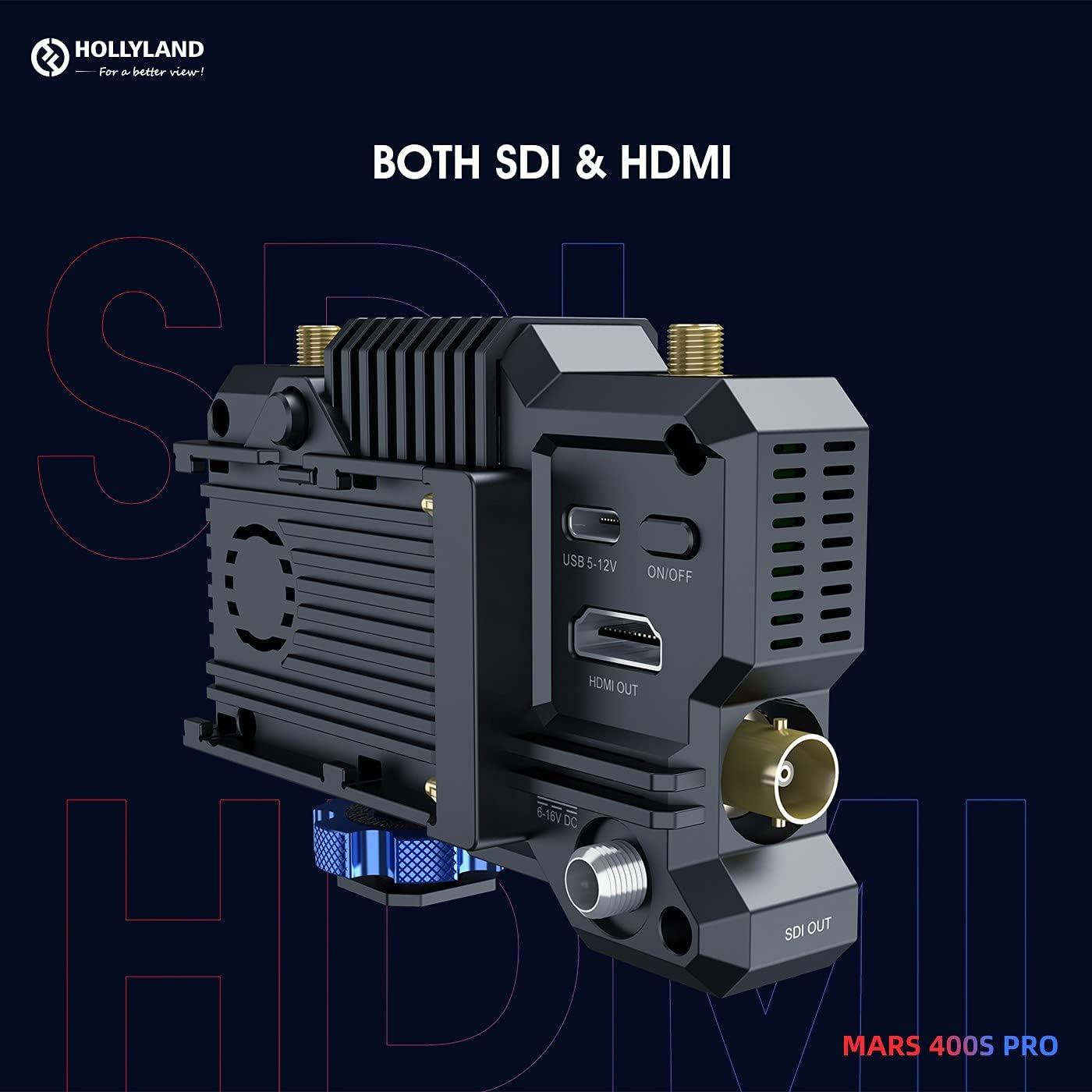
Figi 4.1: Side view of the Mars 400S Pro showing both SDI and HDMI input/output ports, along with USB-C and DC power connections.
5. Enstalasyon
5.1 Konekte Antèn yo
- Carefully screw the provided antennas onto the antenna ports of both the transmitter and receiver units. Ensure they are finger-tight.
5.2 Alimente Aparèy la
The Mars 400S Pro offers three power options:
- DC pouvwa: Connect the included DC adapter to the 6-16V DC input port.
- Pouvwa USB Kalite-C: Connect a 5-12V USB Type-C power source to the USB-C port.
- L-Series Batteries: Attach a compatible L-series battery to the battery plate on the rear of the unit.

Figi 5.1: Multiple power options for the Mars 400S Pro, including L-series batteries, USB Type-C, and 6-16V DC power.
5.3 Connecting Video Sources and Displays
- Transmetè (TX): Connect your camera or video source to the SDI IN or HDMI IN port on the transmitter using an appropriate cable.
- Reseptè (RX): Connect your monitor or recording device to the SDI OUT or HDMI OUT port on the receiver using an appropriate cable.
6. Operasyon Enstriksyon
6.1 Limen/Etenyen
Press and hold the power button on each unit to turn it on or off. The OLED screen will illuminate upon power-on.
6.2 OLED Display Navigation
The OLED display provides real-time information. Use the navigation buttons (usually located near the display) to cycle through menus and adjust settings such as channel selection, fan mode, and scene mode.
6.3 Seleksyon chanèl
The system automatically scans for the best channel. You can manually select a channel via the OLED menu if interference is detected. For optimal performance, ensure the transmitter and receiver are on the same channel.
6.4 App Monitoring
The Mars 400S Pro supports monitoring on up to four mobile devices (phones or tablets) via the HollyView app. Download the app from your device's app store. Connect your mobile device to the Mars 400S Pro's Wi-Fi network. The app provides professional monitoring features including waveform, focus peaking, zebra, zoom in/out, and 3D LUTs.

Figi 6.1: Professional app monitoring features available on a smartphone connected to the Mars 400S Pro.
6.5 mòd sèn
The system offers three scene modes to optimize performance for different scenarios:
- High-definition Mode: Prioritizes image quality with a data rate of 12Mbps.
- Mòd balans: Offers a balance between quality and latency.
- Mòd vitès: Prioritizes lowest latency for fast-moving subjects.
6.6 Fan Modes
Manage the device's cooling with three fan modes:
- Off: Fan is off (use with caution in warm environments).
- Vitès ki ba: Reduced fan noise for quiet environments.
- oto: Fan speed adjusts automatically based on internal temperature.
7. Karakteristik avanse
7.1 Direct Video for Live Stream
The Mars 400S Pro supports RTSP live streaming directly from the receiver. By connecting the receiver to a computer via a Type-C to RJ45 connector and a standard RJ45 cable, the video feed can be used with streaming software like OBS, Vmix, or VLC without additional video capture equipment.

Figi 7.1: Setup for direct video live streaming from the Mars 400S Pro receiver to a personal computer.
7.2 Optimized Monitoring Feed
The system provides an optimized monitoring feed with a data rate raised from 8Mbps to 12Mbps, ensuring higher definition and clarity for critical monitoring tasks.

Figi 7.2: Visual comparison of monitoring quality at 8Mbps versus 12Mbps, highlighting the enhanced detail with the optimized feed.
7.3 Channel Scan and Firmware Update
The HollyView app allows for channel scanning to find the clearest transmission frequency. Firmware updates can also be performed directly through the app, ensuring your device always has the latest features and performance improvements.

Figi 7.3: Channel scanning and firmware update functionality accessible via the HollyView aplikasyon mobil.
8. Antretyen
- Netwayaj: Sèvi ak yon twal mou epi sèk pou netwaye aparèy la. Pa sèvi ak pwodui netwayaj likid oswa solvan.
- Depo: Sere aparèy la nan yon kote ki fre, sèk lwen limyè solèy la dirèk lè li pa itilize.
- Antèn: Ensure antennas are securely attached but do not overtighten. Remove them for transport to prevent damage.
- Firmware: Regularly check for and install firmware updates via the HollyView app to ensure optimal performance and compatibility.
NAN. Depanaj
| Pwoblèm | Kòz posib | Solisyon |
|---|---|---|
| No signal on receiver | Incorrect channel, loose cables, power issue, out of range. | Verify TX/RX are on the same channel. Check all cable connections. Ensure both units are powered. Reduce distance between TX and RX. |
| Poor video quality/dropouts | Interference, weak signal, obstacles, incorrect scene mode. | Change to a clearer channel. Ensure line of sight. Select High-definition mode. Avoid strong Wi-Fi or RF sources. |
| Aparèy pa limen | Battery depleted, power cable issue, faulty power source. | Charge or replace battery. Check DC adapter or USB-C cable. Try a different power source. |
| App monitoring not working | Not connected to device Wi-Fi, outdated app, firewall. | Connect phone/tablet to the Mars 400S Pro Wi-Fi. Update the HollyView app. Disable any VPN or firewall on your mobile device. |
10. Espesifikasyon
| Karakteristik | Spesifikasyon |
|---|---|
| Modèl | Mars 400S Pro |
| Wireless Range | 400ft (Line of Sight) TX to RX; 300ft (Line of Sight) TX to APP |
| Latansi | 0.08 segonn |
| Antre/Sorti | SDI, HDMI |
| Pwovizyon pou pouvwa | 6-16V DC, 5-12V USB Type-C, L-series batteries |
| Siveyans App | Up to 4 mobile devices (iOS & Android) |
| Live Streaming | RTSP via Type-C to RJ45 connector |
| Done Pousantaj | Up to 12Mbps (High-definition mode) |
| Dimansyon pwodwi | 7.09 x 5.71 x 3.15 pous |
| Pwa atik | 1.87 liv |
11. Garanti ak sipò
For warranty information and technical support, please refer to the official Hollyland website or contact your authorized dealer. Keep your purchase receipt as proof of purchase for warranty claims. Product support resources, including FAQs and software downloads, are typically available on the manufacturer's support pages.


