Pwodwi souview
The Poly Voyager 4320 UC Wireless Headset is designed for seamless connectivity and clear communication, whether you are at home or in the office. This dual-ear (stereo) headset features a boom mic with Acoustic Fence technology to minimize background noise, ensuring your voice is heard clearly. It offers versatile connectivity options for both computers and mobile devices.
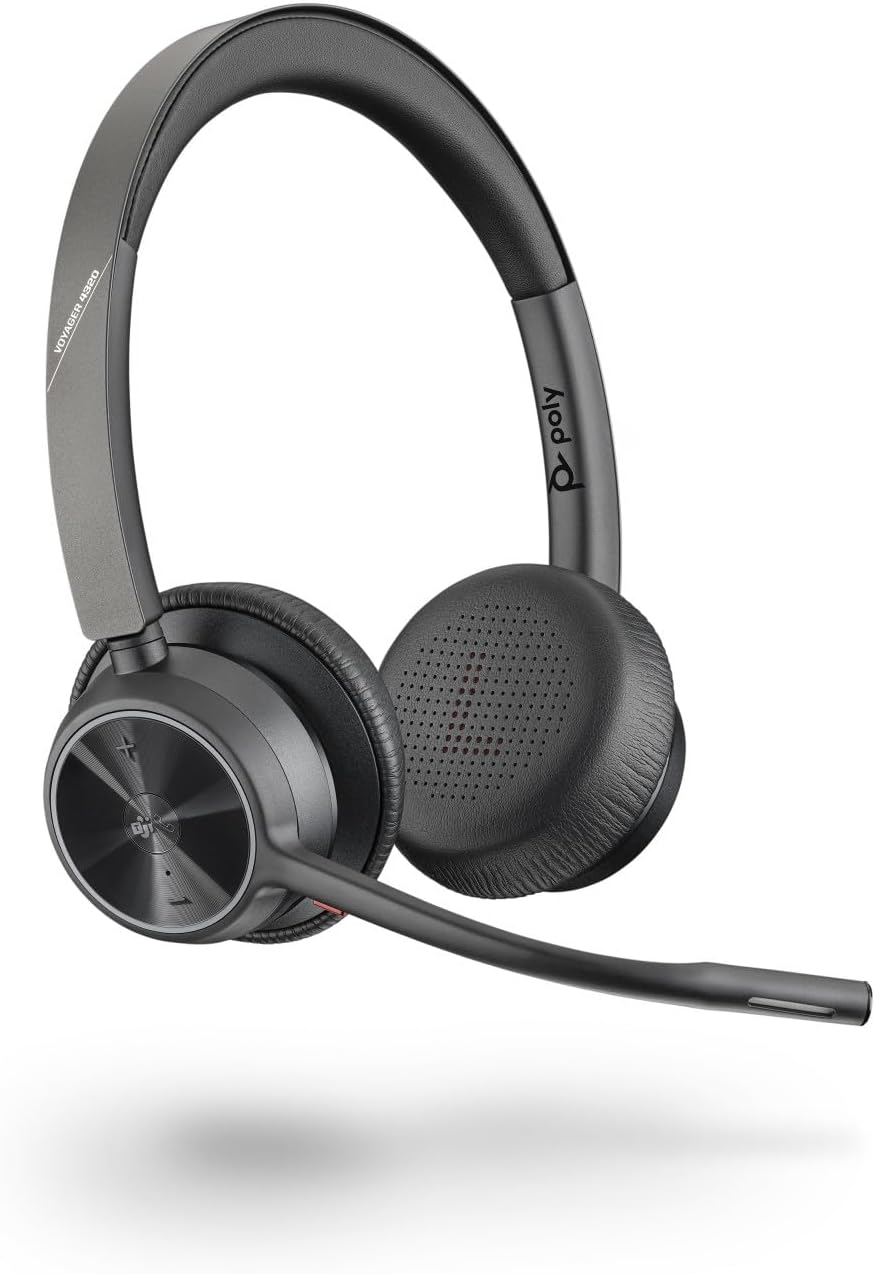
Image: The Poly Voyager 4320 UC Wireless Headset, a black stereo headset with an adjustable boom microphone, designed for comfortable wear and clear audio.
Ki sa ki nan bwat la
Your Poly Voyager 4320 UC Wireless Headset package includes the following components:
- Kas ekoutè san fil Poly Voyager 4320 UC
- USB-C Bluetooth Adapter (BT700)
- USB Chaje Kab
- Charging Station (if included with your specific model)
- Pote Étui

Image: The Poly Voyager 4320 UC Wireless Headset neatly folded and placed inside its black carrying pouch, indicating portability and protection.
Enstalasyon ak Koneksyon
Premye konfigirasyon
- Chaje kas ekoutè a: Before first use, fully charge your headset using the provided USB charging cable or the charging station. The headset features fast charging.
- Pouvwa sou: Glise switch la pouvwa nan pozisyon an ON.
Connecting to a Computer (PC/Mac)
For optimal performance and range, use the included BT700 USB-C Bluetooth adapter:
- Insert the BT700 USB-C adapter into an available USB-C port on your computer.
- The adapter will automatically pair with your headset. A voice prompt will confirm the connection.
- Ensure the Poly Voyager 4320 UC is selected as the audio input and output device in your computer's sound settings and communication applications (e.g., Microsoft Teams, Zoom).

Image: The Poly Voyager 4320 UC Headset resting on its charging stand next to a desk phone, illustrating its integration into a professional workspace.
Connecting to a Mobile Device (Bluetooth)
- With the headset powered on, activate Bluetooth on your mobile device.
- Put the headset into pairing mode (refer to the headset's specific pairing instructions, usually by holding the power button or a dedicated Bluetooth button until the LED flashes).
- Select "Poly Voyager 4320 UC" from the list of available Bluetooth devices on your mobile device.
- Yon mesaj vokal ap konfime koneksyon an reyisi.
Enstriksyon Operasyon
Kalite Odyo ak Anilasyon Bri
The headset features a noise-canceling dual microphone with Acoustic Fence technology. This technology creates a virtual "fence" around your voice, effectively blocking out background noise, ensuring callers hear you clearly and not your surroundings.
Mobility and Range
Enjoy freedom of movement with up to 50 meters (164 feet) of Bluetooth wireless range when used with the included BT700 USB Adapter. The headset provides up to 24 hours of wireless talk time on a full charge. For extended use or when battery is low, the headset can also be used as a wired headset via the USB cable.

Image: A man wearing the Poly Voyager 4320 UC Headset, demonstrating its comfortable fit and suitability for communication in various environments.
Entegrasyon Microsoft Teams
The Microsoft Teams version of this headset offers a full native Teams experience, including a dedicated Teams button. This button provides instant access to the Teams application, streamlining your communication workflow.
Wearing Style and Comfort
The lightweight stereo headset is designed for all-day wearing comfort. It features passive noise isolation to help you stay focused and an adjustable padded headband for a customized fit.
Kontwòl
The headset features intuitive touch controls for media playback and call management. Specific controls include:
- Volim monte/desann
- Bèbè / sonm mikrofòn
- Reponn/Fen Apèl
- Jwe/Poz Media
- Dedicated Microsoft Teams button (on Teams certified models)
Product Feature Video
Video: An official product feature video for the Poly Voyager 4300 Series, showcasing its key functionalities and design. This video highlights the headset's connectivity, audio quality, and user experience.
Antretyen
To ensure the longevity and optimal performance of your Poly Voyager 4320 UC Wireless Headset, follow these maintenance guidelines:
- Netwayaj: Gently wipe the headset and ear cushions with a soft, dry, lint-free cloth. Do not use abrasive cleaners or solvents.
- Depo: When not in use, store the headset in its carrying pouch or on the charging station to protect it from dust and damage.
- Swen batri: Avoid fully discharging the battery frequently. For long-term storage, charge the headset to about 50% and store in a cool, dry place.
- Mikwofòn Boom: Handle the microphone boom gently. Avoid excessive force when adjusting its position.
Depanaj
If you encounter issues with your Poly Voyager 4320 UC Wireless Headset, try the following troubleshooting steps:
| Pwoblèm | Solisyon posib |
|---|---|
| Pa gen odyo / Move kalite odyo |
|
| Mikwofòn pa travay |
|
| Kas ekoutè a pa konekte |
|
| Power Switch Issues (Headset won't turn off) |
|
Espesifikasyon pwodwi
| Karakteristik | Detay |
|---|---|
| Non modèl | VOYAGER 4320 UC V4320-M C |
| Mak | Poly |
| Koneksyon Teknoloji | Bluetooth |
| Teknoloji kominikasyon san fil | Bluetooth 5.2 |
| Gamme Bluetooth | Up to 50 meters (164 feet) with BT700 USB Adapter |
| Tan pale | Jiska 24 èdtan |
| Kalite Audio | Noise-canceling dual mic with Acoustic Fence technology |
| Gamme frekans | 20 Hz - 20,000 Hz |
| Aparèy konpatib | Computers, Mobile Devices, Microsoft Teams, Zoom |
| Kalite kontwòl | Kontwòl Medya, Manyen |
| Mete Style | Over-Ear, Stereo Headset |
| Kontwòl bri | Izolasyon son |
| Pwa atik | 162 gram (5.7 ons) |
| Dimansyon pwodwi | 8.27 x 7.32 x 2.17 pous |
| Batri | 1 batri ityòm Ion (enkli) |
| Karakteristik espesyal | Chaje vit |
Garanti ak sipò
Poly products are designed for reliability and performance. For information regarding your product's warranty, please refer to the warranty card included in your product packaging or visit the official Poly support websit.
For technical assistance, driver downloads, firmware updates, and additional resources, please visit the Poly support page or contact their customer service. Keeping your headset's firmware updated is recommended for optimal performance and to address potential issues.
Official Poly Store: Visit the Poly Store on Amazon


