1. Entwodiksyon
The Ruckus Unleashed R550 is a high-performance Wi-Fi 6 (802.11ax) indoor access point designed to deliver increased capacity, improved coverage, and affordability in dense environments. This mid-range dual-band, dual-concurrent AP supports four spatial streams (2x2:2 in 2.4GHz/5GHz) and offers peak data rates of up to 1774 Mbps, efficiently managing up to 512 client connections.
It is ideal for classrooms, office spaces, and medium-sized venues where Wi-Fi capacity requirements are growing due to an increasing number of connected devices and bandwidth-intensive applications. The R550 also features embedded IoT capabilities, including BLE and Zigbee, allowing for the unification of Wi-Fi and IoT technologies into a single network, with expandability for future wireless technologies.
2. Ki sa ki nan bwat la
Upon unpacking your Ruckus Unleashed R550 Access Point, please ensure all the following components are present:
- Ruckus Unleashed R550 Wireless Access Point
- US Power Adapter
- Ethernet kab
If any items are missing or damaged, please contact your vendor or Ruckus support immediately.
3. Karakteristik pwodwi ak plis ankòview
The Ruckus Unleashed R550 incorporates advanced technologies to optimize wireless performance and network management:
- Teknoloji Wi-Fi 6 (802.11ax): Provides increased capacity and improved coverage for dense environments.
- Dual-Band, Dual-Concurrent Radios: Supports 2.4GHz and 5GHz frequencies simultaneously for optimal performance.
- BeamFlex+ Adaptive Antenna Technology: Mitigates interference and extends coverage by utilizing several directional antenna patterns.
- MU-MIMO Spatial Streams: Connects more devices simultaneously with four MU-MIMO spatial streams, enhancing device performance.
- Embedded IoT: Built-in BLE (Bluetooth Low Energy) and Zigbee for converged access, allowing unification of Wi-Fi and IoT technologies.
- ChannelFly Dynamic Channel Technology: Uses machine learning to automatically find the least congested channels, ensuring highest throughput.
- SmartMesh Wireless Meshing Technology: Simplifies network expansion by dynamically creating self-forming, self-healing mesh networks, reducing cabling needs.
3.1. Fizik Plis paseview

Figi 1: Devan view of the Ruckus R550 Access Point, showing the Ruckus logo and status LEDs.
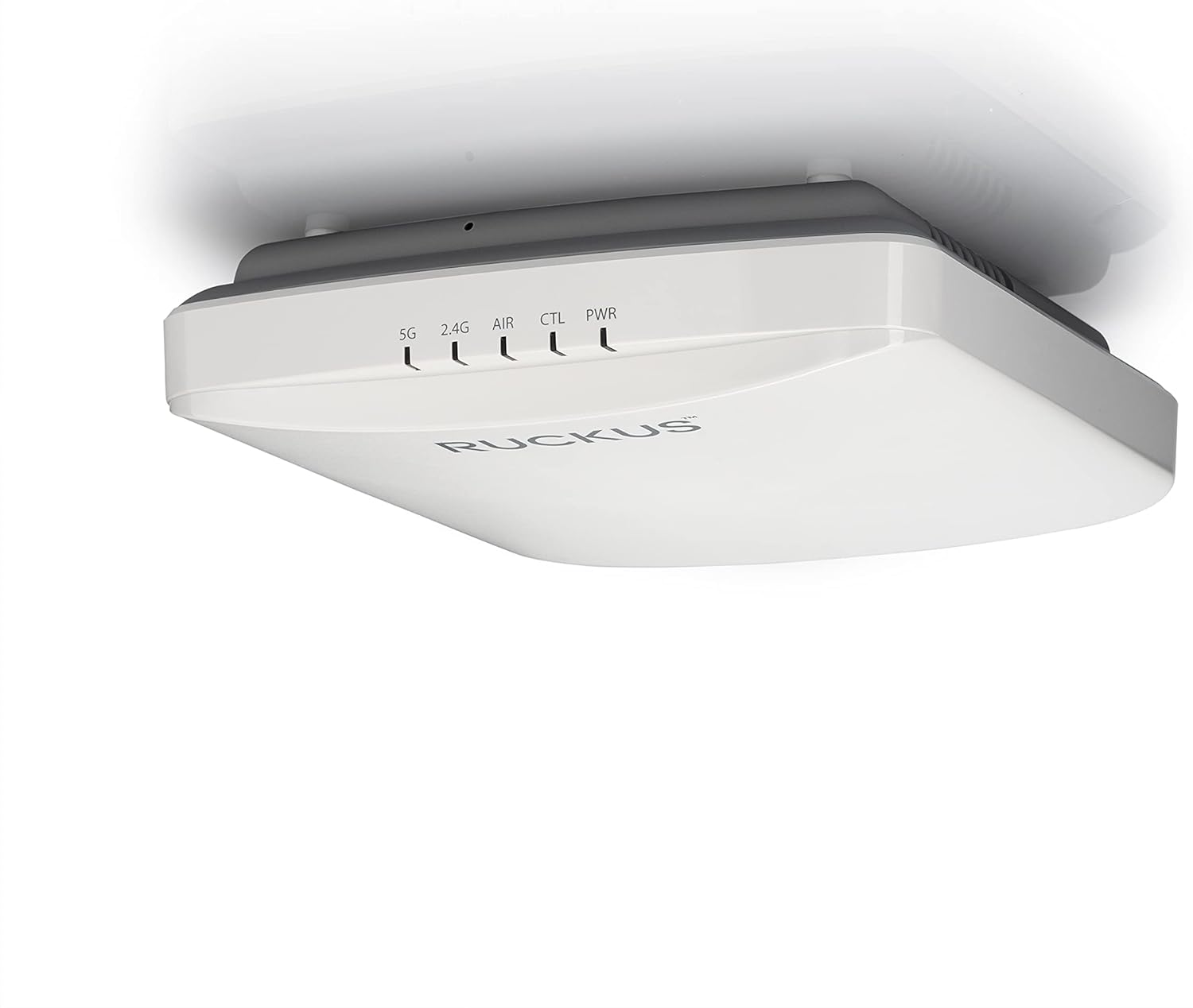
Figi 2: Side view of the Ruckus R550 Access Point, highlighting its compact design.
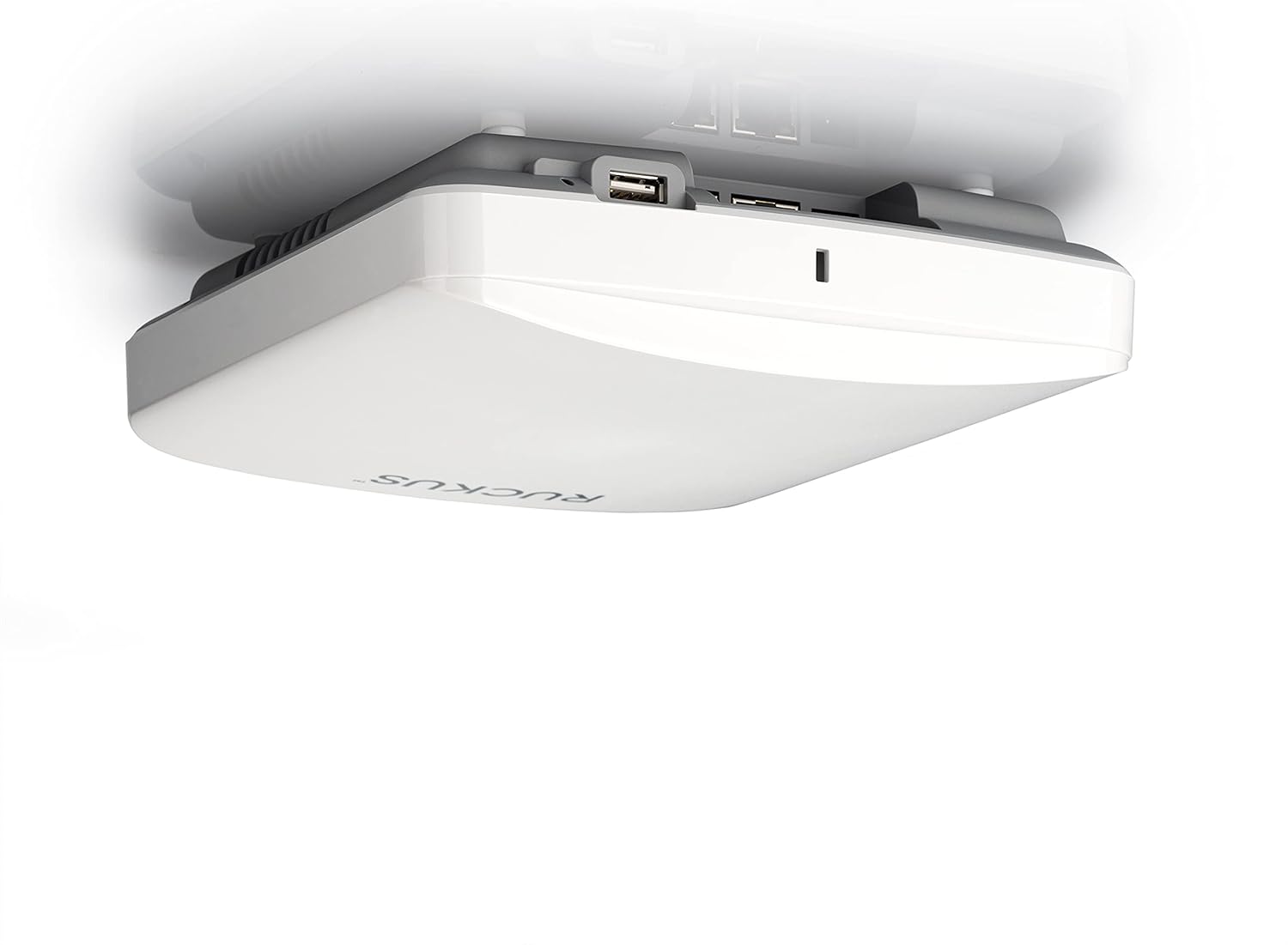
Figi 3: Dèyè view of the Ruckus R550 Access Point, displaying its connectivity ports.

Figi 4: Anba view of the Ruckus R550 Access Point.
4. Enstalasyon ak Enstalasyon
Setting up your Ruckus Unleashed R550 Access Point is a straightforward process. You can configure the access point using either a web browser or the Ruckus Unleashed mobile application. For the best experience, the mobile app is recommended.
4.1. Premye etap konfigirasyon yo
- Pouvwa sou: Connect the R550 Access Point to the included US power adapter.
- Rezo Koneksyon: Connect the R550 to your network using the provided Ethernet cable.
- Mobile App Configuration (Recommended):
- Download the Ruckus Unleashed Mobile App from your device's app store.
- On your phone, connect to the "Configure Me-[XXXXXX]" Wi-Fi network broadcast by the R550.
- Open the Ruckus Unleashed Mobile App and follow the on-screen instructions to complete the installation and initial configuration. This typically involves setting up administrator credentials and basic network settings.
- Web Browser Configuration (Alternative):
- Connect your computer to the "Configure Me-[XXXXXX]" Wi-Fi network or directly to the R550 via Ethernet.
- Louvri a web browser and navigate to the default IP address (refer to the Ruckus Unleashed documentation for the specific IP, often 192.168.1.1 or similar).
- Swiv la web-based wizard to configure your access point.
4.2. Understanding Mesh Networking
The Ruckus Unleashed R550 supports SmartMesh wireless meshing technology, which allows you to extend your Wi-Fi coverage without running additional Ethernet cables to every access point. This technology dynamically creates self-forming and self-healing mesh networks, simplifying deployment and reducing infrastructure costs.

Figi 5: Illustration of a Ruckus Unleashed mesh network, showing how access points can wirelessly connect to extend coverage.
4.3. Gid Videyo Enstalasyon
For a visual guide on setting up your Ruckus Unleashed network, please watch the official video below:
Videyo 1: How to setup a RUCKUS Unleashed network. This video demonstrates the step-by-step process of installing and managing your Ruckus Unleashed network using the mobile app.
5. Operasyon Enstriksyon
Once your Ruckus Unleashed R550 Access Point is installed and configured, you can manage your network and connected clients through the Unleashed mobile app or web koòdone.
- Dashboard souview: The mobile app provides a quick snapshot of connected clients, WLANs (Wireless Local Area Networks), and access points in your network.
- Adding WLANs: Easily add new Wi-Fi networks (WLANs) for different purposes (e.g., guest network, private network).
- Client Management: View detailed information about connected clients, rename them for easy identification, and mark them as favorites to receive instant notifications.
- Kontwòl Aplikasyon: Utilize Deep Packet Inspection to monitor network usage patterns of over 2,200 applications. Define application-specific access rules to limit bandwidth for certain applications (e.g., streaming services) or even limit Wi-Fi speeds for specific user groups.
- Notifikasyon: Receive alerts for any changes in your network, such as an unresponsive access point. You can also restart an AP remotely from the mobile app.
6. Antretyen
To ensure optimal performance and longevity of your Ruckus Unleashed R550 Access Point, regular maintenance is recommended:
- Mizajou mikrolojisyèl: Regularly check for and apply the latest firmware updates. These updates often include performance improvements, security patches, and new features.
- Netwayaj fizik: Keep the access point clean and free from dust accumulation. Use a soft, dry cloth for cleaning. Ensure ventilation holes are not obstructed.
- Kondisyon anviwònman: Ensure the access point is operating within its specified environmental conditions (temperature, humidity) to prevent overheating or damage.
- Siveyans rezo: Tanzantan review network performance metrics and client activity through the Unleashed dashboard to identify and address potential issues proactively.
NAN. Depanaj
If you encounter issues with your Ruckus Unleashed R550 Access Point, consider the following troubleshooting steps:
- Pa gen kouran/LED yo etenn:
- Verify the power adapter is securely connected to both the AP and a working power outlet.
- Asire w ke priz kouran an fonksyone.
- Pa gen koneksyon rezo:
- Check the Ethernet cable connection between the AP and your router/switch.
- Confirm your router/switch is functioning correctly and providing internet access.
- Restart the R550 Access Point (unplug and re-plug the power).
- Pèfòmans Wi-Fi ki fèb:
- Ensure the AP is centrally located and free from obstructions.
- Tcheke pou wè si gen entèferans ki ka soti nan lòt aparèy elektwonik.
- Utilize ChannelFly technology to ensure the AP is using the least congested Wi-Fi channels.
- Verify that no application-specific bandwidth limits are affecting performance for critical applications.
- Cannot Access Configuration Interface:
- Ensure your device is connected to the correct Wi-Fi network broadcast by the R550.
- Confirm the correct IP address or app is being used for access.
For advanced troubleshooting or persistent issues, Ruckus support can assist remotely using their remote management system. Refer to the support section for contact information.
8. Espesifikasyon
| Karakteristik | Detay |
|---|---|
| Mak | Ruckus |
| Non modèl | AMZ-R550-US1U |
| Kalite san fil | 802.11n, 802.11ax (Wi-Fi 6), 802.11a, 802.11g, 802.11ac |
| Gwoup Gwoup Frekans | Doub-Band (2.4 GHz, 5 GHz) |
| Done pousantaj | Jiska 1774 Mbps |
| Kouran espasyal | 4 (2x2:2 in 2.4GHz/5GHz) |
| Client Connections | Up to 512 clients |
| Embedded IoT | BLE, Zigbee |
| Koneksyon Teknoloji | Wi-Fi |
| Kantite USB 2.0 pò | 1 |
| Pwa atik | 1.79 liv |
| Dimansyon pwodwi (LxWxH) | 3 x 12 x 12 pous |
| Voltage | 1.2E+2 Vòlt (AC) |
| Manifakti | CommScope |
| Dat Premye Disponib | 23 me 2021 |
9. Garanti ak sipò
For warranty information and technical support regarding your Ruckus Unleashed R550 Access Point, please contact CommScope, the manufacturer, or your authorized Ruckus reseller. Ruckus also offers remote management assistance for troubleshooting and support.
For more information and support resources, please visit the official Ruckus Networks websit: ruckusnetworks.com/unleashed


