1. Entwodiksyon
Thank you for choosing the PROXTEND X502 Full HD Webcam. This manual provides detailed instructions to help you set up, operate, and maintain your webcam for optimal performance. The X502 is designed to deliver clear 1080p video at 30 frames per second, featuring an omni-directional microphone and automatic low light correction for various lighting conditions.
2. Pake kontni
Tanpri verifye ke tout atik yo prezan nan pakè ou a:
- PROXTEND X502 Full HD Webcam (PX-CAM007)
- Integrated Universal Mounting Clip
- Manyèl Itilizatè (dokiman sa a)
3. Enstalasyon
Follow these steps to set up your PROXTEND X502 WebCam:
- Monte la WebCam:
La webcam features an integrated universal mounting clip. You can place the webcam on top of your computer monitor, laptop screen, or a flat surface. Adjust the clip to securely hold the webcam in position. The webcam also supports mini tripod mounting (tripod not included).
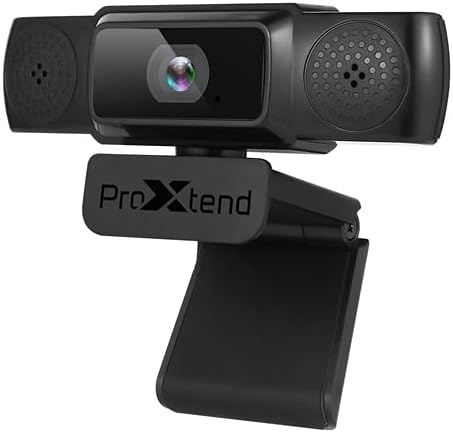
Image: The PROXTEND X502 Full HD Webcam shown with its universal mounting clip, suitable for monitors or flat surfaces.
- Konekte ak òdinatè w lan:
Branche kab USB a nan webantre nan yon pò USB ki disponib sou òdinatè w la. webcam is plug-and-play, meaning your operating system should automatically detect and install the necessary drivers. No additional software installation is typically required.
- Driver Installation Verification:
After connecting, allow a few moments for your computer to recognize the device. You can verify successful installation in your operating system's Device Manager (Windows) or System Information (macOS) under 'Cameras' or 'Imaging Devices'.
4. Operasyon Enstriksyon
Yon fwa a webcam is set up, you can begin using it with various applications:
- Chwazi a WebCam:
Open your preferred video conferencing, streaming, or recording application (e.g., Zoom, Microsoft Teams, Skype, OBS Studio). Navigate to the application's video and audio settings. Select "PROXTEND X502" as your camera and microphone input device.

Imaj: Devan view of the PROXTEND X502 Full HD Webcam, highlighting the lens and integrated microphones.
- Kalite videyo:
La webcam automatically adjusts for optimal image quality, including auto-focus and auto low light correction. Ensure adequate lighting for the best video performance. The 1920x1080p resolution at 30fps provides clear and smooth video.
- Kalite Audio:
The integrated omni-directional microphone captures sound from all directions. Position yourself appropriately to ensure your voice is clearly picked up. Most applications allow you to adjust microphone input levels in their audio settings.
5. Karakteristik
Key features of the PROXTEND X502 Full HD Webcam include:
- 1 / 2.7 "Capteur imaj CMOS
- 2 megapiksèl
- Resolution: 1920x1080 at 30 frames per second
- Mikwofòn Omni-direksyon
- Clip Mounting inivèsèl
- Mini Tripod Support
- Otomatik ba limyè koreksyon
6. Espesifikasyon
Detailed technical specifications for the PROXTEND X502 Full HD WebCam:

Image: A visual representation of the PROXTEND X502 Full HD Webcam's key features and technical specifications.
| Karakteristik | Spesifikasyon |
|---|---|
| Capteur Imaj | 1/2.7" CMOS Image Sensor |
| Megapiksèl | 2 MP |
| Max Rezolisyon | 1920x1080 |
| Rezolisyon videyo | 1920x1080 |
| Max FPS | 30 fps |
| Fòma dekodaj videyo | H.264/MJPG |
| Ekspozisyon Mode | Oto |
| Balans blan | Oto |
| Genyen | Oto |
| Konpansasyon limyè ki ba | Oto |
| Viewing Ang | 77° |
| Distans Fokal | 10 cm nan Infinity |
| Kalite Konsantre | Oto |
| Mikwofòn | Omni-direksyon |
| Odyo Sampling To | 1 Chèn 16bit 16K 32K 44.1K 48K |
| Fòma odyo | PCM, konpatib UAC 1.0 |
| Entèfas | USB 2.0 |
| Longè kab | 1.5 m |
| OS konpatib | Windows XP, Windows 7 (32bit/64bit), Windows 8, Windows 10, Android V5.0 or higher OS, MAC OS 10.6 or higher |
| Dimansyon pwodwi | 12.7 x 7.62 x 5.08 cm |
| Pwa pwodwi | 453.59 g |
NAN. Depanaj
If you encounter issues with your PROXTEND X502 Webkamera, eseye solisyon sa yo:
- Pa gen imaj/videyo:
- Asire w kab USB a byen konekte ak tou de webkamera a ak òdinatè w la.
- Eseye yon pò USB diferan sou òdinatè w lan.
- Rekòmanse òdinatè w lan.
- Check your application's settings to ensure the PROXTEND X502 is selected as the video input.
- Verify that no other application is currently using the webCam.
- No Audio/Microphone Not Working:
- Ensure the PROXTEND X502 is selected as the microphone input in your application's audio settings.
- Tcheke paramèt son òdinatè w la pou asire w mikwofòn nan aktive epi li pa sou silans.
- Adjust the microphone input level in your system or application settings.
- Kalite videyo pòv:
- Ensure sufficient lighting in your environment.
- Netwaye a webcam lens gently with a soft, lint-free cloth.
- Check your internet connection speed if streaming, as bandwidth can affect video quality.
8. Antretyen
Pou asire lonjevite ak pèfòmans optimal ou webCam:
- Netwayaj: Siye dousman webcam lens with a soft, dry, lint-free cloth. Avoid using harsh chemicals or abrasive materials.
- Depo: Lè ou pa itilize, estoke webSere nan yon kote ki pwòp epi sèk, lwen tanperati ekstrèm ak limyè solèy dirèk.
- Manyen: Evite jete a webcam or subjecting it to strong impacts.
9. Garanti ak sipò
The PROXTEND X502 Full HD Webkamera vini ak yon 7-ane garanti, ensuring peace of mind regarding your purchase. For warranty claims, technical support, or any inquiries not covered in this manual, please refer to the contact information provided with your product packaging or visit the official PROXTEND websit.
10. Enfòmasyon sou Konfòmite
This device complies with relevant regulatory standards for electronic equipment. For detailed compliance information, please refer to the product packaging or the official PROXTEND websit.


