1. Pwodwi souview
The Cable Matters 8K DisplayPort 1.4 to HDMI 2.1 Adapter is designed to connect a DisplayPort-enabled source device to an HDMI 2.1 compatible display. This adapter supports high resolutions and refresh rates, making it suitable for demanding visual applications such as gaming and professional multimedia editing.

Image 1: The Cable Matters 8K DisplayPort 1.4 to HDMI 2.1 Adapter, showcasing konsepsyon kontra enfòmèl ant li yo ak kab trese a.
2. Enstriksyon Enstalasyon
Follow these steps to correctly set up your Cable Matters DisplayPort to HDMI adapter:
- Idantifye pò yo: Locate the DisplayPort output on your source device (e.g., computer, laptop, graphics card) and an available HDMI input on your display (e.g., TV, monitor, projector).
- Connect DisplayPort: Plug the DisplayPort (male) end of the adapter into the DisplayPort output on your source device. Ensure it clicks securely into place.
- Konekte kab HDMI: Connect a Certified HDMI 2.1 cable (sold separately) to the HDMI (female) port of the adapter.
- Konekte ak Display: Plug the other end of the HDMI 2.1 cable into an HDMI input on your display.
- Pouvwa sou: Power on both your source device and your display. Select the correct HDMI input on your display.
Nòt enpòtan:
- Adaptè sa a se ini-direksyon and only works from a DisplayPort source to an HDMI display. It will not convert HDMI to DisplayPort.
- Not compatible with PS5 or Xbox consoles.
- A Certified HDMI 2.1 cable is required to achieve optimal performance and supported resolutions.

Image 2: Diagram illustrating the uni-directional connection from DisplayPort sources (Desktop, Mini PC) to HDMI targets (Monitor, TV, Projector), explicitly noting PS5 and Xbox are not supported.
Video 1: An official Cable Matters video demonstrating the connection of a DisplayPort to HDMI adapter to a computer and display.
3. Operasyon Enstriksyon
The adapter supports advanced video and audio features:
- Sipò pou rezolisyon segondè: Enjoy video resolutions up to 8K@60Hz, 4K@120Hz, and 4K@240Hz.
- Immersive HDR: Supports High Dynamic Range (HDR) for vibrant visuals and enhanced contrast.
- Eksperyans Odyo: Supports surround sound for a complete audio-visual experience.
- Optimize pou jwèt videyo: Ideal for connecting high-end graphics cards (e.g., NVIDIA RTX 4090/4080/4070, AMD RX 7900/6900) to 8K or 4K Smart TVs and 120Hz/240Hz gaming monitors.
Limitasyon:
- Variable Refresh Rate (VRR), G-Sync, or FreeSync technologies are pa sipòte by this adapter.

Image 3: A skier on a snowy mountain, illustrating a smooth 8K video experience with the adapter.
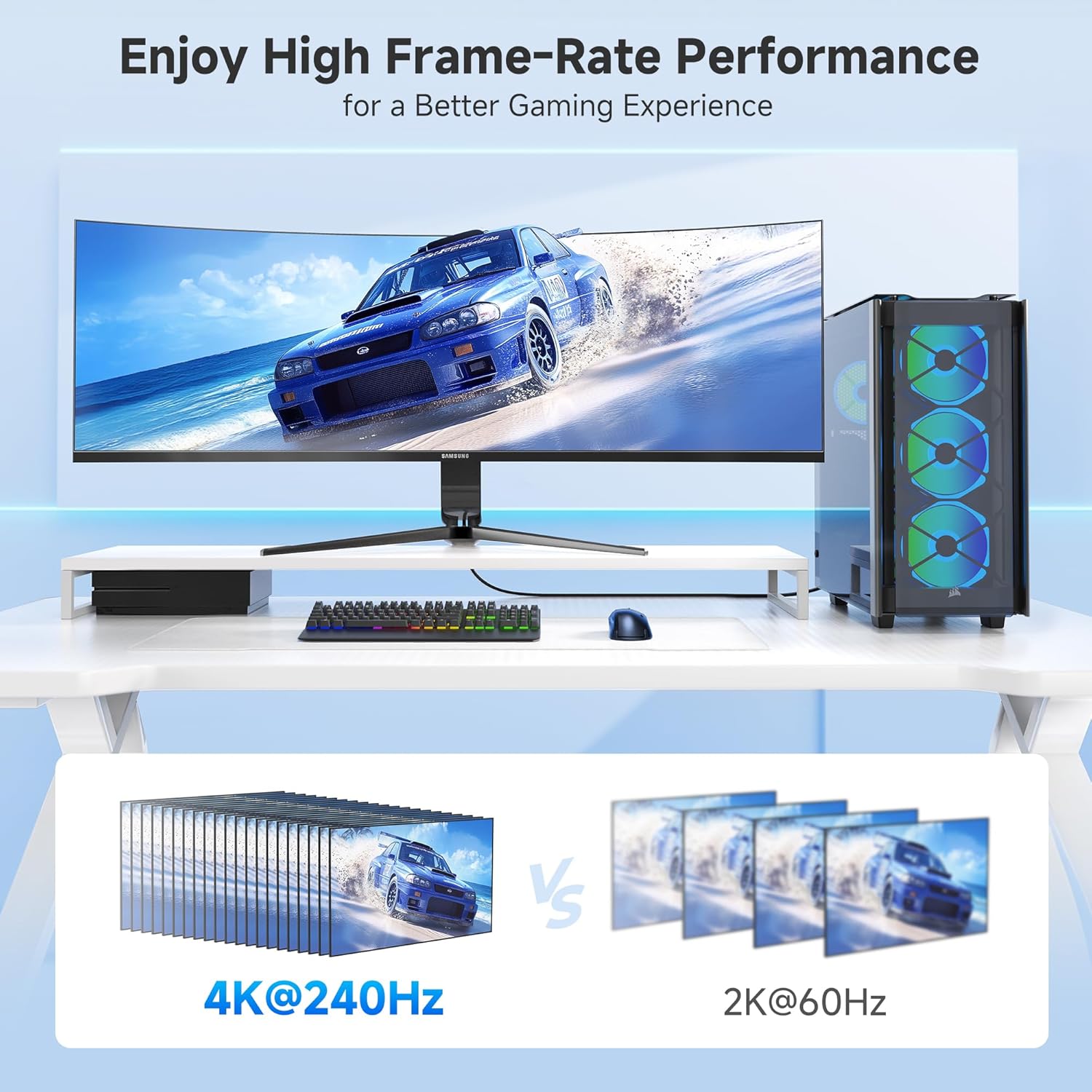
Image 4: A gaming setup featuring a monitor displaying a racing game, highlighting high frame-rate performance at 4K@240Hz compared to 2K@60Hz.
4. Antretyen
To ensure the longevity and optimal performance of your adapter, consider the following maintenance tips:
- Manyen ak Swen: Avoid excessive bending or pulling on the cable, especially near the connectors. The braided cable jacket and molded strain relief are designed for durability, but proper handling extends product life.
- Kenbe konektè yo pwòp: Periodically inspect the DisplayPort and HDMI connectors for dust or debris. Use a soft, dry cloth or compressed air to clean them if necessary.
- Depo: When not in use, store the adapter in a cool, dry place away from direct sunlight and extreme temperatures. Use the included Velcro straps for tidy storage.
- Endikatè ki ap dirije: The integrated LED indicator confirms an active connection. If the LED is not lit, check all connections and ensure both source and display devices are powered on.

Imaj 5: Gwo plan view of the adapter highlighting the Power LED and the premium nylon braided cable for enhanced durability.
NAN. Depanaj
If you encounter issues with your adapter, try the following troubleshooting steps:
- Pa gen Afich/Siyal:
- Asire w ke tout koneksyon an sekirite.
- Verify that your source device's DisplayPort output, HDMI display, and HDMI cable all support the desired resolution and refresh rate.
- Confirm the display is set to the correct HDMI input.
- Check the adapter's LED indicator for an active connection.
- Flickering or Intermittent Signal:
- Ensure you are using a high-quality, Certified HDMI 2.1 cable.
- Reduce the resolution or refresh rate in your source device's display settings to see if stability improves.
- Mete ajou chofè kat grafik ou yo ak dènye vèsyon an.
- Pa gen odyo:
- Check your computer's sound settings to ensure the HDMI output is selected as the default audio device.
- Verify that your display's audio is not muted or set to a very low volume.
- Resolution/Refresh Rate Not as Expected:
- Confirm that your source device's DisplayPort version (1.4 required for 8K/4K high refresh rates), graphics card, HDMI cable, and display all support the desired specifications.
- Some 8K TVs or monitors may require manual enabling of 4K@120Hz or 8K support in their settings.
6. Espesifikasyon
| Karakteristik | Detay |
|---|---|
| Dimansyon pwodwi | 4.17 x 2.76 x 0.59 pous |
| Pwa atik | 2.11 ons |
| Nimewo Modèl | 102101-BLK |
| Kalite Connector | DisplayPort Male to HDMI Female |
| Koulè | Nwa |
| Max Rezolisyon | 8K @ 60Hz, 4K @ 240Hz |
| Sipò HDR | Wi |
| VRR/G-Sync/FreeSync | Pa sipòte |
| Uni-direksyon | Yes (DP Source to HDMI Display) |
| Jacket kab | Trese |
| Endikatè ki ap dirije | Wi |
7. Garanti ak sipò
For warranty information and technical support, please refer to the official Cable Matters websit la oubyen kontakte sèvis kliyan yo dirèkteman. Kenbe resi acha w la pou reklamasyon garanti.
Pou plis asistans, ou ka vizite Cable Matters Store on Amazon.


