1. Pwodwi souview
The HyperX Alloy Origins 60 is a supremely portable 60% form factor keyboard designed to provide more room for mouse movements. It features a durable, full aluminum body and reliable HyperX switches optimized for speed and performance, rated for 80 million keypresses. The double shot PBT keycaps include secondary functions printed on them for quick access. The exposed LED design of the HyperX switches allows for stunning RGB lighting effects. Further customization, including macros and personalized lighting profiles, can be achieved using HyperX NGENUITY software.

Figure 1.1: HyperX Alloy Origins 60 Mechanical Gaming Keyboard with vibrant RGB backlighting.
2. Karakteristik kle
- Petite 60% Form Factor: Maximizes desk space for mouse movement.

Figure 2.1: The compact 60% form factor of the keyboard.
- Kò aliminyòm konplè pou avyon: Ensures structural soundness and stability.

Figure 2.2: Illustration of the durable full aluminum body construction.
- Double Shot PBT Keycaps with Side Printing: Durable keycaps resistant to wear, with secondary functions clearly printed.

Figure 2.3: Double shot PBT keycaps with secondary functions printed on the sides.
- Switch mekanik HyperX yo: Custom-designed for speed and accuracy, rated for 80 million keypresses.

Figure 2.4: HyperX mechanical switches designed for optimal performance.
- Kle RGB retroeklere ak efè ekleraj radyan: Enhanced RGB lighting due to exposed LED design.

Figure 2.5: The keyboard displaying its radiant RGB lighting effects.
- Pèsonalizasyon avanse ak HyperX NGENUITY: Software for Game Mode, macros, and per-key lighting.

Figure 2.6: HyperX NGENUITY software for advanced customization.
- Three Adjustable Keyboard Angles and Detachable USB-C Cable: For ergonomic comfort and portability.

Figure 2.7: The keyboard's adjustable feet for three different tilt angles.
- Included Keycap Puller and Additional Keycaps: For customization and maintenance.
Figure 2.8: Included accessories for keycap customization.
- Konpatibilite milti-platfòm: Compatible with PC, PS5, PS4, Xbox Series X|S, and Xbox One.
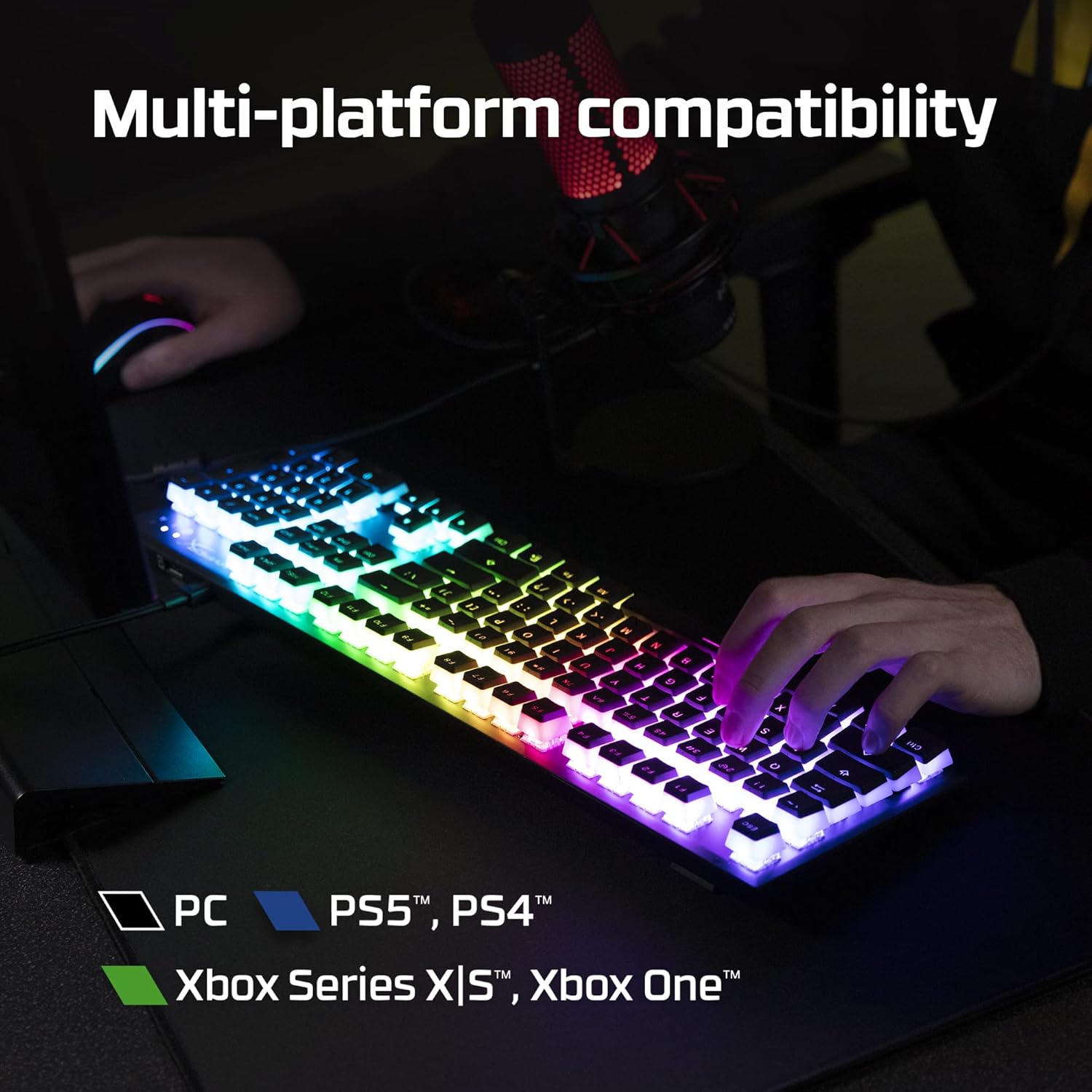
Figure 2.9: The keyboard's multi-platform compatibility.
3. Gid Enstalasyon
3.1 Kontni pake a
Anvan ou kòmanse, asire w ke tout bagay yo prezan nan pake a:
- HyperX Alloy Orijin 60 Klavye Gaming mekanik
- Kab USB-C pou USB-A detachable
- Keycap Puller
- Additional Keycaps (e.g., alternate Esc key, special spacebar)
Figure 3.1: All components included in the HyperX Alloy Origins 60 package.
3.2 Konekte klavye a
- Locate the detachable USB-C to USB-A cable.
- Connect the USB-C end of the cable to the USB-C port on the back of the HyperX Alloy Origins 60 keyboard.
- Connect the USB-A end of the cable to an available USB-A port on your PC or gaming console.
- The keyboard will automatically be detected and drivers will install if necessary. The RGB lighting will illuminate upon successful connection.

Figure 3.2: Connecting the detachable USB-C cable to the keyboard.
3.3 Adjusting Keyboard Angle
The keyboard features two-step keyboard feet, allowing you to set it at three different tilt angles (3°, 7°, 11°) for optimal ergonomic comfort.
- Flip the keyboard over to access the feet on the underside.
- Extend the smaller feet for a moderate tilt.
- Extend both the smaller and larger feet for the maximum tilt.

Figure 3.3: Adjusting the keyboard's tilt angle using the integrated feet.
4. Operasyon Enstriksyon
4.1 Fonksyon debaz
The HyperX Alloy Origins 60 is a 60% keyboard, meaning it omits the number pad, function row, navigation cluster, and arrow keys to achieve its compact size. These functions are typically accessed via a combination of the Fn key and other keys.
- Fn + [Kle]: Activates the secondary function printed on the side of the keycap. Refer to the side legends for specific functions.
- Mòd jwèt: Prevents accidental presses of the Windows key during gaming. Activate/deactivate via NGENUITY software.
4.2 HyperX NGENUITY Software
For advanced customization of your keyboard, download and install the HyperX NGENUITY software from the official HyperX websit. Lojisyèl sa a pèmèt ou:
- Customize RGB lighting effects and colors on a per-key basis.
- Create and manage macros for complex commands.
- Set up and switch between multiple onboard profiles.
- Adjust Game Mode settings.

Figure 4.1: HyperX NGENUITY software for comprehensive keyboard control.
5. Antretyen
Proper maintenance ensures the longevity and optimal performance of your HyperX Alloy Origins 60 keyboard.
5.1 Netwaye klavye a
- Dekonekte klavye a nan òdinatè w la anvan ou netwaye li.
- Sèvi ak yon boutèy lè konprese pou retire pousyè ak debri ki ant bouchon kle yo.
- For surface cleaning, gently wipe the keycaps and frame with a soft, lint-free cloth dampened with a small amount of water or a mild, non-abrasive cleaning solution. Avoid excessive moisture.
- Pa flite solisyon netwayaj yo dirèkteman sou klavye a.
5.2 Keycap Removal and Replacement
The included keycap puller can be used to safely remove and replace keycaps for cleaning or customization.
- Gently place the keycap puller over the keycap you wish to remove, ensuring the wires hook onto opposite sides of the keycap.
- Pull straight up with even pressure until the keycap detaches from the switch stem.
- To replace a keycap, align it with the switch stem and press down firmly until it clicks into place.

Figure 5.1: Using the keycap puller to remove keycaps.
NAN. Depanaj
If you encounter issues with your HyperX Alloy Origins 60 keyboard, try the following troubleshooting steps:
| Pwoblèm | Kòz posib / Solisyon |
|---|---|
| Keyboard not responding / No lighting |
|
| RGB lighting not working correctly |
|
| Kle yo pa anrejistre oswa yo tape de fwa |
|
If these steps do not resolve the issue, please contact HyperX customer support for further assistance.
7. Espesifikasyon
| Karakteristik | Detay |
|---|---|
| Dimansyon pwodwi | 11.7 x 1.5 x 4.2 pous |
| Pwa atik | 2.14 liv |
| Manifakti | HP Inc. |
| Lang | angle |
| ASIN | B08XBQ79MN |
| Nimewo modèl atik | HKBO1S-RB-US/G |
| Mak | HyperX |
| Aparèy konpatib | Konsole jwèt, òdinatè |
| Koneksyon Teknoloji | USB-C pou USB-A |
| Deskripsyon klavye | Mekanik, Gaming |
| Itilizasyon Rekòmande Pou Pwodwi | Gaming |
| Karakteristik espesyal | Backlit, Lighting, Portable |
| Koulè | Nwa |
| Kantite kle | 61 |
| Sipò koulè ekleraj klavye | RGB |
| Style | HyperX Wouj |
8. Garanti ak sipò
For detailed warranty information and technical support, please refer to the official HyperX resources:
- Gid Itilizatè Ofisyèl (PDF): Telechaje Gid Itilizatè a
- HyperX Brand Store: Visit HyperX Store on Amazon
- For further assistance, contact HyperX customer support through their official websit.


