Entwodiksyon
This manual provides comprehensive instructions for the setup, operation, and maintenance of your Plantronics Poly Studio P5 Webcam and Voyager 4220 UC Headset Kit. Please read this manual thoroughly before using the product to ensure optimal performance and longevity.
The kit includes a high-definition webcam designed for professional video conferencing and a stereo Bluetooth wireless headset for clear audio communication.
Kontni pake
- Poly Studio P5 Webkam
- Kas ekoutè san fil Poly Voyager 4220 UC
- USB-A Adapter (for headset)
- USB Cable (for webkam)
- Gid Quick Start
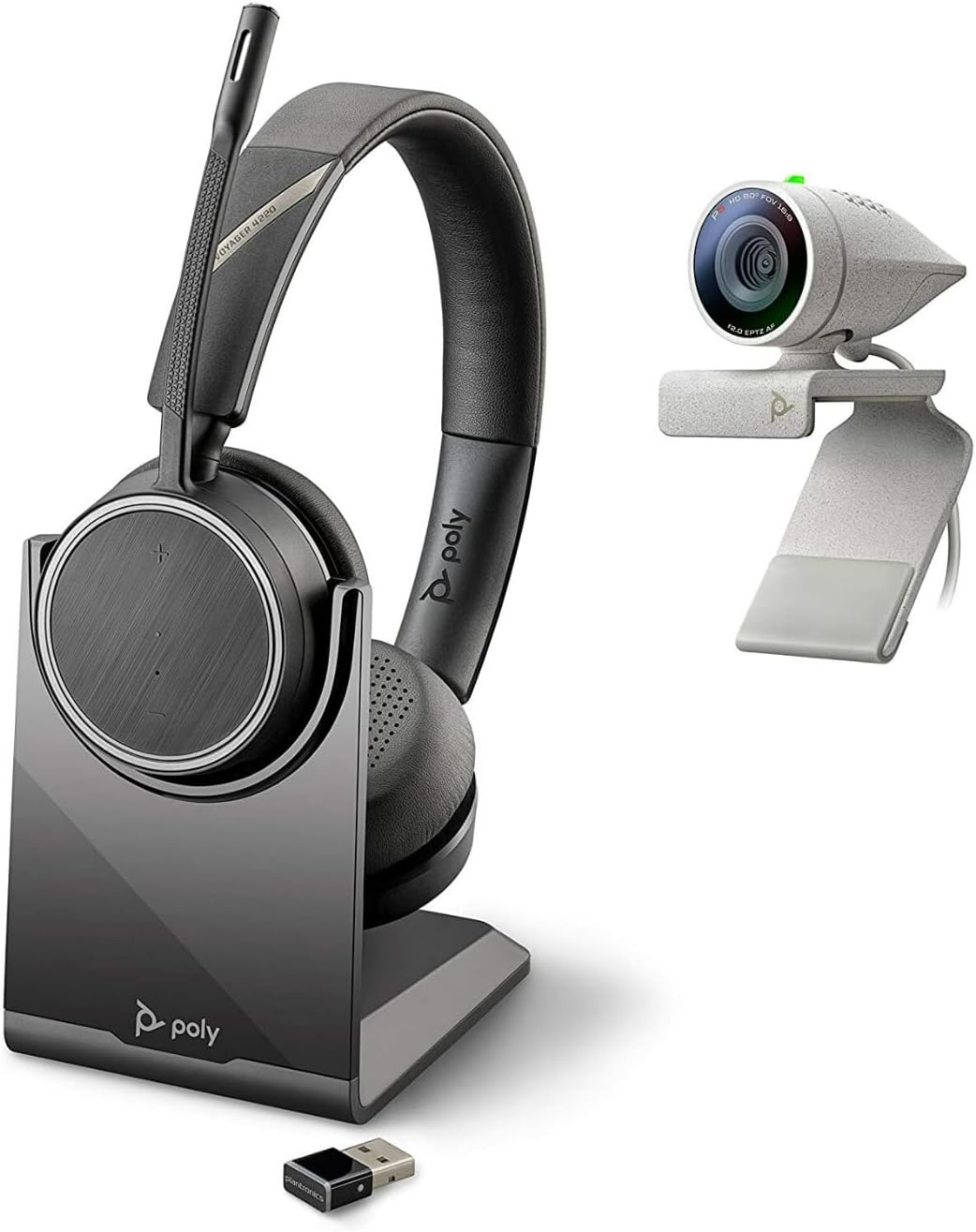
Image: Poly Studio P5 Webcam and Voyager 4220 UC Headset Kit, showing the webcam, headset, charging stand, and USB adapter.
Enstriksyon Enstalasyon
1. Poly Studio P5 WebCam Enstalasyon
- Monte la WebCam:
Mete la webcam on top of your monitor or laptop screen. Adjust the clip to secure it firmly. The webcam can also be mounted on a tripod using the integrated tripod-ready design.

Image: Poly Studio P5 Webcam positioned on top of a laptop screen, showing its compact design and mounting clip.
- Konekte ak òdinatè w la:
Konekte kab USB entegre a nan webcam to an available USB port on your PC or Mac. The device is plug-and-play; drivers will install automatically.
- Panno sou enfòmasyon prive:
La webcam features an integrated privacy shutter. Slide the shutter to cover the lens when not in use to enhance security and privacy.

Imaj: Devan view of the Poly Studio P5 Webcam, highlighting the lens and the integrated privacy shutter mechanism.
2. Voyager 4220 UC Headset Setup
- Chaje Headset la:
Before first use, fully charge the headset. Connect the charging cable to the headset and a USB power source. A full charge provides approximately 12 hours of talk time or 15 hours of listening time.
- Connecting the USB-A Adapter:
Insert the USB-A adapter into an available USB port on your PC or Mac. The adapter will automatically pair with the Voyager 4220 UC headset.
- Mete Headset la:
Adjust the headband for a comfortable fit. Position the microphone boom approximately two finger-widths from the corner of your mouth for optimal voice pickup.
Enstriksyon Operasyon
1. Using the Poly Studio P5 Webkam
- Konferans videyo: La webcam is compatible with Zoom, Microsoft Teams, and other video conferencing services. Select "Poly Studio P5" as your camera and microphone input within your chosen application's settings.
- Automatic Low-Light Compensation: La webcam automatically adjusts to maintain proper light exposure, ensuring clear visibility even in darker environments.
- Zoom dijital: The camera supports up to 4x digital zoom. This feature can typically be controlled through your video conferencing software or the Poly Lens Desktop app.

Image: A person wearing the Voyager 4220 UC Headset and using the Poly Studio P5 Webcam with a laptop, demonstrating a typical video conferencing setup.
2. Using the Voyager 4220 UC Headset
- Limen/Etenyen: Slide the power switch to turn the headset on or off.
- Kontwòl Volim: Use the volume up (+) and volume down (-) buttons on the earcup to adjust audio levels.
- Bèlèt/Retire bouche: Press the mute button on the microphone boom or earcup to mute or unmute your microphone.
- Kontwòl apèl: Press the call button to answer or end calls in supported applications.
- Noise-Cancelling Microphones: The headset features dual noise-cancelling microphones to reduce background noise for clear voice transmission.
3. Poly Lens Desktop App
The Poly Lens Desktop app allows you to customize settings, receive firmware updates, and access practical tips for your devices. Download the app from the official Poly websit.
- Ajiste webcam settings (e.g., brightness, contrast, zoom).
- Configure headset audio preferences.
- Receive health and wellness reminders.
Antretyen
- Netwayaj:
Siye a webcam lens and headset surfaces with a soft, dry, lint-free cloth. Do not use liquid cleaners or abrasive materials.
- Depo:
Sere aparèy yo nan yon kote ki fre epi sèk, lwen limyè solèy dirèk ak tanperati ekstrèm lè w pa ap itilize yo.
- Mizajou mikrolojisyèl:
Regularly check for firmware updates via the Poly Lens Desktop app to ensure optimal performance and access to new features.
Depanaj
| Pwoblèm | Kòz posib | Solisyon |
|---|---|---|
| WebCam pa detekte | Loose USB connection, incorrect software settings, driver issue. |
|
| Pa gen odyo soti nan headset | Headset not powered on, not paired, volume too low, incorrect audio output selected. |
|
| Mikwofòn pa mache | Microphone muted, incorrect audio input selected, boom not positioned correctly. |
|
| Move kalite videyo | Low light conditions, dirty lens, internet bandwidth issues. |
|
Espesifikasyon
Poly Studio P5 Webkam
- Rezolisyon ekran maksimòm: FHD (1080p)
- Rezolisyon Capture Videyo: 1080p
- Teknoloji Capteur foto: CMOS
- Dèyè WebRezolisyon Cam: 5 MP
- Maksimòm Longè Fokal: 4
- Maksimòm Ouverture: f/2.0
- Koneksyon Teknoloji: USB
- Platfòm pyès ki nan konpitè: PC, Mac
- Karakteristik espesyal: Integrated privacy shutter, automatic low-light compensation, tripod-ready design.
- Dimansyon pwodwi: 14.1 x 8.3 x 4.5 inches (Kit dimensions)
- Pwa atik: 2.09 pounds (Kit weight)
Poly Voyager 4220 UC Headset
- Kalite san fil: Bluetooth
- Tan pou pale: Jiska 12 èdtan
- Tan pou koute: Jiska 15 èdtan
- Mikwofòn: Dual noise-cancelling
- Koneksyon: USB-A adaptè
- Sipò pou fòma Audio: AAC, MP3
- Batri: 1 batri ityòm Polymère (enkli)
Enfòmasyon sou Garanti
For detailed warranty information, please refer to the warranty card included with your product or visit the official Poly websit. Tèm garanti estanda yo anjeneral kouvri domaj fabrikasyon pou yon peryòd espesifik apati dat acha a.
Sipò ak Kontakte
For technical support, product registration, or to download the latest software and drivers, please visit the official Poly support websit:
Websit: www.poly.com/support
You can also find FAQs and community forums on the support page.


