1. Entwodiksyon
The TELLUR Dash Patrol DC2 is a Full HD 1080P car camera designed to record your driving journeys and provide enhanced security for your vehicle. This manual provides essential information for the proper installation, operation, and maintenance of your device. Please read it carefully before use.
2. Pake kontni
Verifye ke tout atik yo prezan epi yo an bon kondisyon lè w ap debalaje.
- TELLUR Dash Patrol DC2 Car Camera
- Car Mount (Magnetic)
- USB kab
- Machin Charger

Imaj: Eksploze view of the Dash Patrol DC2 showing the camera, magnetic mount, and key features like GPS, Magnetic Charging, Wi-Fi, and Full HD recording.
3. Pwodwi souview
Familiarize yourself with the components of your Dash Patrol DC2 camera.
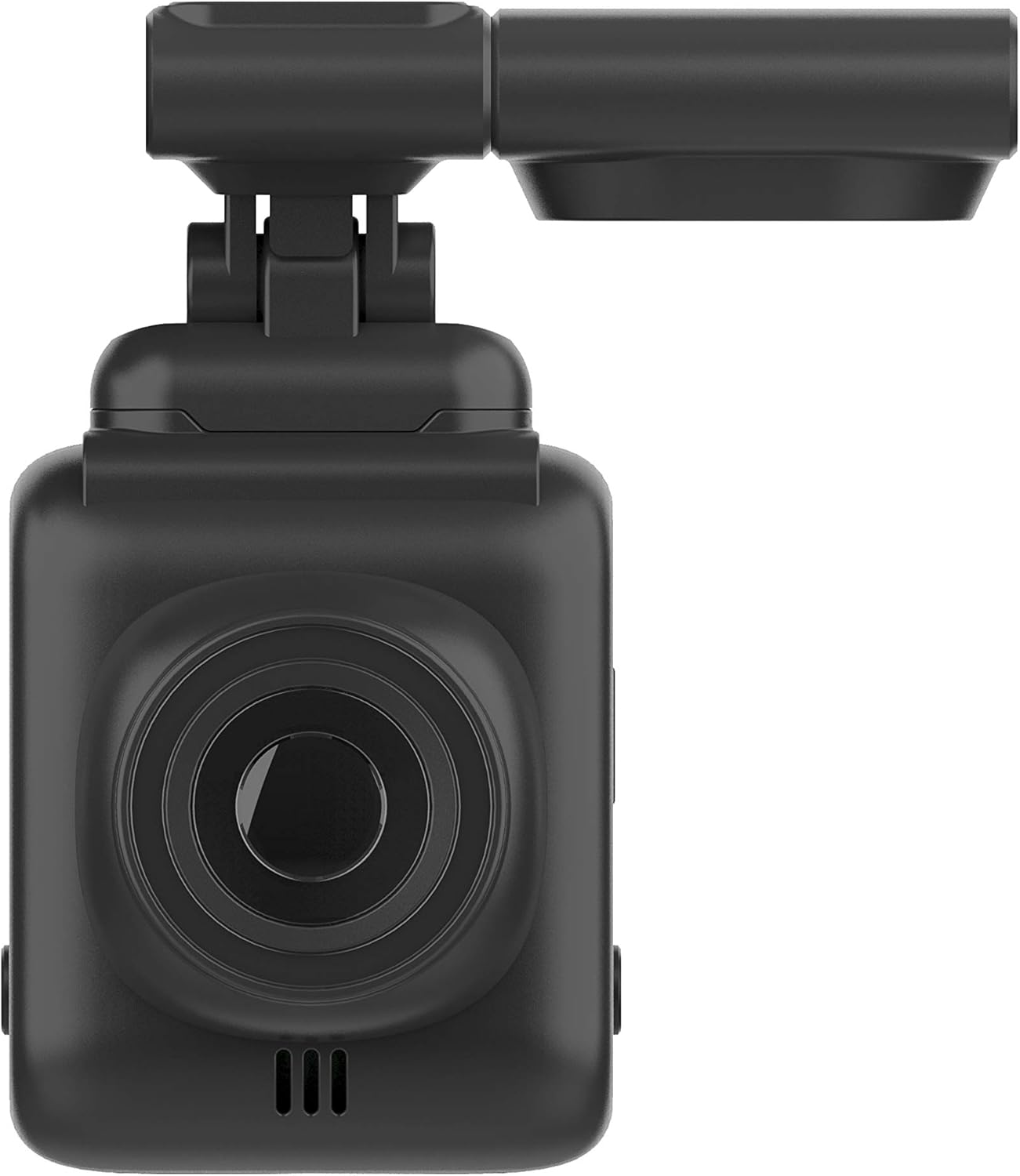
Imaj: Devan view of the Dash Patrol DC2, highlighting the camera lens.
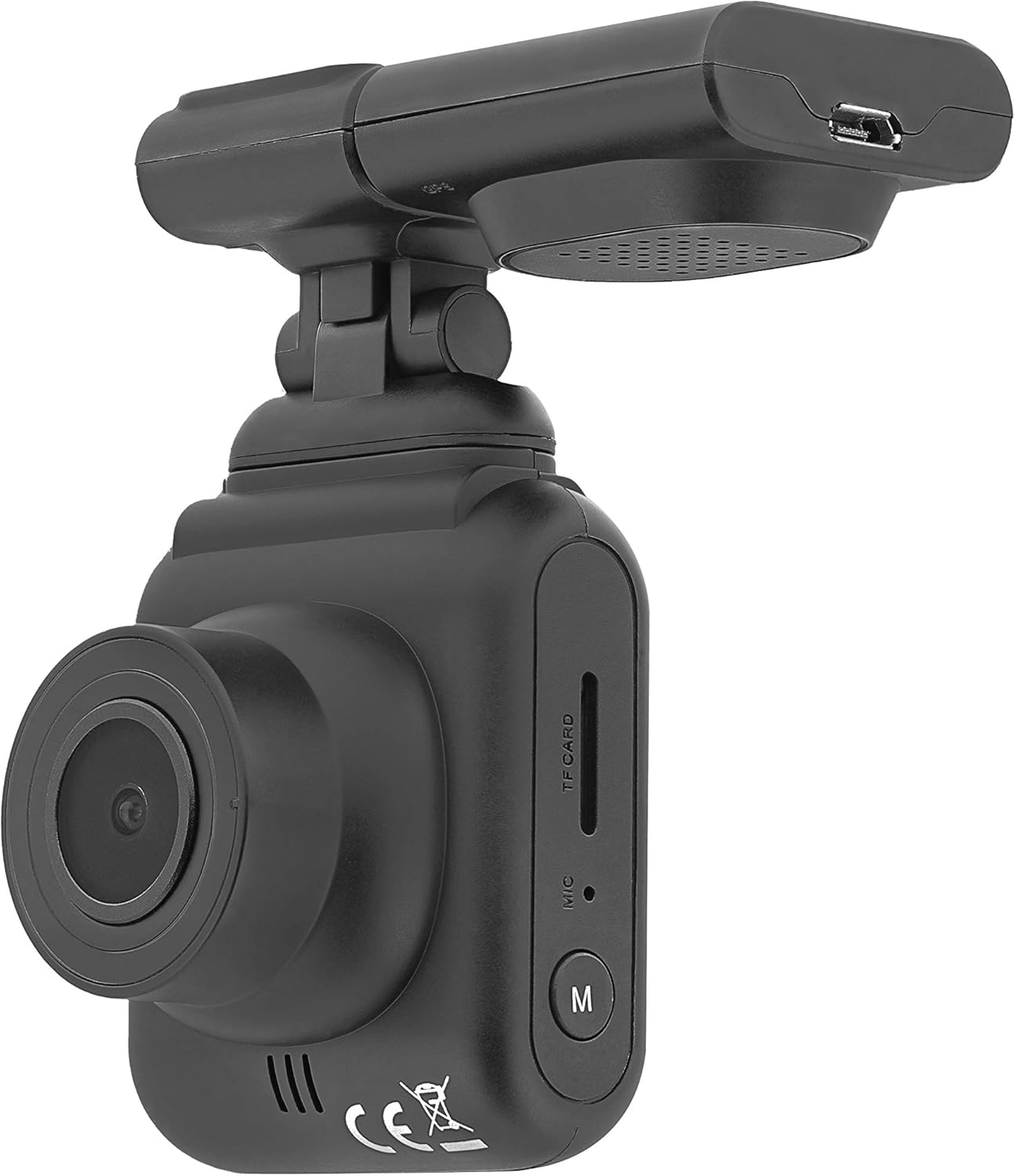
Imaj: Bò kote view of the Dash Patrol DC2, showing the TF card slot, microphone, and 'M' button.

Imaj: Dèyè view of the Dash Patrol DC2, displaying the screen, navigation buttons, USB port, Reset button, and Power button.
Konpozan kle:
- Lantiy kamera: Kaptire videyo footage.
- Ekran 2.7 pous: Pou viewing viv footage, playback, and menu navigation.
- TF Kat plas: Insert MicroSD card for storage.
- Mikwofòn: Records audio (can be disabled in settings).
- Bouton 'M': Mode button to switch between video, photo, and playback modes.
- Navigation Buttons (Up/Down): For menu navigation and specific functions.
- OK bouton: Konfime seleksyon yo epi kòmanse/sispann anrejistreman an.
- Bouton pouvwa: Limen/éteint aparèy la.
- Bouton Reyajiste: For factory reset (use a thin object to press).
- Pò USB: For power supply and data transfer.
- Magnetic Mount Connector: For attaching the camera to the car mount.
4. Enstalasyon
4.1 Enstale Kat MicroSD a
- Asire w ke kamera a etenn.
- Insert a Class 10 or higher MicroSD card (up to 64GB, not included) into the TF card slot until it clicks into place.
- Pou retire kat la, pouse kat la dousman jiskaske li soti.
4.2 Monte Kamera a
- Clean the area on your windshield where you intend to mount the camera.
- Attach the magnetic car mount to the windshield using its adhesive or suction cup. Ensure it does not obstruct your view.
- Align the camera with the magnetic connector on the mount until it securely attaches.
- Ajiste ang kamera a pou asire yon imaj klè view nan wout ki devan an.
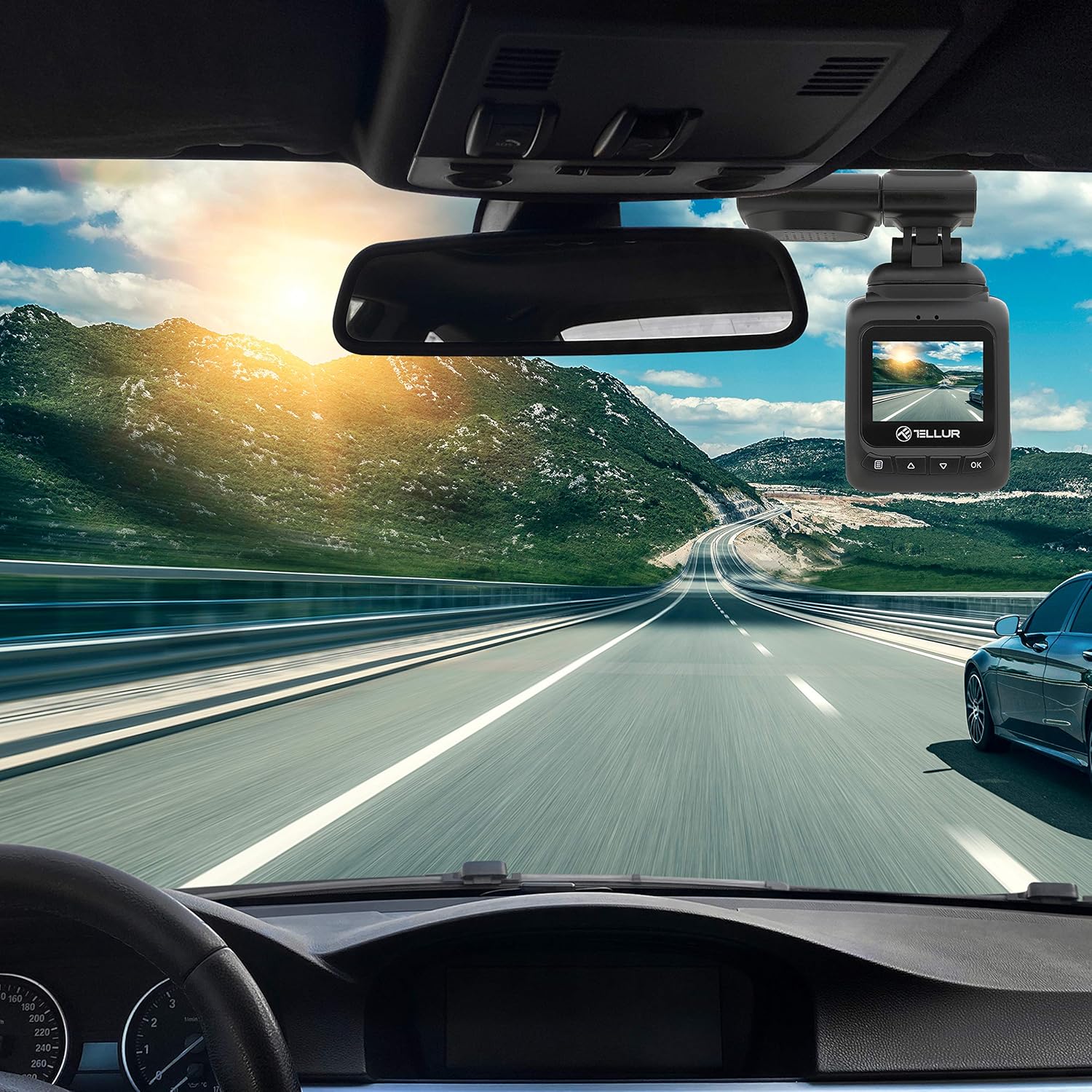
Image: The Dash Patrol DC2 camera mounted on a car windshield, showing its position relative to the rearview mirror for optimal road visibility.
4.3 Alimante Kamera a
- Connect the car charger to your vehicle's 12V power outlet (cigarette lighter socket).
- Connect the other end of the USB cable to the camera's USB port.
- The camera will automatically power on and begin recording when your vehicle starts. It will power off shortly after the vehicle is turned off.
4.4 Anviwònman Inisyal
Upon first use, or after a reset, you may need to set the date and time. Navigate through the menu using the Up/Down buttons and confirm with the OK button.
5. Operasyon Enstriksyon
5.1 Anrejistreman Debaz
The camera automatically starts loop recording when powered on. Older files are overwritten when the memory card is full, except for locked files.
5.2 G-Sensor (Automatic Incident Detection)
The built-in G-sensor detects sudden impacts or collisions. When an event is detected, the current video segment is automatically locked to prevent it from being overwritten during loop recording.

Image: Illustration of the G-sensor function, showing the camera recording and a lock icon appearing when a collision is detected, indicating the video is protected.
5.3 Parking Monitor Function
When enabled, the parking monitor function allows the camera to automatically record when motion or impact is detected while the vehicle is parked and the engine is off. This provides surveillance even when you are away from your vehicle.

Image: Diagram illustrating the parking monitor function, where the dashcam automatically records when motion is detected around a parked car.
5.4 Fonksyonalite GPS
The integrated GPS module records your vehicle's speed and location data alongside the video footage. Enfòmasyon sa a kapab viewed during playback using compatible software on a computer.
5.5 Wi-Fi Connectivity and App
The Dash Patrol DC2 features Wi-Fi connectivity, allowing you to connect to a smartphone app for live view, video playback, and settings adjustment. The compatible app is typically named GoPlus Cam.
- Telechaje la GoPlus Cam aplikasyon an nan magazen aplikasyon telefòn entelijan ou an.
- Turn on the Dashcam.
- Press and hold the 'Down' button on the camera until the Wi-Fi symbol appears on the screen.
- On your smartphone, go to Wi-Fi settings and connect to the camera's Wi-Fi network (SSID usually starts with 'TELLUR' or similar).
- Open the GoPlus Cam app to manage your camera.

Image: Icon for the GoPlus Cam mobile application, used for connecting to the dashcam via Wi-Fi.
6. Antretyen
6.1 Jesyon Kat MicroSD
- Regularly format the MicroSD card (at least once a month) to ensure optimal performance and prevent data corruption. This can usually be done through the camera's menu settings.
- Replace the MicroSD card if you notice frequent errors or degraded performance.
6.2 Netwayaj
- Use a soft, dry cloth to clean the camera lens and screen. Avoid abrasive materials or chemical cleaners.
- Kenbe kamera a pwòp de pousyè ak debri.
NAN. Depanaj
If you encounter issues with your Dash Patrol DC2, refer to the following common solutions:
| Pwoblèm | Solisyon posib |
|---|---|
| Kamera a pa limen. |
|
| Camera turns on but screen is white/blank. |
|
| Camera stops recording or records intermittently. |
|
| Pwoblèm koneksyon Wi-Fi. |
|
| GPS data not showing speed on screen. |
|
8. Espesifikasyon
| Karakteristik | Detay |
|---|---|
| Mak | TELLUR |
| Modèl | TLL711002 |
| Rezolisyon Capture Videyo | 1080p (FullHD) |
| Kanpe Screen Display Size | 2.7 pous |
| Aktyèl Viewing Ang | 140 Degre |
| Kalite memwa flash | MicroSD (up to 64GB, Class 10 or higher recommended) |
| Karakteristik espesyal | Automatic Incident Detection (G-Sensor), Parking Monitor Function, Built-in GPS, Wi-Fi Connectivity |
| Kalite aliye | Dashboard Mount (Magnetic Car Mount) |
| Dimansyon pwodwi | 50 x 50 x 28 cm |
| Pwa atik | 270 g |
9. Garanti ak sipò
For warranty information or technical support, please refer to the documentation provided with your purchase or visit the official TELLUR websit la. Kenbe prèv acha ou a pou nenpòt reklamasyon garanti.


