Entwodiksyon
Thank you for choosing the BENGOO KM-1 Wireless Gaming Mouse. This manual provides detailed instructions on how to set up, operate, and maintain your mouse to ensure optimal performance and longevity. The KM-1 mouse features a lightweight honeycomb shell, 2.4G wireless technology, adjustable DPI settings, and customizable RGB lighting, designed for a comfortable and responsive gaming experience.
Kontni pake
- BENGOO KM-1 Wireless Gaming Mouse
- Reseptè USB
- USB Chaje Kab
Enstalasyon
1. Konekte sourit la
- Locate the USB receiver, typically stored in a compartment on the underside of the mouse.
- Plug the USB receiver into an available USB port on your computer (PC, Laptop, Mac).
- Turn on the mouse using the ON/OFF switch located on the underside. The mouse will automatically connect to the receiver.
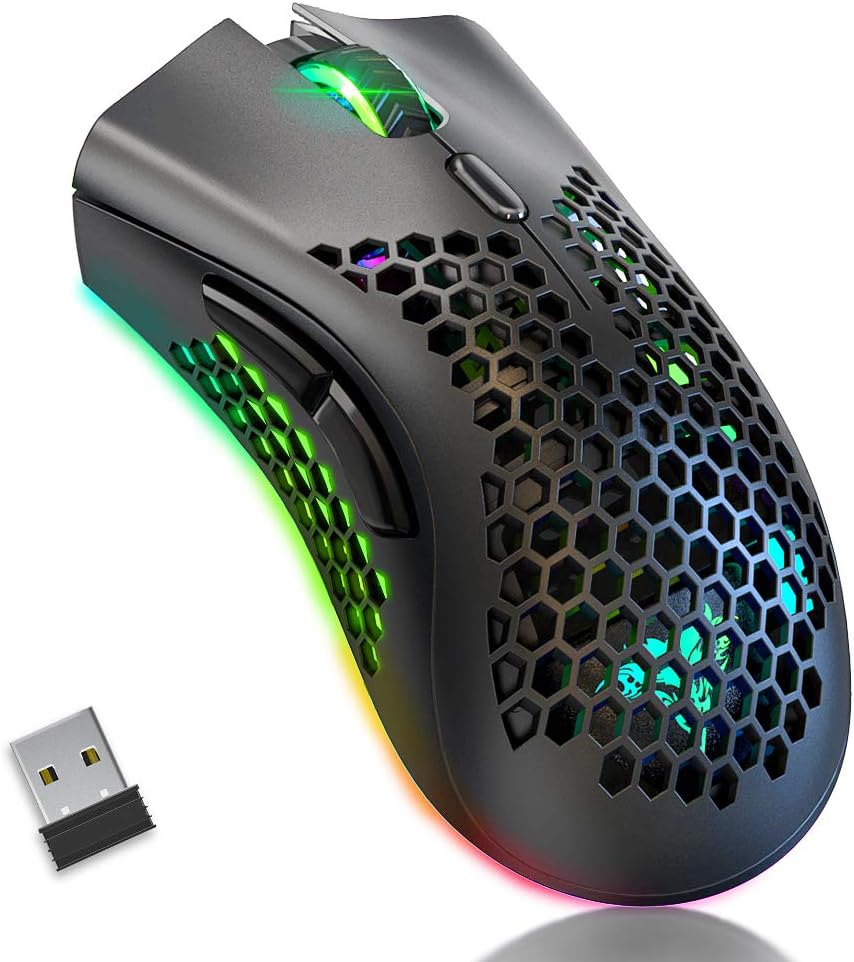
Image: The BENGOO KM-1 Wireless Gaming Mouse shown alongside its compact USB receiver, ready for connection.
The 2.4G wireless technology provides a stable connection with a range of up to 10 meters, ensuring no delays or interference during use.
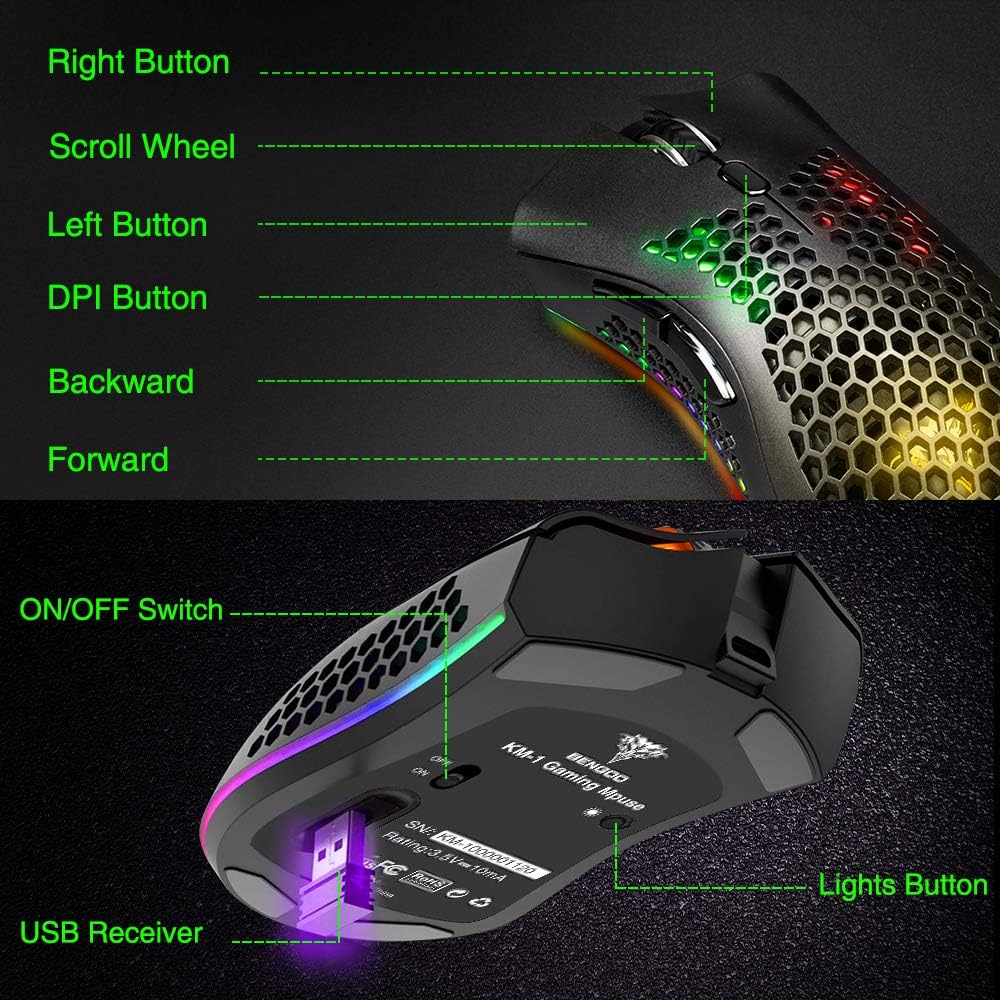
Image: A visual representation illustrating the 10-meter wireless operating range of the mouse from a computer.
2. Chaje Sourit la
The KM-1 mouse is rechargeable. When the battery is low, the mouse cursor may move slowly, unstably, or stop moving. Connect the included USB charging cable to the mouse and a USB power source to charge. The mouse can be used while charging.
Image: The BENGOO KM-1 mouse connected to a USB cable, indicating its rechargeable capability.
Enstriksyon Operasyon
1. Fonksyon bouton
The KM-1 mouse is equipped with six programmable buttons for enhanced control:
- Bouton Goch: Fonksyon klike gòch estanda.
- Dwa bouton: Fonksyon estanda klike sou bò dwat la.
- wou woulo liv: Scrolls pages up and down; can also be pressed for middle-click functionality.
- Bouton DPI: Ajiste sansiblite sourit la (DPI).
- Bouton Avant: Navige pi devan nan web navigatè oswa file eksploratè.
- Bouton tounen: Navige bak nan web navigatè oswa file eksploratè.

Image: A detailed diagram highlighting and labeling each of the six buttons on the BENGOO KM-1 Wireless Gaming Mouse.
2. Ajisteman DPI
The mouse features 3 adjustable DPI (Dots Per Inch) settings for precise control. Press the DPI button to cycle through the following sensitivities:
- 800 DPI
- 1600 DPI
- 3200 DPI

Image: A visual demonstrating the adjustable DPI settings (800-1600-3200) for the BENGOO KM-1 mouse, allowing users to customize cursor speed.
3. Kontwòl ekleraj RGB
The KM-1 mouse features Chroma RGB lighting. To activate the lights, ensure the mouse is turned on. Press the LED button (located on the underside near the ON/OFF switch) repeatedly to cycle through different lighting effects:
- Rainbow Mode
- Mòd Stream
- Respire Mode
- Pure Mode (Solid Color)
- Limyè Off

Image: A display of the various RGB lighting modes available on the BENGOO KM-1 mouse, including Rainbow, Stream, Breathing, and Pure modes.
4. Ergonomik konsepsyon
The mouse features a lightweight honeycomb shell design, which provides a comfortable grip and promotes airflow, keeping the palm cool during extended use. This design contributes to a soft feeling and excellent gaming experience.

Imaj: Yon gwo plan view of the BENGOO KM-1 mouse, emphasizing its unique lightweight honeycomb shell design.
Antretyen
Netwayaj
Pou netwaye sourit ou a, sèvi ak yon twal mou epi sèk. Pou pousyè tè ki difisil pou netwaye, siye l yon ti kras.ampen the cloth with water. Avoid using harsh chemicals or abrasive materials, as these can damage the mouse's surface or internal components. Ensure no liquid enters the honeycomb perforations.
Swen batri
To prolong battery life, avoid fully discharging the mouse frequently. Charge the mouse when the low battery indicator appears or when performance degrades. Store the mouse in a cool, dry place when not in use for extended periods.
Depanaj
- Sourit la pa reponn:
- Asire w ke reseptè USB a byen branche nan yon pò USB ki fonksyone.
- Check if the mouse is turned on using the ON/OFF switch.
- Chaje sourit la si batri a fèb.
- Ensure the mouse is within the 10-meter wireless range of the receiver.
- Cursor moves slowly or erratically:
- This often indicates a low battery. Charge the mouse fully.
- Ensure the mouse sensor is clean and free of debris.
- Eseye ajiste paramèt DPI a.
- Limyè RGB yo pa fonksyone:
- Asire w sourit la limen.
- Press the LED button to cycle through the lighting modes.
- Tcheke nivo batri a.
- Pwoblèm konpatibilite:
- The mouse is compatible with Windows (98/2000/ME/NT/XP/VISTA/7/8/10/11) and macOS. No specific drivers are required.
If you encounter issues not listed here, please refer to the manufacturer's support resources.
Espesifikasyon
| Karakteristik | Detay |
|---|---|
| Mak | BENGOO |
| Modèl | KM-1 |
| Koneksyon Teknoloji | 2.4G Wireless, USB (for charging) |
| Mouvman Deteksyon | Optik |
| DPI reglabl | 800 / 1600 / 3200 |
| Bouton | 6 (Agoch, Adwat, Motè woulo, DPI, Devan, Retounen) |
| Karakteristik espesyal | Lightweight Honeycomb Shell, RGB LED Lights, Rechargeable, Ergonomic Design |
| Konpatibilite | Windows, macOS |
| Pwa atik | 12.3 ons |
| Dimansyon pwodwi | 13.78 x 13.78 x 7.87 pous |
| Sous pouvwa | Batri Powered |
Garanti ak sipò
For warranty information and customer support, please refer to the documentation included with your product or visit the official BENGOO websit. Kenbe resi acha ou pou reklamasyon garanti.
Videyo pwodwi ofisyèl yo
No relevant official product videos with 'creator_type':'Seller' were found in the provided data to embed in this manual.


