1. Entwodiksyon
This manual provides detailed instructions for the installation, operation, and maintenance of your Codnida 2K PTZ Outdoor Security Camera. Designed for comprehensive surveillance, this camera offers 360° pan and tilt capabilities, 2K (3MP) video resolution, motion detection with smart siren, two-way audio, and color night vision, ensuring robust security for your property.
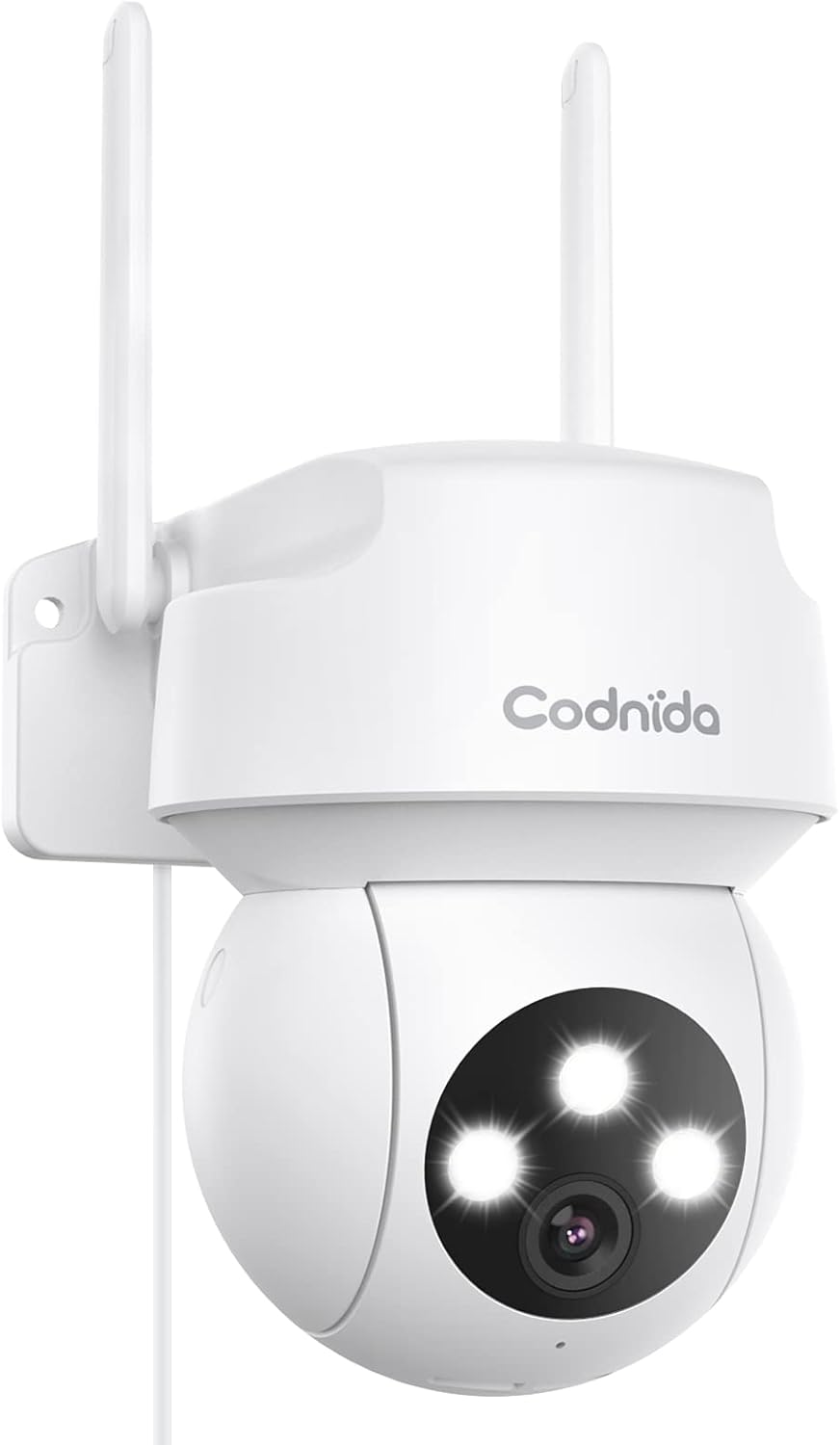
Figure 1.1: Codnida 2K PTZ Outdoor Security Camera, showcasing its sleek white design with dual antennas and three prominent LED lights on the camera head.
2. Pake kontni
Verifye ke tout atik ki nan lis anba a yo enkli nan pakè ou a:
- 1 x Security Camera with cable (approx. 10ft)
- 1 x pouvwa adaptè
- 1 x Pozisyon fichye
- 1 x pake vis
- 1 x manyèl itilizatè

Figure 2.1: Diagram illustrating the camera's components including antennas, indicator light, LED lights, camera lens, microphone, power cable, reset button, and TF card slot.
3. Karakteristik kle
- 360° View PTZ: Pan 340° and tilt 110° for comprehensive coverage without blind spots.
- 2K (3MP) Video & Image: Captures 2304x1296 resolution for clear, sharp visuals.
- Smart Siren Alarm: Automatic activation of floodlight and siren upon motion detection at night.
- Motion Detection & Auto Tracking: Real-time alarm pushes to your phone and automatic tracking of human activity.
- Vizyon klè lannwit: Features infrared and full-color night vision modes.
- Aksè Remote: View live video and control the camera via the "CloudEdge" app (iOS & Android).
- De-fason Audio: Mikwofòn ak oratè entegre pou kominikasyon an tan reyèl.
- IP66 Rezistan a move tan: Designed to withstand harsh weather conditions (-4℉ to +140℉).
- Sipò Depo: Supports SD card (up to 128GB, not included) and cloud service for recording storage.
4. Gid Enstalasyon
4.1 Limen
Connect the camera to the provided power adapter and plug it into a standard electrical outlet. The camera will perform a self-test, indicated by LED lights and a voice prompt.
4.2 Telechaje Aplikasyon an ak Kreye yon Kont
Download the "CloudEdge" app from your device's app store (available for iOS and Android). Follow the in-app instructions to create a new account or log in if you already have one.
4.3 Koneksyon Wi-Fi
The Codnida camera connects only to 2.4GHz Wi-Fi networks. Ensure your router is broadcasting a 2.4GHz signal. If you have a dual-band router, you may need to separate the 2.4GHz and 5GHz networks or ensure your device is connected to the 2.4GHz band during setup.
Within the CloudEdge app, select 'Add Device' and follow the prompts to connect your camera to your Wi-Fi network. This typically involves scanning a QR code displayed on your phone with the camera lens.
Video 4.1: Instructions on how to change your Xfinity router settings to enable a 2.4GHz Wi-Fi network, which is required for the camera's connection.
4.4 Monte Kamera a
Choose a suitable outdoor location for mounting, ensuring a clear view and proximity to a power source. Use the included position sticker to mark drill holes, then secure the camera using the provided screws. The camera's IP66 weatherproof rating ensures durability against rain and snow.

Figi 4.1: Yon egzanpample of the camera mounted outdoors on a wall, demonstrating its placement for optimal surveillance.

Figure 4.2: Visual representation of the camera's IP66 weatherproof capability, showing it enduring rain, snow, and sunshine.
5. Operasyon
5.1 Viv View ak Kontwòl PTZ
Open the CloudEdge app and select your camera to access the live view. Use the on-screen joystick or swipe gestures to control the camera's pan (340°) and tilt (110°) movements, allowing you to adjust the viewing ang adistans.

Figure 5.1: A smartphone screen displaying the live camera feed with an overlay of PTZ control arrows, indicating the ability to remotely adjust the camera's pan and tilt.

Figure 5.2: An outdoor scene with a house and garage, showing the camera mounted on the wall with arrows indicating its 340° pan and 110° tilt capabilities for a 360° view.
5.2 Deteksyon Mouvman ak Alèt
Enable motion detection in the app settings. When motion is detected, the camera will automatically push real-time alarm information to your phone. The auto-tracking feature allows the camera to follow detected human activity, ensuring important moments are recorded.

Figure 5.3: An illustration depicting the camera's human motion tracking feature, showing a person walking and the camera's field of view adjusting to follow them.

Figure 5.4: A night scene showing the camera's spotlight illuminating an intruder and a siren icon, with a phone displaying an alarm message, demonstrating the smart siren and spotlight function.
5.3 Odyo De-fason
Sèvi ak mikwofòn ak oratè entegre a pou kominikasyon bidireksyonèl. Tape ikòn mikwofòn nan an dirèk view to speak through the camera, and listen to audio from the camera's surroundings.

Figure 5.5: A person interacting with the camera via a smartphone app, showing a microphone icon for speaking and text bubbles indicating a two-way conversation, such as with a delivery person.
5.4 Mòd Vizyon Lannwit
The camera offers two night vision modes: infrared night vision for clear black-and-white images in low light, and full-color night vision which uses the integrated floodlight to provide color images at night.

Figure 5.6: Comparison of color night vision (top) showing a brightly lit house and infrared night vision (bottom) showing a black and white view, both captured by the camera at night.
5.5 Anrejistreman ak Lektur
The camera supports 24/7 recording. Recordings can be stored on a local SD card (not included, up to 128GB) or via cloud service (subscription may be required). Access recorded footage and playback through the CloudEdge app.

Figure 5.7: A visual comparison demonstrating the superior clarity of 2K (3MP) video resolution compared to 1080p, highlighting the enhanced detail captured by the camera.
6. Antretyen
6.1 Netwayaj Kamera a
Netwaye lantiy kamera a ak bwat la detanzantan avèk yon twal mou,amp twal pou retire pousyè ak debri. Pa sèvi ak pwodui chimik ki agresif oswa pwodui netwayaj abrazif.
6.2 Mizajou Firmware
Check the CloudEdge app regularly for available firmware updates. Keeping your camera's firmware up-to-date ensures optimal performance, security, and access to new features.
6.3 Tcheke Koneksyon
Ensure the power cable and any network cables (if used) are securely connected and free from damage. Verify Wi-Fi signal strength in the app to maintain a stable connection.
7. Espesifikasyon
| Karakteristik | Detay |
|---|---|
| Mak | Codnida |
| Nimewo Modèl | COD-CD320 |
| Koneksyon Teknoloji | San fil (Wi-Fi) |
| Wi-Fi frekans | 2.4 GHz (Does not support 5G Wi-Fi) |
| Rezolisyon Capture Videyo | 2K (3MP, 2304x1296p) |
| Pan Range | 340° |
| Panche Range | 110° |
| Vizyon lannwit Range | 33 pye |
| Mòd vizyon lannwit | Infrared, Full Color |
| Odyo | Odyo 2-fason (mikwofòn ak oratè entegre) |
| Rezistans move tan | IP66 ki enpèmeyab |
| Tanperati Fonksyònman | -4℉ pou +140℉ (-20℃ pou +60℃) |
| Opsyon Depo | SD Card (up to 128GB), Cloud Service |
| Sous pouvwa | Aparèy elektrik ak fil (5 vòlt, 12 wat) |
| Dimansyon (L x W x H) | 1 x 1 x 1 pous |
| Pwa atik | 1.08 liv |
| Konpozan ki enkli | Camera, Power Adapter, Position Sticker, Screw Package, User Manual |
NAN. Depanaj
8.1 Kamera a pa konekte ak Wi-Fi a
- Asire w ke rezo Wi-Fi ou a se 2.4GHz. Kamera a pa sipòte Wi-Fi 5GHz.
- Tcheke modpas Wi-Fi ou a pou wè si li kòrèk.
- Deplase kamera a pi pre routeur Wi-Fi ou a pou amelyore fòs siyal la.
- If using a dual-band router, temporarily disable the 5GHz band during setup or ensure your phone is connected to the 2.4GHz band.
- Reset the camera by holding the reset button (located near the TF card slot) for 6-10 seconds until you hear a prompt. Then, attempt to reconnect.
8.2 Blurry or Pixelated Images
- Asire w ke lantiy kamera a pwòp epi li pa gen tach oswa pousyè tè.
- Check your internet connection speed. A slow connection can result in lower quality streaming.
- Verify the camera's resolution setting in the CloudEdge app is set to 2K (3MP) or FHD.
8.3 Motion Detection Not Working or Too Sensitive
- Adjust the motion detection sensitivity settings within the CloudEdge app.
- Define specific detection zones to reduce false alarms from irrelevant areas.
- Asire w pa gen okenn obstak ki bloke kamera a view nan zòn deteksyon an.
9. Garanti ak sipò
For any issues with your order or product, please contact customer support. You can typically find support by logging into your account, choosing 'your order', finding the order ID, and clicking 'contact seller'.
For the most up-to-date warranty information, please refer to the product listing or contact Codnida customer service directly.


