1. Entwodiksyon
The SumUp Plus Card Reader is a portable payment terminal designed for businesses to accept various card payments using a smartphone or tablet. This manual provides detailed instructions for setting up, operating, and maintaining your device to ensure smooth and efficient transaction processing.

Image 1.1: The SumUp Plus Card Reader, a compact device for processing card payments. A black credit card is shown tapping the reader's contactless payment area.
2. Karakteristik kle
- Mobile Payment Acceptance: Accept payments anywhere, anytime, directly through your smartphone or tablet.
- Opsyon peman versatile: Supports magstripe, EMV chip, and contactless payments (NFC), including Apple Pay and Google Pay.
- Koneksyon Bluetooth: Connects wirelessly to your mobile device for seamless operation.
- Batri entegre: Equipped with a long-lasting Lithium-ion battery for extended use.
- Kontra enfòmèl ant ak pòtab: Designed for ease of use and portability.

Image 2.1: The SumUp Plus Card Reader highlighting its NFC, Bluetooth, and integrated Li-ion battery features.
3. Gid Enstalasyon
Follow these steps to set up your SumUp Plus Card Reader and begin accepting payments:
- Download the SumUp App: Chèche pou "SumUp" in your device's app store (iOS or Android) and download the free application.
- Kreye kont ou: Open the SumUp app and follow the on-screen instructions to create your business account. This typically involves providing business details and undergoing a verification process.
- Register Your Card Reader: Within the app, navigate to the device settings and select the option to add a new card reader.
- Konekte via Bluetooth: Ensure Bluetooth is enabled on your smartphone or tablet. The app will guide you to pair with your SumUp Plus Card Reader.
- Konekte ak Wi-Fi (Si ou vle): Some functionalities may benefit from a Wi-Fi connection. Follow in-app prompts if required.
- Start Accepting Payments: Once connected and verified, you can begin processing transactions.
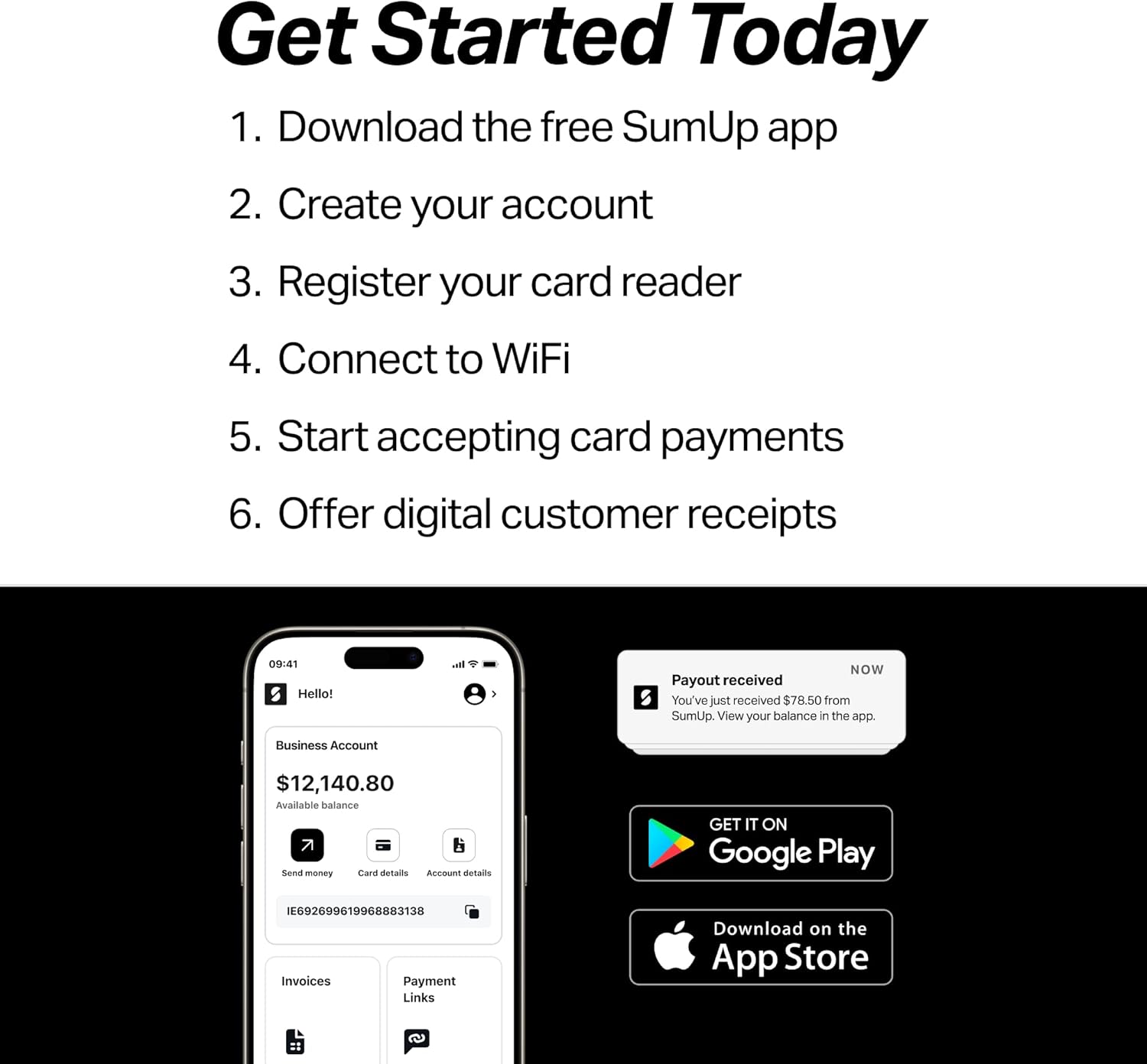
Image 3.1: Visual representation of the initial setup steps for the SumUp Plus Card Reader, including app download and account creation.

Image 3.2: The SumUp Plus Card Reader connected via Bluetooth to a smartphone running the SumUp application, ready to process a transaction.
4. Operasyon Enstriksyon
The SumUp Plus Card Reader supports various payment methods. Ensure your device is connected to the SumUp app on your smartphone or tablet before proceeding.
4.1. Accepting Contactless Payments (NFC)
For contactless cards or mobile wallets (Apple Pay, Google Pay):
- Enter the transaction amount in the SumUp app and tap "Charge".
- Ask the customer to hold their contactless card or NFC-enabled device (smartphone/smartwatch) near the contactless symbol on the card reader's display.
- A confirmation sound and visual indicator on the reader will confirm a successful payment.

Image 4.1: A customer making a contactless payment by tapping their card on the SumUp Plus Card Reader.
4.2. Accepting Chip Card Payments (EMV)
For chip-enabled cards:
- Enter the transaction amount in the SumUp app and tap "Charge".
- Insert the customer's chip card into the slot at the bottom of the card reader with the chip facing up.
- Leave the card in the reader until the transaction is complete and the app indicates removal.
- The customer may be prompted to enter their PIN on the reader's keypad or sign on your device.

Image 4.2: An American Express chip card inserted into the SumUp Plus Card Reader, demonstrating a chip card transaction.
4.3. Accepting Magstripe Payments
For cards with a magnetic stripe:
- Enter the transaction amount in the SumUp app and tap "Charge".
- Swipe the customer's card through the magnetic stripe reader slot on the side of the device. Ensure the magnetic stripe faces the reader.
- The customer may be prompted to sign on your device.
5. Antretyen ak Swen
- Netwayaj: Use a soft, dry, lint-free cloth to clean the device. Do not use abrasive cleaners, solvents, or spray directly onto the reader.
- Lavi batri: Charge the device regularly using the provided USB cable. Avoid fully discharging the battery frequently to prolong its lifespan.
- Depo: Sere lektè kat la nan yon kote ki fre epi sèk, lwen limyè solèy dirèk ak tanperati ekstrèm.
- Manyen: Handle the device with care. Avoid dropping it or exposing it to liquids, dust, or excessive force.
NAN. Depanaj
If you encounter issues with your SumUp Plus Card Reader, try the following solutions:
- Aparèy la pa konekte:
- Ensure Bluetooth is enabled on your smartphone/tablet and the reader is powered on.
- Restart both the card reader and your mobile device.
- Try unpairing and re-pairing the device via Bluetooth settings.
- Ensure the SumUp app is updated to the latest version.
- Transaction Failure:
- Tcheke koneksyon entènèt ou (Wi-Fi oswa done mobil).
- Ensure the card is inserted/swiped/tapped correctly.
- Verify the card is valid and has sufficient funds.
- Try a different card or payment method.
- Pwoblèm batri:
- Ensure the charging cable is securely connected to both the reader and a power source.
- Allow sufficient time for charging.
- Pwoblèm aplikasyon:
- Close and reopen the SumUp app.
- Clear the app's cache (Android) or reinstall the app (iOS/Android).
If problems persist, contact SumUp customer support for further assistance.
7. Espesifikasyon teknik
| Karakteristik | Detay |
|---|---|
| Mak | SUMUP |
| Seri modèl | Plus Card Reader |
| Koneksyon Teknoloji | Bluetooth |
| Akseptasyon Peman | Contactless (NFC), EMV Chip, Magnetic Stripe |
| Aparèy konpatib | Telefòn entelijan (iOS, Android) |
| Sistèm operasyon konpatibilite | iOS, andwad |
| Koulè | Blan |
| Pwa atik | 5 ons |
| Dimansyon pwodwi (LxWxH) | 5.75 x 1.93 x 5.59 pous |
| Batri | 1 batri ityòm Ion (enkli) |

Image 7.1: The SumUp Plus Card Reader and its included accessories, such as the charging cable and user guide.
8. Enfòmasyon sou Garanti
For detailed warranty information regarding your SumUp Plus Card Reader, please refer to the official SumUp website or the warranty documentation included with your product. Warranty terms and conditions may vary by region and purchase date.
9. Sipò pou Kliyan
Should you require assistance with your SumUp Plus Card Reader, SumUp offers a dedicated support team. You can typically find contact information and a comprehensive Help Center within the SumUp app or on the official SumUp website. Their US-based Support Team is available to answer questions during business hours.

Image 9.1: SumUp's US-based support team is available to assist users with their devices.


