1. Pwodwi souview
The NETVIP Free Driver USB WiFi Adapter is a high-performance, dual-band wireless network adapter designed to provide fast and stable internet connectivity for your desktop or laptop PC. Featuring plug-and-play functionality for Windows 10 and 11, it eliminates the need for manual driver installation. With dual 5dBi high-gain antennas, it enhances signal reception and transmission, ensuring a reliable connection.

Image: NETVIP USB WiFi Adapter, showcasing its design with dual antennas and USB 3.0 interface.
This adapter supports the 802.11ac standard, offering speeds up to 1300Mbps. It operates on both 2.4GHz and 5GHz bands, providing flexibility for various network environments. The 5GHz band is ideal for high-data-rate activities like HD video streaming and online gaming, while the 2.4GHz band offers wider transmission range and better penetration for general browsing and daily tasks.

Image: Key features of the 1300Mbps WiFi Adapter, including 802.11AC, MU-MIMO, Dual Band, USB 3.0, and WPA2 encryption.
2. Gid Enstalasyon
2.1. Driver Installation (Plug & Play)
The NETVIP USB WiFi Adapter is designed for hassle-free installation on Windows 10 and Windows 11 operating systems. It features a "free driver" design, meaning the necessary drivers are typically installed automatically by your system upon connection, eliminating the need for a driver CD or manual download.
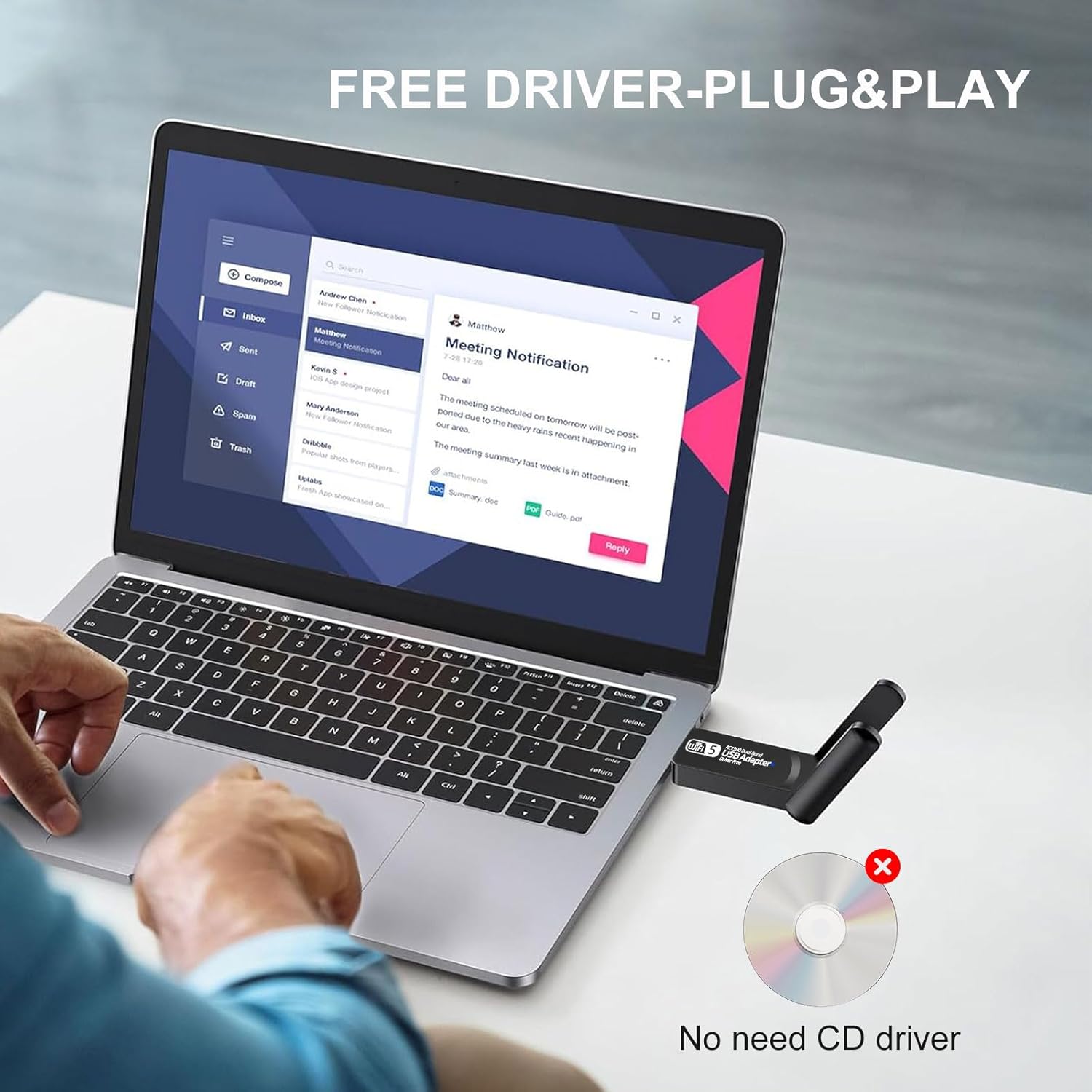
Image: The USB WiFi adapter connected to a laptop, highlighting its plug-and-play functionality without requiring a driver CD.
2.2. Koneksyon fizik
- Locate an available USB port on your desktop or laptop PC. For optimal performance, use a USB 3.0 port if available.
- Carefully insert the NETVIP USB WiFi Adapter into the USB port. Ensure it is fully seated.
- Allow your operating system a few moments to detect and automatically install the necessary drivers. A notification may appear indicating successful installation.
- Adjust the dual antennas for optimal signal reception. The antennas can typically be rotated 180 degrees to find the best orientation.

Image: The USB WiFi adapter connected to a desktop PC, demonstrating a clean and cable-free setup.

Image: Illustration of the adapter's 180-degree rotatable antennas for optimized signal reception.
3. Operasyon Enstriksyon
3.1. Konekte nan yon rezo Wi-Fi
- Once the adapter is plugged in and drivers are installed, click on the Wi-Fi icon in your computer's system tray (usually in the bottom-right corner for Windows).
- A list of available Wi-Fi networks will appear. Select your desired network from the list.
- Click "Connect" and enter the network security key (Wi-Fi password) if prompted.
- Kounye a, òdinatè w lan ta dwe konekte ak rezo Wi-Fi a.
3.2. Dual Band Operation
The adapter supports both 2.4GHz and 5GHz Wi-Fi bands. Your computer will automatically connect to the most suitable band based on your network configuration and signal strength. If your router broadcasts separate SSIDs (network names) for 2.4GHz and 5GHz, you can manually select which band to connect to.
- 5GHz Band: Offers higher data rates (up to 867Mbps) and is less susceptible to interference, making it ideal for bandwidth-intensive activities like 4K video streaming and online gaming.
- 2.4GHz Band: Provides a longer transmission distance and better wall penetration (up to 400Mbps), suitable for general internet browsing, email, and daily office tasks.

Image: Comparison of 5GHz and 2.4GHz band performance, illustrating their respective speeds and ideal uses.
4. Antretyen
To ensure the longevity and optimal performance of your NETVIP USB WiFi Adapter, follow these simple maintenance guidelines:
- Keep the adapter clean and free from dust. Use a soft, dry cloth to wipe its surface.
- Evite ekspoze adaptè a nan tanperati ekstrèm, limyè solèy dirèk, oswa imidite ki wo.
- Do not bend or apply excessive force to the USB connector or antennas.
- When not in use for extended periods, it is recommended to unplug the adapter from your computer.
- Periodically check for operating system updates, as these may include updated network drivers that can improve performance or compatibility.
NAN. Depanaj
If you encounter issues with your NETVIP USB WiFi Adapter, try the following troubleshooting steps:
| Pwoblèm | Solisyon posib |
|---|---|
| No Wi-Fi connection / Adapter not detected |
|
| Vitès entènèt ki ba |
|
| Intermittent connection / Frequent disconnections |
|
For more detailed troubleshooting or advanced configurations, please refer to the official User Guide PDF available online or contact NETVIP customer support.
6. Espesifikasyon
| Karakteristik | Detay |
|---|---|
| Mak | NETVIP |
| Nimewo Modèl | 5641386 |
| Dimansyon pwodwi | 3.15 x 1.38 x 0.59 pous |
| Pwa atik | 0.21 ons |
| Entèfas Materyèl | USB |
| Pwotokòl Done Link | USB |
| Pousantaj Transfè Done | 1300 MB (Mbps) |
| Aparèy konpatib | Laptop, Desktop, tablèt |
| Fanmi Sistèm Operasyon Konpatib | Linux, MacOS, Windows (Windows 10/11 recommended for plug-and-play) |
| UPC | 194424001818 |
7. Garanti ak sipò
NETVIP products are manufactured with quality and reliability in mind. For information regarding warranty coverage, terms, and conditions, please refer to the documentation included with your purchase or visit the official NETVIP websit.
If you require technical assistance, have questions about product functionality, or need to report an issue, please contact NETVIP customer support. Contact details can typically be found on the product packaging, the official website, or within the user guide.


