1. Entwodiksyon
This manual provides comprehensive instructions for the setup, operation, and maintenance of your NETUM NT-8003 80mm Wireless Bluetooth Thermal Receipt Printer. Please read this manual carefully before using the printer to ensure proper functionality and to prevent damage.
The NETUM NT-8003 is a portable thermal receipt printer designed for various applications, including retail, restaurants, and mobile sales, offering connectivity via Bluetooth and USB.
2. Pake kontni
Verifye ke tout atik yo prezan nan pakè a:
- NETUM NT-8003 Thermal Printer
- Rechargeable Lithium-ion Battery (7.4V DV / 2000mA)
- USB kab
- Power Adapter (external 9V / 1.5-2A)
- Woulo Papye Tèmik (yo)ample)
- Manyèl Itilizatè (dokiman sa a)

Image: The NETUM NT-8003 thermal printer, showing its compact design and control panel.
3. Prekosyon sekirite
- Pa ekspoze enprimant lan nan dlo oswa imidite.
- Evite lage enprimant lan oswa soumèt li a gwo chòk.
- Sèvi sèlman ak adaptè kouran ak pil ki espesifye a.
- Do not attempt to disassemble or repair the printer yourself. Contact customer support for assistance.
- Kenbe soti nan atenn timoun yo.
- Nòt enpòtan: Remove the insulating tape from the battery before first use.
4. Enstalasyon
4.1 Enstalasyon ak Chaje Batri
- Open the battery compartment cover on the back of the printer.
- Insert the rechargeable lithium-ion battery, ensuring correct polarity.
- Fèmen kouvèti lòj batri a.
- Connect the power adapter to the printer's charging port and plug it into a power outlet. The "CHARGE" indicator light will illuminate.
- Charge the printer fully before first use. A full charge typically takes several hours.
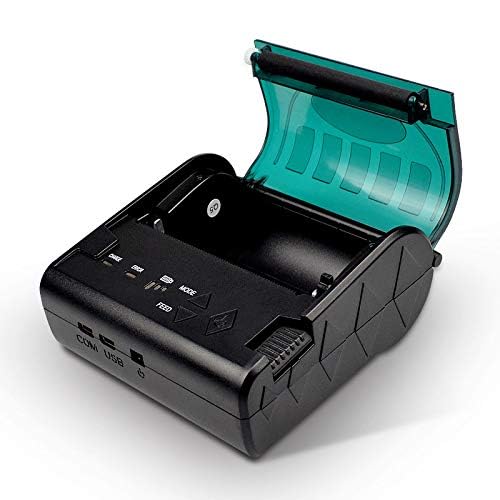
Image: The NETUM NT-8003 printer with its battery removed, illustrating the battery compartment.
4.2 Enstalasyon woulo papye
- Press the cover open button to open the paper compartment cover.
- Insert a new 80mm thermal paper roll into the compartment, ensuring the paper feeds from the bottom and the leading edge is straight.
- Rale yon ti kantite papye ki depase kwen koupe a.
- Fèmen kouvèti konpatiman papye a byen fèm jiskaske li fè yon klik an plas.
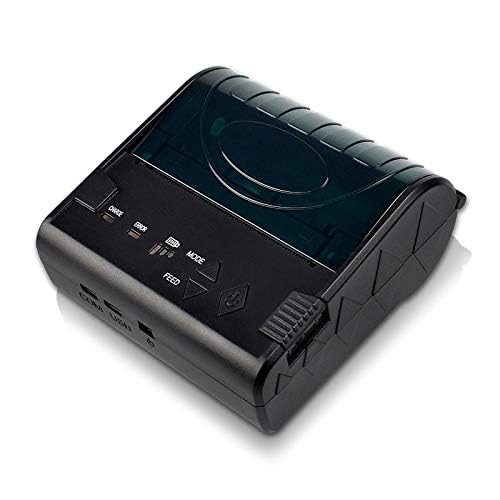
Image: The NETUM NT-8003 printer with its top cover open, ready for paper roll installation.
5. Operasyon Enstriksyon
5.1 Power On/Off
- Pou limen: Peze epi kenbe bouton pouvwa a (Senbòl pouvwa) until the indicator lights illuminate.
- Pou etenn: Peze epi kenbe bouton pouvwa a jiskaske limyè endikatè yo etenn.
5.2 Bluetooth Connection (Android/iOS)
The printer cannot be directly detected by the built-in Bluetooth function of Apple/Android devices. To connect and use the printer, you must use a compatible application for searching and connecting.
- Asire w ke enprimant lan limen epi li nan zòn aparèy ou an.
- Download a compatible POS printing application (e.g., "POS-Printer V1.0" or similar) from your device's app store.
- Open the application and navigate to its settings or printer connection section.
- Chèche pou available Bluetooth devices within the application.
- Select "NT-8003" or a similar name from the list of found devices.
- If prompted for a PIN, enter "0000" or "1234".
- Once connected, the application will indicate a successful connection, and you can proceed with printing.

Image: Visual guide demonstrating the process of connecting the printer via a mobile application, highlighting that direct Bluetooth pairing is not supported for printing.
5.3 USB Connection (PC/Windows/Linux)
- Konekte enprimant lan ak òdinatè w lan lè l sèvi avèk kab USB yo bay la.
- Install the appropriate printer drivers for your operating system (Windows/Linux). Drivers are typically provided on a CD or available for download from the NETUM websit.
- Once drivers are installed, the printer should appear in your system's printer list.
- You can now print directly from compatible software on your computer.
5.4 Enpresyon
After successful connection via Bluetooth or USB, you can initiate printing from your application or software. Ensure the paper roll is correctly installed and the printer has sufficient battery charge.
- Bouton Feed: Press the "FEED" button to advance the paper manually.
- bouton mòd: The "MODE" button may be used for self-test printing or changing printer settings, depending on the firmware version. Refer to specific application instructions for advanced settings.
6. Antretyen
6.1 Netwaye tèt enprime a
Regular cleaning of the thermal print head ensures optimal print quality and extends the printer's lifespan.
- Turn off the printer and disconnect the power adapter.
- Louvri kouvèti lòj papye a.
- Sèvi ak yon ti koton ki mouye dousmanampened with isopropyl alcohol to gently wipe the thermal print head (the dark strip inside the cover).
- Kite tèt enprime a seche nèt anvan ou fèmen kouvèti a epi limen enprimant lan.
6.2 Cleaning the Roller
Clean the rubber roller to prevent paper jams and ensure smooth feeding.
- Turn off the printer and disconnect the power adapter.
- Louvri kouvèti lòj papye a.
- Sèvi ak yon moso twal mou, ki san pèl dampened with water to wipe the rubber roller.
- Allow it to dry completely before closing the cover.
6.3 Swen Batri
- Charge the battery regularly, even if the printer is not in use, to maintain battery health.
- Evite dechaje batri a nèt souvan.
- Sere enprimant lan nan yon kote ki fre epi sèk lè w pa itilize li pou yon bon bout tan.
NAN. Depanaj
| Pwoblèm | Kòz posib | Solisyon |
|---|---|---|
| Enprimant lan pa limen. | Batri ki ba oswa pa gen pouvwa. | Charge the battery or connect the power adapter. Ensure insulating tape is removed from the battery. |
| Pa gen okenn rezilta enprime. | No paper, paper jam, or print head issue. | Check paper roll. Clear any paper jams. Clean the print head. |
| Move kalite enprime. | Dirty print head or low battery. | Clean the print head. Ensure the battery is sufficiently charged. Use high-quality thermal paper. |
| Pa ka konekte via Bluetooth. | Incorrect connection method, app issue, or printer not discoverable. | Ensure you are connecting via a compatible printing application, not directly through device settings. Restart both printer and device. Check app permissions. |
| Printer not recognized by PC via USB. | Missing or incorrect drivers. | Install the correct USB drivers for your operating system. Try a different USB port or cable. |
8. Espesifikasyon
| Karakteristik | Detay |
|---|---|
| Metòd enprime | Enpresyon tèmik liy |
| Enprime vitès | 90mm / sec |
| Rezolisyon | 8 pwen/mm (203 DPI) |
| Lajè papye | 80 ± 1 mm |
| Dyamèt woulo papye | 83 mm |
| Epesè papye | 0.06-0.08 mm |
| Entèfas | USB, Bluetooth 2.0 (4.0) |
| Kòmand Set | ESC / POS / STAR compatible |
| Batri | 7.4V DV / 2000mA Rechargeable Lithium-ion |
| Charger ekstèn | 9V / 1.5-2A |
| Sistèm operasyon yo | Windows 7, Android, iOS, Linux |
| Dimansyon | 12 x 11 x 8 cm |
| Pwa | 322 gram |
| Fyab | Enprime tèt lavi: 100 km |
9. Garanti ak sipò
NETUM products are designed for reliability and performance. This product comes with a warranty period of at least 12 months from the date of purchase.
For warranty claims, technical support, or service inquiries, please contact NETUM customer support through your retailer or the official NETUM website. Please have your purchase receipt and product model number (NT-8003) available when contacting support.
Sètifikasyon: CE, FCC, CCC, ROHS, ISO9001:2008