1. Entwodiksyon
This manual provides comprehensive instructions for the setup, operation, and maintenance of your NETUM NT-G5 Bluetooth Thermal Label Printer. Please read this guide thoroughly to ensure proper use and optimal performance of your device.
2. Pwodwi souview
2.1 Kontni pake a
Lè w ap ouvri pake a, verifye si tout bagay yo la:
- NETUM NT-G5 Thermal Label Printer
- USB Chaje Kab
- Gid pou kòmanse rapidman (si li enkli)
- One roll of labels (pre-installed or separate)
2.2 Konpozan Enprimant lan
Familiarize yourself with the main parts of the NT-G5 printer:

Imaj 2.2.1: Detaye view of the NETUM NT-G5 printer, highlighting key components such as the top cover open button, paper exit, OLED display, power/setting button, USB interface, power interface, and feed/OK button.
- Top Cover Open Button: Used to open the printer cover for label roll installation.
- Sòti papye: Where printed labels emerge. Maximum width: 57mm.
- Paper Tear-off Knife: For cleanly detaching printed labels.
- Ekspozisyon OLED: Shows printer status and settings.
- Power/Setting Button: Powers the device on/off and navigates settings.
- Feed/OK Button: Feeds labels or confirms selections. Controls print speed (20-50mm/s).
- Entèfas USB: For charging and data connection (1500mAh battery).
- Entèfas pouvwa: Antre: 5V 2A.
3. Gid Enstalasyon
3.1 Chaje Enprimant lan
Before first use, fully charge the printer. Connect the USB charging cable to the printer's USB interface and a 5V 2A power adapter. The OLED display will indicate charging status.
3.2 Loading the Label Roll
- Press the Top Cover Open Button to open the printer's top cover.
- Adjust the paper plate to match the width of your label roll. The adjustable paper plate supports label roll diameters from 20mm to 50mm, with a maximum paper width of 54mm and a largest print width of 48mm.
- Insert the label roll with the printing surface facing upwards. Ensure the leading edge of the labels extends slightly out of the paper exit.
- Fèmen kouvèti anwo a byen fèm jiskaske li fè yon klik an plas.
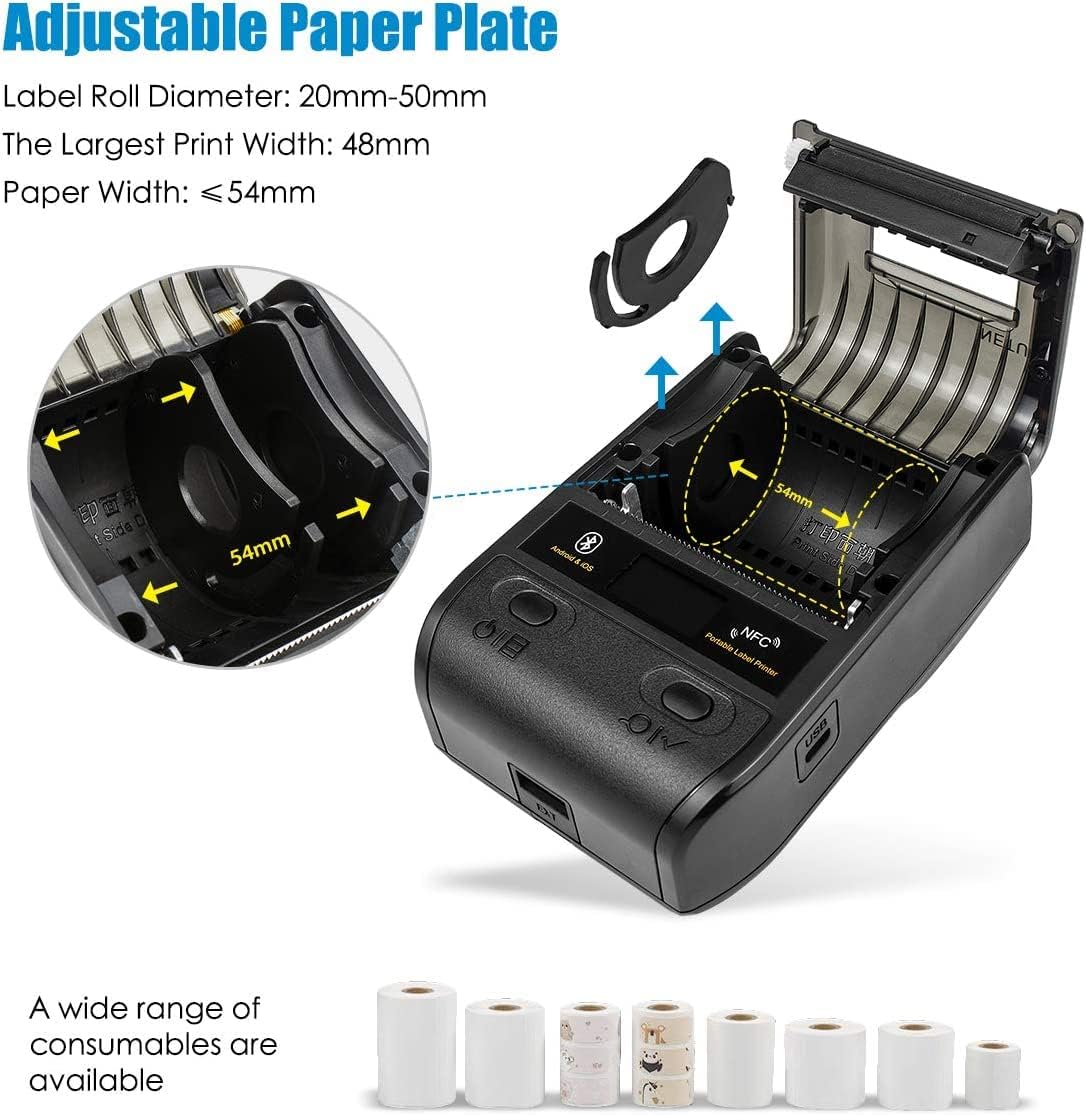
Imaj 3.2.1: Illustration of the adjustable paper plate mechanism and proper label roll insertion. The printer accommodates label rolls with diameters between 20mm and 50mm, and paper widths up to 54mm.
3.3 Enstalasyon Aplikasyon an ak Koneksyon Bluetooth
The NETUM NT-G5 printer operates via Bluetooth connection with a dedicated mobile application.
- Telechaje App a: Chèche pou the "WeiDa" barcode design app on the Apple App Store (for iOS devices) or Google Play Store (for Android devices).
- Pèmèt Bluetooth: Asire w ke Bluetooth aktive sou telefòn entelijan oswa tablèt ou.
- Limen enprimant lan: Press and hold the Power/Setting Button to turn on the printer.
- Konekte atravè aplikasyon an: Open the WeiDa app, navigate to the device connection section, and select your NT-G5 printer from the list of available Bluetooth devices. The app will guide you through the pairing process.

Imaj 3.3.1: Visual representation of the Bluetooth connection process between a mobile device and the NT-G5 printer, along with icons for downloading the companion app from major app stores.
4. Operasyon Enstriksyon
4.1 Basic Printing Steps
Follow these general steps to print labels:

Imaj 4.1.1: A simplified three-step process for operating the NT-G5 printer, covering paper loading, Bluetooth pairing, and label printing.
- Ensure the paper roll is correctly installed (refer to Section 3.2).
- Connect the printer to your smartphone via Bluetooth using the WeiDa app (refer to Section 3.3).
- Within the WeiDa app, design your label using available templates or create a custom layout.
- Once your label design is complete, initiate the print command from the app.
- The printer will produce your high-quality thermal label.
4.2 Kalite ak Aplikasyon Etikèt ki Sipòte yo
The NT-G5 printer is versatile and supports various label types for different applications:

Imaj 4.2.1: A collage demonstrating various label applications for the NT-G5 printer, such as jewelry tags, name labels, address labels, clothing tags, price tags, and cable labels.
- Bijou Tags: For pricing and product information.
- Name Labels: For organization and identification.
- Address Labels: For mailing and shipping.
- Rad Tags: For retail pricing and product details.
- Pri Tags: General use for product pricing.
- Etikèt Kab: For organizing and identifying cables.
4.3 Compatible Operating Systems
The NETUM NT-G5 printer is compatible with a range of operating systems, primarily through its dedicated mobile application:
- iOS: Compatible with Apple iPhones and iPads.
- Android: Konpatib ak smartphones ak tablèt Android.
- Windows: Limited compatibility, typically requiring specific drivers or software.
- Linux: Limited compatibility, typically requiring specific drivers or software.
5. Antretyen
5.1 Netwaye tèt enprime a
To maintain print quality and extend the life of your printer, regularly clean the thermal print head. Use a soft cloth dampened with isopropyl alcohol. Gently wipe the print head surface. Ensure the printer is turned off and cooled down before cleaning.
The print head has an estimated life of 50KM of print.
5.2 Swen Batri
The printer uses a Lithium Polymer battery. To maximize battery life:
- Evite dechaje batri a nèt souvan.
- Sere enprimant lan nan yon kote ki fre epi sèk lè w pa itilize li pou yon bon bout tan.
- Charge the printer regularly, even if not in frequent use, to prevent deep discharge.
NAN. Depanaj
6.1 Pwoblèm komen ak solisyon
| Pwoblèm | Kòz posib | Solisyon |
|---|---|---|
| Enprimant lan pa konekte via Bluetooth | Bluetooth is off on device; printer is off; app not recognizing printer. | Ensure Bluetooth is enabled on your mobile device. Turn the printer off and on again. Restart the WeiDa app. Ensure the printer is within range. |
| Move kalite enprime / Etikèt ki pa klere | Low battery; dirty print head; incorrect label type; print density settings. | Charge the printer fully. Clean the print head (refer to Section 5.1). Ensure you are using thermal labels. Adjust print density settings in the app. |
| Etikèt yo pa ap byen manje | Label roll incorrectly installed; paper plate not adjusted; labels jammed. | Re-install the label roll, ensuring it's properly seated and the paper plate is adjusted to the label width (refer to Section 3.2). Clear any jammed labels. |
| App issues / Crashes | Outdated app version; software conflict. | Update the WeiDa app to the latest version. Restart your mobile device. Reinstall the app if issues persist. |
7. Espesifikasyon
| Karakteristik | Detay |
|---|---|
| Nimewo Modèl | NT-G5 |
| Dimansyon pwodwi | 4.33 x 3.15 x 2.36 pous |
| Pwa atik | 10.9 ons |
| Batri | 1 batri ityòm Polymère (enkli) |
| Lajè Papye Maksimòm | 54mm |
| Largest Print Width | 48mm |
| Mete etikèt sou dyamèt woulo liv la | 20mm-50mm |
| Enprime vitès | 20-50mm/s |
| Enprime tèt lavi | 50KM |
| Antre pouvwa | 5V 2A |
| Koneksyon | Bluetooth 4.0, NFC |
| Sistèm operasyon konpatibilite | iOS, Android, Windows, Linux (via app/drivers) |
8. Garanti ak sipò
NETUM products are manufactured to high-quality standards. For specific warranty details, please refer to the warranty card included with your product or visit the official NETUM websit la. Kenbe resi acha ou kòm prèv acha.
For technical support, troubleshooting assistance, or inquiries regarding replacement parts and accessories, please contact NETUM customer service through the contact information provided on the official websit la oubyen nan anbalaj pwodwi a.