Entwodiksyon
Thank you for choosing the Netum NT-2028 2.4G Wireless Handheld Laser Barcode Scanner. This manual provides detailed instructions for setting up, operating, and maintaining your device. Please read this manual carefully before use to ensure optimal performance and longevity of your scanner.
Pwodwi souview
Karakteristik kle:
- Modèl: NT-2028
- Koneksyon: 2.4G Wireless via USB Dongle, also supports USB Cable (Corded)
- Sous limyè: Lazè
- Kalite eskane: Lazè
- Vitès eskane: 200 eskanè pou chak segonn
- Kapasite eskanè: 1D Barcode Scanning (e.g., UPC/EAN, Code 128, Code 39, etc.)
- Kalite: Pòtatif
- memwa: 128 MB for offline storage of scanned data
- Pouvwa: Batri Powered
Kontni pake:
- Netum NT-2028 Barcode Scanner
- 2.4G USB Wireless Dongle
- USB Chaje / Done Kab
- Manyèl Itilizatè (dokiman sa a)
- Kanpe (si li enkli nan pake espesifik ou a)

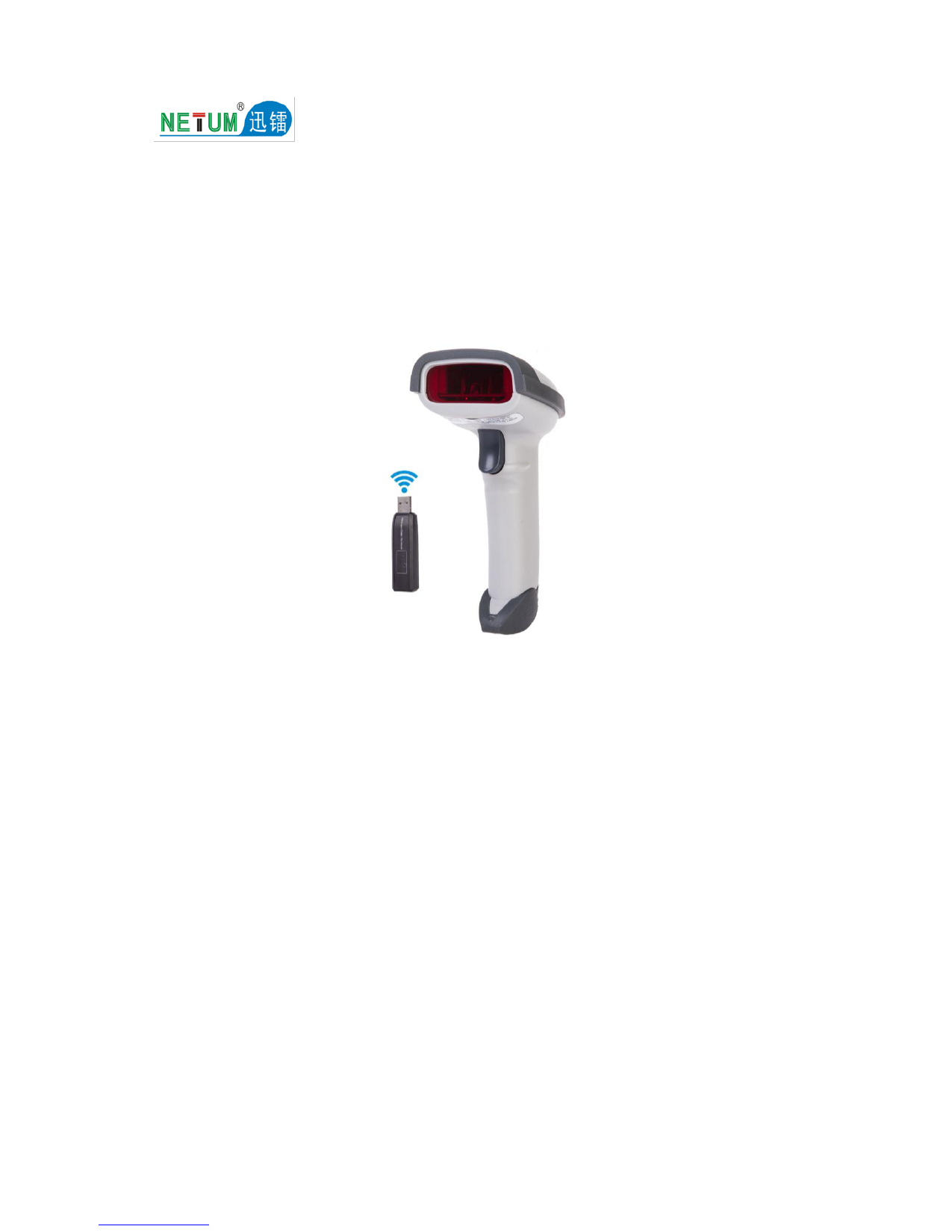
Image 1: Netum NT-2028 Barcode Scanner with its 2.4G USB wireless dongle. The scanner is black, ergonomically shaped for handheld use, and the dongle is a small USB device.
Gid Enstalasyon
1. Charging the Scanner:
Before initial use, fully charge the scanner. Connect the USB charging cable to the scanner's charging port and the other end to a USB power adapter (not included) or a computer's USB port. The indicator light will show charging status.
2. Connecting via 2.4G Wireless Dongle:
- Insert the 2.4G USB wireless dongle into an available USB port on your computer or host device.
- The operating system will automatically install the necessary drivers. This may take a few moments.
- Turn on the barcode scanner. It should automatically pair with the dongle. A successful connection is usually indicated by a specific sound or light pattern on the scanner.
- Open a text editor, spreadsheet, or any application where you want the scanned data to appear.
- Scan a barcode to test the connection. The data should appear in your application.
3. Connecting via USB Cable (Corded Mode):
- Connect the USB data cable directly from the scanner to a USB port on your computer or host device.
- The scanner will function as a wired device. Drivers will install automatically.
- Test by scanning a barcode into an application.

Image 2: Netum NT-2028 Barcode Scanner shown with its 2.4G USB wireless dongle and the USB charging/data cables, illustrating the connectivity options.
Enstriksyon Operasyon
Eskane debaz:
- Ensure the scanner is powered on and connected to your host device (via wireless dongle or USB cable).
- Dirije reyon lazè eskanè a sou kòd bar ou vle eskane a.
- Press the trigger button. A successful scan is typically indicated by a beep and/or a green light.
- The scanned data will be transmitted to your connected device and appear in the active application.
Advanced Settings (Programming Barcodes):
The NT-2028 scanner supports various configuration options, such as adding prefixes/suffixes, changing transmission modes (e.g., instant upload, storage mode), and enabling/disabling specific barcode types. These settings are typically configured by scanning special programming barcodes found in a dedicated programming guide (often a separate booklet or PDF). Refer to the official Netum support website for the comprehensive programming guide specific to the NT-2028 model.
Data Storage Mode (Offline Mode):
When out of wireless range or disconnected, the scanner can store scanned barcodes in its internal 128 MB memory. To activate this mode and upload stored data, refer to the programming guide for specific barcode commands. Once reconnected, scan the "Upload Data" programming barcode to transmit all stored data to your host device.
Antretyen
Netwayaj:
- Use a soft, clean, damp cloth to wipe the exterior of the scanner.
- Pa sèvi ak pwodui netwayaj abrazif, solvan, oswa pwodui chimik ki agresif, paske sa yo ka domaje aparèy la.
- For the scanning window, use a lint-free cloth and a mild glass cleaner if necessary. Ensure no liquid enters the scanner housing.
Depo:
Store the scanner in a cool, dry place away from direct sunlight and extreme temperatures. When not in use for extended periods, ensure the battery is partially charged (around 50%) to prolong its lifespan.
Swen batri:
- Evite dechaje batri a nèt souvan.
- Charge the battery using only the provided USB cable or a compatible power source.
- Si pèfòmans batri a diminye anpil, kontakte sèvis kliyan pou jwenn asistans.
Depanaj
| Pwoblèm | Kòz posib | Solisyon |
|---|---|---|
| Eskanè a pa limen. | Batri ki ba. | Charge the scanner fully. |
| No data transmitted after scanning. |
|
|
| Eskanè a bipe men pa gen done ki parèt. |
|
|
| Scanner not reading certain barcodes. |
|
|
Espesifikasyon
- Modèl: NT-2028
- Mak: NETUM
- Koneksyon: 2.4G Wireless (via USB Dongle), USB Cable (Corded)
- Sous limyè: Lazè
- Kalite eskane: Lazè
- Vitès eskane: 200 eskanè pou chak segonn
- Kapasite eskanè: Eskane Kòd Bar 1D
- Kalite: Pòtatif
- memwa: 128 MB
- Sous pouvwa: Batri Powered
- Dimansyon pake: 5.71 x 4.29 x 2.28 cm
- Pwa atik: Apeprè 158.98 g
Garanti ak sipò
For warranty information, technical support, or to download the full programming guide, please visit the official NETUM websit la oubyen kontakte distribitè lokal ou a. Kenbe resi acha ou a pou reklamasyon garanti.
NETUM Official Store: Visit NETUM Store on Amazon