1. Entwodiksyon
This user manual provides detailed instructions for the installation, operation, and troubleshooting of the SIIG HDMI 2.0 Audio Extractor (Model: CE-H24F11-S1). This device is designed to split an incoming HDMI audio signal into stereo analog audio and Toslink optical outputs, enabling connection to various audio systems that may lack HDMI input.
The extractor supports high-resolution video up to 4K/60Hz with HDR and is compliant with HDCP 2.2. It also features ARC (Audio Return Channel) support via Toslink and CEC bypass, ensuring compatibility with modern home theater setups. Please read this manual thoroughly before use to ensure proper setup and optimal performance.
2. Pwodwi Features
- HDMI 2.0a and HDCP 2.2 compliant.
- Supports HDCP 2.2, HDR, and CEC bypass.
- Video resolutions up to 4Kx2K@60Hz YUV 4:4:4 8-bit and 4K HDR YUV 4:2:0 10-bit.
- Supports 480p, 720p, 1080i, 1080p resolutions.
- Video bandwidth: 18Gbps (600MHz per channel).
- Audio extraction via 3.5mm stereo jack and Toslink optical output.
- ARC audio extraction via Toslink (S/PDIF).
- Supports audio embedded via stereo and S/PDIF (Toslink).
- Fòma odyo sipòte:
- HDMI: PCM 2/5.1/7.1, Dolby 5.1/7.1, DTS 5.1/7.1
- Toslink (S/PDIF): PCM 2, Dolby 5.1, DTS 5.1
- 3.5mm Stereo: PCM 2
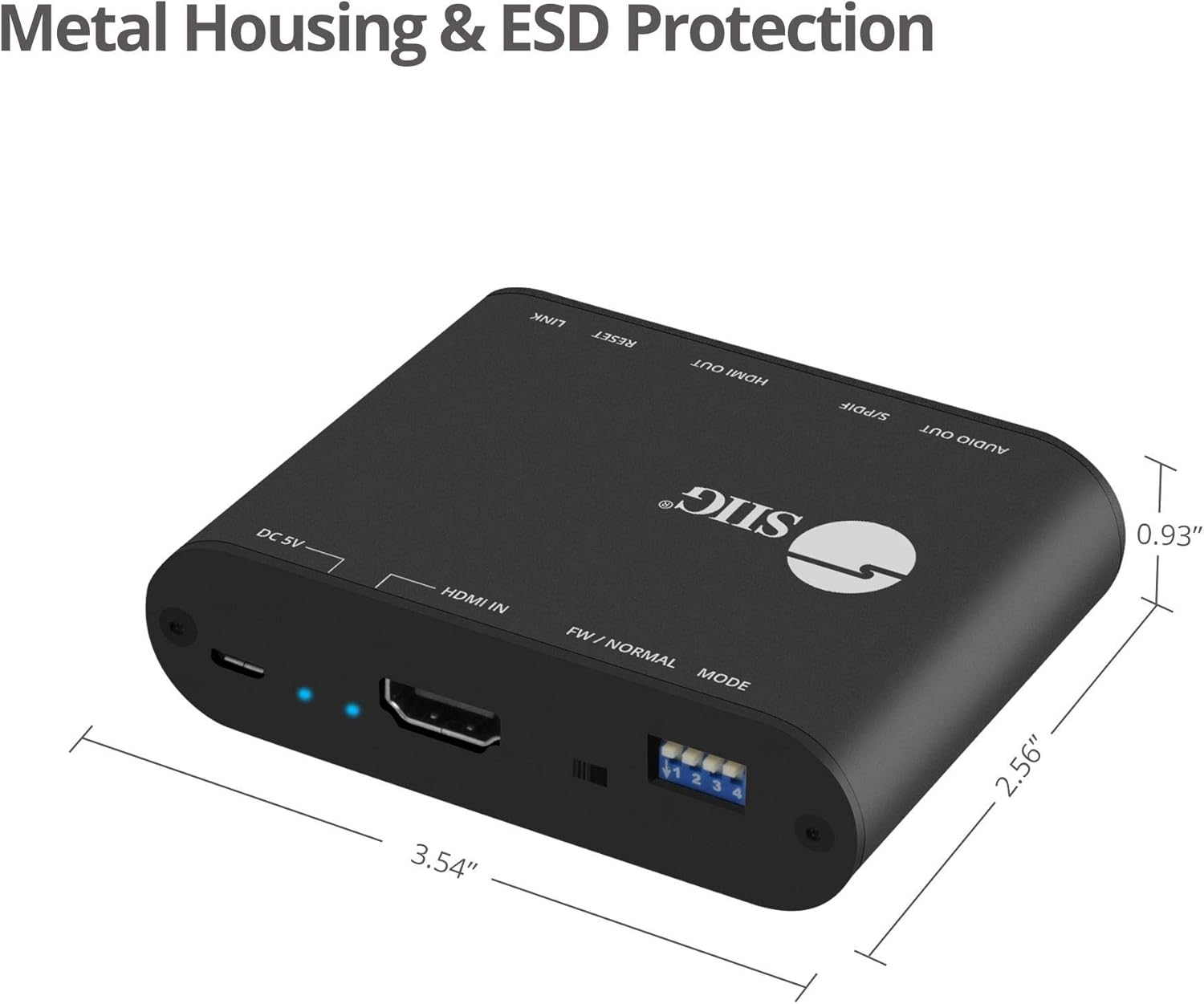
- Sturdy metal enclosure for durability and EMI/RFI noise interference minimization.
- ESD protection: ±15kV Air & ±8kV Contact.
- Country of origin: Taiwan.
- Regulatory approvals: FCC, CE, RoHS.

3. Pake kontni
Please verify that all items are present and in good condition. If any items are missing or damaged, contact your vendor for assistance.
- 1x HDMI 2.0 Audio Extractor/Embedder (CE-H24F11-S1)
- 1x USB Type-A to Micro B Cable (for power)
- 1x Installation Guide (this document)
4. Pwodwi souview ak Deskripsyon Pò yo


Panèl devan:
- 3.5mm Stereo Output: Connect to analog audio devices (e.g., headphones, stereo speakers).
- S/PDIF (Toslink) Output: Connect to digital optical audio receivers or soundbars.
- Sòti HDMI: Connect to an HDMI display (e.g., TV, monitor, projector).
- Output Signal LED Indicator: Illuminates when an HDMI output signal is detected.
- Bouton Reyajiste: Yo itilize pou reset aparèy la.
- Slide Switch (FW/NORMAL Mode):
- Left (FW): Firmware update mode.
- Right (NORMAL): Normal operating mode. Ensure this is set to NORMAL for regular use.
Retounen Panel:
- Micro-USB Port (DC 5V): Connect the provided USB power cable for device power. Also used for firmware updates.
- Endikatè ki ap dirije pouvwa: Li limen lè aparèy la limen.
- Input Signal LED Indicator: Illuminates when an HDMI input signal is detected.
- Antre HDMI: Connect to an HDMI source device (e.g., Blu-ray player, game console, streaming device).
- 4-pin DIP Switch: Used to configure EDID settings and enable/disable ARC and audio extraction functions.
5. Enstriksyon Enstalasyon
Follow these steps to set up your SIIG HDMI 2.0 Audio Extractor:
- Aparèy koupe pouvwa: Ensure all source devices, displays, and audio systems are powered off before making any connections.
- Konekte Antre HDMI a: Connect an HDMI cable from your source device (e.g., Blu-ray player, game console) to the HDMI-AN port on the audio extractor.
- Konekte Sòti HDMI a: Konekte yon kab HDMI nan HDMI SOTI port on the audio extractor to your display device (e.g., TV, monitor, projector).
- Connect Audio Output (Digital): For digital audio, connect a Toslink (optical) cable from the S/PDIF (Toslink) Output port on the extractor to your audio receiver, soundbar, or amplifier.
- Connect Audio Output (Analog): For analog stereo audio, connect a 3.5mm audio cable from the 3.5mm Stereo Sòti port on the extractor to your headphones or stereo speakers.
- Konekte pouvwa: Connect the provided USB Type-A to Micro B cable to the Mikwo-USB pò (DC 5V) on the extractor and the other end to a USB power source (e.g., USB wall adapter, TV USB port). The Power LED Indicator will illuminate.
- Verify Slide Switch: Ensure the slide switch on the front panel is set to the NORMAL position (right).
- Pouvwa sou aparèy: Power on your display, audio system, and source device in that order.

6. Operasyon Enstriksyon
6.1 EDID and Function Configuration (DIP Switch)
The 4-pin DIP switch on the back panel allows you to configure the EDID (Extended Display Identification Data) settings and control the ARC and audio extraction functions. Adjust these settings based on your connected devices and desired audio output.

| DIP switch Pozisyon | Deskripsyon |
|---|---|
| PIN1: OFF, PIN2: OFF | EDID kontoune |
| PIN1: OFF, PIN2: ON | Ultra HD (4K2K@60Hz) – 8/10/12bit, 3D, HDR video & 5.1ch audio |
| PIN1: ON, PIN2: OFF | Ultra HD (4K2K@60Hz) – 8/10/12bit, 3D, HDR video & 2ch audio |
| PIN1: ON, PIN2: ON | Learning EDID from Output |
| PIN3: OFF | Disable ARC Function |
| PIN3: ON | Enable ARC Function |
| PIN4: OFF | Disable Audio Extractor Function |
| PIN4: ON | Enable Audio Extractor Function (via Toslink & 3.5mm) |
Nòt: After changing DIP switch settings, it is recommended to power cycle the audio extractor and all connected devices to ensure the new settings are applied correctly.
6.2 ARC (Audio Return Channel) Function
When ARC is enabled (PIN3 ON) and your display supports ARC, audio from your TV's internal tuner or smart apps can be sent back to the audio extractor via the HDMI cable and then output through the Toslink (S/PDIF) port to your audio system.

6.3 CEC Bypass
The device supports CEC (Consumer Electronics Control) bypass, allowing CEC commands to pass through the extractor to control connected HDMI devices. This means you can use a single remote to control multiple CEC-enabled devices in your setup.
NAN. Depanaj
If you encounter issues with the SIIG HDMI 2.0 Audio Extractor, please refer to the following common troubleshooting steps:
- Pa gen Sorti Videyo:
- Asire w tout kab HDMI yo byen konekte.
- Verify the input source is selected correctly on your display.
- Check the power connection to the extractor; the Power LED should be illuminated.
- Eseye yon lòt kab HDMI.
- Adjust DIP switch settings for EDID (PIN1 & PIN2) to match your display's capabilities or try "EDID bypass".
- Power cycle all connected devices (source, extractor, display).
- No Audio Output (Toslink/3.5mm):
- Ensure audio cables (Toslink or 3.5mm) are securely connected to the correct output ports on the extractor and input ports on your audio system.
- Verify the audio input is selected correctly on your audio receiver/soundbar.
- Check DIP switch PIN4 is set to ON to enable audio extraction.
- If using ARC, ensure DIP switch PIN3 is set to ON and your TV's ARC function is enabled.
- Confirm the audio format from your source is supported by your audio system and the extractor (refer to "Product Features" for supported formats). Some audio systems may not support certain multi-channel formats.
- Try setting DIP switch PIN1: ON, PIN2: OFF for 2ch audio output if your audio system only supports stereo.
- Power cycle all connected devices.
- Intermittent Video/Audio:
- Tcheke pou koneksyon kab ki lach.
- Asire ke ekipman pou pouvwa a estab.
- Reduce cable lengths if possible, especially for HDMI.
- Verify that the slide switch is in the NORMAL pozisyon.
- Test with different HDMI cables.
- HDR/4K Issues:
- Ensure all connected HDMI cables are rated for HDMI 2.0 or higher and support 18Gbps bandwidth.
- Verify your source and display devices both support 4K/60Hz and HDR.
- Adjust EDID settings (PIN1 & PIN2) to ensure the correct video mode is selected.
8. Espesifikasyon
| Karakteristik | Detay |
|---|---|
| Nimewo Modèl | CE-H24F11-S1 |
| Konfòmite HDMI | HDMI 2.0a |
| Konfòmite HDCP | HDCP 2.2 |
| Videyo Bandwidth | 18Gbps (600MHz per channel) |
| Rezolisyon sipòte | Up to 4Kx2K@60Hz (YUV 4:4:4 8-bit), 4K HDR (YUV 4:2:0 10-bit), 1080p, 1080i, 720p, 480p |
| Sipò HDR | Yes (4K@60Hz YUV 4:2:0 10-bit) |
| Rezilta Audio | 1x Toslink (S/PDIF), 1x 3.5mm Stereo |
| Sipò ARC | Yes (via Toslink) |
| Sipò CEC | Bypass |
| Pwoteksyon ESD | ±15kV Air & ±8kV Contact |
| Materyèl | Patiraj metal |
| Dimansyon pwodwi (L x W) | 4.56" x 0.78" (11.58 santimèt x 1.98 santimèt) |
| Pwa atik | 6.4 ons (181.4 gram) |
| Pwovizyon pou pouvwa | DC 5V (via Micro-USB) |
| Tanperati Fonksyònman | Jiska 104 ° F (40 ° C) |
| Sètifikasyon | FCC, CE, RoHS, TAA compliant |
| Peyi orijin | Taiwan |
9. Antretyen
The SIIG HDMI 2.0 Audio Extractor is designed for reliable operation with minimal maintenance.
- Netwayaj: Use a soft, dry cloth to clean the device. Avoid using liquid or aerosol cleaners, as they may damage the unit.
- Vantilasyon: Asire w ke aparèy la mete nan yon zòn ki byen ayere pou anpeche li chofe twòp. Pa bloke okenn ouvèti vantilasyon.
- Depo: Lè w pa itilize aparèy la pou yon bon bout tan, sere l nan yon kote ki fre epi sèk, lwen limyè solèy dirèk ak tanperati ekstrèm.
- Mizajou mikrolojisyèl: Periodically check the SIIG website for any available firmware updates for your model. Follow the instructions provided with the firmware update carefully.
10. Enfòmasyon sou Sekirite
Please observe the following safety guidelines to prevent damage to the device and ensure user safety:
- Pa ekspoze aparèy la nan dlo oswa imidite twòp.
- Pa eseye ouvri oswa modifye aparèy la. Pa gen okenn pyès itilizatè a ka repare anndan l.
- Use only the provided power cable or a certified 5V USB power adapter.
- Kenbe aparèy la lwen sous chalè, limyè solèy dirèk, ak materyèl ki ka pran dife.
- Ensure proper grounding for all connected electrical equipment.
11. Garanti ak sipò teknik
11.1 Enfòmasyon sou Garanti
The SIIG HDMI 2.0 Audio Extractor (CE-H24F11-S1) comes with a 3-ane garanti. This warranty covers defects in materials and workmanship under normal use. For specific terms and conditions, please refer to the warranty documentation provided with your purchase or visit the official SIIG websit.
11.2 Sipò teknik
For technical assistance, product inquiries, or troubleshooting beyond the scope of this manual, please contact SIIG customer support.
- Websit: Visit the official SIIG websit pou resous sipò, FAQ, ak enfòmasyon pou kontakte yo.
- Kontakte: Refer to your product packaging or the SIIG website for the most current contact details for technical support.


