1. Entwodiksyon
This manual provides detailed instructions for the installation, operation, maintenance, and troubleshooting of your TENVIS T3875D WiFi IP Camera. Please read this manual thoroughly before using the product to ensure proper setup and optimal performance. Keep this manual for future reference.
The TENVIS T3875D is a Full HD 1080P outdoor motorized IP camera featuring 5X optical zoom, speaker, microphone, and MicroSD card support, compatible with ONVIF protocols.
2. Pwodwi souview
2.1 Kontni pake a
- TENVIS T3875D WiFi IP Camera
- Power Adapter (AC 220V with Italian socket, output DC 12V 1A)
- Vis ak ploge pou monte
- Kab Ethernet (pou premye konfigirasyon an oswa koneksyon filaire)
- Manyèl Itilizatè (dokiman sa a)
2.2 Konpozan Kamera
Familiarize yourself with the main components of your TENVIS T3875D camera:

Shows the camera lens, infrared LEDs, and light sensor. The camera is mounted on a wall bracket with an antenna visible at the top.

Another perspective of the front, highlighting the dome shape and the array of infrared lights around the central lens.

Displays the back of the camera, revealing the speaker grille and the covered MicroSD card slot at the bottom.

Shows the camera from a side angle, emphasizing the wall mount arm and the antenna connection point.
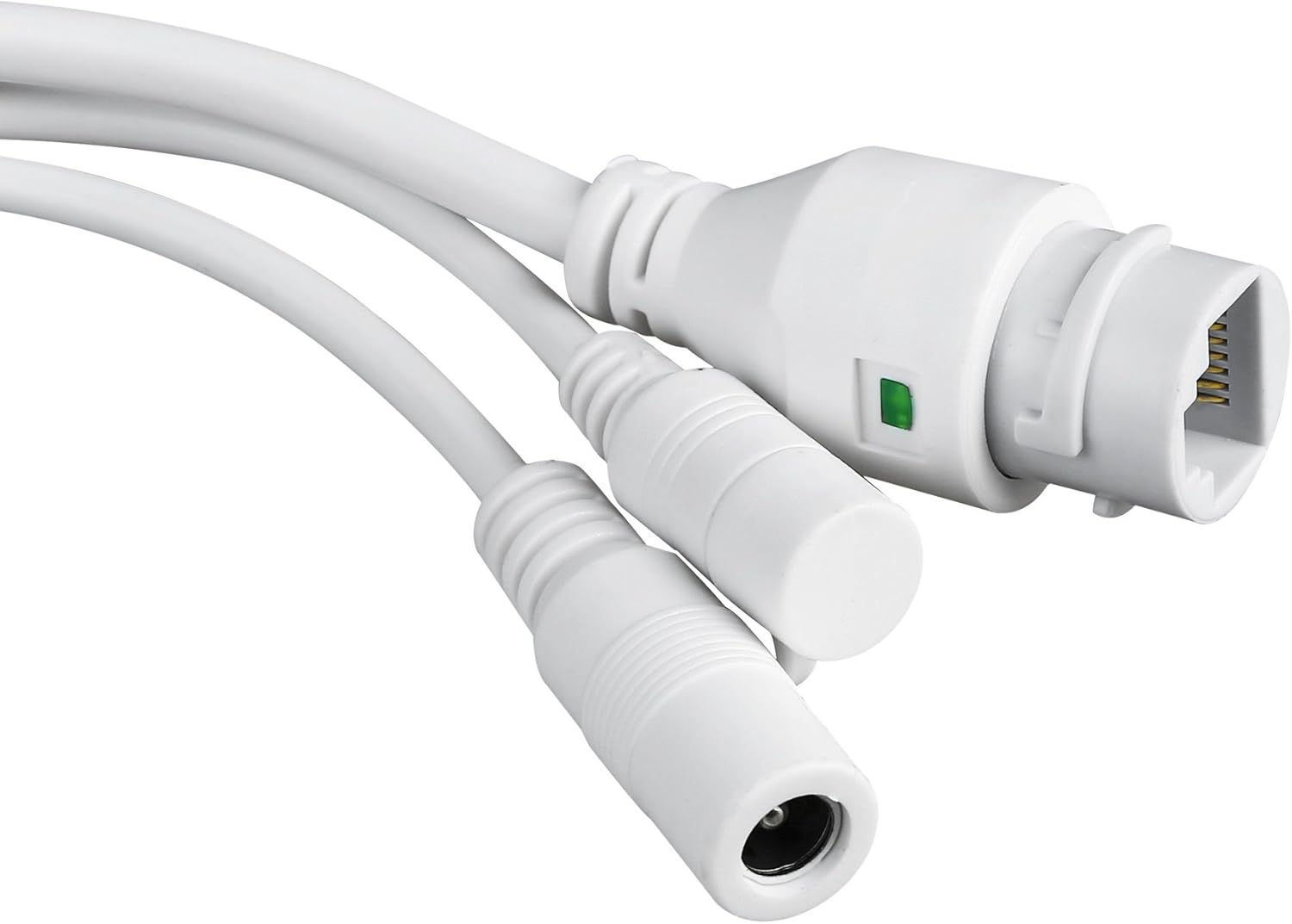
Close-up of the camera's power input and Ethernet port, essential for connectivity.
3. Enstalasyon ak Enstalasyon
3.1 Monte Kamera a
The TENVIS T3875D is designed for outdoor use and is IP66 weatherproof. Choose a suitable location for mounting, ensuring a clear field of view ak aksè a yon sous kouran.
- Make pwen perçage yo sou miray la lè l sèvi avèk sipò montaj la kòm modèl.
- Fè twou epi mete ploge miray yo bay la.
- Fikse sipò montaj la sou miray la avèk vis yo.
- Tache kamera a nan sipò montaj la.
- Adjust the camera's angle as needed after initial setup.
3.2 Limen
Connect the provided power adapter to the camera's power input and then plug it into a suitable electrical outlet. The camera will initiate its self-test sequence.
3.3 Rezo Koneksyon
The camera supports both Wi-Fi (802.11n, WPA, WPA2) and Ethernet (10/100M) connections.
3.3.1 Wired Connection (Recommended for initial setup)
- Konekte yon bout kab Ethernet nan pò Ethernet kamera a.
- Konekte lòt bout kab Ethernet la ak routeur ou a oswa switch rezo a.
- Ensure your router has DHCP enabled for automatic IP address assignment.
3.3.2 Koneksyon Wireless
Wireless setup is typically done via the mobile application after the camera is initially connected to the network (either wired or via P2P QR code setup).
- P2P (Plug & Play) Setup: Download the "TENVISTY" app (available for Android and iOS). Scan the QR code on the product to quickly connect the camera to your smartphone/tablet. This method simplifies network configuration.
- Manual Wi-Fi Configuration: Si w ap itilize a web interface or a different app, you may need to manually select your Wi-Fi network (SSID) and enter the password.
3.4 Enstalasyon Kat MicroSD
The camera supports MicroSD cards up to 128GB for local storage of recordings.
- Locate the MicroSD card slot on the camera (refer to Figure 2.2.3). It is usually protected by a cover.
- Louvri kouvèti a avèk prekosyon.
- Insert the MicroSD card into the slot with the contacts facing down until it clicks into place.
- Close the cover securely to maintain the camera's weather resistance.
- Format the MicroSD card via the camera's settings in the app or web koòdone pou pèfòmans optimal.
4. Itilizasyon Kamera a
4.1 Aksè nan Kamera a
You can access and control your camera using the official TENVISTY app or a web navigatè.
4.1.1 Using the TENVISTY App
- Download "TENVISTY" from the App Store (iOS) or Google Play Store (Android).
- Anrejistre yon kont oubyen konekte.
- Add your camera by scanning the QR code or manually entering its ID.
- Yon fwa ou ajoute l, ou kapab view live feed, control pan/tilt/zoom, access recordings, and configure settings.
4.1.2 Sèvi ak yon Web Navigatè
The camera supports Internet Explorer 11. Other browsers may have limited functionality.
- Asire w ke òdinatè w la sou menm rezo ak kamera a.
- Find the camera's IP address (can be found via your router's connected devices list or a network scanner tool).
- Open Internet Explorer 11 and enter the camera's IP address in the address bar.
- Enter the default username and password (refer to the camera's label or initial setup guide for defaults).
4.2 Kontwòl Panoramik, Enklinasyon, ak Zoom (PTZ)
The T3875D features motorized pan (355° horizontal), tilt (90° vertical), and 5x optical autofocus zoom.
- In the TENVISTY app or web interface, use the directional controls to move the camera's view.
- Use the zoom controls to optically zoom in or out. The camera will automatically focus.
4.3 Deteksyon Mouvman ak Alam
Configure motion detection settings to receive alerts and record events.
- Navigate to "Alarm Settings" or "Motion Detection" in the app/web koòdone.
- Enable motion detection.
- Adjust sensitivity levels and define detection regions to minimize false alarms.
- Configure alarm actions:
- Pouse Notifikasyon: Receive real-time alerts on your smartphone/tablet via the TENVISTY app.
- Alèt Imèl: Send emails with attached captured images to specified recipients.
- Anrejistreman videyo: Automatically record video to the MicroSD card, NVR, or FTP server upon motion detection.
4.4 Anrejistreman ak Lektur
The camera supports continuous, scheduled, or alarm-triggered recording.
- Anrejistreman lokal: Recordings are saved to the installed MicroSD card (up to 128GB).
- NVR/FTP Recording: Compatible with ONVIF 2.1 NVRs or FTP servers (NAS, hard drive connected to router).
- Lektur: Aksè anrejistre footage through the TENVISTY app or web interface. Select the date and time to review evènman yo.
5. Antretyen
5.1 Netwayaj Kamera a
Regularly clean the camera lens and housing to ensure clear image quality and proper operation.
- Sèvi ak yon mou, damp cloth to wipe the camera body.
- For the lens, use a lens cleaning cloth and solution designed for optical surfaces. Avoid abrasive materials.
- Pa sèvi ak detèjan oswa solvan ki fò.
5.2 Mizajou Firmware
Periodically check for firmware updates to improve camera performance, add new features, and enhance security. Firmware updates are typically available through the TENVISTY app or the manufacturer's websit.
- Swiv enstriksyon yo bay ak aktyalizasyon firmwèr la ak anpil atansyon.
- Ensure the camera remains powered during the entire update process to prevent damage.
5.3 Jesyon Kat MicroSD
To maintain recording efficiency, it is recommended to format the MicroSD card periodically (e.g., every few months) through the camera's settings. Back up any important footage anvan fòma.
NAN. Depanaj
| Pwoblèm | Kòz posib | Solisyon |
|---|---|---|
| Kamera a pa limen. | Pa gen kouran, adaptè ki defektye, koneksyon ki lach. | Tcheke priz kouran an, asire w adaptè a byen konekte ak kamera a ak sous kouran an. Eseye yon lòt priz. |
| Pa ka konekte ak Wi-Fi. | Incorrect Wi-Fi password, camera too far from router, Wi-Fi interference. | Double-check Wi-Fi password. Move camera closer to router or use a Wi-Fi extender. Reduce interference from other devices. Try wired connection for initial setup. |
| Bon kalite imaj pòv yo. | Dirty lens, low network bandwidth, incorrect resolution settings. | Clean the camera lens. Ensure stable internet connection. Adjust video resolution settings in the app/web koòdone. |
| Deteksyon mouvman pa travay. | Motion detection disabled, sensitivity too low, incorrect detection area. | Enable motion detection in settings. Increase sensitivity. Adjust detection regions. |
| Kat MicroSD a pa anrejistre. | Card not inserted correctly, card full, card not formatted, faulty card. | Reinsert card. Check storage space. Format the card via camera settings. Try a different MicroSD card. |
| Camera offline frequently. | Unstable Wi-Fi signal, power interruptions, network issues. | Improve Wi-Fi signal strength. Ensure stable power supply. Check router and internet connection. |
If the problem persists, please contact TENVIS customer support.
7. Espesifikasyon
| Karakteristik | Detay |
|---|---|
| Nimewo Modèl | T3875D |
| Capteur | CMOS with IR Cut Filter |
| Lantiy | f:2.7-13.5 mm F:2.0 |
| Viewing Ang | 25° pou 96° |
| Rezolisyon | Up to 1920 x 1080p (2.0 megapixels) |
| Kodaj videyo | H.264 |
| To Frame | Jiska 25 fps |
| Teknoloji WDR | Wi |
| Rezistans move tan | IP66 estanda |
| Pan & Panche | Orizontal 355 °, vètikal 90 ° |
| Zoom | 5x optical Auto Focus |
| LED enfrawouj | 6 powerful IR LED flashlights |
| Vizyon lannwit Range | Jiska 60 mèt |
| IR-Cut Filter | Wi |
| Mikwo SD plas | Jiska 128GB |
| Wi-Fi | 802.11n (WPA, WPA2) |
| LAN | Ethernet 10/100M |
| P2P | Yes (QR code setup) |
| Kouran Videyo | Two streams (main for local, sub for remote) |
| Deteksyon Mouvman | Customizable sensitivity and ranges |
| Notifikasyon Alam | TENVISTY app (push), Email with attachments |
| Anrejistreman | On alarms, continuous, programmable (MicroSD, NVR, FTP) |
| Sipòte navigatè yo | Internet Explorer 11 |
| App | TENVISTY (Android, iOS), TinyCam Monitor (Android), LiveCams (iOS) |
| Pwotokòl sipòte | ONVIF 2.1, RTSP, RTMP |
| Tanperati Fonksyònman | -10 ℃ ~ 50 ℃ |
| Imidite | 10% ~ 80% (san kondansasyon) |
| Dimansyon (L x W x H) | 18 x 17 x 10 cm |
| Pwa | 1.28 kg |
| Pwovizyon pou pouvwa | AC 220V input, DC 12V 1A output |
| Konsomasyon pouvwa | 5W (day), 12W (night) |
8. Garanti ak sipò
8.1 Enfòmasyon sou Garanti
Specific warranty details may vary by region and retailer. Please refer to your purchase documentation or the TENVIS official websit la pou jwenn règleman garanti ki pi egzak e ki ajoure a.
8.2 Sipò pou Kliyan
For technical assistance, troubleshooting beyond this manual, or warranty inquiries, please contact TENVIS customer support:
- Imèl: support@tenvis.com
- Websit: www.tenvis.com
- For support in Italy, you may also contact DM Soluzioni ICT s.r.l. at info@dm-ict.it oswa vizite www.dm-ict.it.
When contacting support, please have your product model (T3875D) and purchase information ready.


