Plis paseview
The OWC 14-Port Thunderbolt Dock is a versatile solution designed to expand the connectivity of your Thunderbolt-equipped Mac or PC. It consolidates multiple cables into a single connection, providing power, display support, and a wide array of ports for your devices. This dock is ideal for streamlining your workspace and enhancing productivity.




Official OWC video showcasing how the Billie Eilish team utilizes OWC products, including the Thunderbolt Dock, for their on-the-road studio setup.
Official OWC product spotlight video for the 14-Port Thunderbolt 3 Dock, highlighting its features and benefits.
Enstalasyon
Follow these steps to set up your OWC 14-Port Thunderbolt Dock:
- Konekte pouvwa: Plug the external power supply into the DC IN port (20V 9A) on the back of the dock, and then connect it to a power outlet.
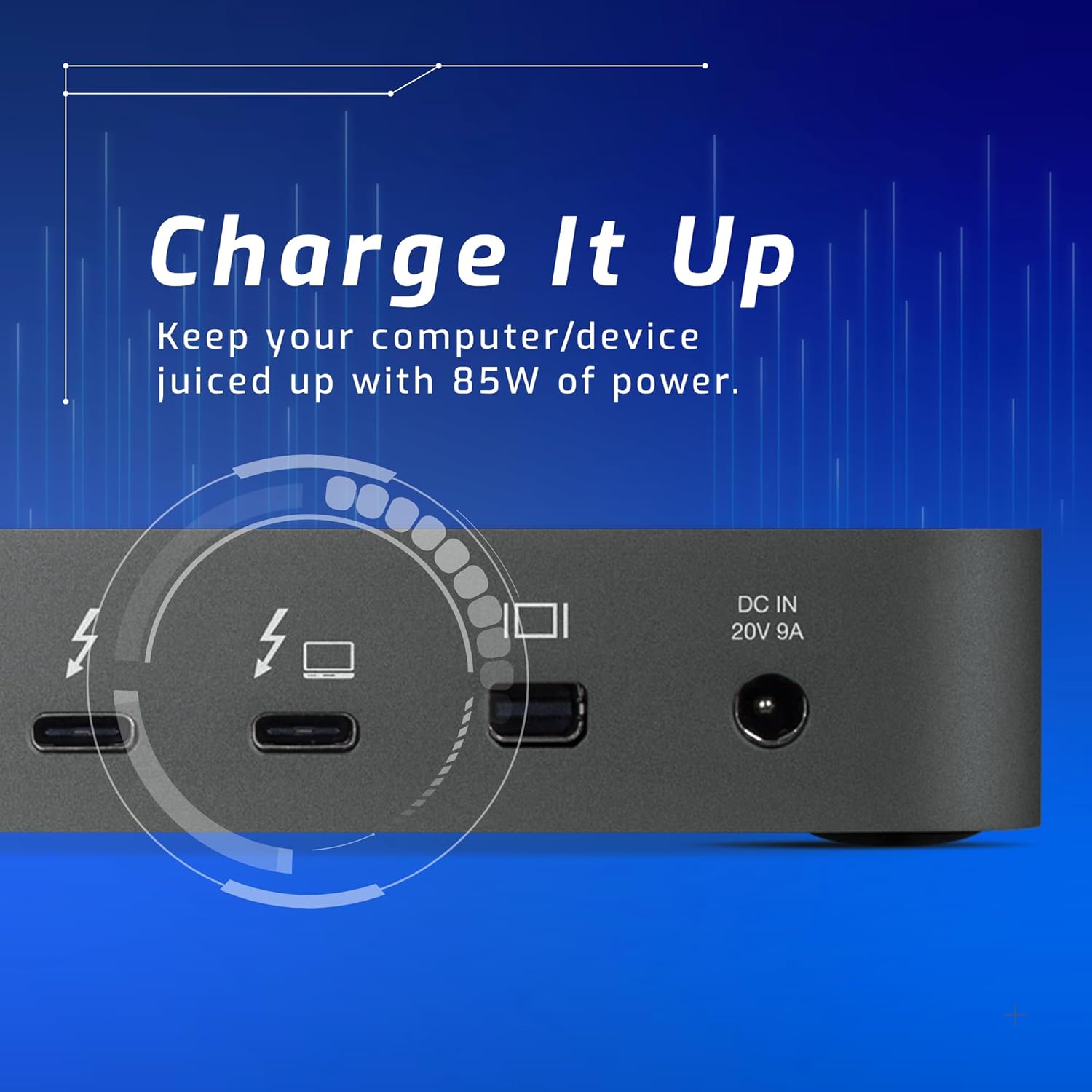
- Konekte ak aparèy lame a: Use the included Thunderbolt 3 cable to connect the host Thunderbolt 3/4 (USB-C) port on the back of the dock (indicated by a lightning bolt and laptop icon) to your Mac or Windows PC. This connection also provides up to 85W of power to charge your notebook.
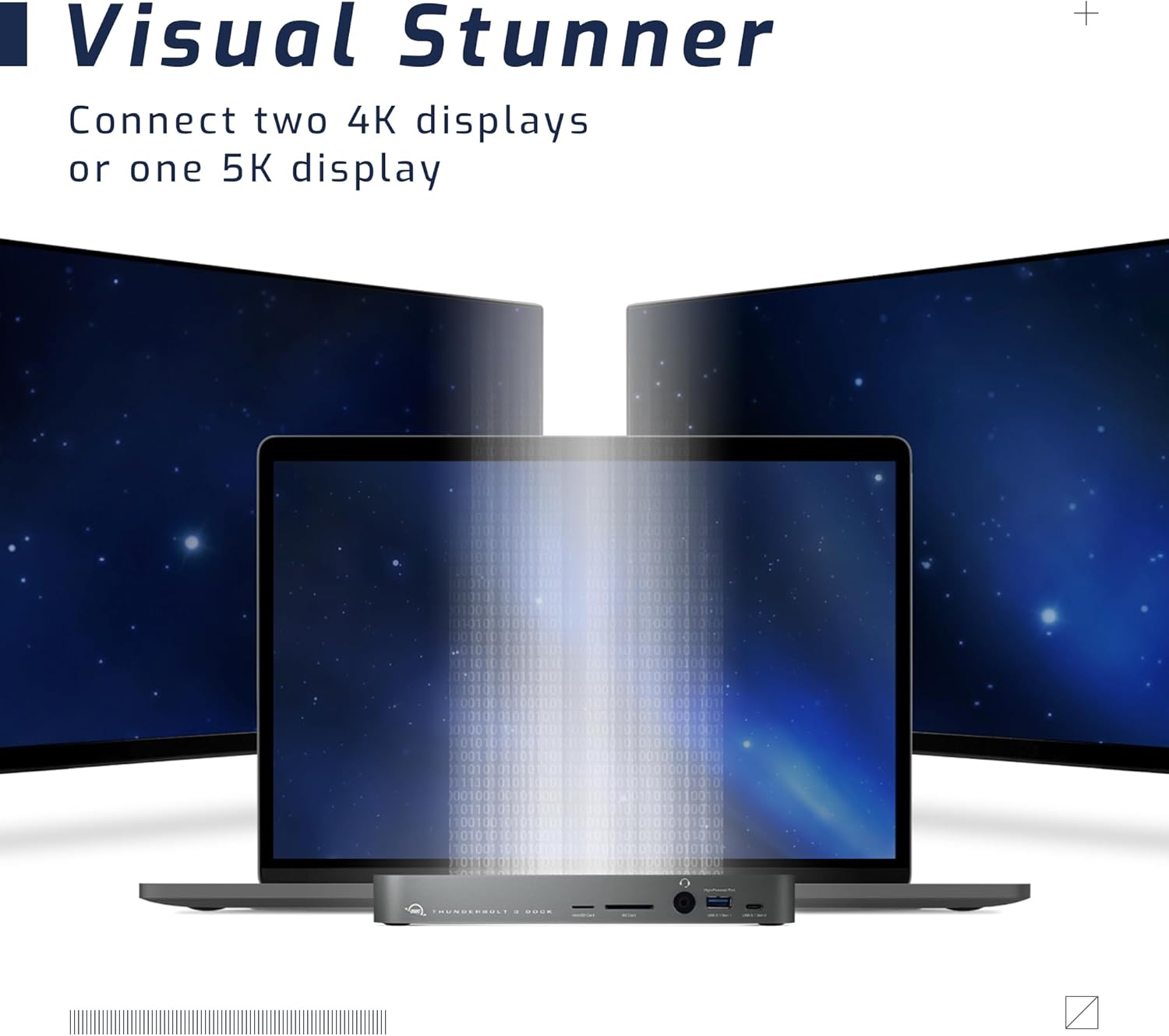
- Konekte Ekran yo: Connect your external displays to the Mini DisplayPort 1.2 or the secondary Thunderbolt 3 (USB-C) port on the back of the dock. The dock supports up to one 5K display at 60Hz or two 4K displays at 60Hz.
- Konekte periferik: Plug in your USB devices, Ethernet cable, and audio devices to the available ports on the front and back of the dock as needed.
Opere
Once set up, the OWC 14-Port Thunderbolt Dock operates seamlessly to expand your computer's capabilities:
- Livrezon pouvwa: The host Thunderbolt (USB-C) connection provides up to 85W of power to charge your connected notebook. Two high-powered USB Type-A ports also deliver 5Gb/s speed and up to 7.5W power for additional devices.
- Sipò pou ekspozisyon: Connect up to one 5K display at 60Hz or two 4K displays at 60Hz via the Thunderbolt 3 or Mini DisplayPort.
- Lektè kat: Utilize the SD 4.0 UHS-II and microSD card reader slots on the front for fast data transfer (up to 312MB/s) from your media cards.
- Koneksyon USB: Access a total of seven USB ports, including one USB 3.2 Gen 2 Type-C (10Gb/s) and five USB 3.2 Gen 1 Type-A (5Gb/s) ports, for connecting various peripherals like printers, storage, and cameras.
- Gigabit-Ethernet: Enjoy high-speed, reliable wired networking with the GbE RJ-45 port, offering 1000Mb/s bandwidth.
- Pò odyo: Connect your audio devices via the S/PDIF Digital Audio Output port or the 3.5mm Stereo Audio Input/Output Combo Port.
Antretyen
To ensure the longevity and optimal performance of your OWC 14-Port Thunderbolt Dock, follow these maintenance guidelines:
- Kenbe pwòp: Regularly wipe the exterior of the dock with a soft, dry, lint-free cloth. Avoid using harsh chemicals or abrasive materials.
- Bon vantilasyon: Ensure the dock is placed in a well-ventilated area to prevent overheating, especially during prolonged use or heavy data transfers. Do not block any ventilation openings.
- Jesyon kab: Organize cables neatly to prevent strain on ports and accidental disconnections. Avoid bending cables sharply.
- Kondisyon anviwònman: Operate the dock within recommended temperature and humidity ranges. Avoid exposing it to extreme heat, cold, or moisture.
- Mizajou mikrolojisyèl: Periodically check the OWC website for any available firmware updates for your dock. Keeping the firmware updated can improve performance and compatibility.
Depanaj
If you encounter issues with your OWC 14-Port Thunderbolt Dock, refer to the following common problems and solutions:
| Pwoblèm | Kòz posib | Solisyon |
|---|---|---|
| No display output or flickering display | Loose cable connection, incorrect display settings, driver issues. | Ensure all display cables are securely connected. Check your computer's display settings. Update graphics drivers for your computer. Try a different display cable. |
| USB devices not recognized or disconnecting | Faulty USB cable, insufficient power, driver issues, dock overheating. | Try a different USB cable or port. Ensure the dock is receiving adequate power. Update USB drivers. If overheating, ensure proper ventilation. |
| Ethernet connectivity issues | Loose Ethernet cable, network driver issues, network configuration problems. | Check that the Ethernet cable is securely plugged into both the dock and your router/modem. Update network drivers. Verify network settings on your computer. |
| Dock becomes hot during use | Operasyon nòmal anba gwo chaj, vantilasyon ensifizan. | Some heat is normal, especially with multiple devices connected or during high data transfer. Ensure the dock is in a well-ventilated area and not covered. If excessively hot, reduce connected devices or heavy workloads temporarily. |
Espesifikasyon
| Karakteristik | Detay |
|---|---|
| Dimansyon pwodwi | 9.06 x 3.5 x 0.98 pous |
| Pwa atik | 1.1 liv |
| ASIN | B07JMH6BSY |
| Nimewo modèl atik | 3419 |
| Kliyan Reviews | 4.1 soti nan 5 zetwal (916 evalyasyon) |
| Ranje pi bon vandè yo | #40,300 in Electronics, #456 in Laptop Docking Stations |
| Se Manifakti sispann | Non |
| Dat Premye Disponib | 22 oktòb 2018 |
| Manifakti | Other World Computing |
| Peyi orijin | Thailand |
| Mak | OWC |
| Koulè | Espas Gri |
| Entèfas Materyèl | Thunderbolt 3 |
| Aparèy konpatib | PC, Mac |
| Total pò USB | 7 |
| Kantite pò | 14 |
| Wattage | 85 wat |
| Nimewo Idantifikasyon Komès Mondyal la | 00810586030540 |
Garanti ak sipò
The OWC 14-Port Thunderbolt Dock comes with a 2-Year OWC Limited Warranty, pou asire lapè lespri konsènan kalite ak pèfòmans li.
For technical support, troubleshooting assistance, or warranty claims, please visit the official OWC support website or contact their customer service team directly. Keep your product's model number and purchase date handy for faster service.
OWC Support Contact: Please refer to the contact information provided in your product packaging or on the official OWC websit.


