1. Entwodiksyon
This manual provides detailed instructions for the proper use and maintenance of your 70mai Dash Cam Omni (Model X200). Please read this manual thoroughly before operating the device to ensure optimal performance and safety. The 70mai Dash Cam Omni is designed to record your driving journey with advanced features for enhanced road safety and vehicle surveillance.
2. Pake kontni
Verifye ke tout atik yo prezan nan pakè ou a:
- 70mai Dash Cam Omni (Model X200)
- Pouvwa kab
- Machin Charger
- Electrostatic Sticker
- Chalè ki reziste adezif
- Manyèl itilizatè
3. Pwodwi souview
Familiarize yourself with the components of your 70mai Dash Cam Omni.

Figi 3.1: Devan view of the 70mai Dash Cam Omni, displaying the main camera lens at the bottom and the circular screen above it. The device has a sleek, dark gray and black finish.

Figi 3.2: Side view of the 70mai Dash Cam Omni, showing two prominent red control buttons on the left side of the device. These buttons are used for navigation and function selection.
4. Enstalasyon ak Enstalasyon
Follow these steps to properly install your dash cam in your vehicle.
4.1 Enstale Kamera Dash la
- Netwaye zòn vit machin nan kote yo pral monte kamera tablodbò a.
- Apply the electrostatic sticker to the chosen area on the windshield. This helps protect your windshield and allows for easier removal.
- Attach the heat-resistant adhesive mount to the electrostatic sticker. Ensure it is firmly pressed against the surface.
- Slide the 70mai Dash Cam Omni onto the mount until it clicks into place.
- Ajiste ang kamera a pou asire yon imaj klè view nan wout la.
4.2 Koneksyon pouvwa
- Connect the power cable to the dash cam's USB port.
- Route the power cable along the edge of the windshield and dashboard to the car's cigarette lighter socket.
- Ploge plato machin lan nan priz briquet sigarèt la.
- Start your vehicle to power on the dash cam.
4.3 Inisyal Konfigirasyon
- Upon first power-on, the dash cam will guide you through initial settings such as language and time zone.
- Telechaje la 70mai App soti nan magazen aplikasyon telefòn entelijan ou an.
- Open the app and follow the instructions to connect to your dash cam via Wi-Fi. This allows for live view, video playback, and settings management.
- Insert a compatible MicroSD card (Class 10 or higher, 16GB-128GB recommended) into the designated slot. Format the card through the dash cam's settings menu or the 70mai App before first use.
5. Itilizasyon Kamera Dash la
5.1 Anrejistreman Debaz
Once powered on, the dash cam will automatically begin continuous loop recording. Videos are saved to the MicroSD card. In case of a collision, the G-sensor will trigger emergency recording, locking the footage pou anpeche ranplase.
5.2 Wotasyon 360°
The 70mai Dash Cam Omni features a 360° rotatable camera lens. You can manually adjust the lens to record the front, side, or even the interior of your vehicle. This flexibility allows for comprehensive coverage.
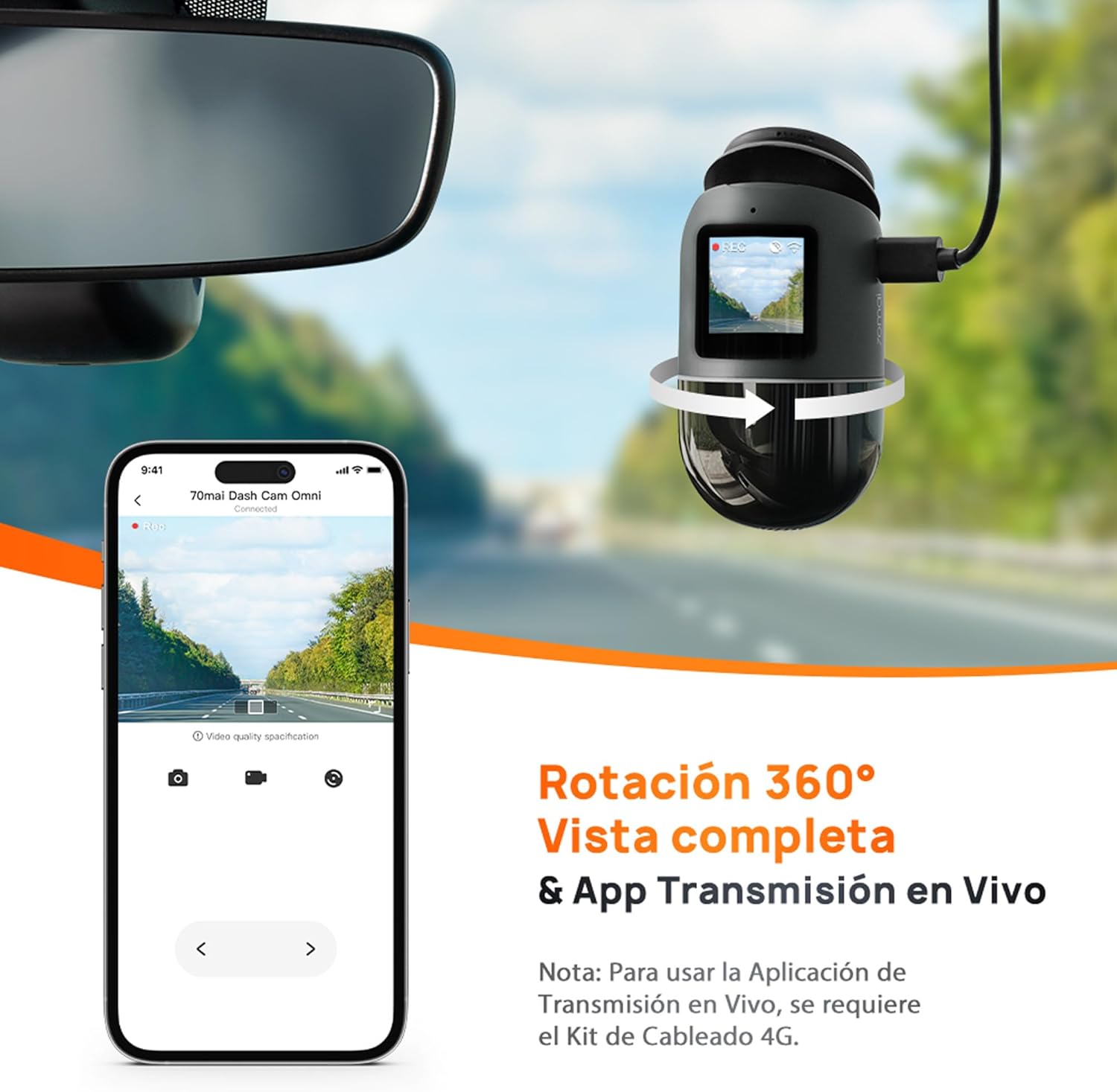
Figi 5.1: The 70mai Dash Cam Omni demonstrating its 360-degree rotation capability, allowing for versatile recording angles. A connected smartphone screen shows a live feed from the camera, illustrating the live view karakteristik.
5.3 Parking Surveillance Mode
When your vehicle is parked, the dash cam can enter Parking Surveillance Mode. This feature requires the optional 70mai Hardwire Kit (sold separately) for continuous power. In this mode, the dash cam monitors for impacts or suspicious movements around your vehicle.

Figi 5.2: This image illustrates the advanced parking surveillance features of the 70mai Dash Cam Omni. It includes 24-hour parking monitoring, AI-powered motion detection to identify suspicious activity, and time-lapse recording for efficient storage of long parking periods. Note: These features require the 70mai Hardwire Kit.
5.4 AI Motion Detection
The integrated AI motion detection system can identify human figures around your parked vehicle, distinguishing them from other movements like swaying trees, reducing false alarms and saving storage space. This feature is part of the advanced parking surveillance system.

Figi 5.3: This visual explains the AI Motion Detection capability, showing how the dash cam identifies and categorizes activity around a vehicle. It highlights areas of 'Normal' activity, 'Suspicious' movement, and potential 'Danger', indicating the system's ability to intelligently monitor the surroundings.
5.5 Integrated GPS and Car Finder
The built-in GPS module records your driving route and speed. When connected to the 70mai 4G Hardwire Kit (sold separately), the Car Finder function allows you to locate your parked vehicle via the 70mai App.

Figi 5.4: This image demonstrates the integrated GPS and Car Finder features. A smartphone screen displays a map with a vehicle's location marked, indicating the ability to track and find your car. Note: The Car Finder function requires the 4G Hardwire Kit.
5.6 Advanced Driver-Assistance Systems (ADAS)
The 70mai Dash Cam Omni includes ADAS features to enhance driving safety. These systems provide real-time voice alerts for potential hazards.
- Avètisman sou Depa liy: Avètisman an fèt si machin ou an kite liy li.
- Avètisman kolizyon devan: Warns you of a potential collision with the vehicle ahead.
- Moving Traffic Start Alert: Notifies you when the traffic ahead starts moving.
- Avètisman Pyeton: Detects pedestrians in front of your vehicle.
- Cyclist/Motorcyclist Alert: Detects cyclists and motorcyclists in front of your vehicle.

Figi 5.5: A diagram visually representing the Super ADAS sensors and their corresponding alerts. It shows different scenarios such as lane departure, detection of moving traffic, proximity to a front car, and the presence of pedestrians, cyclists, and motorcyclists, each triggering a specific warning icon.
6. Antretyen
6.1 Jesyon Kat MicroSD
Regularly format your MicroSD card (at least once a month) through the dash cam settings or the 70mai App to ensure optimal recording performance and prevent data corruption. Replace the MicroSD card if it shows signs of wear or error messages.
6.2 Netwaye Aparèy la
Use a soft, dry cloth to clean the dash cam's lens and body. Do not use abrasive cleaners or solvents, as they may damage the device. Ensure the lens is free of dust and smudges for clear video recording.
NAN. Depanaj
Si ou rankontre pwoblèm ak kamera tablodbò ou a, gade pwoblèm ak solisyon komen sa yo:
- Dash Cam la pa limen:
- Ensure the power cable is securely connected to both the dash cam and the car charger.
- Check if the car charger is properly inserted into the cigarette lighter socket and if the socket is receiving power.
- Test with a different power source or cable if available.
- Anrejistreman sispann oswa footage is corrupted:
- Format the MicroSD card regularly.
- Ensure you are using a high-quality MicroSD card (Class 10 or U1/U3 recommended).
- The MicroSD card may be full; enable loop recording or replace the card.
- Wi-Fi connection issues with the 70mai App:
- Asire w ke Wi-Fi kamera a aktive.
- Rekòmanse tou de kamera tablodbò a ak telefòn entelijan ou.
- Ensure your smartphone is within close proximity to the dash cam.
- ADAS alerts are inaccurate or not working:
- Ensure the dash cam is correctly calibrated and mounted centrally on the windshield.
- Clean the windshield and the dash cam lens to ensure an unobstructed view.
- ADAS performance can be affected by weather conditions or poor road markings.
8. Espesifikasyon
| Karakteristik | Detay |
|---|---|
| Mak | 70mai |
| Non modèl | Dash Cam Omni (X200) |
| Koulè | Nwa |
| Gwosè ekran | 1.2 pous |
| Koneksyon | USB |
| Aparèy konpatib | Machin |
| Konpozisyon batri | Lityòm-ion |
| Batri rechargeable | Wi |
| Rezolisyon anrejistreman videyo | 1440p |
| Kalite aliye | Vit devan mòn |
| Jaden nan View | 140 Degre |
| Metòd kontwòl | Manyen |
| Dimansyon pwodwi (L x W x H) | 15 cm x 7 cm x 13 cm |
9. Garanti ak sipò
Pou enfòmasyon sou garanti a ak sipò teknik, tanpri al gade paj ofisyèl 70mai a. websit la oubyen kontakte sèvis kliyan yo. Kenbe resi acha w la kòm prèv acha pou reklamasyon garanti.


