Entwodiksyon
This manual provides instructions for the Meta Oculus Go Standalone Virtual Reality Headset (32GB). The Oculus Go offers an immersive virtual reality experience without the need for external wires, a PC, or a smartphone. Featuring clear optics and 3D graphics, it functions as a portable personal theater, allowing users to watch movies, attend virtual events, and interact in social applications. The device is powered by the Qualcomm Snapdragon 821 mobile platform, ensuring quality audio, video, and interactive experiences.

This image displays the front of the Oculus Go headset, highlighting its sleek, light gray design and the 'Oculus' branding.
Ki sa ki nan bwat la
The following items are included with your Oculus Go Standalone Virtual Reality Headset:
- Ale Aparèy
- Kontwolè
- 1 AA battery (for controller)
- Lens twal
- Micro USB cable (for charging)

This image shows the Oculus Go headset alongside its compact, ergonomic controller, illustrating the complete package.
Enstalasyon
To begin using your Oculus Go headset, follow these steps:
- Depake aparèy la: Carefully remove the Oculus Go headset, controller, and accessories from the packaging.
- Insert Controller Battery: Open the battery compartment on the controller and insert the included AA battery, ensuring correct polarity.
- Chaje kas ekoutè a: Connect the Micro USB cable to the charging port on the headset and plug the other end into a compatible USB power adapter (not included) or computer. Allow the headset to fully charge before first use. The charging indicator light will show the charging status.
- Download the Oculus App: On your smartphone, download the Oculus companion app from your device's app store.
- Initial Pairing and Setup: Open the Oculus app on your smartphone and follow the on-screen instructions to pair your Oculus Go headset. This process will guide you through Wi-Fi connection, account setup, and initial software updates.
- Ajiste anfòm kas ekoutè a: Place the headset on your head and adjust the straps for a comfortable and secure fit. Ensure the display is centered and clear.
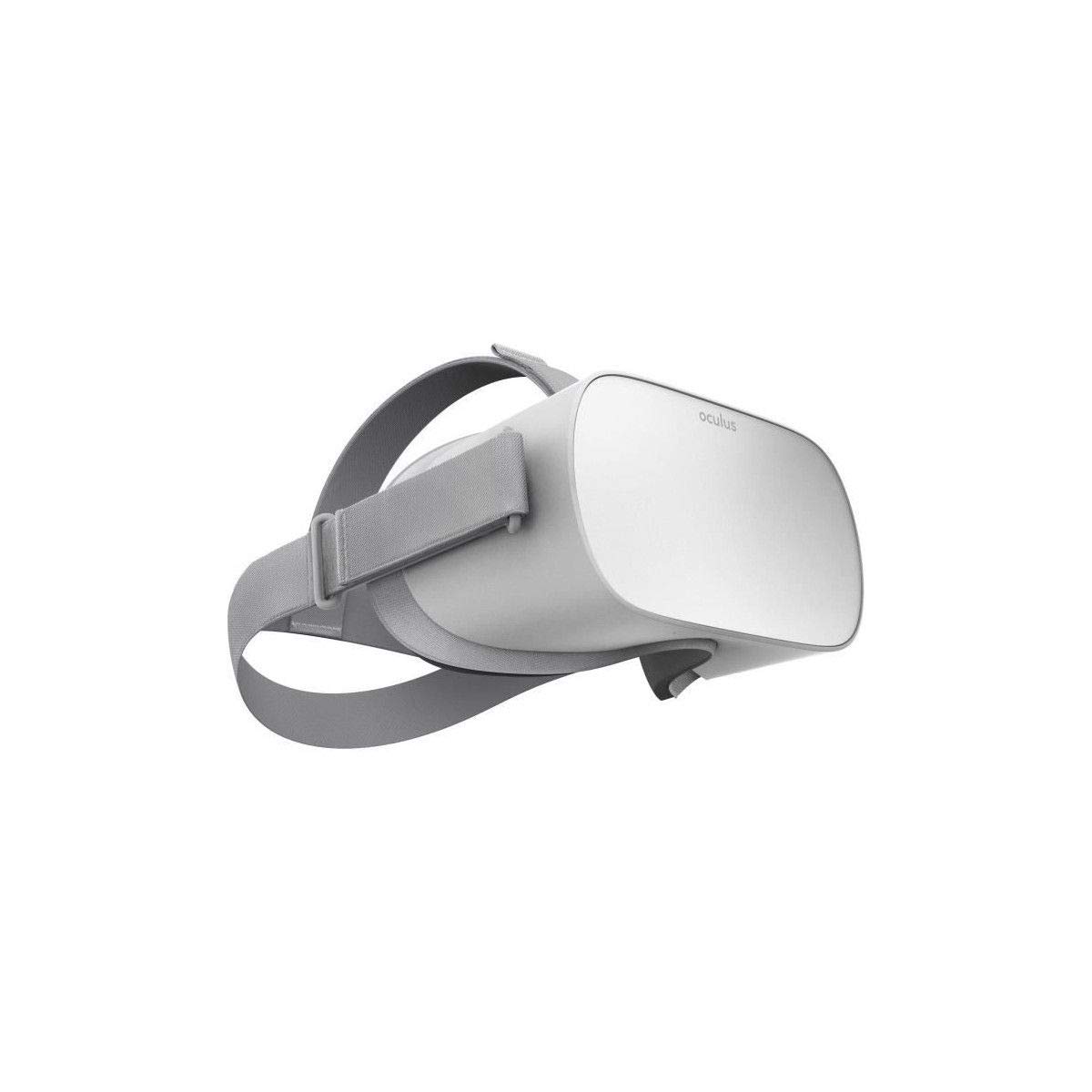
Imaj sa a bay yon bò view of the Oculus Go headset, showing the adjustable straps and the overall profile nan aparèy la.
Operating the Oculus Go
This section details the basic operation of your Oculus Go headset.
Power On/Off
- Pou limen: Press and hold the power button located on the top of the headset until the Oculus logo appears.
- Pou etenn: Press and hold the power button until a power-off menu appears in VR, then select 'Power Off'. Alternatively, hold the power button for several seconds until the device shuts down.
Sèvi ak Kontwolè a
The Oculus Go controller is your primary input device in VR.
- Navigasyon: Use the touchpad to move the cursor and scroll through menus.
- Seleksyon: Press the touchpad to select items.
- Bouton tounen: The 'Back' button (usually a curved arrow) returns you to the previous screen or menu.
- Oculus Button: The 'Oculus' button (with the Oculus logo) brings up the universal menu, allowing you to access settings, home, and other core functions.
- Deklanche: The trigger button on the underside of the controller is used for interaction, such as firing in games or confirming selections.
Ajiste Volim
Volume buttons are located on the top of the headset, near the power button. Press '+' to increase volume and '-' to decrease volume.
Sòti odyo
The Oculus Go features integrated spatial audio speakers within the head strap. For a more private or immersive experience, you can connect 3.5mm headphones to the audio jack located on the side of the headset.
Navigating the VR Environment
Once powered on, you will enter the Oculus Home environment. Use the controller to select applications, browse the store, or adjust settings. Your head movements control the camera view within the virtual space.
Antretyen ak Swen
Proper care ensures the longevity and optimal performance of your Oculus Go.
- Netwayaj Lantiy: Use the provided microfiber lens cloth to gently wipe the lenses in a circular motion. Do not use liquid cleaners, alcohol, or abrasive cloths, as these can damage the lenses.
- Netwayaj kas ekoutè: Wipe the exterior of the headset with a dry or slightly damp, soft cloth. Avoid getting moisture into any openings.
- Cleaning Face Pad: The foam face pad can be carefully removed and hand-washed with mild soap and water, then air-dried completely before reattaching.
- Depo: Store the headset in a cool, dry place away from direct sunlight. Direct sunlight can cause permanent damage to the lenses and display.
- Swen batri: Pou yon batri ki dire pi byen, evite dechaje kas ekoutè a nèt souvan. Chaje l regilyèman.
Depanaj
This section addresses common issues you might encounter with your Oculus Go.
Kas ekoutè a pa limen
- Ensure the headset is fully charged. Connect it to a power source using the Micro USB cable and allow it to charge for at least 30 minutes.
- Press and hold the power button for at least 10 seconds to attempt a hard reset.
Kontwolè pa reponn
- Check if the AA battery in the controller is correctly inserted and has sufficient charge. Replace the battery if necessary.
- Ensure the controller is paired with the headset. If not, follow the pairing instructions in the Oculus app.
Blurry or Out-of-Focus Display
- Adjust the headset's position on your head to find the "sweet spot" for clarity.
- Ensure the lenses are clean. Use the provided lens cloth to gently wipe them.
- If you wear glasses, ensure they fit comfortably within the headset or use the provided glasses spacer if needed.
Surchof
- If the headset feels warm, discontinue use and allow it to cool down in a well-ventilated area.
- Extended use, especially with demanding applications, can cause the device to heat up. Take breaks as needed.
Maladi Mouvman
- Some users may experience motion sickness in VR. If you feel unwell, remove the headset and take a break.
- Start with experiences that have comfortable locomotion options and gradually increase your tolerance.
Pwoblèm koneksyon Wi-Fi
- Asire w ke rezo Wi-Fi ou a aktif epi li nan zòn ou an.
- Restart your Wi-Fi router and the Oculus Go headset.
- Verifye ke modpas Wi-Fi yo te antre pandan konfigirasyon an kòrèk.
Espesifikasyon
| Karakteristik | Detay |
|---|---|
| Nimewo Modèl | 1 |
| ASIN | B07D7HPSFC |
| Kapasite Depo | 32GB |
| Manifakti | Oculus (Meta) |
| Dimansyon pwodwi | 3.94 x 3.94 x 3.94 pous |
| Pwa atik | 1 liv |
| Batri obligatwa | 1 AA battery (included for controller) |
| Dat Premye Disponib | 31 me 2018 |
| Dat lage | 1 avril 2020 |
Garanti ak sipò
For information regarding warranty coverage, technical support, or service for your Meta Oculus Go headset, please refer to the official Meta support websit la oubyen kontakte sèvis kliyan yo dirèkteman. Kenbe prèv acha ou pou reklamasyon garanti.
Sipò sou entènèt: Sipò Meta Quest


