1. Entwodiksyon ak souview
The HumanWare Explore 8 is an advanced, portable electronic magnifier designed to assist individuals with low vision in reading documents and viewing objects with enhanced clarity. Featuring an 8.0-inch touchscreen and powerful magnification capabilities up to 30X, it offers a versatile solution for both home and on-the-go use. Its compact design ensures ease of transport, making it an indispensable tool for daily tasks.

Image: The Explore 8 magnifier positioned over a newspaper, showing a magnified weather forecast on its screen. This illustrates its primary function for reading printed materials.
2. Karakteristik kle
- 8-inch Handheld Design: The first handheld magnifier on the market with an 8-inch screen, offering a large viewing area in a portable form factor.
- Gwo Agrandisman: Provides magnification up to 30X with stunning HD image quality, ensuring clear and detailed viewing.
- Fonksyon personnalisable: Fully customizable settings allow users to tailor the device to their specific visual needs and preferences.
- Ekran tactile entwitif: Navigate easily through menus and functions using the responsive touchscreen interface.
- Dual Ultra HD Cameras: Equipped with twin Ultra HD cameras for versatile use, supporting both desktop reading and distance viewing.
3. Gid Enstalasyon
3.1. Unboxing ak Inisyal Enspeksyon
Carefully remove the Explore 8 from its packaging. Inspect the device for any visible damage. Ensure all components, including the device, charging cable, and power adapter, are present.
3.2. Chaje Aparèy la
Before first use, fully charge the Explore 8. Connect the charging cable to the device's charging port and plug the power adapter into a standard electrical outlet. The charging indicator light will show the charging status. A full charge may take several hours.
3.3. Powering On / Off
To power on the device, press and hold the power button located on the side/top of the unit until the screen illuminates. To power off, press and hold the power button again until the shutdown prompt appears, then confirm.
4. Operasyon Enstriksyon
4.1. Basic Magnification
Place the Explore 8 directly over the text or object you wish to magnify. Use the physical zoom buttons (typically marked '+' and '-') or pinch-to-zoom on the touchscreen to adjust the magnification level. The device supports magnification up to 30X.

Image: A user comfortably reading documents with the Explore 8 magnifier, demonstrating its ease of use for extended periods.
4.2. Viewing Modes and Color Schemes
The Explore 8 offers various viewing modes and customizable color schemes to enhance readability. Access these options through the on-screen menu. Common modes include full color, black on white, white on black, yellow on blue, and more. Experiment to find the combination that provides the best contrast and comfort for your eyes.
4.3. Desktop and Distance Viewing
The device features twin Ultra HD cameras. One camera is optimized for close-up desktop viewing (e.g., reading a book), while the other is for distance viewing (e.g., looking at a whiteboard or street signs). Switch between these camera modes via the dedicated button or touchscreen menu option.

Image: The back of the Explore 8, illustrating its built-in stand that allows for stable, hands-free use on a flat surface for desktop viewing.
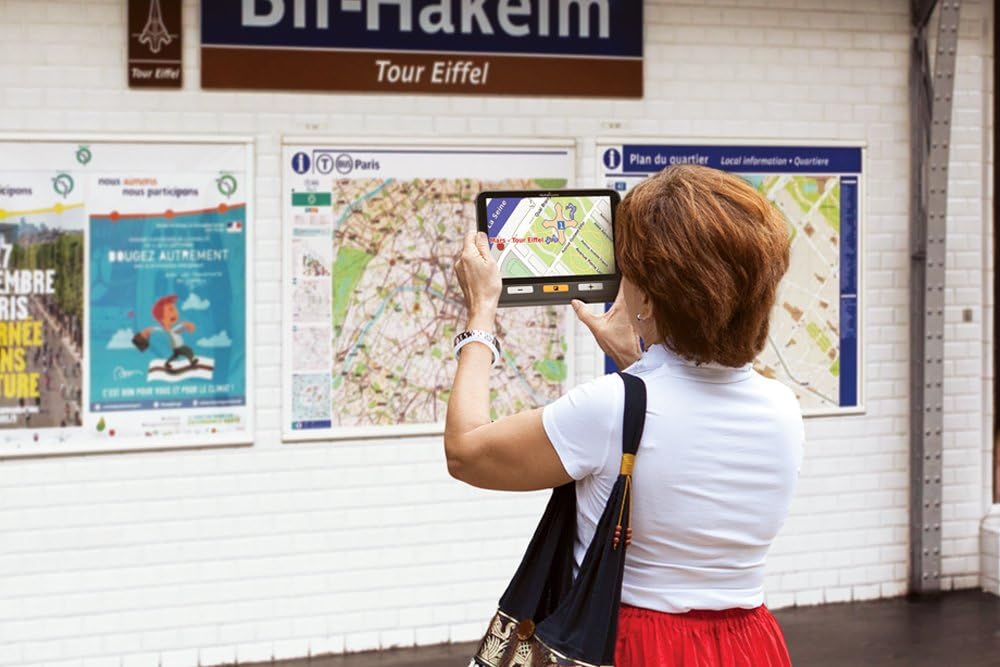
Image: A user utilizing the Explore 8 to magnify a large map in a public setting, showcasing its utility for distance viewing ak navigasyon.
4.4. Navige nan meni ak paramèt yo
Tap the screen to bring up the on-screen menu. Use your finger to tap on icons and options to adjust settings such as brightness, contrast, line markers, and more. Refer to the on-screen help or the full digital manual for detailed explanations of each setting.
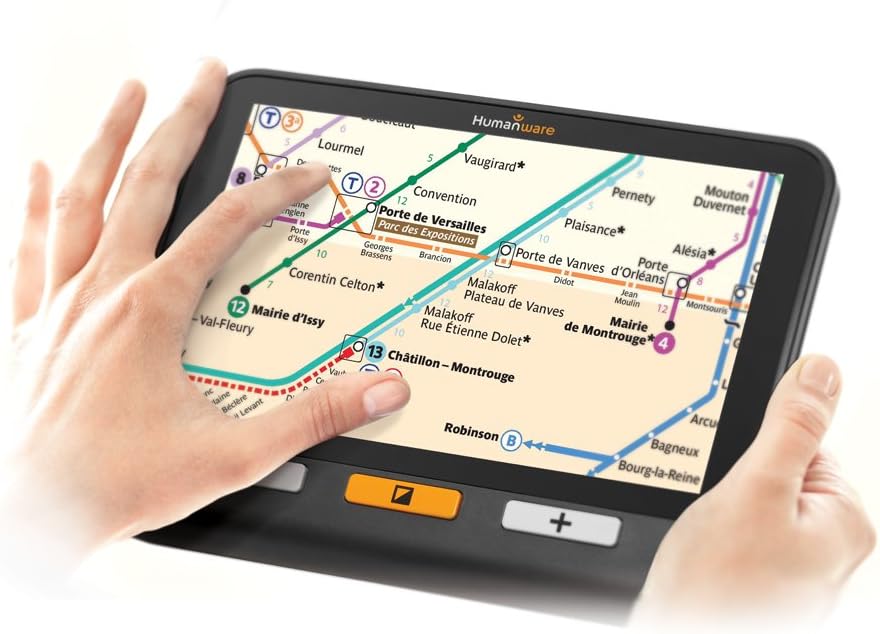
Image: Close-up of hands using the touchscreen of the Explore 8 to navigate a magnified subway map, highlighting the interactive touch interface.
5. Antretyen ak Swen
5.1. Netwaye Aparèy la
To clean the screen, use a soft, lint-free cloth specifically designed for electronic displays. For the device body, a slightly damp cloth can be used. Avoid abrasive cleaners, solvents, or spraying liquids directly onto the device.
5.2. Swen batri
To prolong battery life, avoid fully discharging the device frequently. Charge the device regularly, and if storing for an extended period, ensure it has at least a 50% charge. Store in a cool, dry place.
5.3. Depo
When not in use, store the Explore 8 in its protective case (if provided) or a safe place to prevent scratches and damage to the screen and cameras.
NAN. Depanaj
| Pwoblèm | Kòz posib | Solisyon |
|---|---|---|
| Aparèy pa limen. | Batri fèb; aparèy bloke. | Charge the device for at least 30 minutes. Perform a hard reset (refer to manufacturer's instructions for specific button combination, usually holding power button for 10-15 seconds). |
| Ekran an vid oswa li defòme. | Pa kòrèk viewing mode; software glitch; physical damage. | Chanje viewing modes. Restart the device. If problem persists, contact HumanWare support. |
| Magnification is not clear. | Dirty camera lens; incorrect focus; lighting issues. | Clean the camera lenses with a soft cloth. Adjust lighting conditions. Ensure the device is positioned correctly over the object. |
| Aparèy pa chaje. | Kab/adaptè ki gen pwoblèm; pwoblèm ak pò chaj la. | Try a different charging cable and power adapter. Ensure the charging port is free of debris. Contact support if the issue continues. |
7. Spécifications pwodwi
- Mak: HumanWare
- Nimewo Modèl: FGEX-1016
- UPC: 762988545019
- Koulè: Nwa
- Materyèl lantiy: Acrylic
- Agrandisman fòs: Jiska 30X
- Gwosè ekran: 8.0 pous (dyagonal)
- Pwa atik: Apeprè 3.14 liv (1.42 kg)
- Dimansyon pake: Apeprè 10 x 8 x 4 pous (25.4 x 20.3 x 10.2 cm)
- Kamera: Twin Ultra HD cameras
- Batri: Rechargeable (type not specified, but implied by charging instructions)
8. Garanti ak sipò
The HumanWare Explore 8 Handheld Electronic Magnifier typically comes with a manufacturer's warranty covering defects in materials and workmanship. The duration and terms of the warranty may vary by region and purchase date. Please refer to the warranty card included with your product or visit the official HumanWare websit pou enfòmasyon detaye sou garanti.
For technical support, service, or warranty claims, please contact HumanWare customer service directly. You can usually find contact information (phone numbers, email, or support portal) on their official websit: www.humanware.com. When contacting support, please have your product model number (FGEX-1016) and serial number ready.


