1. Entwodiksyon
This manual provides essential instructions for setting up, operating, and maintaining your Unknown M2S Smart Band. Please read this guide thoroughly to ensure proper use and to maximize the benefits of your device.
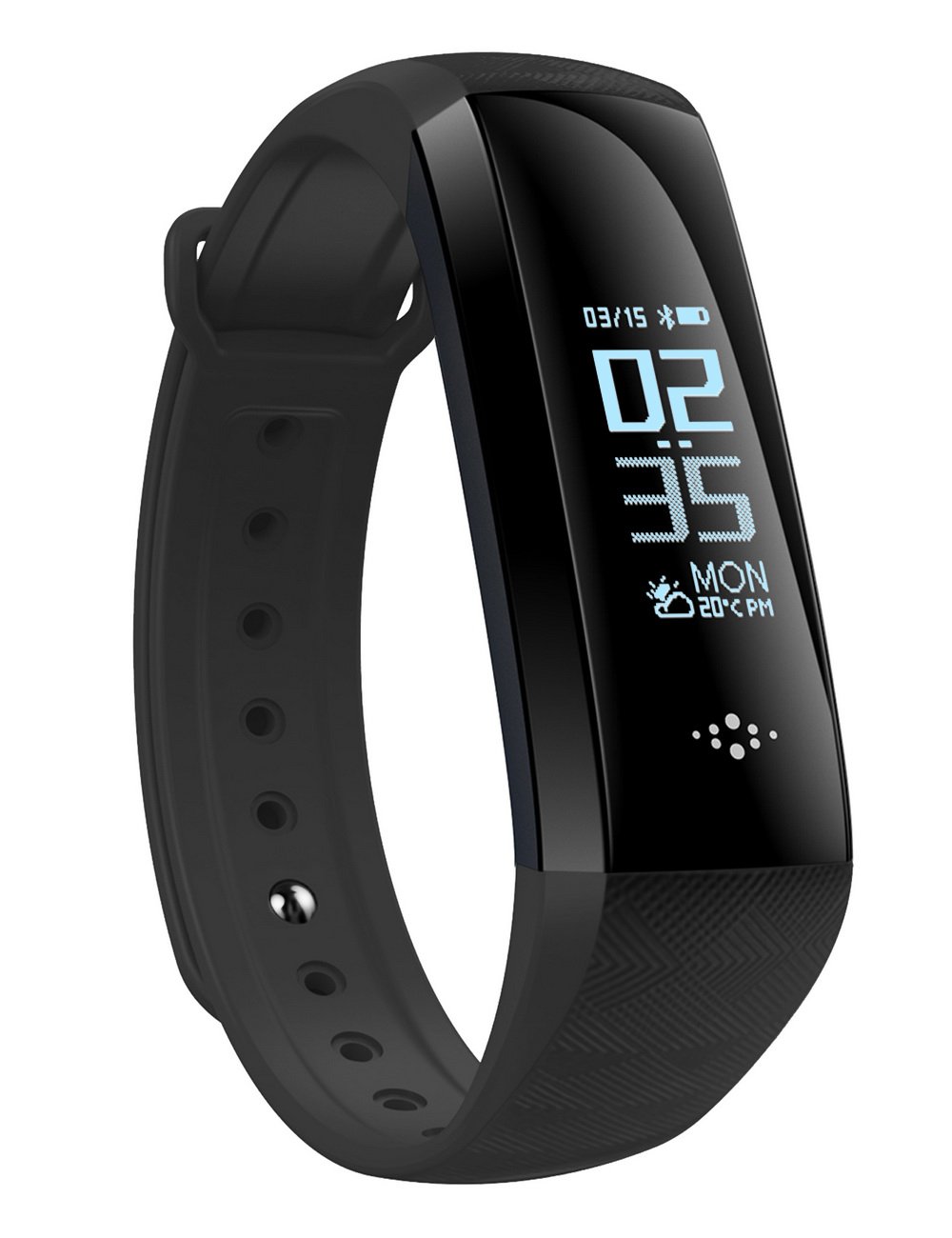
The M2S Smart Band displaying health metrics.
2. Sa ki enkli
- M2S Smart Band
- senti ponyèt
- Manyèl itilizatè
3. Enstalasyon
3.1 Chaje Aparèy la
Before first use, fully charge the Smart Band. The device features a direct USB charging interface, eliminating the need for a separate charging cable.
- Gently pull down the strap to expose the USB charging plug.
- Insert the USB plug into a standard USB port (e.g., computer, USB wall adapter). Ensure the gold-plated contacts of the plug align with the metal contacts of the USB port.
- The screen will display a charging indicator.
- Charge until the battery icon indicates a full charge.

Illustration of the direct USB charging method.
3.2 Enstalasyon ak Koneksyon Aplikasyon an
To synchronize data and access all features, download and install the "Wearfit2.0" application on your smartphone.
- Chèche pou "Wearfit2.0" in your phone's app store (Google Play Store for Android, Apple App Store for iOS). Alternatively, scan the QR code provided in the image below.
- Enstale aplikasyon an.
- Open the Wearfit2.0 app and follow the on-screen instructions to create an account or log in.
- Asire w ke Bluetooth aktive sou smartphone ou.
- Within the app, navigate to the device connection section (often labeled "Device Management" or "Bind Bracelet").
- Select your M2S Smart Band from the list of available devices to pair.
- Once connected, the app will synchronize with your Smart Band.

Steps for downloading and connecting the Wearfit2.0 app. For Android, you can also download the app from http://www.iwhop.com/app.php/Update/android.
3.3 Initial Personal Data Setup
After synchronization, use the Wearfit2.0 app to set your personal data, such as time format (12 or 24 hours), and units for measurements (e.g., centimeters/inches for height, kilograms/pounds for weight). Accurate personal data improves the precision of health tracking.
4. Operasyon Enstriksyon
4.1 Navigasyon debaz
The Smart Band features a touch-sensitive area on its screen for navigation. Tap to cycle through different modes and long-press to select or enter sub-menus.
- Mòd tan: Displays current time, date, and battery level. This is the default screen.
- Step Mode: Shows your daily step count.
- Distance Mode (KM): Montre distans ki kouvri a.
- Mòd kalori: Montre kalori boule.
- Heart Rate & Blood Oxygen Monitoring: Initiates a measurement of your heart rate (HR) and blood oxygen saturation (SpO2).
- Siveyans tansyon: Initiates a measurement of your blood pressure.
To access sub-interfaces or confirm selections, press and hold the home function menu area for approximately 3 seconds.
4.2 Detailed Operation Flow
The following diagram illustrates the various functions and navigation paths of the Smart Band:

Comprehensive operation flowchart for the M2S Smart Band.
- Cycling Through Main Modes: Tap the touch area to move from Time & Date & Battery & Bluetooth status & Weather & Week & Day & Month & Year & Steps & Distance & Calories & Heart Rate & Blood Oxygen & Blood Pressure.
- Mòd espò: From the main screen, long-press for 3 seconds to enter Sport Mode. Tap to select different activities (e.g., walking, running, cycling). Long-press to confirm selection. During an activity, tap to pause/resume, long-press to end.
- Kronomètr: Access the stopwatch function from the 'More' menu. Tap to start/pause, long-press to reset.
- Messages (SMS): Long-press for 3 seconds to view incoming messages. Tap to scroll through messages. Long-press to exit.
- Plis Fonksyon: From the main screen, tap until you reach the 'More' icon. Long-press to enter. Here you can find options like Stopwatch, Find Phone, and Power Off.
- Limen/Etenyen: From the 'More' menu, long-press the power icon for 3 seconds to power off. To power on, long-press the touch area until the device vibrates and the screen lights up.
4.3 Karakteristik siveyans
The M2S Smart Band offers a range of health and fitness monitoring capabilities:
- Siveyans tansyon: Mezire tansyon ou.
- Siveyans batman kè: Tracks your heart rate in beats per minute (bpm).
- Siveyans oksijèn nan san: Mezire saturasyon oksijèn nan san ou (SpO2).
- Exercise Step Tracking: Konte pa ou fè chak jou.
- Siveyans dòmi: Analize modèl ak kalite dòmi ou.
- Caller ID Information: Displays incoming call names.
- Notifikasyon mesaj: Shows messages from various apps (e.g., SMS, FB, WeChat, Twitter, Blog on Android OS).
- Athletic Trajectory (GPS): When connected to your phone, uses the phone's GPS to map your running or walking routes.
- Long Sibstans: Designed for extended battery life.
- Health Statistics: Provides graphical reports and data reference through the Wearfit2.0 app.

Plis paseview of the Smart Band's monitoring capabilities.
4.4 24-Hour Monitoring
The M2S Smart Band supports continuous 24-hour monitoring of blood pressure, blood oxygen, and heart rate. This feature can be enabled via the Wearfit2.0 app to provide real-time data for health reference.
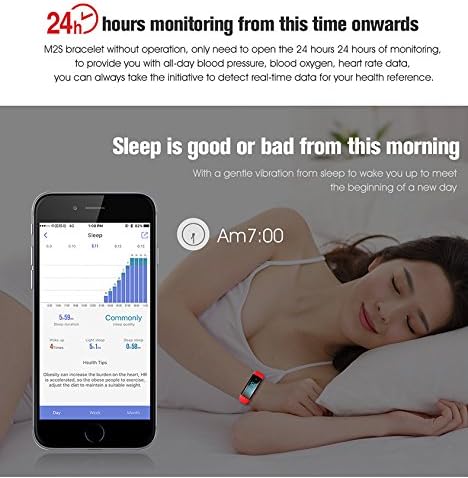
The Smart Band monitors sleep patterns and provides data via the app.
4.5 Suivi GPS
When the Smart Band is connected to your smartphone, the Wearfit2.0 app can utilize your phone's GPS to track and map your outdoor activities, such as running or walking. This allows you to view your route, distance, duration, and calories burned.
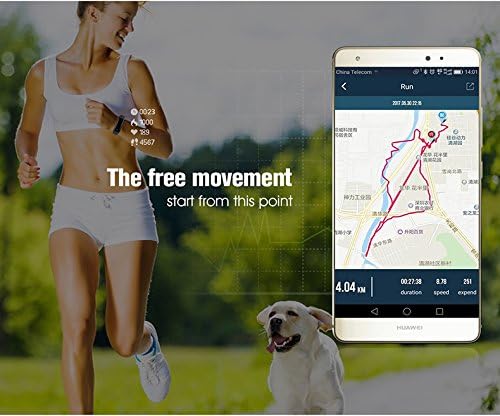
GPS tracking functionality when connected to a smartphone.
4.6 Find Phone/Band Feature
The Smart Band can help you locate your phone by making it vibrate or ring. Conversely, you can use the Wearfit2.0 app on your phone to make the band vibrate, helping you find it if misplaced nearby.
5. Antretyen
5.1 Rezistans dlo
The M2S Smart Band has an IP67 waterproof rating, meaning it is resistant to dust and can withstand immersion in water up to 1 meter for 30 minutes. It is suitable for swimming. However, do not expose the device to hot water, as this can damage the internal components and compromise the waterproof seal.

The Smart Band is suitable for swimming but avoid hot water.
5.2 Netwayaj
To maintain the device, wipe it regularly with a soft, dry cloth. If necessary, use a slightly damp twal. Evite pwodui chimik ki agresif oswa pwodui netwayaj abrazif.
5.3 Mizajou Firmware
The Wearfit2.0 app and the Smart Band's firmware are regularly updated to improve performance, fix errors, and enhance connectivity. Ensure your app is always updated to the latest version, and follow any prompts within the app to update the device firmware.
NAN. Depanaj
- Aparèy pa chaje: Ensure the USB plug is fully inserted and correctly oriented into a working USB port. Check for any debris in the charging contacts.
- Cannot connect to app: Ensure Bluetooth is enabled on your phone and the Smart Band is sufficiently charged. Restart both the phone and the band, then try pairing again. Make sure the Wearfit2.0 app is updated.
- Inaccurate readings (steps, HR, BP): Ensure the band is worn snugly on your wrist, about one finger's width above your wrist bone. Avoid excessive movement during measurements. Note that measurement results are for reference only and not for medical purposes.
- App data not syncing: Check your phone's internet connection. Ensure the app has necessary permissions (e.g., location, storage).
- Ekran an pa reponn: Try restarting the device by long-pressing the touch area (if it's on) or charging it if the battery is depleted.
7. Espesifikasyon
| Pwa atik | 2.72 ons |
| Dimansyon pwodwi | 8.66 x 0.79 x 0.39 pous |
| Nimewo Modèl | M2S |
| Gwosè ekspozisyon | 0.96 pous OLED |
| Bluetooth | BT 4.0 |
| Kapasite batri | 80mAh |
| Nivo ki enpèmeyab | IP67 |
| Sistèm operasyon konpatibilite | Android, iOS |
| Koneksyon Teknoloji | San fil |
| GPS | GPS enabled (via connected smartphone) |
8. Enfòmasyon enpòtan sou sekirite
The M2S Smart Band is waterproof with an IP67 rating. However, it is crucial to avoid contact with hot water, as this can damage the device. This product's measurement results are for reference only and should not be used for any medical purposes or as a basis for medical decisions. For accurate health assessments, consult a medical professional.
9. Garanti ak sipò
The product comes with a one-year warranty. For any issues, replacements, or returns, please refer to your purchase documentation or contact the seller directly. Regular updates to the app and device firmware are provided to improve user experience and address potential issues.


