Entwodiksyon
This manual provides essential information for the installation, operation, maintenance, and troubleshooting of your NVIDIA 699-51030-0501-101 graphics card. This component is designed for desktop computer systems to enhance graphics processing capabilities. Please read this manual thoroughly before proceeding with installation or use.
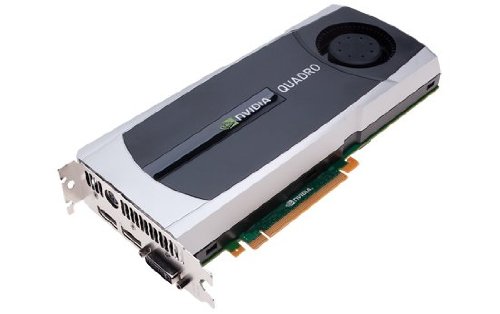
Image: NVIDIA 699-51030-0501-101 Graphics Card. This image displays the graphics card from an angled perspective, showing the cooling fan, heatsink, and the PCIe connector.
Gid Sekirite
Obsève prekosyon sekirite sa yo pou evite domaje pwodwi a oswa blese tèt ou:
- Toujou dekonekte kouran òdinatè w la anvan w enstale oswa retire nenpòt konpozan.
- Mete yon braslè ponyèt anti-estatik oswa touche souvan yon objè metal ki konekte a tè pou dechaje elektrisite estatik la.
- Manyen kat grafik la nan kwen li yo pou evite touche konpozan sansib yo.
- Asire w ke bwat òdinatè w la gen bon vantilasyon pou anpeche l chofe twòp.
- Kenbe pwodwi a lwen imidite ak tanperati ekstrèm.
Enstalasyon
1. Verifikasyon Pre-enstalasyon
- Verifye si inite ekipman pouvwa ou a (PSU) gen ase dlotage and appropriate connectors for the graphics card.
- Ensure your motherboard has an available PCI Express (PCIe) x16 slot.
- Confirm your computer case has adequate space for the graphics card dimensions.
- Rasanble zouti ou bezwen yo: tournevis Phillips, braslè ponyèt anti-estatik (rekòmande).
2. Enstalasyon Materyèl
- Kouran koupe ak dekonekte: Fèmen òdinatè w la nèt epi debranche kòd kouran an nan priz miray la.
- Ka Ouvè: Retire panèl bò bwat òdinatè w la pou w ka jwenn aksè a kat manman an.
- Jwenn plas PCIe a: Identify an available PCI Express x16 slot on your motherboard. This is typically the longest slot.
- Retire kouvèti fant lan: Remove the metal slot cover(s) from the back of your computer case corresponding to the PCIe slot you will use.
- Mete Kat Grafik la: Carefully align the graphics card with the PCIe slot. Press down firmly and evenly on both ends of the card until it is fully seated in the slot. You should hear a click from the retention clip.
- Kat Sekirite: Secure the graphics card to the computer case using the screw(s) removed from the slot cover(s).
- Konekte kouran an (si sa aplikab): If your graphics card requires additional power, connect the appropriate PCIe power cables from your PSU to the graphics card. This model (NVIDIA 699-51030-0501-101) may not require external power, but always check the card itself for connectors.
- Fèmen Ka a: Ranplase panèl bò bwat òdinatè w la.
- Reconnect Peripherals: Reconnect your monitor cable to one of the display outputs on the new graphics card. Reconnect all other peripherals and the power cord.
3. Enstalasyon chofè
- Pouvwa sou: Limen òdinatè w lan.
- Telechaje Chofè yo: Navigate to the official NVIDIA websit (www.nvidia.com/drivers) and download the latest drivers compatible with your NVIDIA 699-51030-0501-101 graphics card and operating system.
- Enstale chofè yo: Run the downloaded driver installer and follow the on-screen instructions. It is recommended to perform a clean installation if prompted.
- Rekòmanse: Rekòmanse òdinatè w la apre enstalasyon chofè a fini.
Opere
Once installed and drivers are updated, your NVIDIA 699-51030-0501-101 graphics card will automatically handle graphics processing for your system. You can verify its operation through your operating system's device manager or NVIDIA Control Panel.
- Panèl kontwòl NVIDIA: Access the NVIDIA Control Panel (usually via right-click on desktop or through Windows Control Panel) to adjust display settings, 3D settings, and monitor various aspects of your graphics card.
- Mizajou chofè: Tcheke NVIDIA regilyèman website for driver updates to ensure optimal performance and compatibility with new software and games.
Antretyen
Bon antretyen asire lonjevite ak pèfòmans optimal kat grafik ou a.
- Retire pousyè: Periodically (e.g., every 6-12 months), power off and unplug your computer. Open the case and use compressed air to gently clear dust from the graphics card's heatsink and fan. Hold the fan blades to prevent over-spinning during cleaning.
- Kondisyon anviwònman: Operate your computer in a clean, dry, and well-ventilated environment. Avoid extreme temperatures and humidity.
Depanaj
Si ou rankontre pwoblèm, gade etap depanaj komen sa yo:
- Pa gen okenn rezilta ekspozisyon:
- Asire w kab monitè a byen konekte ak kat grafik la ak monitè a.
- Verifye si monitè a configuré sou sous antre ki kòrèk la.
- Check if the graphics card is fully seated in its PCIe slot.
- If applicable, ensure all PCIe power connectors are securely attached.
- Si sa posib, fè yon tès ak yon lòt monitè oubyen yon lòt kab.
- Pwoblèm chofè:
- Reinstall the latest drivers from the NVIDIA websit.
- Try rolling back to a previous driver version if issues started after an update.
- Use Display Driver Uninstaller (DDU) in Safe Mode to completely remove old drivers before installing new ones.
- Performance Problems (Low FPS, Stuttering):
- Asire w ke chofè yo ajou.
- Check for overheating using monitoring software (e.g., MSI Afterburner, HWMonitor). Clean dust if necessary.
- Verify that your system meets the minimum requirements for the applications or games you are running.
- Check power supply unit (PSU) wattage; an insufficient PSU can cause performance issues.
- System Instability (Crashes, Blue Screens):
- Check for driver conflicts or corruption.
- Monitor temperatures to rule out overheating.
- Ensure the graphics card is properly seated and secured.
- Kouri zouti dyagnostik memwa pou tcheke si gen pwoblèm RAM.
Espesifikasyon teknik
Key specifications for the NVIDIA 699-51030-0501-101 graphics card:
| Nimewo Modèl | NVIDIA 699-51030-0501-101 |
| Mak | NVIDIA |
| Koprosesè grafik | NVIDIA 699-51030 |
| Manifakti Processeur Grafik | NVIDIA |
| Aparèy konpatib | Desktop |
| ASIN | B01NBI92VC |
| Dat Premye Disponib | 8 desanm 2016 |
Garanti ak sipò
This NVIDIA graphics card is covered by the manufacturer's standard warranty. For specific warranty terms, duration, and to register your product, please refer to the official NVIDIA website or contact NVIDIA customer support directly.
For technical assistance, driver downloads, and further support resources, visit the official NVIDIA support portal:
- Sipò NVIDIA: www.nvidia.com/support


