1. Pwodwi souview
The DJI Zenmuse X4S is a high-performance aerial camera designed for professional photography and videography. It features a 1-inch CMOS sensor, a 24mm equivalent prime lens, and a 3-axis gimbal for stable footage. This manual will guide you through its proper use and care.

Figure 1.1: DJI Zenmuse X4S camera and gimbal system.
Ki sa ki nan bwat la
- DJI Zenmuse X4S Camera and Gimbal
- Ka Depo Pwoteksyon
- Lens Cap
- Gimbal Clamp
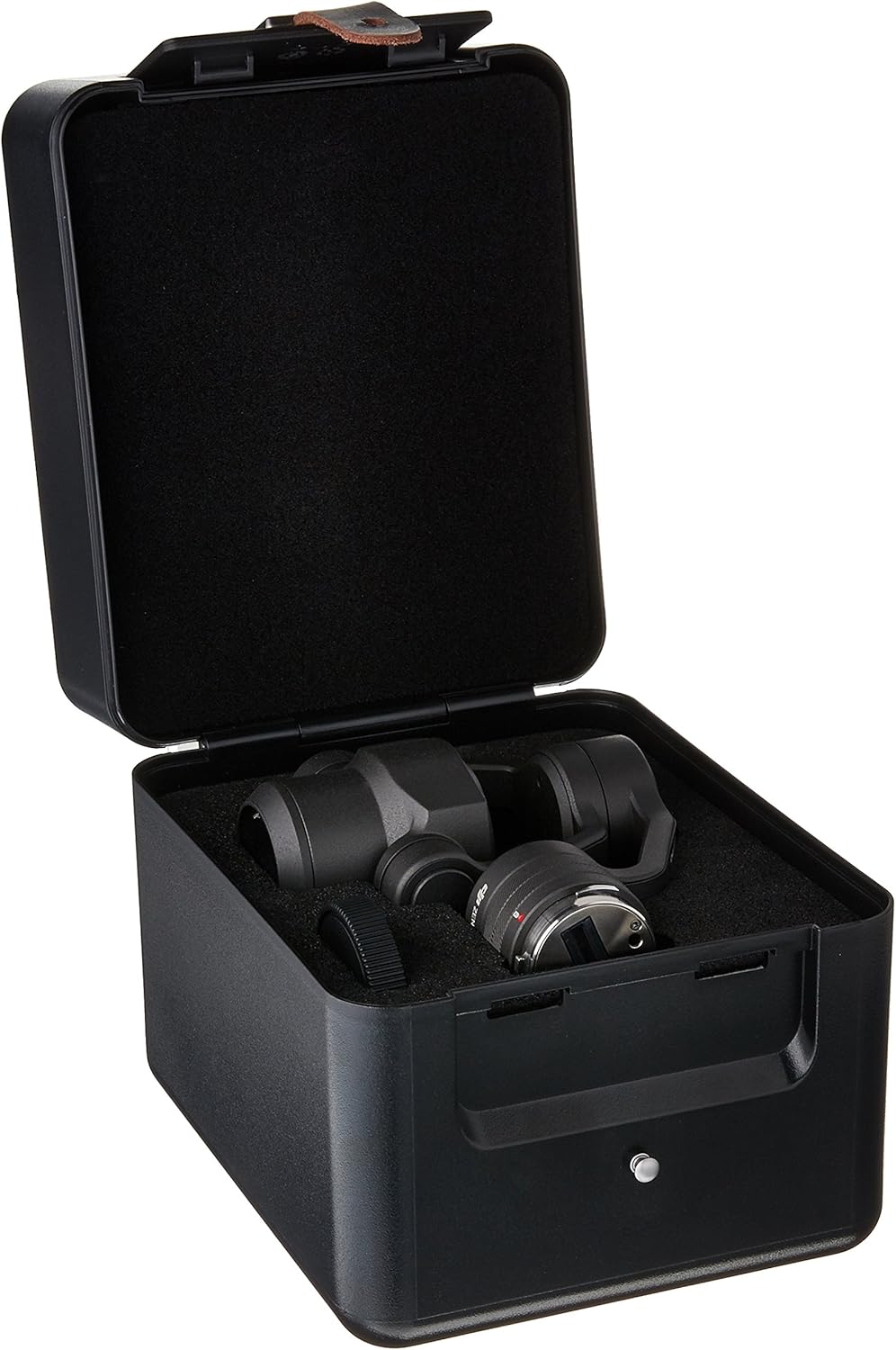
Figure 1.2: DJI Zenmuse X4S camera and components stored in its protective case.
2. Enfòmasyon sou Sekirite
Before operating the DJI Zenmuse X4S, please read and understand all safety guidelines to ensure safe and proper use. Failure to follow these instructions may result in damage to the product or personal injury.
- Always handle the camera and gimbal with care. Avoid sudden impacts or excessive force.
- Pa ekspoze kamera a ak dlo oswa imidite.
- Operate the camera within its specified temperature range.
- Ensure the gimbal clamp is removed before powering on the device to prevent motor damage.
- Keep the lens clean and free from dust or debris.
3. Enstalasyon
3.1 Debake
Carefully remove the Zenmuse X4S and all accessories from its packaging. Inspect for any signs of damage during transit.
3.2 Gimbal Installation
- Ensure the aircraft (e.g., DJI Inspire 2) is powered off.
- Align the Zenmuse X4S gimbal connector with the aircraft's gimbal port.
- Gently push the gimbal into place until it clicks securely.
- Twist the gimbal lock to secure it.

Figure 3.1: DJI Zenmuse X4S camera securely mounted to a compatible drone.
3.3 Premye pouvwa-sou
- Remove the lens cap and the gimbal clamp.
- Power on the aircraft. The Zenmuse X4S will perform a self-check and initialize.
- Connect your mobile device to the remote controller and launch the DJI GO 4 app.
4. Itilizasyon Kamera a
4.1 Kontwòl Kamera
All camera settings and gimbal movements are controlled via the DJI GO 4 app and the remote controller. Familiarize yourself with the app interface for optimal control.
- Bouton vole: Press once to take a photo, press to start/stop video recording.
- Gimbal Pitch Control: Use the remote controller's dial to adjust the camera's vertical angle.
- Kontwòl Konsantre: Tap on the screen in the DJI GO 4 app to set focus, or use manual focus mode.
4.2 Kaptire Foto ak Videyo
- In the DJI GO 4 app, select either Photo or Video mode.
- Adjust camera parameters such as ISO, shutter speed, aperture, and white balance according to your shooting environment.
- Frame your shot using the live view feed on your mobile device.
- Press the dedicated shutter/record button on the remote controller to capture your content.
5. Antretyen
5.1 Netwayaj
- Lantiy: Use a soft, lint-free microfiber cloth specifically designed for camera lenses. For stubborn smudges, use a small amount of lens cleaning solution.
- Camera Body and Gimbal: Wipe with a clean, dry, soft cloth. Do not use alcohol or other harsh solvents.
- Avoid getting dust or debris into the gimbal motors or connectors.
5.2 Depo
When not in use, store the Zenmuse X4S in its original protective case or a similar padded container. Ensure the gimbal clamp is re-attached to protect the gimbal during transport and storage. Store in a cool, dry place away from direct sunlight.
5.3 Mizajou Firmware
Regularly check for and install the latest firmware updates for your Zenmuse X4S and compatible aircraft via the DJI GO 4 app. Firmware updates often include performance improvements, bug fixes, and new features.
NAN. Depanaj
This section addresses common issues you might encounter with your DJI Zenmuse X4S.
- Gimbal Not Level or Vibrating:
- Ensure the gimbal clamp has been removed before powering on.
- Perform a gimbal calibration through the DJI GO 4 app.
- Check for any obstructions around the gimbal. - Image Blurry or Out of Focus:
- Clean the lens with a microfiber cloth.
- Verify that the focus mode (auto or manual) is set correctly in the DJI GO 4 app.
- Ensure the aircraft is stable during flight. - No Video Feed in DJI GO 4 App:
- Check all cable connections between the camera, gimbal, and aircraft.
- Restart the aircraft, remote controller, and the DJI GO 4 app.
- Ensure the mobile device is properly connected to the remote controller. - Kamera pa reponn:
- Power cycle the aircraft.
- Check for firmware updates and install if available.
- If the issue persists, contact DJI Support.
7. Espesifikasyon
| Karakteristik | Detay |
|---|---|
| Dimansyon pwodwi | 6 x 6 x 8 pous |
| Pwa atik | 2.05 liv |
| ASIN | B01MSZ3RG7 |
| Nimewo Modèl Atik | SS-DJI-ZX4S |
| Mak | DJI |
| Kalite lantiy | Teleobjèktif |
| Montaj konpatib | Mikwo kat tyè |
| Deskripsyon lantiy kamera | DJI Zenmuse X4S |
| Konsepsyon lantiy | Zoom |
8. Garanti ak sipò
For detailed warranty information, terms, and conditions, please refer to the official DJI website. Keep your proof of purchase, such as your receipt or invoice, as it will be required for any warranty claims.
If you encounter any issues that cannot be resolved using the troubleshooting guide, or require further technical assistance, please contact DJI Customer Support through their official channels. You can typically find contact information and support resources on the DJI websit.


