Entwodiksyon
This manual provides essential instructions for the proper setup, operation, and maintenance of your Zebra ET55AE-W22E ET55 8.3" Tablet. Please read this manual thoroughly before using the device to ensure optimal performance and longevity.
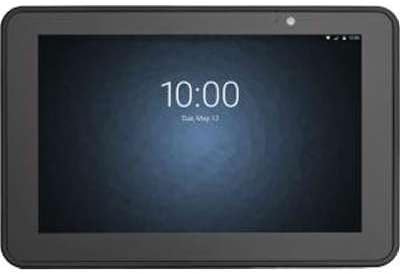
Imaj: Devan view of the Zebra ET55AE-W22E ET55 8.3" Tablet. The screen displays the time "10:00" and the date "Tue, May 12". The tablet has a dark gray bezel and a front-facing camera visible at the top center.
Kontni pake
Upon unpacking, verify that all items are present and undamaged. The standard package for the Zebra ET55AE-W22E includes:
- Zebra ET55AE-W22E ET55 8.3" Tablet unit
- (Additional accessories such as power adapter, USB cable, and documentation may be sold separately or included depending on region/bundle.)
Enstalasyon
1. Premye Chajman
Before first use, fully charge the tablet's battery. Connect the appropriate power adapter (not included with all models) to the tablet's charging port and then to a power outlet. The charging indicator will typically illuminate during this process.
2. Powering On / Off
- Pou limen: Peze epi kenbe bouton Power ki sitiye sou kote tablèt la jiskaske ekran an limen.
- Pou etenn: Press and hold the Power button, then select "Shut down" from the options that appear on the screen.
3. Initial Configuration (Windows 8.1)
Upon first power-on, the tablet will guide you through the Windows 8.1 setup process. This includes:
- Chwazi lang ou ak rejyon ou.
- Aksepte kondisyon lisans lan.
- Connecting to a Wi-Fi network (if available).
- Kreye oswa konekte avèk yon kont Microsoft.
- Setting up basic privacy and security settings.
Enstriksyon Operasyon
Navigating Windows 8.1
The Zebra ET55AE-W22E runs on Windows 8.1, optimized for touch interaction. Key navigation elements include:
- Kòmanse ekran: Swipe in from the right edge of the screen or press the Windows button to access the Start screen with live tiles.
- Charms Bar: Swipe in from the right edge of the screen to access the Charms bar (Search, Share, Start, Devices, Settings).
- App Switching: Swipe in from the left edge to switch between open applications.
- Desktop: Tap the Desktop tile on the Start screen to access the traditional Windows desktop environment.
Konekte ak rezo
- Wi-Fi: Access the Charms bar, select Anviwònman, then click the Wi-Fi icon to view available networks. Select your desired network and enter the password if prompted.
- Bluetooth: Access the Charms bar, select Anviwònman, lè sa a Chanje anviwònman PC yo, epi navige nan PC and devices > Bluetooth. Turn Bluetooth on and pair with desired devices.
- WAN (Wireless Area Network): This model supports WAN connectivity. Insert your SIM card (if applicable and provided by your service provider) into the designated slot. Follow on-screen prompts or consult your service provider for configuration details.
Sèvi ak Kamera a
The tablet is equipped with a camera. To use it, locate and tap the Camera application icon on the Start screen or Desktop. Follow the on-screen instructions to capture photos or record videos.
Antretyen
Netwaye Aparèy la
- Sèvi ak yon twal mou ki pa gen pousyè pou netwaye ekran an ak deyò a.
- Pou mak ki difisil pou retire, yon ti kras dampRense twal la avèk dlo oswa yon solisyon pou netwaye ekran.
- Evite sèvi ak pwodui chimik ki fò, pwodui netwayaj abrazif, oswa espre ayewosòl dirèkteman sou aparèy la.
Swen batri
- Evite ekspoze tablèt la nan tanperati ekstrèm.
- Pou yon lavi batri optimal, evite dechaje batri a nèt souvan.
- Si ou pa pral itilize aparèy la pou yon peryòd tan pwolonje, chaje l apeprè 50% anvan ou mete l nan depo.
Mizajou lojisyèl
Regularly check for and install Windows 8.1 updates to ensure system stability, security, and performance. Access Settings > Change PC settings > Update and recovery > Windows Update.
Depanaj
| Pwoblèm | Solisyon posib |
|---|---|
| Aparèy pa limen. | Ensure the battery is charged. Connect the tablet to a power source and attempt to power on after a few minutes. |
| Pa ka konekte ak Wi-Fi. | Verify Wi-Fi is enabled in settings. Check if the network password is correct. Restart the tablet and the Wi-Fi router. |
| Ekran an pa reponn. | Perform a soft reset by holding the power button until the device restarts. Ensure the screen is clean and free of debris. |
| Aplikasyon yo ralanti oswa yo ap plante. | Close unnecessary applications. Check for and install system updates. Consider uninstalling recently installed applications that may be causing issues. |
Espesifikasyon
| Karakteristik | Detay |
|---|---|
| Modèl | Zebra ET55AE-W22E |
| Gwosè ekran | 8.3 pous |
| Rezolisyon ekran | 1920 x 1080 piksèl |
| RAM | 4GB |
| Depo memwa | 64 GB Flash |
| Sistèm operasyon | Windows 8.1 |
| Mak processeur | Intel |
| Kalite san fil | Bluetooth, WAN |
| Pwa atik | 2 liv |
| Dimansyon pwodwi (LxWxH) | 1 x 1 x 1 pous |
Garanti ak sipò
For information regarding warranty coverage, technical support, or service, please refer to the official Zebra website or contact their customer service department. Specific warranty terms may vary by region and purchase date.
Sipò sou entènèt: Visit the official Zebra support portal for drivers, FAQs, and additional documentation.
Enfòmasyon pou kontakte: Refer to your product packaging or the Zebra website for current contact details for technical assistance.


