1. Entwodiksyon
The HUO JI E-Yooso Z-88 RGB Mechanical Gaming Keyboard is designed for longevity, responsiveness, and durability. Featuring pluggable blue switches, a compact 81-key layout, and extensive RGB backlighting options, this keyboard offers a tactile and responsive typing experience for both gaming and general use.
This manual provides detailed instructions for setting up, operating, maintaining, and troubleshooting your Z-88 keyboard.

Figi 1: Plis paseview of the Z-88 RGB Mechanical Gaming Keyboard.
2. Enstalasyon
Follow these steps to set up your HUO JI E-Yooso Z-88 keyboard:
- Depake klavye a: Carefully remove the keyboard and all accessories from the packaging. Ensure you have the keyboard, USB-C cable, keycap puller, and spare switches.
- Konekte kab USB-C a: Insert the USB-C end of the provided cable into the port on the back of the keyboard. Connect the standard USB-A end to an available USB port on your computer (Windows PC or Mac).
- Ajiste wotè klavye a: The keyboard features adjustable feet on the bottom. Flip them out to achieve your preferred typing angle. The design offers three height levels for ergonomic comfort.
- Enstalasyon chofè: The keyboard is plug-and-play. Your operating system should automatically detect and install the necessary drivers. No additional software is required for basic functionality and RGB control.

Figure 2: Detachable Type-C cable for easy connection and portability.

Figure 3: Ergonomic design with adjustable feet for comfortable typing angles.
3. Operasyon Enstriksyon
3.1 Key Functions and Shortcuts
The Z-88 keyboard features various function (FN) key combinations for multimedia control and system shortcuts:
- FN + ESC: Reset keyboard to factory settings.
- FN + PGDN: Switch between 14 backlit modes.
- FN + '+', '-': Adjust 12 of the backlit modes.
- FN + '↑', '↓': Ajiste klète ekleraj.
- FN + '←', '→': Adjust backlight speed.
- FN+F1: Open media player.
- FN+F2: Volim desann.
- FN+F3: Volim monte.
- FN+F4: bèbè.
- FN+F5: One Stop lèktur.
- FN+F6: Track Previous.
- FN+F7: Jwe/Poz.
- FN+F8: Pwochen tras.
- FN+F9: Imèl.
- FN+F10: Paj dakèy.
- FN+F11: Kalkilatè.
- FN+F12: Rechèch.
- FN + WIN key: Lock/Unlock Windows key for gaming.

Figure 4: Multi-Function Key Combinations.
3.2 RGB ekleraj
The keyboard offers a wide range of RGB backlighting options:
- Seleksyon mòd: Peze FN + PGDN to cycle through 14 different backlit modes.
- Ajisteman koulè: For 12 of these modes, you can change the color by pressing FN + '+' or FN + '-'. Seven solid color backlit modes are also included.
- Kontwòl klète: Adjust the backlight brightness using FN + '↑' (ogmante) ak FN + '↓' (diminisyon).
- Kontwòl vitès: Adjust the animation speed of dynamic lighting modes using FN + '←' (slower) and FN + '→' (faster).

Figure 5: RGB Backlit modes for personalized aesthetics.
3.3 Anti-Ghosting ak N-Key Rollover
The Z-88 keyboard supports full anti-ghosting with N-key rollover. This means all 81 mechanical keys can be pressed simultaneously without conflict, ensuring every keystroke is registered accurately, which is crucial for high-speed typing and gaming.

Figure 6: Full Anti-Ghosting ensures all key presses are registered.
4. Antretyen
Bon antretyen asire lonjevite ak pèfòmans klavye ou a:
- Netwayaj jeneral: Regularly wipe the keyboard surface with a soft, dry cloth to remove dust and debris. For deeper cleaning, use a can of compressed air to clear particles from between the keycaps.
- Keycap Removal and Cleaning: Use the provided keycap puller to carefully remove keycaps for thorough cleaning. Gently pull the keycap straight up. Clean the keycaps with a mild soap solution and a soft brush, then ensure they are completely dry before reattaching.
- Ranplasman switch: The Z-88 features pluggable blue switches. If a switch malfunctions, use the provided switch puller to remove it and replace it with one of the spare switches. Ensure the new switch is aligned correctly before pressing it firmly into place.
- Rezistans kont debòdman: The keyboard is designed to be splash-resistant. In case of a spill, immediately disconnect the keyboard from your computer, wipe off any liquid, and allow it to air dry completely before reconnecting.
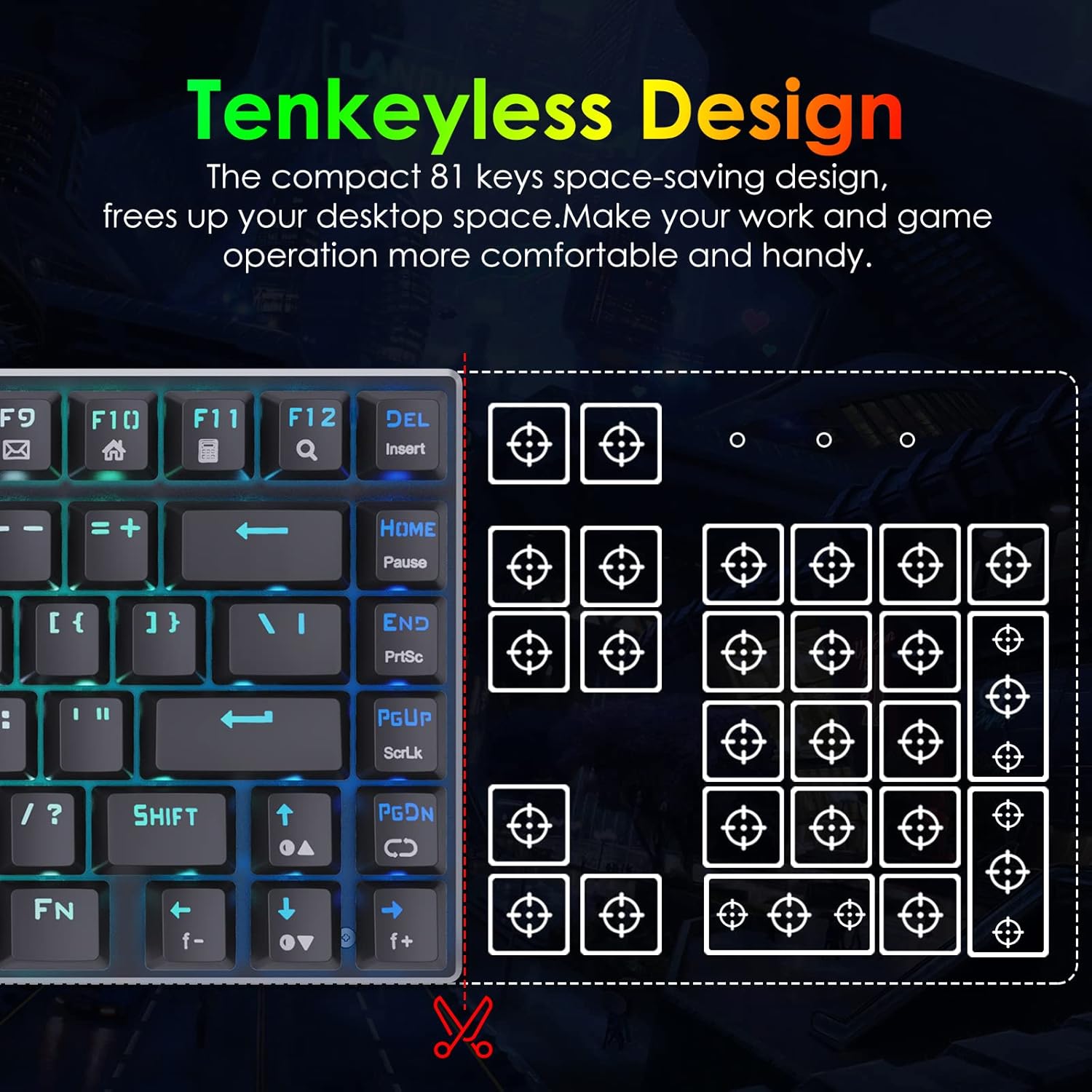
Figure 7: Included keycap puller and spare switches for maintenance.

Figure 8: Splash-resistant design for added durability.
NAN. Depanaj
If you encounter any issues with your keyboard, refer to the following common solutions:
- Klavye a pa reponn:
- Asire w kab USB-C a byen konekte ak klavye a ak òdinatè w la.
- Eseye konekte klavye a nan yon lòt pò USB sou òdinatè w la.
- Teste klavye a sou yon lòt òdinatè pou detèmine si pwoblèm nan se ak klavye a oswa ak òdinatè a.
- Kle yo pa anrejistre:
- Remove the affected keycap using the keycap puller and check for any debris obstructing the switch.
- If the switch appears damaged or unresponsive, replace it with a spare switch using the switch puller.
- Pwoblèm ekleraj dèyè:
- Asire w klavye a byen mache.
- Cycle through RGB modes using FN + PGDN.
- Ajiste klète a lè l sèvi avèk FN + '↑' or FN + '↓'.
- If specific keys have incorrect lighting, it might indicate a faulty LED.
- Kle Windows bloke: If your Windows key is unresponsive, press FN + WIN key to toggle its lock status.
6. Espesifikasyon
| Karakteristik | Detay |
|---|---|
| Dimansyon pwodwi | 12.2 x 4.84 x 1.4 pous |
| Pwa atik | 1.6 liv |
| Manifakti | HUO JI |
| Nimewo Modèl Atik | 8541666772 |
| Koneksyon Teknoloji | USB (Type-C detachable cable) |
| Deskripsyon klavye | Multimedia, Mechanical Gaming |
| Karakteristik espesyal | RGB Lighting, Water Resistant, Pluggable Blue Switches, Anti-ghosting 81 Keys, N-key rollover, Ergonomic Design |
| Sipò pou koulè ekleraj klavye | RGB |
| Materyèl | Metal Panel, ABS |
| Konpozan ki enkli | Keycap Puller, USB Cable, Spare Switches |
| Aparèy konpatib | Windows 10/8/7/XP/VISTA, Mac OS X, Gaming Console |
7. Garanti ak sipò
For warranty information and customer support, please refer to the documentation included with your product or visit the official HUO JI websit. Kenbe resi acha ou pou reklamasyon garanti.


