1. Entwodiksyon
This manual provides detailed instructions for the installation, operation, and maintenance of your Avision FL-1501B document scanner. Please read this manual thoroughly before using the scanner to ensure proper and safe operation. Keep this manual for future reference.

Figure 1: Avision FL-1501B Document Scanner with its automatic document feeder (ADF) and output tray extended.
2. Enfòmasyon sou Sekirite
Observe the following safety precautions to prevent damage to the scanner and ensure user safety:
- Sèvi sèlman ak adaptè kouran ki vini ak eskanè a.
- Pa ekspoze eskanè a nan dlo oswa imidite twòp.
- Mete eskanè a sou yon sifas ki estab e ki plat.
- Evite bloke ouvèti vantilasyon yo.
- Pa eseye demonte oswa repare eskanè a tèt ou. Konsilte pèsonèl sèvis kalifye.
- Keep the scanner away from direct sunlight and heat sources.
3. Pake kontni
Verifye ke tout atik yo prezan nan pakè a:
- Avision FL-1501B Scanner Unit
- Adaptè pouvwa
- USB kab
- Gid Quick Start
- CD lojisyèl (oswa enstriksyon pou telechaje)
4. Enstalasyon
4.1 Debalaj ak plasman
- Retire eskanè a nan anbalaj li avèk prekosyon.
- Remove all protective tapes and packing materials.
- Place the scanner on a flat, stable surface with adequate space for document feeding and output.

Figure 2: The Avision FL-1501B scanner in its closed position, suitable for storage or before extending trays.
4.2 Konekte eskanè a
- Connect the power adapter to the scanner's power input port and then to an electrical outlet.
- Connect the USB cable to the scanner's USB port and then to an available USB port on your computer.
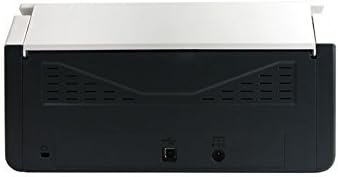
Figure 3: Rear panel of the scanner, illustrating the power input and USB connection ports.
4.3 Enstalasyon Chofè ak Lojisyèl
Before using the scanner, you must install the necessary drivers and scanning software on your computer.
- Insert the provided Software CD into your computer's optical drive, or download the latest drivers and software from the official Avision websit.
- Follow the on-screen instructions to complete the installation process. It is recommended to install all bundled software for full functionality.
- Rekòmanse òdinatè w lan si yo mande w.
5. Operasyon
5.1 Chaje Dokiman yo
- Extend the input tray and output tray of the scanner.
- Adjust the paper guides to match the width of your documents.
- Place the documents face down, top edge first, into the automatic document feeder (ADF). Ensure the stack is neatly aligned. The scanner supports a maximum input sheet capacity of 100 sheets.

Figi 4: Pwofesyonèl bò kotefile of the scanner, showing the fully extended input and output trays ready for document feeding.
5.2 Sèvi ak Panel Kontwòl
The scanner features a control panel for quick access to common scanning functions.

Figi 5: Detaye view of the scanner's control panel, featuring a digital display, function selection buttons, Cancel, Scan, and Power buttons.
- Bouton pouvwa: Press to turn the scanner on or off.
- Function Buttons (Up/Down Arrows): Use these to select different scanning profiles or functions displayed on the digital screen.
- Bouton Scan: Initiates the scanning process based on the currently selected function.
- Anile bouton: Stops the current scanning operation.
5.3 Performing a Scan
- Asire w ke eskanè a limen epi li konekte ak òdinatè w la.
- Load your documents into the ADF as described in section 5.1.
- Open the Avision scanning software on your computer (e.g., Button Manager, Capture Tool).
- Select your desired scanning settings (e.g., color mode, resolution, destination folder, single-sided/duplex).
- Click the "Scan" button in the software or press the Eskane button on the scanner's control panel to begin scanning.
- The scanned images will be processed and saved according to your software settings.
6. Antretyen
6.1 Netwayaj eskanè a
Netwayaj regilye ede kenbe pèfòmans eskanè optimal.
- Turn off the scanner and disconnect the power cable before cleaning.
- Sèvi ak yon moso twal mou, ki san pèl dampened with water or a mild, non-abrasive cleaner to wipe the exterior of the scanner.
- To clean the glass platen (if applicable) and rollers, open the scanner cover. Use a specialized scanner cleaning kit or a soft cloth with isopropyl alcohol.
- Allow all components to dry completely before reconnecting power.
6.2 Mizajou Firmware
Periodically check the Avision website for firmware updates. Firmware updates can improve performance, add features, or resolve issues. Follow the instructions provided with the firmware update package carefully.
NAN. Depanaj
Si ou rankontre pwoblèm ak eskanè ou a, gade pwoblèm ak solisyon komen sa yo:
| Pwoblèm | Kòz posib | Solisyon |
|---|---|---|
| Eskanè a pa limen. | Kab kouran an pa konekte; priz kouran an gen pwoblèm. | Asire w kab kouran an byen konekte. Eseye yon lòt priz kouran. |
| Computer does not detect scanner. | USB cable loose; drivers not installed or corrupted. | Check USB cable connection. Reinstall scanner drivers. Try a different USB port. |
| Imaj eskane yo flou oswa gen tras. | Scanner glass or rollers are dirty; document misfeed. | Clean the scanner's internal components (refer to Section 6.1). Ensure documents are loaded correctly. |
| Documents jam in the ADF. | Documents are wrinkled or stapled; paper guides not adjusted. | Straighten documents. Remove staples/clips. Adjust paper guides to fit document width. |
8. Espesifikasyon
| Karakteristik | Detay |
|---|---|
| Mak | vizyon |
| Modèl | FL-1501B |
| Kalite eskanè | Dokiman eskanè |
| Rezolisyon eskanè | 600 dpi |
| Max Kapasite Fèy Antre | 100 dra |
| Kalite Medya | Papye |
| Wattage | 24 wat |
| Dimansyon pwodwi | 33 x 32.32 x 80.94 cm |
| Pwa atik | 5.67 kg |
| Dat Premye Disponib | 6 jen 2016 |
9. Garanti ak sipò
9.1 Enfòmasyon sou Garanti
Avision products are manufactured to high-quality standards. This product is covered by a limited warranty against defects in materials and workmanship. The specific terms and duration of the warranty may vary by region. Please refer to the warranty card included with your product or visit the official Avision websit pou enfòmasyon detaye sou garanti.
9.2 Sipò teknik
For technical assistance, driver downloads, or further information, please visit the official Avision support website or contact your local Avision service center. Contact details can typically be found on the Avision websit la oubyen nan dokimantasyon pwodwi w la.


