1. Entwodiksyon
This manual provides comprehensive instructions for the installation, operation, and maintenance of your Lorex LNR1141TC4 4-Channel 1TB Network Video Recorder (NVR) system with four 1080p HD cameras. This system is designed to provide high-definition surveillance for your property, offering real-time recording and remote access capabilities.
Please read this manual thoroughly before setting up and operating your system to ensure proper functionality and to maximize its features.
2. Pake kontni
Verify that all components listed below are included in your package. If any items are missing or damaged, please contact Lorex support.
- 1 x NVR with Pre-Installed 1TB HDD
- 1 x HDMI kab
- 1 x pouvwa adaptè pou NVR
- 1 x USB sourit
- 1 x Ethernet kab
- Quick Start Gid
- 4 x IP Bullet Cameras (1080p HD)
- 4 x Mounting Kits for Cameras
- 4 x 60ft (18m) Cat5e Ethernet Cables
3. Sistèm finiview
The Lorex LNR1141TC4 system consists of a Network Video Recorder (NVR) and four 1080p HD IP cameras. The NVR manages video recording, storage, and network connectivity, while the cameras capture high-definition video footage.
3.1 Konpozan NVR ak Kamera

Figi 3.1: Lorex LNR1141TC4 NVR system with four 1080p HD bullet cameras. This image displays the main components of the surveillance system, including the central NVR unit and the four included bullet-style IP cameras.
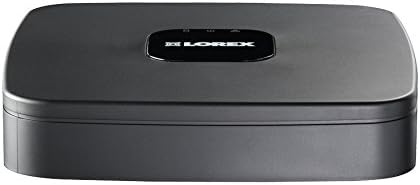
Figi 3.2: Top view of the Lorex LNR1141TC4 NVR. The NVR unit features a sleek black design with the Lorex logo prominently displayed on the top surface.

Figi 3.3: Rear panel of the Lorex LNR1141TC4 NVR. This view shows the various input and output ports, including HDMI, VGA, USB, Ethernet, and the four Power over Ethernet (PoE) ports for camera connections.

Figi 3.4: Close-up of a Lorex 1080p HD bullet camera lens. This image highlights the camera's lens, infrared LEDs for night vision, and light sensor.
4. Enstalasyon
Follow these steps to set up your Lorex LNR1141TC4 NVR system.
4.1 Konekte NVR la
- Konekte yon monitè: Connect the NVR to a monitor using the supplied HDMI cable or a VGA cable (not included).
- Konekte sourit la: Plug the USB mouse into one of the USB ports on the NVR's rear panel.
- Koneksyon Rezo (Si ou vle men ou rekòmande): Connect the NVR to your router using the supplied Ethernet cable for remote access and system updates.
- Pouvwa sou: Connect the NVR power adapter to the NVR and then to a power outlet. The NVR will power on automatically.
4.2 Connecting the Cameras
The Lorex LNR1141TC4 NVR features Power over Ethernet (PoE) ports, simplifying camera installation.
- Monte Kamera yo: Securely mount each camera in your desired location using the provided mounting kits. Ensure the camera's field of view kouvri zòn ou vle siveye a.
- Konekte kab Ethernet: Connect one end of the supplied 60ft Cat5e Ethernet cable to the camera's Ethernet port and the other end to one of the PoE ports on the NVR's rear panel. The NVR will automatically detect and power the cameras.
- Ajiste Ang kamera: Once connected, adjust each camera's angle to optimize surveillance coverage.
5. Operasyon
This section covers the basic operation of your Lorex NVR system.
5.1 Asistan Enstalasyon Inisyal
Upon first power-up, the NVR will guide you through an initial setup wizard to configure basic settings such as language, date/time, network settings, and password creation. Follow the on-screen prompts.
5.2 Anrejistreman
- Anrejistreman kontinyèl: The NVR is configured for continuous recording by default, utilizing the pre-installed 1TB hard drive.
- Anrejistreman pwograme: You can customize recording schedules for each camera through the NVR's menu. This allows you to set specific times for recording.
- Mouvman Anrejistreman: Configure motion detection zones and sensitivity to trigger recording only when movement is detected. This helps conserve storage space.
- High Definition 1080p: The system records in 1080p resolution at 30/25 frames per second (fps) per channel, ensuring clear and detailed footage.
5.3 Lektur
Aksè anrejistre footage through the NVR's playback menu. You can search by date, time, and event type (e.g., motion detection). The system supports selectable area digital zoom during live view and playback for detailed examination.
5.4 Remote Access (FLIR Cloud)
The FLIR Cloud connectivity solution enables remote viewing of your surveillance system.
- Telechaje App: Download the free Lorex FLIR Cloud app on your iOS or Android smartphone or tablet.
- Fè eskanè kòd QR: Use the app to scan the QR code located on your NVR or in the quick start guide.
- Konekte: Follow the app's instructions to connect to your NVR. This allows you to view live feeds, playback recordings, and receive push notifications for motion events and instant email alerts with snapshot attachments from anywhere with an internet connection.
6. Antretyen
Antretyen regilye asire lonjevite ak pèfòmans optimal sistèm siveyans ou an.
- Netwayaj: Netwaye lantiy kamera yo detanzantan avèk yon savon mou,amp cloth to remove dust and smudges. Ensure the NVR's ventilation openings are clear of obstructions.
- Sante Disk Di: The NVR's hard drive is crucial for recording. Monitor its health through the NVR's system settings. Consider backing up important footage regilyèman.
- Mizajou mikrolojisyèl: Tcheke Lorex la website for any available firmware updates for your NVR to ensure you have the latest features and security enhancements.
NAN. Depanaj
This section addresses common issues you might encounter with your Lorex LNR1141TC4 system.
- Pa gen Sòti Videyo sou Monitè a:
- Asire w ke kab HDMI/VGA a byen konekte ak NVR a ak monitè a.
- Verifye si monitè a configuré sou sous antre ki kòrèk la.
- Try a different HDMI/VGA cable or monitor.
- Kamera ki pa montre:
- Check that the Ethernet cables are securely connected to both the cameras and the NVR's PoE ports.
- Asire w ke NVR a limen.
- If a camera is still not detected, try connecting it to a different PoE port on the NVR.
- A power cycle of the NVR (unplug and replug) can sometimes resolve camera detection issues.
- Aksè Remote pa travay:
- Verifye si NVR a konekte ak routeur ou a epi li gen aksè a entènèt.
- Ensure your smartphone/tablet has a stable internet connection.
- Double-check the QR code scan and account login details in the FLIR Cloud app.
- Pwoblèm anrejistreman:
- Check the hard drive status in the NVR's system settings.
- Ensure recording schedules are correctly configured.
- Verify that motion detection settings are appropriate if using motion-triggered recording.
8. Espesifikasyon
| Karakteristik | Detay |
|---|---|
| Nimewo Modèl | LNR1141TC4 |
| Rezolisyon Capture Videyo | 1080p HD |
| Kantite Chanèl | 4 |
| Kapasite Depo memwa | 1 TB (Disk Difikilte Pre-enstale) |
| Koneksyon Teknoloji | Wired (Ethernet, PoE for cameras) |
| Karakteristik espesyal | Motion Sensor, Remote Access (FLIR Cloud) |
| To Frame | 30/25 fps per channel |
| Mòd anrejistreman | Continuous, Scheduled, Motion |
| Sous pouvwa | Fil elektrik |
| Dimansyon NVR (L x W x H) | 8.1 x 8.1 x 1.8 pous (20.6 x 20.6 x 4.6 cm) |
| NVR Item Weight | 1.1 liv (0.5 kg) |
| Aparèy konpatib | Kamera, Odinatè pèsonèl, Telefòn entelijan, Tablèt |
9. Garanti ak sipò
For warranty information and technical support, please refer to the documentation included with your product or visit the official Lorex website. Lorex provides resources and customer service to assist with any questions or issues you may encounter.
Resous sou entènèt: www.lorex.com/support


