1. Entwodiksyon
This manual provides detailed instructions for the installation, operation, maintenance, and troubleshooting of your Gateway SX2865 SFF Desktop Motherboard H61 (Model DB.U7411.001). This motherboard is designed for Small Form Factor (SFF) desktop systems, featuring the Intel H61 Express chipset and supporting LGA 1155/1156 CPUs and DDR3 RAM. Please read this manual thoroughly before proceeding with any installation or configuration to ensure proper functionality and safety.
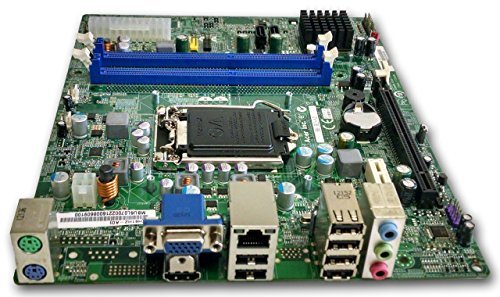
Figi 1: Plis paseview of the Gateway SX2865 SFF Desktop Motherboard H61. This image displays the main components and layout of the motherboard, including the CPU socket, RAM slots, and various connectors.
2. Enfòmasyon sou Sekirite
Toujou obsève prekosyon sekirite sa yo lè w ap manyen epi enstale konpozan òdinatè:
- Dekonekte kòd kouran an nan priz miray la anvan ou enstale oswa retire nenpòt konpozan.
- Mete yon braslè ponyèt anti-estatik pou anpeche domaj akòz dechaj elektwostatik (ESD) sou konpozan sansib yo.
- Handle the motherboard by its edges to avoid touching sensitive components or circuits.
- Ensure proper ventilation within the computer case to prevent overheating.
- Pa ekspoze kat manman an nan imidite oswa tanperati ekstrèm.
- If you are unsure about any installation step, consult a qualified technician.
3. Enstalasyon ak Enstalasyon
Follow these steps to properly install the Gateway SX2865 SFF Desktop Motherboard into your system:
3.1. Prepare Chasi a
- Open your computer chassis and ensure it is clean and free of dust.
- Install the I/O shield provided with your chassis or motherboard into the rear panel opening.
- Verify that the standoffs in the chassis align with the mounting holes on the motherboard. Adjust if necessary.
3.2. Enstalasyon CPU a
- Locate the CPU socket (LGA 1155/1156) on the motherboard.
- Leve levye chajman an dousman epi ouvri kouvèti priz CPU a.
- Carefully align the CPU with the socket, matching the golden triangle on the CPU with the triangle mark on the socket. Do not force the CPU into the socket.
- Fèmen kouvèti priz la epi peze levye chajman an desann jiskaske li bloke nan plas li.
- Apply a thin layer of thermal paste to the CPU surface (if not pre-applied on the cooler).
- Install the CPU cooler according to its manufacturer's instructions, ensuring it is securely fastened.
3.3. Enstalasyon RAM
- Jwenn fant DIMM DDR3 yo sou plak mèr la.
- Louvri klip yo nan tou de bout fant DIMM lan.
- Align the notch on the RAM module with the key in the DIMM slot.
- Peze byen fèm sou tou de bout modil RAM lan jiskaske klip yo kase nan plas yo.
3.4. Montaj Kat Mè
- Carefully place the motherboard into the chassis, aligning the mounting holes with the standoffs.
- Sere kat manman an byen sere ak vis, epi asire w ou pa sere yo twòp.
3.5. Konekte Periferik ak Kouran
- Konekte konektè pouvwa ATX 24-pin lan ak konektè pouvwa CPU 4-pin lan ki soti nan ekipman pouvwa ou a ak kat manman an.
- Connect SATA data cables from your storage devices (HDD/SSD) to the SATA ports on the motherboard.
- Connect front panel connectors (power button, reset button, USB, audio) to their respective headers on the motherboard. Refer to the motherboard's silkscreen labels for correct orientation.
- Enstale nenpòt kat ekspansyon (pa egzanp, kat grafik) nan fant PCIe ki apwopriye yo epi byen fèmen yo.
- Connect all necessary cables to your power supply.
4. Operasyon ak Konfigirasyon
4.1. Premye Demaraj
- After all components are installed and connected, close the chassis.
- Konekte monitè ou, klavye ou, ak sourit ou.
- Connect the power cord to the power supply and a wall outlet.
- Peze bouton pouvwa a sou òdinatè w lan.
4.2. Enstalasyon BIOS/UEFI
The BIOS (Basic Input/Output System) or UEFI (Unified Extensible Firmware Interface) is firmware that initializes hardware during the booting process. To enter the BIOS/UEFI setup utility:
- During the initial boot-up sequence, repeatedly press the designated key (commonly Del, F2, oswa F10). The exact key may vary; check the on-screen prompts.
- Within the BIOS/UEFI, you can configure settings such as:
- Dat ak Lè Sistèm
- Boot Order (to install an operating system from a USB drive or DVD)
- SATA Mode (AHCI, IDE)
- CPU and Memory settings (advanced users)
- Sove chanjman yo epi sòti nan BIOS/UEFI a pou kontinye demaraj.
4.3. Enstalasyon Sistèm Operasyon ak Chofè
After configuring the BIOS/UEFI, proceed with installing your preferred operating system (e.g., Windows, Linux). Once the OS is installed, install the necessary drivers for the motherboard's components (chipset, audio, LAN, etc.). These drivers are typically available on the manufacturer's website (Acer/Gateway) or can be found through the operating system's update features.
5. Antretyen
Antretyen regilye ede asire lonjevite ak pèfòmans ki estab kat manman ou an:
- Retire pousyè: Periodically clean the inside of your computer case, including the motherboard, CPU cooler, and fan vents, using compressed air. Ensure the system is powered off and unplugged before cleaning.
- Mizajou BIOS: Tcheke manifakti a website (Acer/Gateway) for BIOS/UEFI updates. Updates can improve stability, add support for new hardware, or fix bugs. Follow the update instructions carefully to avoid damaging the motherboard.
- Mizajou chofè: Keep your system drivers updated to ensure optimal performance and compatibility.
- Enspeksyon fizik: Detanzantan, enspekte kat manman an pou nenpòt siy domaj, koneksyon ki lach, oswa kondansateur gonfle.
NAN. Depanaj
Si ou rankontre pwoblèm ak kat manman ou, gade etap depanaj komen sa yo:
- Pa gen pouvwa:
- Ensure the power supply is connected correctly to the motherboard (24-pin ATX and 4-pin CPU).
- Check that the power supply switch is in the 'ON' position.
- Verify the power cord is securely plugged into both the power supply and the wall outlet.
- Confirm the front panel power button connector is correctly attached to the motherboard.
- Pa gen ekspozisyon:
- Ensure the monitor is powered on and connected to the correct video output (either integrated graphics or a dedicated graphics card).
- Re-enstale modil RAM yo. Eseye demarre ak yon sèl modil RAM enstale.
- Reseat the graphics card (if applicable).
- Check if the CPU cooler is properly installed and the CPU power connector is secure.
- System Fails to Boot / POST Errors:
- Listen for beep codes from the motherboard's speaker (if installed). Consult the motherboard's documentation for beep code meanings.
- Clear the CMOS (Complementary Metal-Oxide-Semiconductor) by removing the CMOS battery for a few minutes or using the clear CMOS jumper (refer to motherboard layout).
- Ensure all essential components (CPU, RAM, GPU) are correctly installed.
- Pwoblèm Sistèm Operasyon:
- Verify that all necessary drivers are installed and up to date.
- Check SATA cable connections for storage devices.
- Run diagnostic tools for hard drives/SSDs and RAM.
7. Espesifikasyon
Key technical specifications for the Gateway SX2865 SFF Desktop Motherboard H61 (Model DB.U7411.001):
| Karakteristik | Detay |
|---|---|
| Mak | Gateway |
| Non modèl | SX2865 |
| Nimewo Modèl Atik | DB.U7411.001 |
| Manifakti | Acer |
| Kalite Chipset | Intel H61 Express |
| CPU Socket | LGA 1155 or LGA 1156 |
| Procesè konpatib yo | Intel Xeon (and other compatible LGA 1155/1156 CPUs) |
| Teknoloji memwa RAM | DDR3 |
| Vitès revèy memwa | 2133 MHz (Max supported, actual speed depends on CPU and RAM) |
| Kapasite Depo memwa | 16 GB (Maximum supported) |
| Aparèy konpatib | Odinatè pèsonèl |
| Platfòm | Linux (and other compatible operating systems) |
| Faktè fòm | uATX (Micro-ATX) |
8. Garanti ak sipò
For warranty information and technical support regarding your Gateway SX2865 SFF Desktop Motherboard H61 (Model DB.U7411.001), please refer to the documentation provided with your original system or contact the manufacturer directly.
- Manifakti: Acer (as per product specifications)
- Mak: Gateway
- Vizite ofisyèl la Sipò pou Gateway websit or Sipò Acer websit for drivers, FAQs, and contact information.
- Kenbe prèv ou achte pou reklamasyon garanti.


