1. Entwodiksyon
The BenQ SW2700PT is a 27-inch QHD (2560x1440) IPS monitor designed for professional photography and graphic arts. It features BenQ's AQCOLOR Technology, offering 99% Adobe RGB, 100% sRGB, and 100% Rec.709 color space coverage for accurate color reproduction. Each unit is factory-calibrated to ensure precise Delta-E ≤ 2 performance in both Adobe RGB and sRGB color spaces. This monitor is equipped with a detachable shading hood to minimize glare and a Hotkey Puck for efficient mode switching and OSD control.
2. Pake kontni
Verify that all items listed below are included in your package. If any item is missing or damaged, please contact your retailer or BenQ customer support.
- LED-backlit LCD monitor (BenQ SW2700PT)
- Baz ak kou sipò monitè a
- DVI cable (6 ft)
- DisplayPort cable (6 ft)
- SuperSpeed USB cable (6 ft)
- Kòd pouvwa
- Detachable Shading Hood
- Hotkey Puck Controller
- Rapò Kalibrasyon faktori
- Gid Quick Start
3. Pwodwi Features
The BenQ SW2700PT monitor offers a range of features designed for color-critical applications:
- 27-inch 2K QHD Resolution with IPS Technology: Provides exceptional clarity, fine detail, and wide viewang ing.
- AQCOLOR Advantage: Features 99% Adobe RGB color space, 14-bit 3D Look Up Table (LUT), and Delta E≤2 for accurate color reproduction.
- Efficiency Boost with Hotkey Puck: Allows for easy switching between Adobe RGB, sRGB, and Black & White modes, or custom OSD settings.
- Kalibrasyon Custom: Each SW2700PT is pre-calibrated at the factory with an individual report. Supports hardware calibration and includes Palette Master Element calibration software.
- Professional Monitor Capabilities: Includes a detachable shading hood to minimize ambient light glare and an Advanced Black & White mode for previewing content in three preset monochrome modes.
- Koneksyon: Equipped with DVI, DisplayPort, HDMI 1.4, and USB 3.0 ports, including an SD card reader.
4. Enstalasyon
4.1 Asanblaj Sipò Monitè a
- Mete panèl monitè a fas anba sou yon twal mou epi pwòp pou evite li reyur.
- Attach the stand neck to the monitor panel until it clicks into place.
- Fikse baz sipò a nan kou sipò a avèk vis kaptif ki anba baz la.
4.2 Konekte kab
Connect the necessary cables to the corresponding ports on the monitor and your computer.
- Pouvwa: Konekte kòd kouran an nan antre kouran monitè a epi answit nan yon priz kouran.
- Videyo: Connect either a DisplayPort, DVI, or HDMI cable from your computer's graphics card to the monitor. For optimal performance and QHD resolution, DisplayPort is recommended.
- USB: Connect the SuperSpeed USB cable from your computer to the monitor's upstream USB 3.0 port to enable the monitor's USB hub and SD card reader.
- Rakoursi klavye Puck: Connect the Hotkey Puck cable to the dedicated port on the monitor stand.
4.3 Installing the Shading Hood
The detachable shading hood helps reduce screen glare from ambient light. Align the hood with the slots on the top and sides of the monitor bezel and gently push until it securely snaps into place.

Figi 1: Devan view of the BenQ SW2700PT monitor with the shading hood installed, displaying an image of an ice cave.
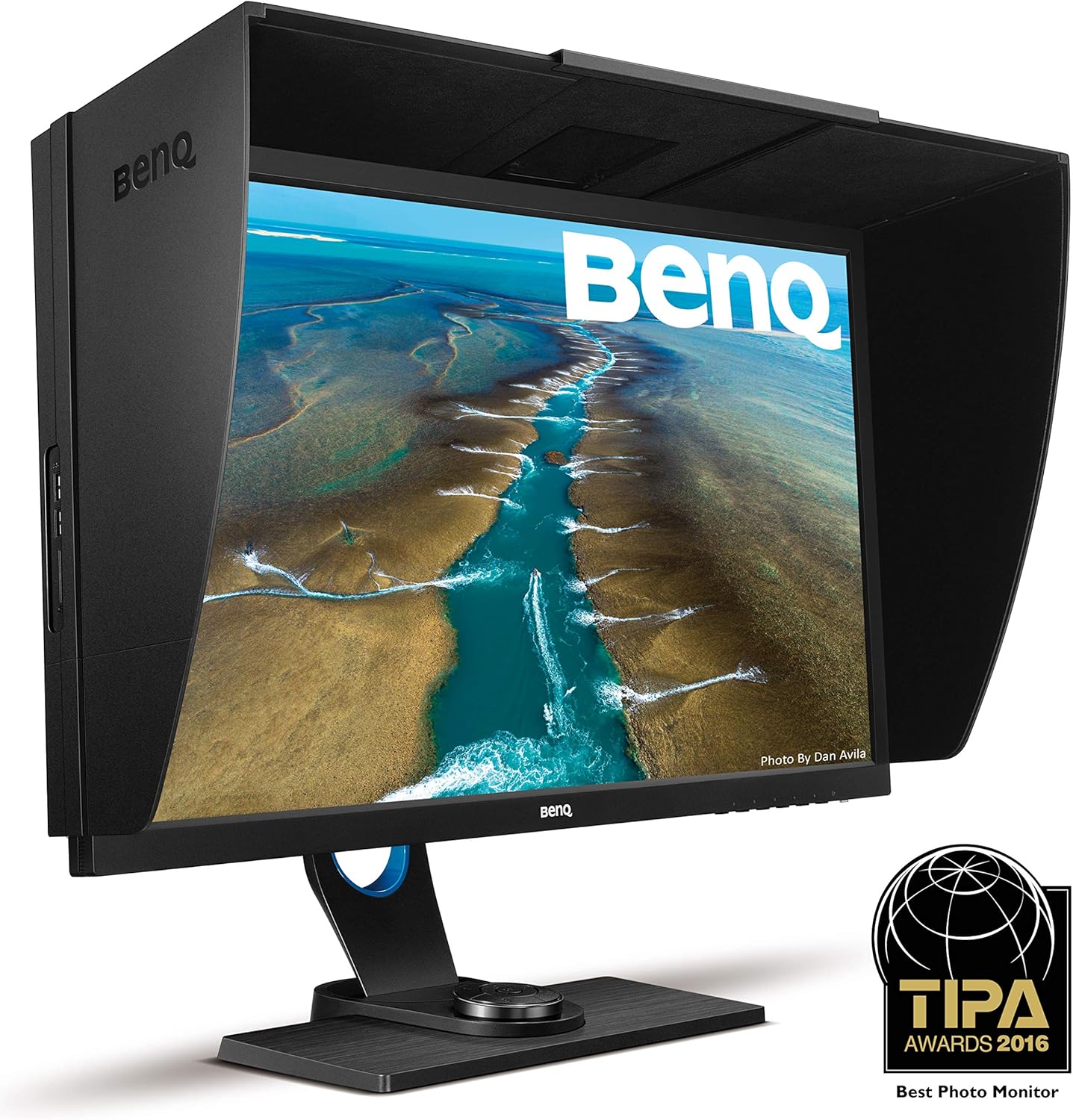
Figi 2: Devan view of the BenQ SW2700PT monitor with the shading hood, displaying an aerial view of a river winding through a landscape.

Figi 3: Devan view of the BenQ SW2700PT monitor with the shading hood, displaying a vibrant aurora borealis scene.
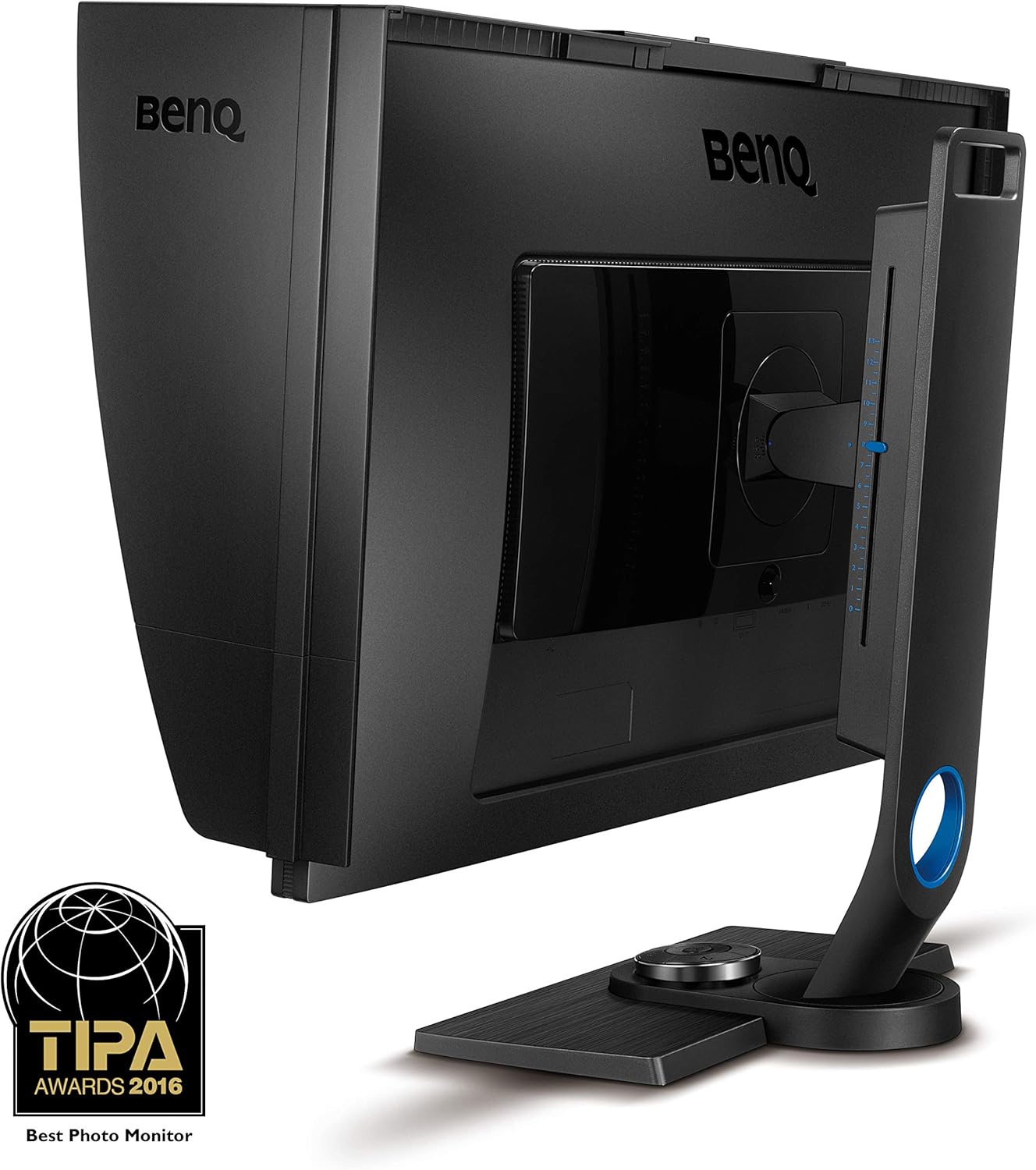
Figi 4: Dèyè view of the BenQ SW2700PT monitor, highlighting the connectivity ports and the adjustable stand.
5. Operasyon Enstriksyon
5.1 Power On/Off
Peze bouton pouvwa a ki sitiye anba adwat monitè a pou limen oswa etenn li. Limyè endikatè pouvwa a ap limen lè monitè a aktif.
5.2 Navigasyon sou ekran (OSD)
The monitor's settings can be adjusted using the OSD menu, accessed via the buttons on the bezel or the included Hotkey Puck.
- Sèvi ak bouton Bezel yo: Press any OSD button to bring up the menu. Use the arrow buttons to navigate and the 'Enter' button to select.
- Using Hotkey Puck: The Hotkey Puck provides quick access to frequently used settings. The three numbered buttons can be customized for specific color modes (e.g., Adobe RGB, sRGB, Black & White) or other OSD functions. The central dial and button allow for intuitive menu navigation and selection.
5.3 Color Mode Switching
The SW2700PT offers dedicated color modes for different workflows:
- Adobe RGB: Ideal for professional photo editing, offering a wider color gamut.
- sRGB: Espas koulè estanda pou web kontni ak itilizasyon jeneral.
- Nwa ak Blan: Provides a dedicated monochrome viewing mode for black and white photography.
Switch between these modes quickly using the Hotkey Puck's customizable buttons or through the OSD menu.
Videyo 1: Yon ofisyèl finiview of the BenQ SW2700PT Photography Monitor, demonstrating its features and benefits for photographers, including color accuracy and the Hotkey Puck controller.
6. Calibration and Color Management
The BenQ SW2700PT is designed for precise color management to ensure your images are displayed accurately.
- Kalibrasyon faktori: Each monitor is individually factory-calibrated to guarantee precise Delta E≤2 in both Adobe RGB and sRGB color spaces. A factory calibration report is included with your monitor.
- Kalibrasyon Materyèl: The monitor supports hardware calibration, which directly adjusts the monitor's internal processing chip without altering the graphics card's output. This ensures consistent color performance.
- Palette Master Element Software: Use the included Palette Master Element software with a compatible calibrator (e.g., X-Rite i1Display Pro, Datacolor Spyder series) to perform hardware calibration and maintain optimal color accuracy over time.
NAN. Depanaj
If you encounter issues with your BenQ SW2700PT monitor, refer to the following common troubleshooting steps:
- Pa gen pouvwa: Ensure the power cord is securely connected to both the monitor and a working power outlet. Check if the power indicator light is on.
- Pa gen siyal: Verify that the video cable (DisplayPort, DVI, or HDMI) is correctly connected to both the monitor and your computer. Ensure your computer is powered on and outputting a signal. Try switching input sources on the monitor using the OSD or Hotkey Puck.
- Image Appears Distorted or Incorrect Resolution: Check your computer's display settings to ensure the resolution is set to 2560x1440 (QHD) and the refresh rate is appropriate for your system.
- Enpresizyon koulè: If colors appear incorrect, ensure you are in the desired color mode (Adobe RGB or sRGB). Perform a hardware calibration using Palette Master Element software and a compatible calibrator.
- Hotkey Puck Not Responding: Ensure the Hotkey Puck cable is securely connected to the monitor stand.
For further assistance, please consult the full user manual available on the BenQ support website or contact BenQ customer service.
8. Espesifikasyon
| Karakteristik | Spesifikasyon |
|---|---|
| Gwosè ekran | 27 pous |
| Rezolisyon ekran | 2560x1440 (QHD) |
| Rezolisyon ekran maksimòm | 3686400 piksèl |
| Kalite Panel | IPS |
| Gamut koulè | 99% Adobe RGB, 100% sRGB, 100% Rec.709 |
| Delta E | ≤2 (Adobe RGB & sRGB) |
| Look Up Table (LUT) | LUT 3D 14-bit |
| Aspè rapò | 16:9 |
| Koneksyon | DVI-DL, DisplayPort 1.2, HDMI 1.4, USB 3.0 (1 Upstream, 2 Downstream), SD Card Reader |
| Pwa atik | 18.3 liv (8.3 kg) |
| Dimansyon pwodwi (LxWxH) | 10.78 x 24.17 x 17.78 pous (27.38 x 61.39 x 45.16 cm) |
| Koulè | Nwa |
| Voltage | 240 Volts |
9. Garanti ak sipò
BenQ provides a limited warranty for the SW2700PT monitor. Please refer to the warranty card included in your package or visit the official BenQ websit la pou wè kondisyon garanti detaye ki espesifik pou rejyon ou an.
For technical support, driver downloads, or further inquiries, please visit the BenQ support website or contact their customer service department. Have your monitor's serial number ready when contacting support.


