1. Entwodiksyon
This manual provides comprehensive instructions for the Axis Communications 5506-231 T8415 Wireless Installation Tool Camera. This device is designed to assist in the efficient and accurate installation of network cameras, offering features such as Power over Ethernet (PoE) and Wi-Fi connectivity for streamlined setup and configuration.
Please read this manual thoroughly before operating the device to ensure proper usage and to prevent damage.
2. Enfòmasyon sou Sekirite
- Ensure the device is used in a dry environment. Avoid exposure to water or excessive humidity.
- Pa eseye ouvri oswa modifye aparèy la. Konfye tout antretyen bay pèsonèl kalifye.
- Use only the specified power adapter for charging the device.
- Kenbe aparèy la lwen tanperati ekstrèm ak limyè solèy la dirèk.
- Jete aparèy la ak konpozan li yo dapre règleman anviwònman lokal yo.
3. Pake kontni
Verifye ke tout atik yo prezan nan pakè a:
- Axis Communications 5506-231 T8415 Wireless Installation Tool Camera
- Adaptè kouran (elektrik ak fil)
- Ethernet kab
- Gid Quick Start
- Other Networking Devices (as specified by manufacturer)
4. Pwodwi souview
The Axis T8415 is a portable tool designed for efficient camera installation. It features a robust design with various ports and indicators for easy operation.
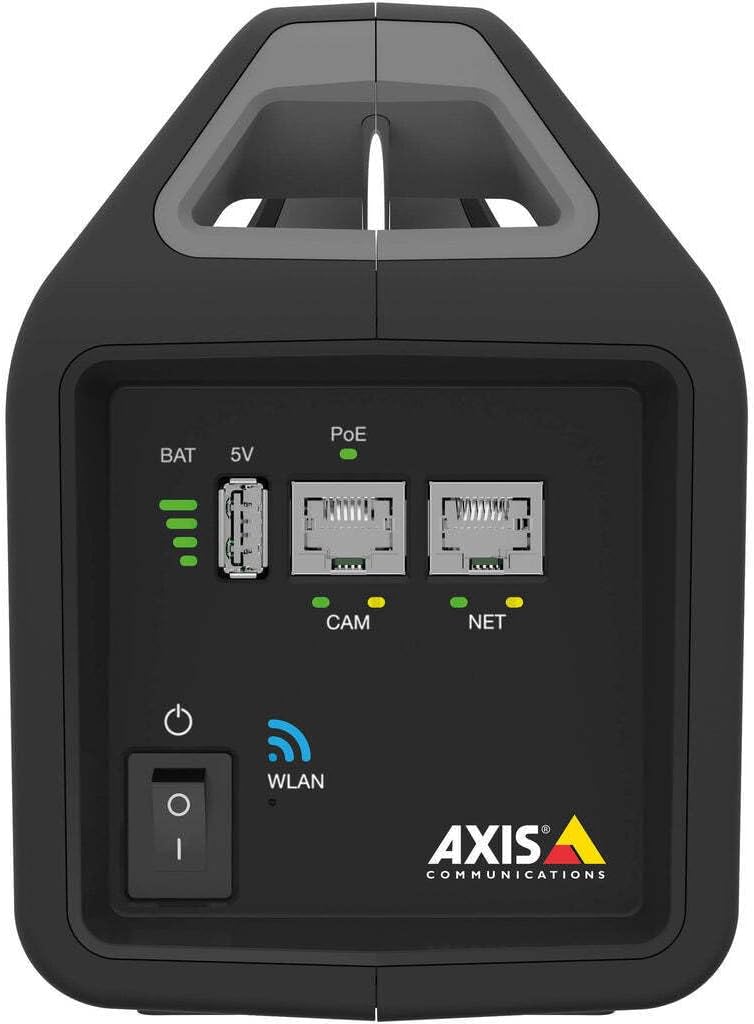
Figi 4.1: Panèl Devan anlèview. This image displays the front of the Axis T8415 tool, highlighting the battery charge level indicator, a 5V USB output port, two Power over Ethernet (PoE) enabled Ethernet ports labeled 'CAM' (for camera connection) and 'NET' (for network connection), the main power button, and a WLAN status indicator light. The Axis Communications logo is visible at the bottom right.

Figi 4.2: Side ViewImaj sa a montre bò pwofesyonèl la.file of the Axis T8415 Wireless Installation Tool Camera, emphasizing its integrated handle for portability and its compact, rugged casing.
Konpozan kle:
- Battery Indicator (BAT): Displays the current battery charge level.
- 5V USB Port: Provides 5V power output for compatible devices.
- PoE Ports (CAM/NET): Ethernet ports with Power over Ethernet capabilities. 'CAM' is for connecting the camera, 'NET' for connecting to the network.
- Bouton pouvwa: Limen oswa etenn aparèy la.
- WLAN Indicator: Shows the status of the wireless local area network connection.
5. Enstalasyon
5.1 Premye chaj
- Connect the provided power adapter to the charging port on the device.
- Ploge adaptè pouvwa a nan yon priz elektrik apwopriye.
- Allow the device to charge fully until the battery indicator shows a full charge.
5.2 Limen/Etenyen
- To power on, press and hold the power button until the indicators light up.
- To power off, press and hold the power button until the indicators turn off.
5.3 Connecting a Camera
- Ensure the installation tool is powered on.
- Connect an Ethernet cable from the camera to the 'CAM' PoE port on the installation tool.
- The tool will provide power to the camera via PoE, and a connection will be established.
5.4 Rezo Koneksyon
- For a wired network connection, connect an Ethernet cable from the network source to the 'NET' PoE port.
- For wireless connectivity, ensure the WLAN indicator is active. Access the tool's web interface (if available) or use a dedicated mobile application to configure Wi-Fi settings.
6. Operasyon Enstriksyon
6.1 Konfigirasyon Kamera
Once a camera is connected to the 'CAM' port, you can access its configuration interface through a connected laptop or mobile device. The installation tool acts as a bridge, providing power and network access to the camera.
- Connect your laptop to the 'NET' port or connect wirelessly to the tool's Wi-Fi network.
- Louvri a web browser and navigate to the camera's default IP address or use the manufacturer's discovery tool.
- Configure camera settings such as IP address, video resolution, and network parameters.
6.2 Fonksyonalite Pouvwa sou Ethernet (PoE)
The tool provides PoE to connected cameras, simplifying installation by eliminating the need for separate power cables at the camera location. The PoE indicator will illuminate when power is being supplied.
6.3 Wireless Connectivity (WLAN)
The integrated WLAN allows for wireless connection to the tool, enabling configuration and monitoring from a mobile device or laptop without direct cable connection to the 'NET' port. Refer to the tool's specific documentation or mobile app for WLAN setup details.
7. Antretyen
7.1 Netwayaj
- Siye deyò aparèy la avèk yon twal mou epi sèk.
- Pa sèvi ak pwodui netwayaj likid oswa materyèl abrazif.
7.2 Swen Batri
- Chaje batri a regilyèman, menm si aparèy la pa an sèvis souvan, pou kenbe batri a an bon eta.
- Evite dechaje batri a nèt souvan.
NAN. Depanaj
| Pwoblèm | Kòz posib | Solisyon |
|---|---|---|
| Aparèy pa limen. | Batri ki fèb oswa ki vid. | Konekte adaptè pouvwa a epi chaje aparèy la. |
| Camera not receiving power via PoE. | Incorrect cable connection; camera not PoE compatible; tool malfunction. | Ensure cable is securely connected to 'CAM' port. Verify camera supports PoE. Contact support if issue persists. |
| Cannot connect to the tool's Wi-Fi. | WLAN disabled; incorrect Wi-Fi settings. | Check WLAN indicator. Reconfigure Wi-Fi settings via the tool's interface or app. |
9. Espesifikasyon
| Karakteristik | Detay |
|---|---|
| Non modèl | 5506-231 |
| Mak | Aks Kominikasyon |
| Koneksyon Teknoloji | San fil |
| Pwotokòl Koneksyon | Wi-Fi |
| Sous pouvwa | Fil elektrik |
| Voltage | 12 Volts |
| Wattage | 30 wat |
| Dimansyon atik (L x W x H) | 5.9 x 3.9 x 8.1 pous |
| Pwa atik | 4.85 liv |
| Itilizasyon Andedan kay la / Deyò | Andedan kay la |
| Rating Pwoteksyon Entènasyonal | IP65 |
| Konpozan ki enkli | Other Networking Devices |
10. Garanti ak sipò
Axis Communications products are covered by a limited warranty. For detailed warranty information, please refer to the official Axis Communications websit la oswa kat garanti ki vini ak pwodwi ou a.
For technical support, product registration, or to download the latest firmware and documentation, visit the official Axis Communications support portal. Contact information for customer service can also be found on their websit.
Websit: www.axis.com
11. Konfòmite Regilasyon
This device complies with relevant regulatory standards for electronic equipment. For specific compliance information, including FCC, CE, and other regional certifications, please refer to the product documentation available on the Axis Communications websit.
Changes or modifications not expressly approved by Axis Communications could void the user's authority to operate the equipment.


