Entwodiksyon
This manual provides detailed instructions for the installation, operation, and maintenance of your COMFAST CF-WP500M 500Mbps HomePlug AV Powerline Network Adapters. Please read this manual thoroughly before using the product to ensure proper setup and optimal performance. These adapters allow you to extend your internet connection using your home's existing electrical wiring, providing a stable and high-speed network connection without new cables.
Kontni pake
Verifye ke tout atik yo prezan nan pakè ou a:
- 2 x COMFAST CF-WP500M Powerline Adapters
- 2 x Kab Ethernet
- 1 x Quick Installation Guide (This document serves as a comprehensive guide)
Pwodwi souview
The COMFAST CF-WP500M is a compact HomePlug AV powerline adapter designed for easy network extension. Each adapter features LED indicators for status monitoring and an RJ45 Ethernet port for device connectivity.
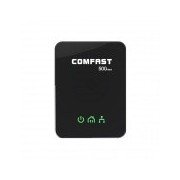
Imaj: Devan view of the COMFAST CF-WP500M Powerline Adapter, showing the COMFAST logo and three LED indicators for Power, Powerline, and Ethernet status.
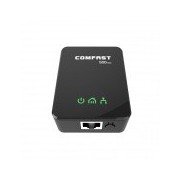
Imaj: Devan anwo view of the COMFAST CF-WP500M Powerline Adapter, highlighting the RJ45 Ethernet port at the bottom and the three LED indicators on the front panel.
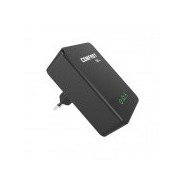
Imaj: Bò kote view of the COMFAST CF-WP500M Powerline Adapter, clearly showing the integrated EU type electrical plug for direct wall socket connection.
Endikatè ki ap dirije:
- Power LED (⚡):
- On: Device is powered on.
- Etenn: Aparèy la etenn.
- Powerline LED (🏠):
- On: Connected to a powerline network.
- Flashing: Data transmission over the powerline network.
- Off: Not connected to a powerline network.
- Ethernet LED (💻):
- On: Ethernet port is connected to a device.
- Flashing: Data transmission over the Ethernet port.
- Off: Pa gen koneksyon Ethernet.
Enstalasyon
Follow these steps to set up your COMFAST CF-WP500M Powerline Network Adapters:
- Konekte Premye Adaptè a: Plug one powerline adapter directly into a wall electrical outlet near your internet router. Avoid power strips or surge protectors as they can interfere with performance.
- Konekte ak routeur: Use one of the provided Ethernet cables to connect the powerline adapter's RJ45 port to an available LAN port on your internet router.
- Konekte Dezyèm Adaptè a: Plug the second powerline adapter directly into a wall electrical outlet in the room where you need network access.
- Konekte ak aparèy: Use the second Ethernet cable to connect the second powerline adapter's RJ45 port to your computer, smart TV, game console, or other network-enabled device.
- Verifye Koneksyon: Wait for the Powerline LED on both adapters to turn solid green. This indicates a successful powerline connection. The Ethernet LED should also be on or flashing if a device is connected and active.
- Pairing (Optional, for Security or New Devices): If the adapters do not connect automatically or if you wish to secure your network, press the 'Pair' button (if available, typically a small button on the side or bottom) on one adapter for 1-2 seconds, then within two minutes, press the 'Pair' button on the second adapter for 1-2 seconds. The Powerline LED will flash during pairing and become solid when successful.
Enstriksyon Operasyon
Once set up, your powerline network operates automatically. The adapters will establish a connection through your home's electrical wiring, extending your network.
- Aksè Rezo: Any device connected via Ethernet to the second powerline adapter will have direct access to your internet and local network.
- Pèfòmans: For optimal performance, ensure adapters are plugged directly into wall outlets. Avoid outlets controlled by a wall switch if continuous operation is desired.
- Ajoute plis adaptè: To expand your powerline network, purchase additional COMFAST HomePlug AV compatible adapters and follow the pairing instructions.
Antretyen
Proper maintenance ensures the longevity and performance of your powerline adapters:
- Netwayaj: Gently wipe the adapters with a dry, soft cloth. Do not use liquid cleaners or aerosols.
- Plasman: Keep adapters in well-ventilated areas. Avoid covering them or placing them near heat sources.
- Kondisyon anviwònman: Operate the adapters within their specified temperature and humidity ranges.
- Mizajou mikrolojisyèl: Check the COMFAST official webVizite sit la detanzantan pou wè si gen nenpòt mizajou firmwèr ki disponib pou modèl ou a.
Depanaj
Si ou rankontre pwoblèm, gade pwoblèm ak solisyon komen sa yo:
- Pa gen LED pouvwa:
- Ensure the adapter is securely plugged into a working electrical outlet.
- Teste priz la ak yon lòt aparèy.
- Powerline LED is Off:
- Ensure both adapters are plugged into wall outlets on the same electrical circuit.
- Avoid power strips, surge protectors, or extension cords.
- Try plugging the adapters into different outlets.
- Perform the pairing process as described in the Setup section.
- Ethernet LED is Off:
- Check the Ethernet cable connection between the adapter and your device/router.
- Asire w ke aparèy ki konekte a limen epi li fonksyone byen.
- Eseye yon lòt kab Ethernet.
- Vitès rezo a ba:
- Ensure adapters are plugged directly into wall outlets, not power strips.
- Large electrical appliances (e.g., washing machines, refrigerators) on the same circuit can cause interference. Try moving adapters to different outlets.
- Check the quality of your home's electrical wiring. Older or faulty wiring can impact performance.
Espesifikasyon
| Modèl | CF-WP500M |
| Estanda | HomePlug AV |
| Done Pousantaj | Jiska 500Mbps |
| Entèfas | 1 x 10/100Mbps RJ45 Ethernet Port |
| Kalite ploge | Inyon Ewopeyen ploge |
| Endikatè ki ap dirije | Power, Powerline, Ethernet |
| Konsomasyon pouvwa | Typically < 2W |
| Tanperati Fonksyònman | 0℃ a 40℃ (32℉ a 104℉) |
| Operasyon Imidite | 10% a 90% ki pa kondanse |
Garanti ak sipò
COMFAST products are designed for reliability and performance. For specific warranty information, please refer to the warranty card included with your product or visit the official COMFAST website. For technical support, troubleshooting assistance, or further inquiries, please contact COMFAST customer service through the channels provided on their official websit.


