1. Entwodiksyon
The Comfast CF-WU720N is a compact 150Mbps Wireless USB Adapter designed to provide high-speed wireless connectivity for your desktop or notebook computer. It allows you to connect to a wireless network and access the internet, share files, and enjoy online gaming at speeds up to 150Mbps. This adapter is compliant with IEEE 802.11b/g/n standards and supports USB 2.0 for efficient data transfer.
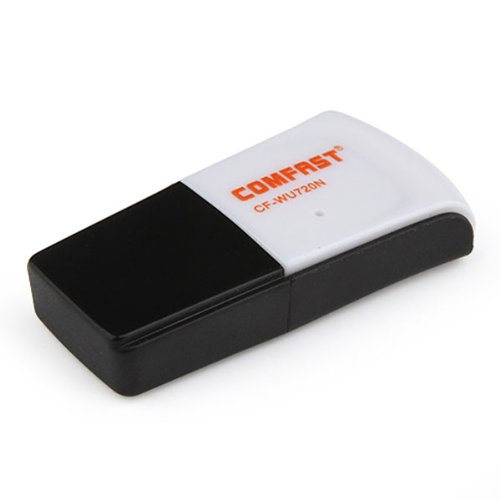
Image 1.1: The Comfast CF-WU720N Wireless USB Adapter, a compact device for wireless connectivity.
2. Pwodwi Features
- Meets IEEE 802.11b/g/n wireless standards.
- Supports USB 2.0 interface for broad compatibility.
- Utilizes Realtek 8191 SU chipset for reliable performance.
- Achieves wireless connection rates up to 150Mbps.
- Supports wireless roaming technology for seamless connectivity.
- Strong compatibility with various popular operating systems.
- Compact size: approximately 39 x 12 x 7mm (1.5 x 0.7 x 0.3 inches).
- Lightweight design: approximately 5g.
3. Pake kontni
Tanpri verifye ke tout atik yo prezan nan pakè a:
- 1 x Comfast CF-WU720N Wireless USB Adapter
- 1 x Gid Enstalasyon Rapid
- 1 x CD-ROM Driver
- 1 x kat garanti

Image 3.1: The retail packaging for the Comfast CF-WU720N, showing the adapter inside.
4. Enstalasyon ak Enstalasyon
4.1. Enstalasyon chofè
Before connecting the USB adapter, it is recommended to install the necessary drivers from the provided CD-ROM. This ensures proper functionality and compatibility with your operating system.
- Insert the driver CD-ROM into your computer's optical drive.
- If the installer does not launch automatically, navigate to "My Computer" or "This PC," open the CD-ROM drive, and run the setup executable (e.g., "setup.exe" or "autorun.exe").
- Follow the on-screen instructions to complete the driver installation. You may be prompted to restart your computer after installation.
- Nòt: If your computer does not have an optical drive, you may need to download the latest drivers from the manufacturer's official websit.
4.2. Connecting the USB Adapter
Once the drivers are installed, you can connect the Comfast CF-WU720N Wireless USB Adapter to your computer.
- Locate an available USB 2.0 or 3.0 port on your desktop or laptop computer.
- Carefully insert the Comfast CF-WU720N adapter into the USB port. Ensure it is fully seated.
- The operating system should automatically detect the adapter and configure it using the installed drivers. A small LED indicator on the adapter may light up or blink, indicating activity.
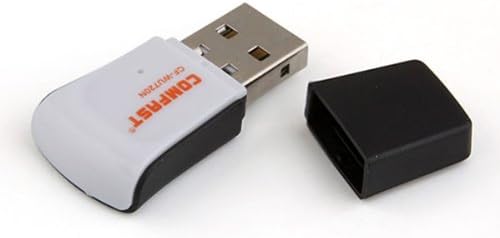
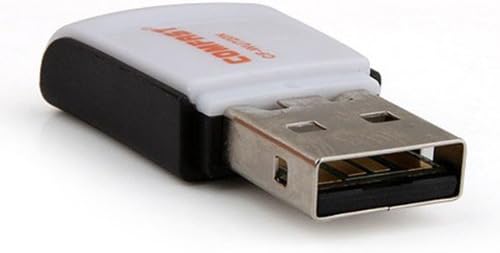
Image 4.1: The Comfast CF-WU720N adapter with its protective cap removed, revealing the USB connector. Image 4.2: A side view of the adapter, highlighting its compact design and USB interface.
5. Operasyon Enstriksyon
After successful driver installation and adapter connection, you can now connect to a wireless network.
- Aksè nan paramèt rezo yo:
- Windows: Klike sou ikòn rezo san fil la nan plato sistèm lan (anjeneral nan kwen anba dwat la).
- MacOS: Klike sou ikòn Wi-Fi a nan ba meni an (anjeneral li nan kwen anwo dwat la).
- Linux: Access network settings through your desktop environment's network manager.
- Chwazi Rezo ou a: A list of available wireless networks (SSIDs) will appear. Select the name of your desired network.
- Konekte: Click "Connect" or "Join." If the network is secured, you will be prompted to enter the network security key (password).
- Konfime Koneksyon: Once connected, the network icon will typically change to indicate a successful connection, and you should be able to access the internet.
6. Antretyen
To ensure optimal performance and longevity of your Comfast CF-WU720N Wireless USB Adapter, follow these simple maintenance guidelines:
- Kenbe pwòp: Siye adaptè a dousman avèk yon twal mou epi sèk pou retire pousyè a. Evite itilize pwodui netwayaj likid oswa solvan.
- Pwoteje konektè USB a: Lè w pa ap itilize li, kenbe bouchon pwoteksyon an sou konektè USB a pou anpeche pousyè ak domaj.
- Evite kondisyon ekstrèm: Pa ekspoze adaptè a nan tanperati ekstrèm, imidite, oswa limyè solèy dirèk.
- Manyen ak anpil atansyon: Evite lage adaptè a oswa soumèt li a gwo enpak.
- Mizajou chofè: Tcheke manifakti a regilyèman website for updated drivers to ensure the best performance and compatibility.
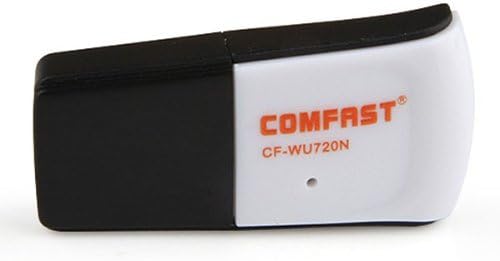
Image 6.1: The Comfast CF-WU720N adapter with its protective cap in place, ready for storage or transport.
NAN. Depanaj
If you encounter issues with your Comfast CF-WU720N Wireless USB Adapter, refer to the following common solutions:
| Pwoblèm | Solisyon posib |
|---|---|
| Adapter not detected / No Wi-Fi networks visible. |
|
| Cannot connect to a specific Wi-Fi network. |
|
| Vitès koneksyon ki ba oswa dekoneksyon souvan. |
|
8. Espesifikasyon
| Karakteristik | Detay |
|---|---|
| Modèl | CF-WU720N |
| Estanda san fil | IEEE 802.11b/g/n |
| Entèfas | USB 2.0 |
| Chipset | Realtek 8191 SU |
| Vitès san fil | Jiska 150Mbps |
| Gamme frekans | 2.4 GHz |
| Karakteristik sekirite | WPA/WPA2, WPA-PSK/WPA2-PSK, 64/128-bit WEP |
| Sistèm operasyon yo | Windows XP/Vista/7/8/10, macOS, Linux (driver dependent) |
| Dimansyon (L x W x H) | Apeprè 39 x 12 x 7 mm (1.5 x 0.7 x 0.3 pous) |
| Pwa | Apeprè. 5g |
9. Garanti ak sipò
This product comes with a warranty as specified on the included Warranty Card. Please refer to the card for details regarding warranty period, terms, and conditions.
For technical support, driver updates, or further assistance, please visit the official Comfast websit entènèt la oubyen kontakte depatman sèvis kliyan yo. Anjeneral, ou ka jwenn enfòmasyon pou kontakte yo sou anbalaj pwodwi a oubyen sou fich manifakti a. websit.
Tanpri konsève resi acha ou a pou rezon garanti.


