1. Entwodiksyon
This manual provides instructions for the installation, operation, and maintenance of your DIGITUS DN-70542 Wireless LAN USB 2.0 Adapter. This device allows your computer to connect to a wireless network using the 802.11n standard, offering data transfer rates of up to 300 Mbps.
The adapter is backward compatible with IEEE 802.11g and 802.11b standards and operates within the 2.4-2.4835GHz frequency range. It also features a Wireless Protected Setup (WPS) function for easy and secure network connection.

Figi 1.1: Top view of the DIGITUS DN-70542 Wireless LAN USB 2.0 Adapter.

Figi 1.2: Angle view of the DIGITUS DN-70542 adapter, highlighting its compact design.

Figi 1.3: Detaye view of the USB 2.0 connector of the DIGITUS DN-70542 adapter.
2. Pake kontni
Tanpri verifye ke tout atik yo prezan nan pakè a:
- 1 x DIGITUS DN-70542 Mini USB WiFi Adapter
- 1 x Product Support CD-ROM (containing drivers and utilities)
- 1 x Manyèl Itilizatè (dokiman sa a)
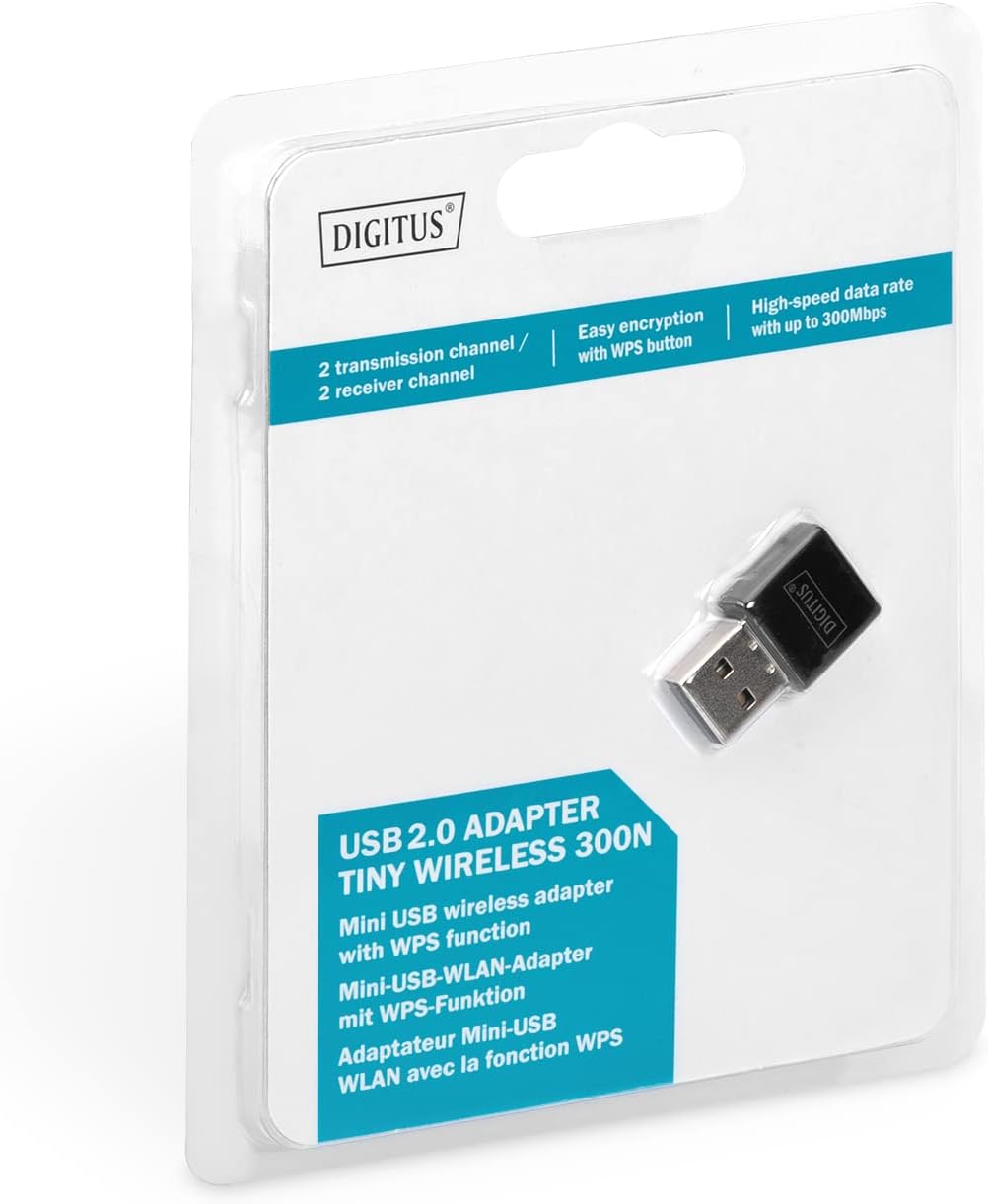
Figure 2.1: Retail packaging of the DIGITUS DN-70542 adapter, showing the adapter and its key features.
3. Gid Enstalasyon
Follow these steps to install your Wireless LAN USB Adapter:
- Enstale chofè yo: Before connecting the adapter, insert the included Product Support CD-ROM into your computer's optical drive. Follow the on-screen instructions to install the necessary drivers. If your computer does not have an optical drive, or if you encounter issues, please visit the official DIGITUS website to download the latest drivers for your operating system (Windows).
Note: Some operating systems, particularly older versions of Windows, may require driver installation prior to connecting the device. Refer to the Troubleshooting section if you encounter issues during this step.
- Konekte adaptè a: Locate an available USB 2.0 port on your computer. Carefully insert the DIGITUS DN-70542 Wireless LAN USB 2.0 Adapter into the USB port.
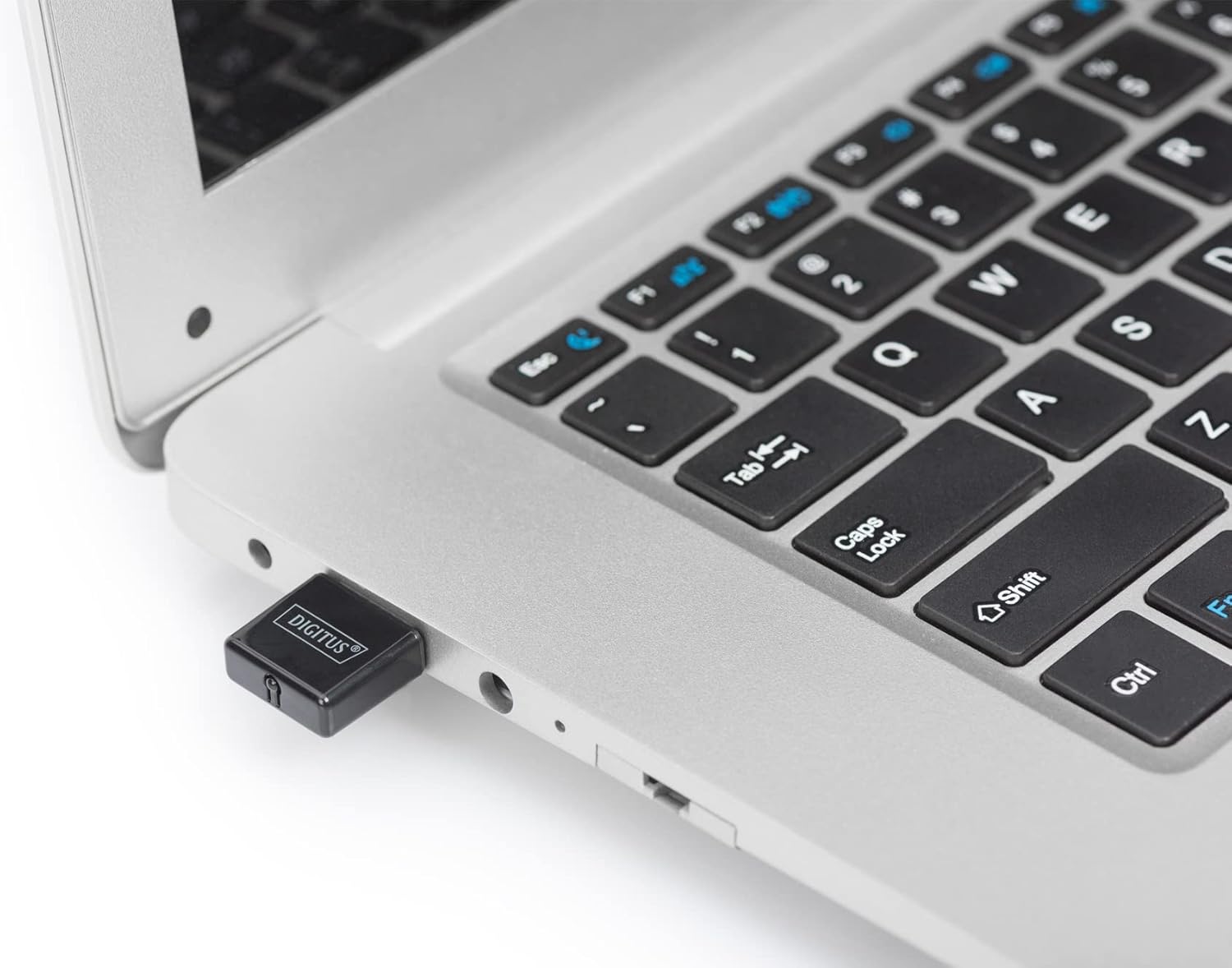
Figure 3.1: The DIGITUS DN-70542 adapter inserted into a laptop's USB port.

Figi 3.2: Yon fèmen pòt view of the adapter connected to a laptop, showing its compact size.
- Verifye enstalasyon: After connecting, your operating system should detect the new hardware and complete the installation. You can verify the installation by checking your computer's Device Manager (for Windows) to ensure the wireless adapter is listed and functioning correctly.
4. Operasyon Enstriksyon
Once the adapter is successfully installed, you can connect to a wireless network.
- Konekte nan yon rezo san fil:
- Open your computer's wireless network settings.
- Chèche rezo san fil ki disponib yo.
- Chwazi rezo ou vle a (SSID) nan lis la.
- Antre kle sekirite rezo a (modpas) si yo mande w.
- Klike sou "Konekte" pou etabli koneksyon san fil la.
- Sèvi ak WPS (Konfigirasyon Pwoteje Wi-Fi):
The adapter supports WPS for a simplified and secure connection to compatible routers.
- Peze bouton WPS sou routeur san fil ou a.
- Within two minutes, press the WPS button on the DIGITUS DN-70542 adapter. The WPS button is a small, recessed button on the side of the adapter.
- The adapter and router will automatically establish a secure connection.

Figure 4.1: The WPS button located on the side of the adapter.
5. Antretyen
To ensure optimal performance and longevity of your DIGITUS DN-70542 adapter, follow these guidelines:
- Kenbe adaptè a pwòp epi san pousyè. Sèvi ak yon twal mou epi sèk pou netwaye.
- Evite ekspoze adaptè a nan tanperati ekstrèm, imidite, oswa limyè solèy dirèk.
- Pa eseye demonte oswa repare adaptè a tèt ou. Sa ap anile garanti a.
- Sere adaptè a nan yon kote ki an sekirite lè w pa ap itilize li pou evite domaj fizik.
NAN. Depanaj
If you encounter issues with your DIGITUS DN-70542 Wireless LAN USB 2.0 Adapter, refer to the following common problems and solutions:
- Adapter Not Detected / Driver Installation Issues:
- Ensure the adapter is fully inserted into a functional USB port.
- Eseye yon pò USB diferan.
- Reinstall the drivers from the provided CD-ROM.
- Download the latest drivers from the official DIGITUS websit.
- If using Windows 8.1 or newer and encountering issues like "Bluescreen" or "infected file" warnings during driver installation, temporarily disable antivirus software (like Windows Defender) during driver installation, then re-enable it immediately after. Ensure you are downloading drivers from a trusted source (DIGITUS official websit).
- Check Device Manager to see if the adapter is listed with any error symbols.
- Cannot Connect to Wireless Network:
- Verifye ke routeur san fil ou a limen epi l ap difize yon siyal.
- Ensure you are entering the correct network security key (password).
- Move closer to the wireless router to improve signal strength.
- Rekòmanse òdinatè w la ak routeur san fil la.
- Check if other devices can connect to the same wireless network.
- Vitès koneksyon dousman:
- Ensure your router supports 802.11n for optimal speeds.
- Minimize entèferans ki soti nan lòt aparèy elektwonik (pa egzanp, mikwo ond, telefòn san fil).
- Mete ajou firmwèr routeur ou a.
- Check for other devices consuming bandwidth on your network.
7. Espesifikasyon
| Karakteristik | Deskripsyon |
|---|---|
| Modèl | DN-70542 |
| Entèfas Materyèl | USB 2.0 |
| Estanda san fil | IEEE 802.11n, IEEE 802.11g, IEEE 802.11b |
| Pousantaj Transfè Done | Jiska 300 Mbps |
| Gamme frekans | 2.4 - 2.4835 GHz |
| Karakteristik sekirite | WPS (Wireless Protected Setup) function |
| Sistèm operasyon sipò | Windows |
| Dimansyon pwodwi | 24 x 15 x 2 mm (approximate); 15 g |
| Manifakti | ASSMANN Electronic GmbH PES - BO DE |
8. Garanti ak sipò
For warranty information and technical support, please refer to the documentation included with your product or visit the official DIGITUS website. Contact details for customer support can typically be found on the manufacturer's websit.
Tanpri konsève prèv acha ou a pou nenpòt reklamasyon garanti.


