1. Entwodiksyon
This manual provides detailed instructions for the installation, operation, and maintenance of your GIGABYTE GA-H77N-WIFI Mini ITX Motherboard. This motherboard supports 3rd and 2nd generation Intel Core processors with an LGA1155 socket, features Intel H77 chipset, integrated Wi-Fi and Bluetooth 4.0, dual Gigabit LAN, and multiple display outputs including HDMI and DVI.
2. Enstalasyon ak Enstalasyon
2.1 Layout mèr
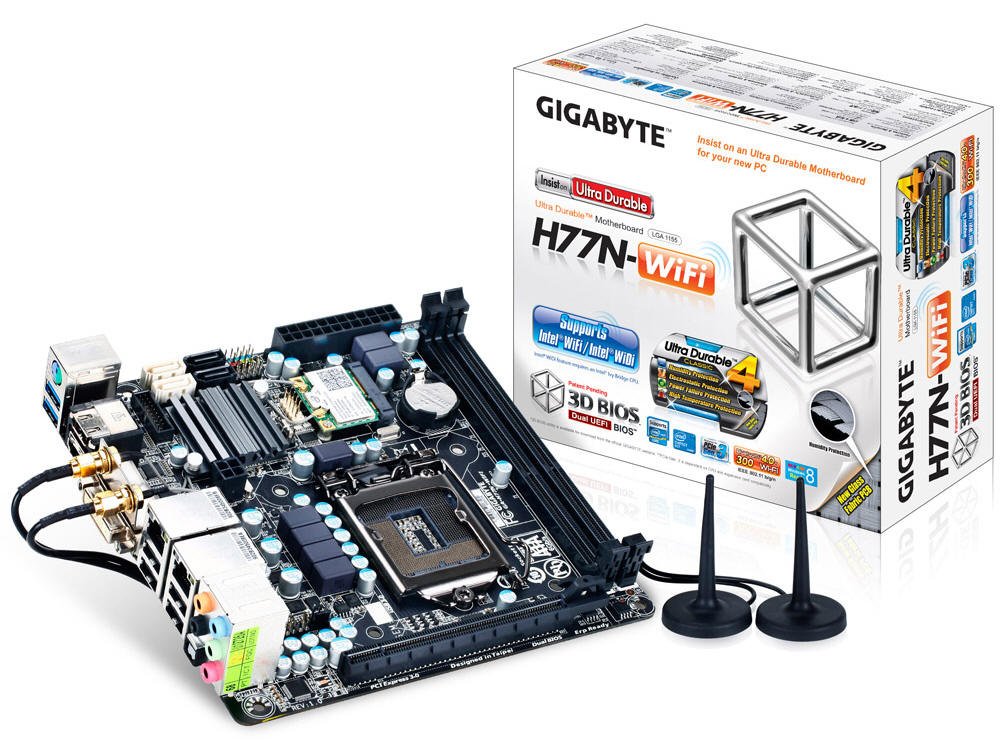
Figi 1: Anwo-anba view of the GA-H77N-WIFI motherboard, showing CPU socket, DIMM slots, and various connectors.
Familiarize yourself with the layout of the motherboard before proceeding with installation. Refer to Figure 1 for a general overview of component placement.
2.2 CPU Enstalasyon
- Jwenn priz CPU LGA1155 la sou kat manman an.
- Leve levye chajman an dousman epi ouvri kouvèti priz CPU a.
- Aliyen mak triyangilè ki sou CPU a ak mak ki koresponn lan sou priz la. Mete CPU a ak anpil atansyon nan priz la san fòse li.
- Fèmen kouvèti priz la epi peze levye chajman an desann jiskaske li bloke nan plas li.
- Enstale radyatè CPU a dapre enstriksyon manifakti a.
2.3 Enstalasyon memwa (RAM)
- Locate the two DDR3 DIMM sockets.
- Louvri klip yo nan tou de bout priz DIMM lan.
- Align the notch on the DDR3 memory module with the key in the DIMM socket.
- Insert the memory module firmly into the socket until the clips snap into place. Ensure both clips are closed.
2.4 Enstalasyon Aparèy Depo
Connect your SATA 6Gb/s storage devices (HDDs, SSDs) to the SATA ports on the motherboard using SATA data cables. Ensure the power cables from your power supply are also connected to the storage devices.
2.5 Koneksyon pouvwa
- Connect the 24-pin ATX main power connector from your power supply to the corresponding socket on the motherboard.
- Connect the 4-pin ATX 12V power connector to its socket, typically located near the CPU.
2.6 Front Panel and Peripheral Connections

Figi 2: Angle view of the GA-H77N-WIFI motherboard, showing various onboard headers and rear I/O ports.
Connect the front panel headers (power switch, reset switch, HDD LED, power LED, front audio, front USB) from your computer case to the corresponding pins on the motherboard. Refer to the motherboard's printed labels for correct orientation.
2.7 Koneksyon Panèl E/S Dèyè a

Figure 3: Rear I/O panel of the GA-H77N-WIFI motherboard, showing connectivity options.
Connect your peripherals to the rear I/O panel (Figure 3):
- Pò USB: Connect USB devices such as keyboard, mouse, and external drives.
- Sorti Videyo: Connect your monitor(s) to the HDMI or DVI ports.
- LAN Pò: Connect Ethernet cables for network access.
- Pak odyo: Connect speakers, headphones, or microphones.
- Antèn san fil: Screw in the included Wi-Fi antennas to the connectors.
3. Operasyon Enstriksyon
3.1 Konfigirasyon BIOS/UEFI
Upon initial power-on, press the DEL key during the POST (Power-On Self-Test) to enter the BIOS Setup Utility. The GIGABYTE 3D BIOS (Dual UEFI) provides an intuitive interface for configuring system settings, boot order, and hardware parameters.
3.2 Enstalasyon sistèm operasyon
Insert your operating system installation media (USB drive or DVD) and set the boot priority in the BIOS to boot from the installation media. Follow the on-screen instructions to install your preferred operating system.
3.3 Enstalasyon chofè
After installing the operating system, install the necessary drivers for the motherboard components. These typically include chipset drivers, graphics drivers (if using integrated graphics), audio drivers, LAN drivers, and Wi-Fi/Bluetooth drivers. Drivers are usually provided on a support CD or can be downloaded from the GIGABYTE websit.
3.4 Konfigirasyon Rezo
The motherboard features dual Realtek Gigabit Ethernet LAN for wired network connections and an Intel Wi-Fi module for wireless connectivity. Configure your network settings within your operating system. For Wi-Fi, ensure the antennas are connected and select your network from the available options.
3.5 GIGABYTE On/Off Charge
The GIGABYTE On/Off Charge feature allows for faster charging of USB devices, even when the PC is turned off or in standby mode. Ensure the necessary drivers/utilities are installed for this feature to function.
4. Antretyen
4.1 Netwayaj
Regularly clean the interior of your computer case to prevent dust buildup, which can lead to overheating. Use compressed air to remove dust from components, especially heatsinks and fans. Ensure the system is powered off and unplugged before cleaning.
4.2 BIOS and Driver Updates
Tcheke GIGABYTE a regilyèman. website for updated BIOS versions and drivers. Updating these can improve system stability, performance, and compatibility. Follow the instructions provided by GIGABYTE carefully when performing updates.
NAN. Depanaj
Si ou rankontre pwoblèm, konsidere etap debaz sa yo pou rezoud pwoblèm:
- Pa gen pouvwa: Check all power connections from the power supply to the motherboard and components. Ensure the power supply switch is on.
- Pa gen ekspozisyon: Verify that the monitor is connected correctly to the motherboard's video output (HDMI/DVI) and is powered on. Try reseating the memory modules.
- Enstabilite Sistèm: Ensure all components are properly seated. Check for overheating by monitoring CPU and system temperatures. Update BIOS and drivers.
- Pwoblèm rezo: Verify Ethernet cables are securely connected. Check Wi-Fi antenna connections. Ensure network drivers are installed and configured correctly.
- Periferik pa detekte: Ensure USB devices are connected to functional ports. Check device manager for driver issues.
For more advanced troubleshooting or persistent issues, refer to the GIGABYTE support websit la oubyen kontakte sipò teknik yo.
6. Espesifikasyon
| Eleman | Spesifikasyon |
|---|---|
| CPU Socket | LGA 1155 |
| Procesè konpatib yo | Intel Core i7/i5/i3/Pentium/Celeron (3rd and 2nd Gen) |
| Chipset | Intel H77 Express |
| Memwa fant | 2 x DDR3 DIMM priz |
| Kapasite Memwa Maksimòm | 16 GB |
| Kalite memwa | DDR3 1600/1333/1066/800 MHz |
| LAN | 2 x Realtek GbE LAN (10/100/1000 Mbit) |
| San fil | Intel Wi-Fi module, Bluetooth 4.0 |
| Pò SATA | SATA 6Gb/s |
| Pò USB | USB 3.0, USB 2.0 |
| Sorti Videyo | HDMI, DVI |
| Fant ekspansyon | PCI Express Gen 3.0 |
| Faktè fòm | Mini ITX |
| Dimansyon | 17 x 16 x 10 pous (Dimansyon pwodwi) |
| Pwa | 1.6 liv |
7. Garanti ak sipò
For information regarding product warranty, please refer to the warranty card included with your motherboard or visit the official GIGABYTE website. For technical support, driver downloads, and BIOS updates, please visit the GIGABYTE support portal:


