1. Entwodiksyon
This manual provides detailed instructions for the installation, configuration, and operation of your TP-Link N600 Wireless Dual Band Gigabit Router, model TL-WDR3600. This device offers simultaneous 2.4GHz and 5GHz wireless connections, Gigabit Ethernet ports, and USB ports for enhanced network functionality. Please read this manual thoroughly to ensure proper use and optimal performance of your router.
2. Pwodwi souview
2.1 Karakteristik kle
- Simultaneous 2.4GHz 300Mbps and 5GHz 300Mbps connections for 600Mbps total available bandwidth.
- Two USB ports for sharing printers, files, or media locally or over the Internet.
- Full Gigabit Ethernet ports for ultimate wired transfer speeds.
- Hardware NAT for WAN to LAN throughput exceeding 800Mbps.
- Built-in media server for sharing music, video, and photos with devices like Windows Media Player, PS3, or Xbox 360.
- Built-in print server for wireless printing from various computers by connecting a USB printer.
- Simple wireless security encryption via the WPS button.
- External detachable antennas for improved alignment and potential upgrades.
2.2 Kontni pake a
Atik sa yo ta dwe enkli nan pake pwodwi ou:
- TP-Link TL-WDR3600 Wireless N600 Dual Band Router
- Adaptè pouvwa
- Ethernet kab
- Gid Enstalasyon Rapid
- Resous CD
2.3 Pwodwi Views

Imaj 1: Devan view of the TP-Link TL-WDR3600 N600 Wireless Dual Band Gigabit Router, showing the status indicator lights and the TP-Link logo.
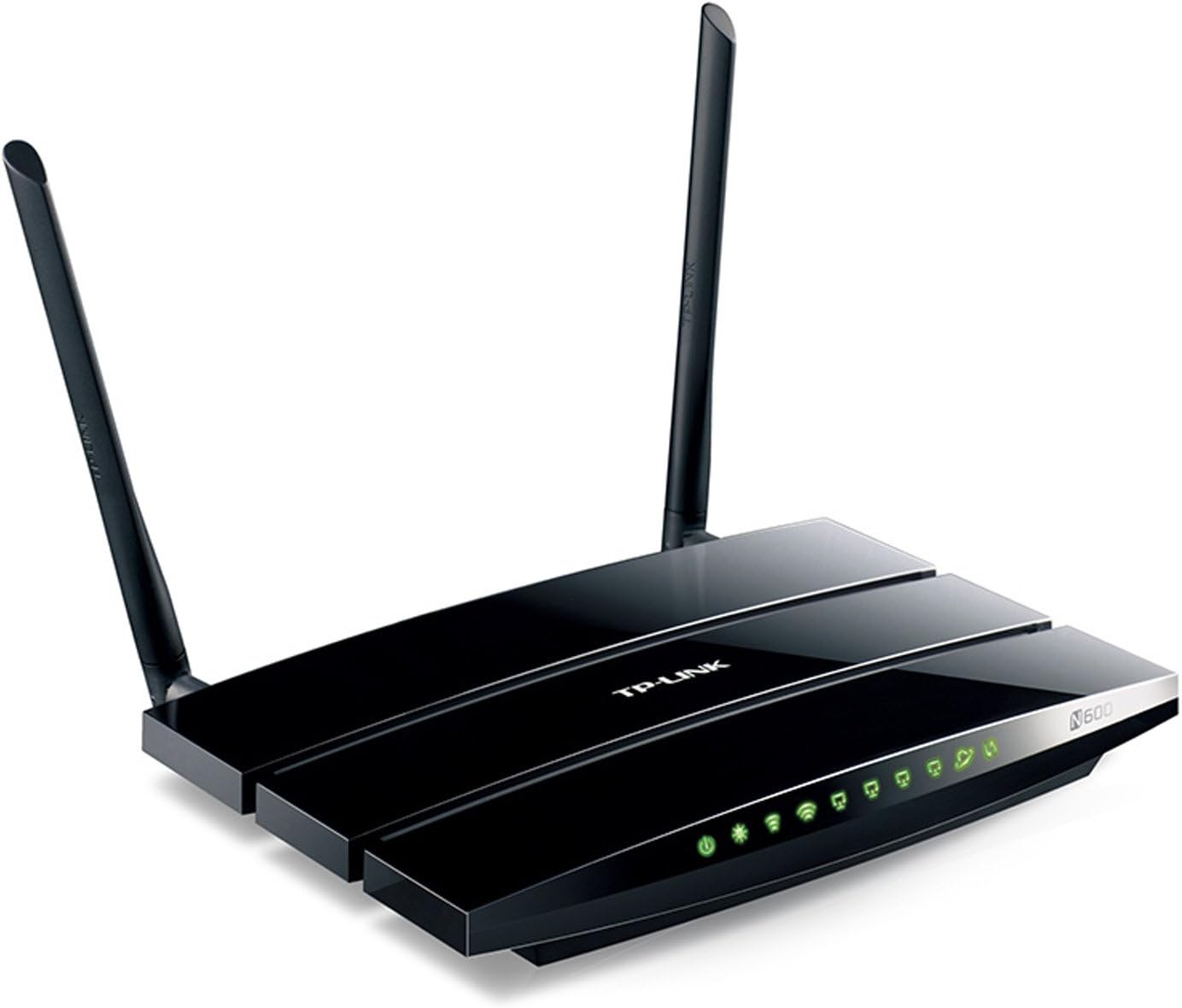
Imaj 2: Angle view of the TP-Link TL-WDR3600 N600 Wireless Dual Band Gigabit Router, highlighting the two external detachable antennas and the rear ports.
3. Gid Enstalasyon
Follow these steps to set up your TP-Link TL-WDR3600 router:
- Etenn modèm ou a: Dekonekte kouran an nan modèm ou genyen an.
- Konekte routeur la:
- Connect one end of the Ethernet cable to the WAN port (usually blue) on the router.
- Konekte lòt bout kab Ethernet la nan pò Ethernet modèm ou an.
- Connect your computer to one of the LAN ports (yellow) on the router using another Ethernet cable, or connect wirelessly using the default Wi-Fi name (SSID) and password found on the router's label.
- Pouvwa sou aparèy: First, power on your modem and wait for it to fully boot up (usually indicated by stable lights). Then, power on your TP-Link router.
- Access the Router's Web Entèfas:
- Louvri a web navigatè (pa egzanp, Chrome, Firefox, Edge).
- Type the default access address (e.g., tplinkwifi.net or 192.168.0.1) nan ba adrès la epi peze Antre.
- Antre non itilizatè ak modpas defo a (anjeneral admin for both, found on the router's label).
- Kouri Asistan Enstalasyon Rapid la: Follow the on-screen instructions of the Quick Setup Wizard to configure your Internet connection, wireless network names (SSIDs), and passwords. It is highly recommended to change the default login password for security.
- Konekte aparèy ou yo: Once configured, connect your wireless devices to the new Wi-Fi networks (2.4GHz or 5GHz) using the passwords you set.
4. Operasyon Enstriksyon
4.1 Koneksyon san fil
The TL-WDR3600 supports dual-band Wi-Fi, allowing you to connect devices to either the 2.4GHz or 5GHz network.
- 2.4GHz Band: Offers wider coverage and better penetration through walls, suitable for general internet use and older devices.
- 5GHz Band: Provides faster speeds and less interference, ideal for bandwidth-intensive activities like online gaming and HD video streaming, especially for newer devices.
To connect a device, select the appropriate Wi-Fi network (SSID) from your device's Wi-Fi settings and enter the password.
4.2 Fonksyonalite Pò USB a
The router features two USB 2.0 ports for versatile functionality:
- Pataj Depo: Konekte yon aparèy depo USB (pa egzanp, yon kle USB, yon disk di ekstèn) pou pataje files across your network or remotely via FTP. Configure this feature in the router's web interface under "USB Settings" or "Storage Sharing."
- Pataje Enprimant: Connect a USB printer to the router to enable wireless printing from any computer on your network. You will need to install the TP-Link USB Printer Controller Utility on each computer that will use the shared printer.
- Sèvè medya: Utilize the built-in media server to stream media files (music, videos, photos) from a connected USB storage device to DLNA-compatible devices such as smart TVs, game consoles (PS3, Xbox 360), or media players.
4.3 Rezo Guest
The Guest Network feature allows you to provide internet access to guests without giving them access to your main network resources. This enhances security. You can enable and configure separate SSIDs and passwords for guest networks via the router's web koòdone.
5. Antretyen
- Mizajou mikrolojisyèl: Tcheke TP-Link la regilyèman. website for firmware updates. Updating the firmware can improve performance, add new features, and fix security vulnerabilities. Download the correct firmware for your model and follow the instructions provided on the TP-Link support page for installation.
- Plasman Routeur: Place the router in a central location, away from obstructions (e.g., thick walls, metal objects) and sources of interference (e.g., microwaves, cordless phones) to maximize wireless coverage and signal strength.
- Netwayaj: Keep the router clean and free from dust. Ensure proper ventilation to prevent overheating.
- Redemaraj regilye: Periodically rebooting your router (power cycling) can help resolve minor network issues and improve performance.
NAN. Depanaj
6.1 Pa gen Aksè Entènèt
- Tcheke tout koneksyon kab ant modèm nan, routeur la, ak òdinatè a. Asire w yo byen fèm.
- Verify that your modem is working correctly by connecting a computer directly to it.
- Reboot your modem and router in sequence: first the modem, then the router.
- Aksè routeur la web interface and check the WAN status. Ensure your Internet Service Provider (ISP) settings are correctly configured.
- If your ISP requires MAC Address Cloning, configure this in the router's WAN settings.
6.2 Vitès san fil ralanti
- Ensure your devices are connected to the appropriate band (5GHz for faster speeds, if supported).
- Reduce interference by placing the router away from other electronic devices.
- Change the wireless channel in the router's settings to avoid congestion with neighboring networks. Use a Wi-Fi analyzer tool to find less crowded channels.
- Update the wireless adapter drivers on your client devices.
6.3 Pa ka jwenn aksè a routeur yo Web Entèfas
- Asire w ke òdinatè w lan konekte ak routeur la atravè Ethernet oswa Wi-Fi.
- Verify that you are using the correct IP address or domain name (e.g., tplinkwifi.net, 192.168.0.1).
- Efase kach navigatè w la ak bonbon yo, oubyen eseye yon lòt navigatè.
- Dezaktive tanporèman nenpòt pare-feu oswa lojisyèl antivirus sou òdinatè w la.
- If you forgot the login password, you may need to perform a factory reset on the router. Locate the reset button (usually a small pinhole) on the router, press and hold it for about 10 seconds while the router is powered on, then release. This will restore the router to its default settings.
7. Espesifikasyon
| Mak | TP-Link |
| Non modèl | TL-WDR3600 |
| Kalite san fil | 802.11n |
| Gwoup Gwoup Frekans | Doub-Band (2.4GHz ak 5GHz) |
| Vitès san fil | Jiska 300Mbps (2.4GHz) + 300Mbps (5GHz) |
| Pò Ethernet | 4x Gigabit LAN, 1x Gigabit WAN |
| Pò USB | 2x USB 2.0 |
| Antèn | 2x Antèn Ekstèn Detachab |
| Dimansyon (LxWxH) | 12.4 x 2.76 x 9.45 pous |
| Sistèm operasyon konpatibilite | Windows, Mac |
| Voltage | 12 Volts |
8. Garanti ak sipò teknik
For warranty information, technical support, firmware updates, and additional resources, please visit the official TP-Link website. You can typically find support contact details, FAQs, and product documentation specific to the TL-WDR3600 model on their support pages.
TP-Link Ofisyèl Websit: www.tp-link.com


