TP-Link TL-MR3420 Wireless N300 3G/4G Router User Manual
Modèl: TL-MR3420
1. Entwodiksyon
The TP-Link TL-MR3420 Wireless N300 3G/4G Router is designed to share a 3G/4G mobile broadband connection wirelessly. By connecting a compatible UMTS/HSPA/EVDO USB modem to the router, a Wi-Fi hotspot is instantly established, allowing multiple devices to access the internet. This router also features a 3G/WAN connection backup strategy, ensuring a continuous internet connection by switching between 3G/4G and WAN (Ethernet) connections as needed. It supports wireless N speeds of up to 300Mbps, suitable for various online activities.
2. Pake kontni
- TP-Link TL-MR3420 Wireless N300 3G/4G Router
- Adaptè pouvwa
- Ethernet kab
- Gid Enstalasyon Rapid
3. Materyèl Plis paseview
3.1 Front Panel and LEDs
The front panel of the router features LED indicators that provide information about the device's status, including power, system, WLAN, WAN, LAN, and 3G/4G connection status.

Imaj: Devan view of the TL-MR3420 router, showing the TP-Link logo and status LEDs.
3.2 Side Panel (USB Port)
The side panel includes a USB 2.0 port, primarily used for connecting a compatible 3G/4G USB modem.
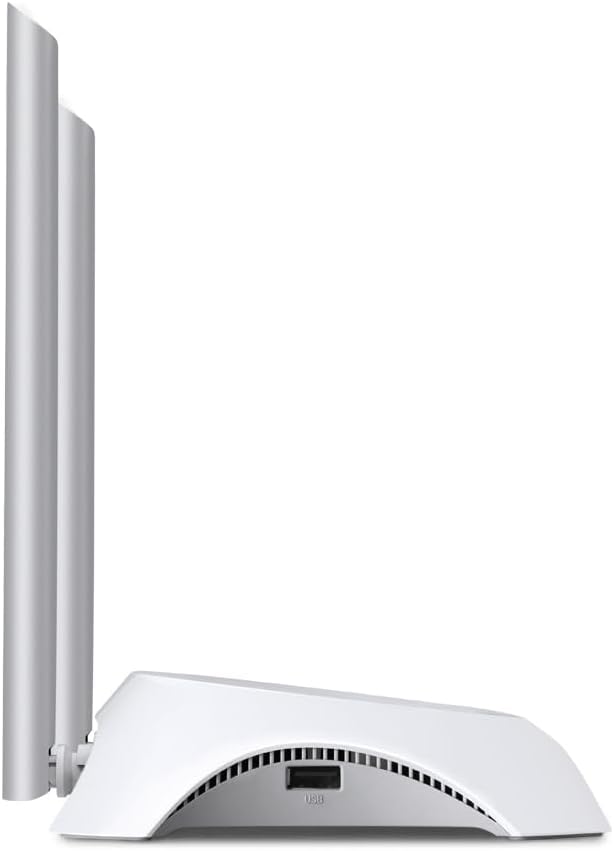
Imaj: Bò kote view of the TL-MR3420 router, highlighting the USB port for modem connection.
3.3 Panèl dèyè (Pò ak bouton)
The rear panel provides various ports and buttons for connectivity and control.
- Pouvwa Port: Konekte ak adaptè pouvwa a.
- Pouvwa sou / Off bouton: Limen oswa etenn routeur la.
- Pò WAN (Ble): Connects to a DSL/Cable modem for traditional internet access.
- Pò LAN (Jòn): Four ports for connecting wired devices like computers or switches.
- Bouton WPS/Reyajisteman: Peze pou fonksyon WPS la; peze epi kenbe pou yon reset faktori.
- Konektè antèn: Pou konekte de antèn ekstèn yo.

Imaj: Dèyè view of the TL-MR3420 router, displaying the power port, WAN port, LAN ports, WPS/Reset button, and antenna connectors.
4. Gid Enstalasyon
4.1 Koneksyon Fizik
- Tache antèn: Screw the two detachable antennas firmly into their connectors on the rear panel.
- Connect 3G/4G USB Modem: Insert your compatible 3G/4G USB modem into the USB port on the side of the router.
- Pouvwa sou: Konekte adaptè kouran an nan pò kouran routeur la epi branche l nan yon priz miray. Peze bouton Pouvwa Limen/Etenn lan si sa nesesè.
- (Optional) Connect to WAN: If using a wired internet connection as a backup or primary, connect an Ethernet cable from your DSL/Cable modem to the blue WAN port on the router.
- (Si ou vle) Konekte Aparèy Filaire yo: Connect your computer or other wired devices to the yellow LAN ports using Ethernet cables.

Image: The TL-MR3420 router with a 3G USB modem connected to its side USB port.
4.2 Konfigirasyon Inisyal (Web Entèfas)
- Konekte ak routeur la: Connect your computer to the router either via an Ethernet cable to a LAN port or wirelessly using the default Wi-Fi SSID printed on the router's label (e.g., TP-Link_XXXX).
- Aksè Web Navigatè: Louvri a web navigatè (pa egzanp, Chrome, Firefox) epi tape
http://tplinkwifi.netorhttp://192.168.0.1(oswahttp://192.168.1.1) nan ba adrès la. Peze Antre. - Konekte: Antre non itilizatè ak modpas defo a, ki tipikman
adminfor both. If these do not work, check the label on the bottom of your router. - Egzekite Enstalasyon Rapid la: Swiv Asistan Enstalasyon Rapid la ki sou ekran an pou konfigire koneksyon entènèt ou ak paramèt san fil ou yo.
4.3 3G/4G Connection Setup
During the Quick Setup, select Routeur 3G/4G mode. The router will automatically detect your USB modem. You may need to select your region and ISP, and enter APN (Access Point Name) details if prompted. Ensure your 3G/4G USB modem is compatible with the TL-MR3420.
4.4 WAN Connection Setup (Optional)
If you are using a wired internet connection, configure the WAN settings. This can be done via Dynamic IP, Static IP, or PPPoE, depending on your Internet Service Provider (ISP) requirements. The TL-MR3420 supports a 3G/WAN failover strategy, allowing you to set a preferred connection (3G/4G or WAN) and use the other as a backup.
4.5 Wireless Network Setup
Set your desired Wireless Network Name (SSID) and a strong password (WPA/WPA2 Personal recommended) for your Wi-Fi network. This will secure your wireless connection.
5. Itilizasyon Routeur la
5.1 Konprann Endikatè LED yo
| dirije | Estati | Endikasyon |
|---|---|---|
| Pouvwa | On | Router is powered on. |
| Sistèm | Flache | Routeur ap travay nòmalman. |
| WLAN | Limen/Klache | Wireless function is enabled/data is being transmitted. |
| WAN | Limen/Klache | WAN port is connected/data is being transmitted. |
| LAN (1-4) | Limen/Klache | Corresponding LAN port is connected/data is being transmitted. |
| 3G/4G | Limen/Klache | 3G/4G modem is connected and working/data is being transmitted. |
5.2 Konekte Aparèy
- Aparèy san fil: Chèche pou your Wi-Fi network (SSID) on your device and enter the password you configured.
- Aparèy Filaire: Connect an Ethernet cable from your device to any of the yellow LAN ports on the router.
5.3 3G/WAN Failover
The router can be configured to use either 3G/4G or WAN as the primary internet connection, with the other serving as a backup. If the primary connection fails, the router will automatically switch to the backup, ensuring continuous internet access. This setting can be managed in the router's web interface under Network > WAN Backup.
6. Antretyen
6.1 Mizajou mikrolojisyèl
Tcheke epi enstale regilyèman mizajou firmwèr nan men ofisyèl TP-Link la. website. Firmware updates can improve performance, add new features, and fix bugs. Download the correct firmware for your model and follow the instructions provided on the TP-Link support page for upgrading via the web interface (System Tools > Firmware Upgrade).
6.2 Konfigirasyon Sovgad ak Retablisman
Ou ka fè yon kopi paramèt konfigirasyon routeur ou a sou yon file on your computer. This allows you to restore your settings quickly after a factory reset or if you need to revert to a previous configuration (System Tools > Backup & Restore).
6.3 Sistèm rdemare
If the router is experiencing issues, a simple reboot can often resolve them. You can reboot the router from the web interface (System Tools > Reboot) or by unplugging and replugging the power adapter.
6.4 Reset faktori
A factory reset will revert all settings to their default values. This can be done by pressing and holding the WPS/Reset button on the rear panel for approximately 5-10 seconds until the System LED flashes rapidly, or via the web interface (System Tools > Factory Defaults).
NAN. Depanaj
- M pa ka jwenn aksè a entènèt la:
- Check LED indicators: Ensure Power, System, WLAN, and 3G/4G (or WAN) LEDs are on or flashing correctly.
- Verify physical connections: Ensure all cables are securely connected.
- Check 3G/4G modem: Ensure it is properly inserted and recognized by the router.
- Confirm ISP settings: Verify that your 3G/4G or WAN settings (APN, connection type) are correct in the router's web koòdone.
- Reboot the router and modem.
- Pwoblèm koneksyon san fil:
- Ensure WLAN LED is on/flashing.
- Verify correct Wi-Fi SSID and password.
- Pwoche pi pre routeur la pou tcheke fòs siyal la.
- Change wireless channel in router settings to avoid interference.
- Vitès entènèt ki ba:
- Check your 3G/4G signal strength or WAN connection speed.
- Ensure no other devices are heavily using bandwidth.
- Mizajou firmwèr routeur la.
8. Espesifikasyon
| Karakteristik | Detay |
|---|---|
| Non modèl | TL-MR3420 |
| Wireless Creole | IEEE 802.11n, 802.11g, 802.11b |
| Vitès san fil | Jiska 300Mbps |
| Bann Frekans | 2.4 GHz |
| Kalite antèn | 2x 5dBi Detachable Omni Directional Antennas |
| Entèfas | 1x 10/100Mbps WAN Port, 4x 10/100Mbps LAN Ports, 1x USB 2.0 Port |
| Bouton | WPS/Reset Button, Power On/Off Button |
| Dimansyon (W x P x H) | 11.34 x 8.9 x 2.8 pous (Dimansyon pwodwi) |
| Pwa atik | 9.5 ons |
| Pwovizyon pou pouvwa | 12VDC / 1A (External Power Adapter) |
| Sekirite san fil | Chifreman WEP 64/128-bit, WPA/WPA2, WPA-PSK/WPA2-PSK |
| Aparèy konpatib | Personal Computer, UMTS/HSPA/EVDO USB Modems |
9. Garanti ak sipò
9.1 Pwodwi Garanti
The TP-Link TL-MR3420 Wireless N300 3G/4G Router typically comes with a 2-year limited warranty. Please refer to the warranty card included in your package or visit the official TP-Link websit la pou wè kondisyon garanti detaye ki espesifik pou rejyon ou an.
9.2 Sipò teknik
Pou asistans teknik, depanaj, oswa plis kesyon, tanpri vizite sipò ofisyèl TP-Link la. websit la. Ou ka jwenn FAQ, mizajou firmwèr, ak enfòmasyon pou kontakte sipò kliyan.
- Sipò TP-Link Websit: www.tp-link.com/support/


