
1. Entwodiksyon
The Next Cine800S GoogleTV Projector is designed to provide a versatile and immersive home entertainment experience. This manual offers essential information for the safe and efficient setup, operation, and maintenance of your projector. Please read this manual thoroughly before using the device.
2. Enfòmasyon sou Sekirite
- Pwovizyon pou pouvwa: Use only the specified power adapter. Ensure the power cord is not damaged or pinched.
- Vantilasyon: Do not block ventilation openings. Maintain adequate space around the projector for proper airflow to prevent overheating.
- Plasman: Place the projector on a stable, level surface. Avoid placing it in direct sunlight, near heat sources, or in environments with high humidity or dust.
- Netwayaj: Dekonekte kouran an anvan ou netwaye li. Sèvi ak yon twal mou epi sèk. Pa sèvi ak pwodui netwayaj likid oswa ayewosòl.
- Swen Lantiy: Avoid touching the projector lens directly. Use a soft, lint-free cloth specifically designed for optical lenses if cleaning is necessary.
- Sèvis: Pa eseye repare pwojektè a tèt ou. Konfye tout antretyen bay pèsonèl kalifye.
3. Pwodwi souview
The Next Cine800S is a Full HD LED projector featuring Google TV. Below are key components and features.

Figi 3.1: Devan view of the Next Cine800S GoogleTV Projector, highlighting its design and key features like 800 ANSI Lumens and Google TV integration.
3.1. Karakteristik kle
- Rezolisyon ekspozisyon: Full HD 1920x1080, supporting screen sizes from 40 to 200 inches.
- Klate: 800 ANSI Lumens.
- Pwosesis videyo: Supports 4Kx2K @ 60fps encode/decode.
- Focus & Keystone: Automatic or Manual Focus, Automatic Keystone Correction.
- Sistèm operasyon: Google TV with Android 14.
- Sèvis difizyon: Netflix L1, Prime Video, YouTube, Disney+ with L1 DRM Certification.
- Koneksyon Wireless: Wi-Fi 802.11 a/b/g/n/ac (2.4G & 5G) and Bluetooth 5.0.
- memwa: 2GB LPDDR4 RAM / 8GB eMMC Storage.
- Odyo: Integrated 12W (4W) Speaker.
- Sistèm optik: Dust-Sealed Optical Mechanism.
- Miroir ekran: Air Screen and Google Cast for iOS & Android devices.
3.2. Pò ak Koneksyon
Identify the various input and output ports on your projector.
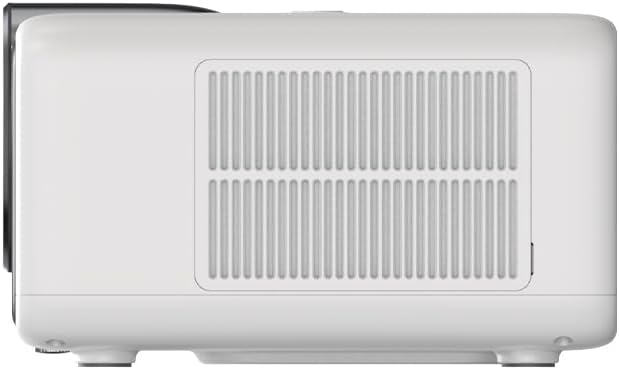
Figure 3.2: Rear panel of the projector, displaying available ports. Note: Actual ports may vary slightly by region or production batch. This model typically includes HDMI, USB, and a 2.5mm Audio Jack.
- HDMI: Connect to external video sources such as Blu-ray players, gaming consoles, or computers.
- USB: Pou konekte aparèy depo USB pou jwe medya files.
- 2.5mm Audio Jack: Pou konekte aparèy odyo ekstèn tankou kas ekoutè oswa oratè.
4. Enstalasyon
4.1. Debalaj ak premye enspeksyon
- Retire pwojektè a ak tout akseswa yo nan anbalaj la avèk prekosyon.
- Check for any signs of damage during transit. If damage is found, contact your retailer immediately.
- Asire w ke tout akseswa ki nan lis la prezan.
4.2. Plasman Pwojektè a
Optimal placement is crucial for the best vieweksperyans nan.

Figi 4.1: Egzample of projector placement and adjustable screen sizes (40" to 200").
- Distans: Position the projector at a suitable distance from the screen or wall to achieve your desired screen size (40 to 200 inches).
- Wotè: Place the projector on a stable surface or mount it to project the image at the desired height.
- Montaj: The projector includes a mounting point on its base. Ensure any tripod or mount used is compatible with the projector's screw size and weight. Note that some standard tripod screws may not fit.
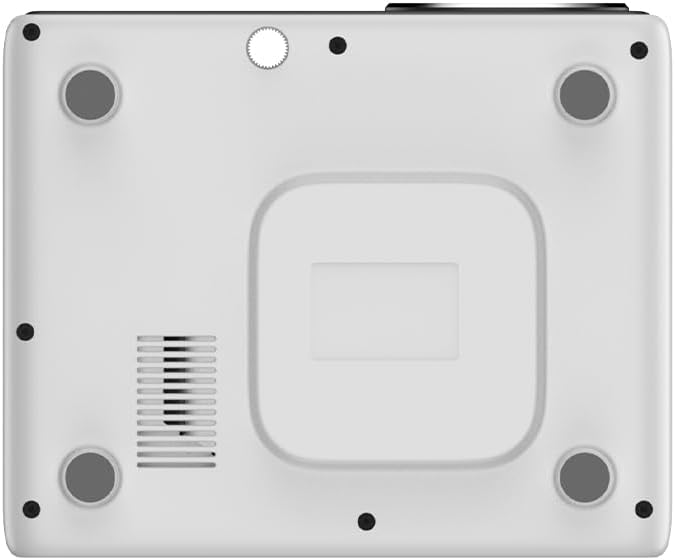
Figi 4.2: Anba view of the projector, indicating the mounting point and ventilation grilles.
4.3. Koneksyon pouvwa
- Konekte adaptè kouran an nan pò antre kouran pwojektè a.
- Ploge adaptè pouvwa a nan yon priz elektrik apwopriye.
- Peze bouton pouvwa a sou pwojektè a oswa sou kontwòl remote la pou limen li.
4.4. Premye Enstalasyon ak Koneksyon Rezo
- Upon first power-on, the projector will guide you through the initial Google TV setup process.
- Follow the on-screen instructions to select your language, connect to a Wi-Fi network (2.4G or 5G), and log in with your Google account.
- The projector features automatic focus and keystone correction. If the image is not perfectly clear or rectangular, you can access manual adjustment options in the settings menu.
5. Operasyon Enstriksyon
5.1. Navige sou Google TV
The projector runs on Google TV, providing a user-friendly interface for accessing content.

Figure 5.1: The Google TV interface on the Next Cine800S Projector, showing recommended content and installed applications.
- Use the remote control to navigate through menus, select apps, and control playback.
- The home screen provides personalized recommendations and quick access to your favorite streaming services.
5.2. Streaming Applications
Access popular streaming platforms directly from your projector.

Figure 5.2: Supported streaming applications and Google Play Store access.
- Pre-installed apps include Netflix, Prime Video, YouTube, and Disney+.
- Telechaje lòt aplikasyon nan Google Play Store la.
- Ensure you are logged into your respective service accounts to access content.
5.3. Konekte Aparèy Ekstèn
- HDMI: Connect your device to an HDMI port. The projector will automatically detect the input or you can manually select it from the input source menu.
- USB: Insert a USB drive into the USB port. The media player application will typically launch automatically, allowing you to browse and play supported media files (JPG, PNG, BMP, JPEG, MP3, M4A, MP2, WAV, FLAC, MP4, MOV, TS, DAT, F4V, 3GP).
5.4. Ekran Mirroring
The projector supports Air Screen and Google Cast for mirroring content from your iOS or Android devices.
- Asire w ke aparèy mobil ou a ak pwojektè a konekte ak menm rezo Wi-Fi a.
- On your mobile device, open the screen mirroring function (e.g., 'Screen Cast', 'Smart View', 'AirPlay').
- Chwazi pwojektè a nan lis aparèy ki disponib yo.
6. Antretyen
Antretyen regilye asire pèfòmans optimal epi pwolonje dire lavi pwojektè ou a.
6.1. Netwaye lantiy la

Figure 6.1: Close-up of the projector lens, which requires careful cleaning.
- Use a soft, lint-free cloth or a lens cleaning brush to gently remove dust from the lens surface.
- For stubborn smudges, use a specialized lens cleaning solution applied to a microfiber cloth, not directly to the lens.
- Avoid abrasive materials or excessive force, which can scratch the lens.
6.2. Cleaning Ventilation Ports
- Periodically check the ventilation grilles for dust accumulation.
- Use a soft brush or a vacuum cleaner with a brush attachment to gently clean the grilles.
- Pa mete okenn objè nan ouvèti vantilasyon yo.
6.3. Mizajou lojisyèl
- Ensure your projector is connected to the internet.
- Navigate to the system settings to check for and install available software updates. Updates can improve performance and add new features.
NAN. Depanaj
Seksyon sa a adrese pwoblèm komen ou ka rankontre ak pwojektè ou a.
| Pwoblèm | Kòz posib | Solisyon |
|---|---|---|
| Pa gen pouvwa | Power cord disconnected, power outlet issue | Tcheke koneksyon kòd kouran an. Eseye yon lòt priz kouran. |
| Pa gen imaj | Input source not selected, device not connected, lens cap on | Ensure input source is correctly selected. Check HDMI/USB connections. Remove lens cap. |
| Imaj la twoub | Konsantrasyon an pa ajiste | Adjust focus manually using the projector's focus ring or through the settings menu if automatic focus is not sufficient. |
| Image is distorted/trapezoidal | Keystone not adjusted, projector not perpendicular to screen | The projector has automatic keystone correction. If the image is still distorted, access the manual keystone correction settings to fine-tune the image. |
| Pa gen son oswa pòv kalite son | Volume too low, external audio device not connected, speaker issue | Increase volume. Check external audio connections if used. If internal speaker sound is distorted at low volumes, consider connecting external speakers via the 2.5mm audio jack or Bluetooth. |
| Pwoblèm koneksyon Wi-Fi | Incorrect password, router issues, signal interference | Verify Wi-Fi password. Restart router. Ensure projector is within Wi-Fi range. |
| Remote kontwòl pa travay | Batteries low/dead, IR sensor blocked | Replace batteries. Ensure no obstructions between remote and projector's IR sensor. |
8. Espesifikasyon
Detailed technical specifications for the Next Cine800S GoogleTV Projector.
| Karakteristik | Spesifikasyon |
|---|---|
| Modèl | Cine800S |
| Teknoloji ekspozisyon | Ki ap dirije pwojektè |
| Rezolisyon natif natal | Full HD 1920x1080 |
| Klète | 800 ANSI lumèn |
| Gwosè pwojeksyon | 40" — 200" |
| Dekodaj videyo | 4Kx2K @ 60fps |
| Konsantre | Otomatik oswa Manyèl |
| Koreksyon Keystone | Otomatik |
| Sistèm operasyon | Google TV, Android 14 |
| DRM Certification | Netflix L1, Prime Video, YouTube, Disney+ L1 |
| Wi-Fi | 802.11 a/b/g/n/ac (2.4G & 5G) |
| Bluetooth | 5.0 |
| RAM | 2GB LPDDR4 |
| Depo Entèn | 8GB eMMC |
| Sòti Oratè | 12W (4W) |
| Pò | HDMI, 2.5mm Audio Jack, USB |
| Fòma medya sipòte | JPG, PNG, BMP, JPEG, MP3, M4A, MP2, WAV, FLAC, MP4, MOV, TS, DAT, F4V, 3GP, FAT, NTFS |
| Mekanis optik | Dust-Sealed System |
| Ekran Mirroring | Air Screen, Google Cast (iOS & Android) |
9. Garanti ak sipò
For warranty information, please refer to the documentation provided with your purchase or visit the official Next website. For technical support, product inquiries, or service requests, please contact Next customer service through their official channels.
Kenbe resi acha ou ak nimewo seri pwodwi a a pòte de men lè w ap kontakte sèvis kliyan an.