
Entwodiksyon
This manual provides comprehensive instructions for the HP 14-inch Laptop, Model 2026 Essential. It covers initial setup, daily operation, maintenance tips, and troubleshooting common issues. Please read this manual thoroughly to ensure proper use and longevity of your device.

Figi 1: HP 14-inch Essential Laptop highlighting key features like Intel Processor N150, 4GB LPDDR5 RAM, 628GB storage, Windows 11 Pro, HD anti-glare display, Intel Graphics, Wi-Fi 6, Microsoft Copilot Key, HD camera, integrated digital mics, and stereo speakers.
1. Enstalasyon
1.1 Debale ak Kontni Pakè a
Carefully unpack your HP 14-inch Laptop and verify all components are present.
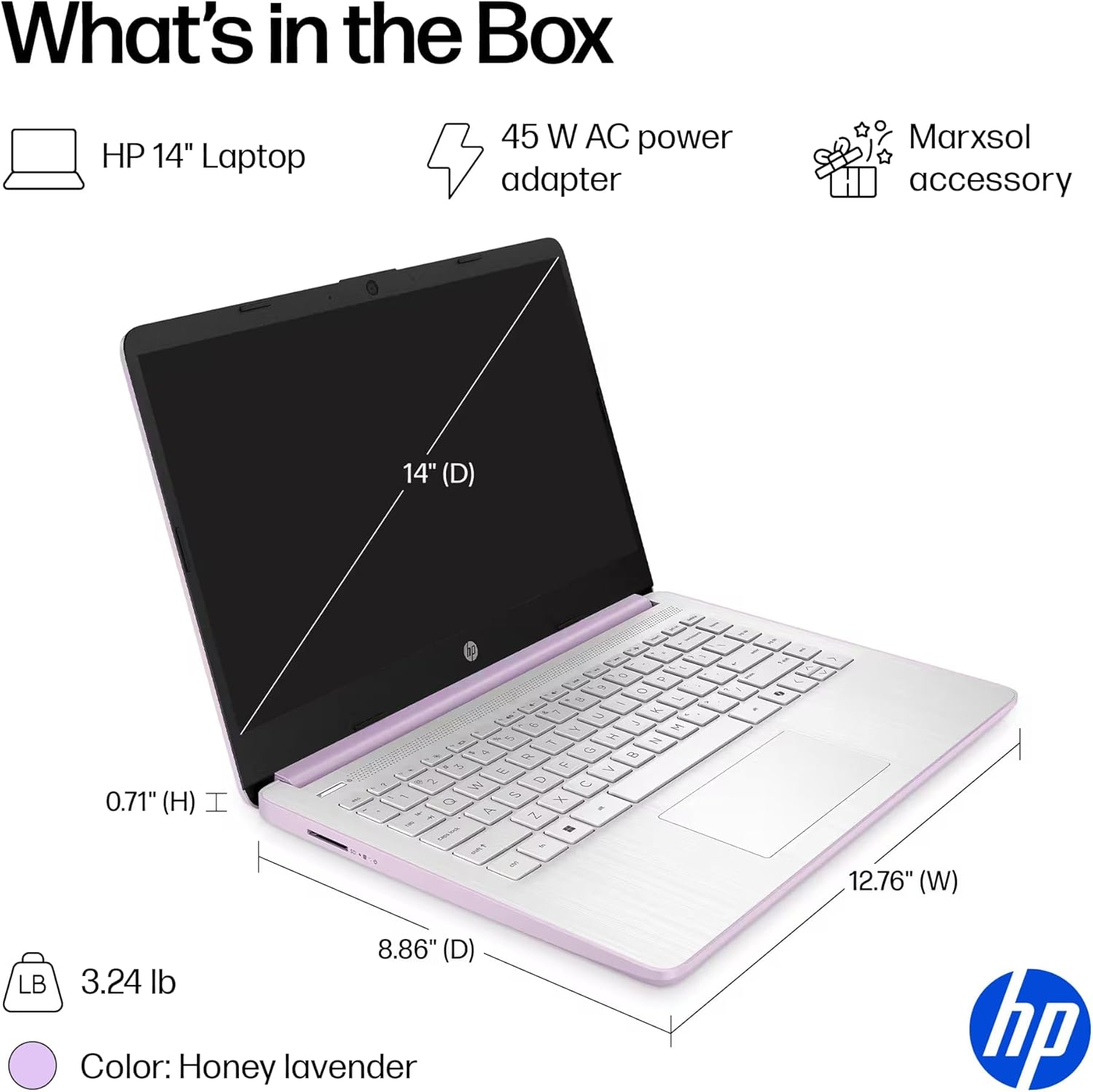
Figi 2: The package includes the HP 14-inch Laptop, a 45W AC power adapter, and the Marxsol accessory bundle. The laptop dimensions are 12.76" (W) x 8.86" (D) x 0.71" (H) and it weighs 3.24 lbs.
Pake ou a ta dwe genyen:
- HP 14-inch Laptop
- 45W AC pouvwa adaptè
- Marxsol Accessory Bundle:
- 6-in-1 USB-C Docking Station Hub
- 500GB External Drive
- Kòd Ekstansyon USB
- HDMI kab
- Sourit Pad
- Sourit san fil

Figi 3: The Marxsol accessory bundle includes a 6-in-1 USB-C Docking Station, Wireless Mouse, Mouse Pad, USB Extension Cable, HDMI Cable, and a 500GB External Drive.
1.2 Konekte pouvwa
Connect the AC power adapter to the laptop's AC Smart pin port and then plug the adapter into a power outlet. The battery will begin charging automatically. It is recommended to fully charge the battery before first use.
1.3 Premye Demaraj ak Enstalasyon Windows 11 Pro
Press the power button to turn on the laptop. Follow the on-screen instructions to complete the initial setup of Windows 11 Pro. This process typically involves selecting your region, language, connecting to a Wi-Fi network, and creating a user account.

Figi 4: The laptop comes pre-installed with Windows 11 Pro and includes Microsoft Office 2024.
2. Kijan pou itilize òdinatè pòtab ou a
2.1 Mòd pou limen/etenn ak dòmi
- Pouvwa sou: Peze bouton pouvwa a ki sitiye sou klavye a.
- Pouvwa Off: Klike sou bouton Start la, answit sou Power, epi chwazi "Shut down" (Fèmen).
- Mòd dòmi: Fèmen kouvèti a oswa klike sou bouton Start la, answit sou Power, epi chwazi "Sleep".
2.2 Klavye ak Touchpad
The laptop features a full-size English keyboard and a multi-touch touchpad.
- Jès Touchpad: Refer to Windows 11 settings for customizable touchpad gestures (e.g., two-finger scroll, pinch-to-zoom).
- Kle Fonksyon: Sèvi ak la Fn key in combination with the function keys (F1-F12) for quick access to features like volume control, screen brightness, and Wi-Fi toggle.
2.3 Connecting Peripherals (Ports)
Your laptop is equipped with various ports for connecting external devices.
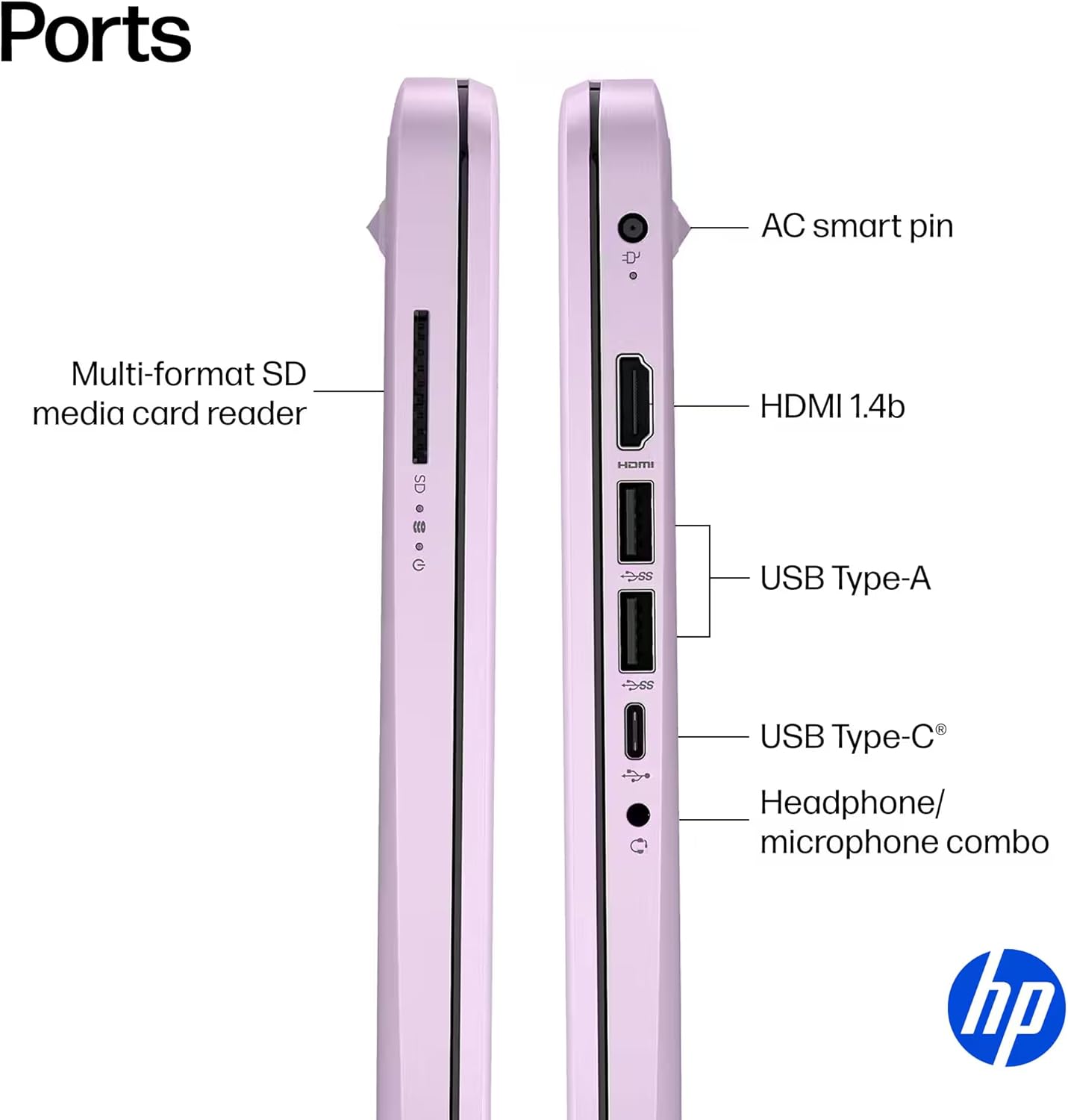
Figi 5: Side view of the HP 14-inch laptop showing available ports.
- USB Kalite-C (vitès siyal 5Gbps): For data transfer only.
- USB Kalite-A (vitès siyal 5Gbps): For connecting USB devices like external drives, keyboards, and mice.
- HDMI 1.4b: Pou konekte ak ekran ekstèn oswa pwojektè.
- Jack konbine pou kas ekoutè/mikwofòn: Pou konekte kas ekoutè oswa yon kas ekoutè ak yon mikwofòn.
- Lektè Kat Medya SD Milti-fòma: Pou li kat SD.
- PIN entelijan AC: Pou konekte adaptè pouvwa a.
2.4 Koneksyon san fil
The laptop supports Wi-Fi 6 (802.11ax) and Bluetooth 5.4 for high-speed wireless connections.
- Wi-Fi: To connect to a wireless network, click the Wi-Fi icon in the taskbar, select your network, and enter the password if required.
- Bluetooth: To pair Bluetooth devices, go to Windows Settings > Bluetooth & devices, and follow the pairing instructions.
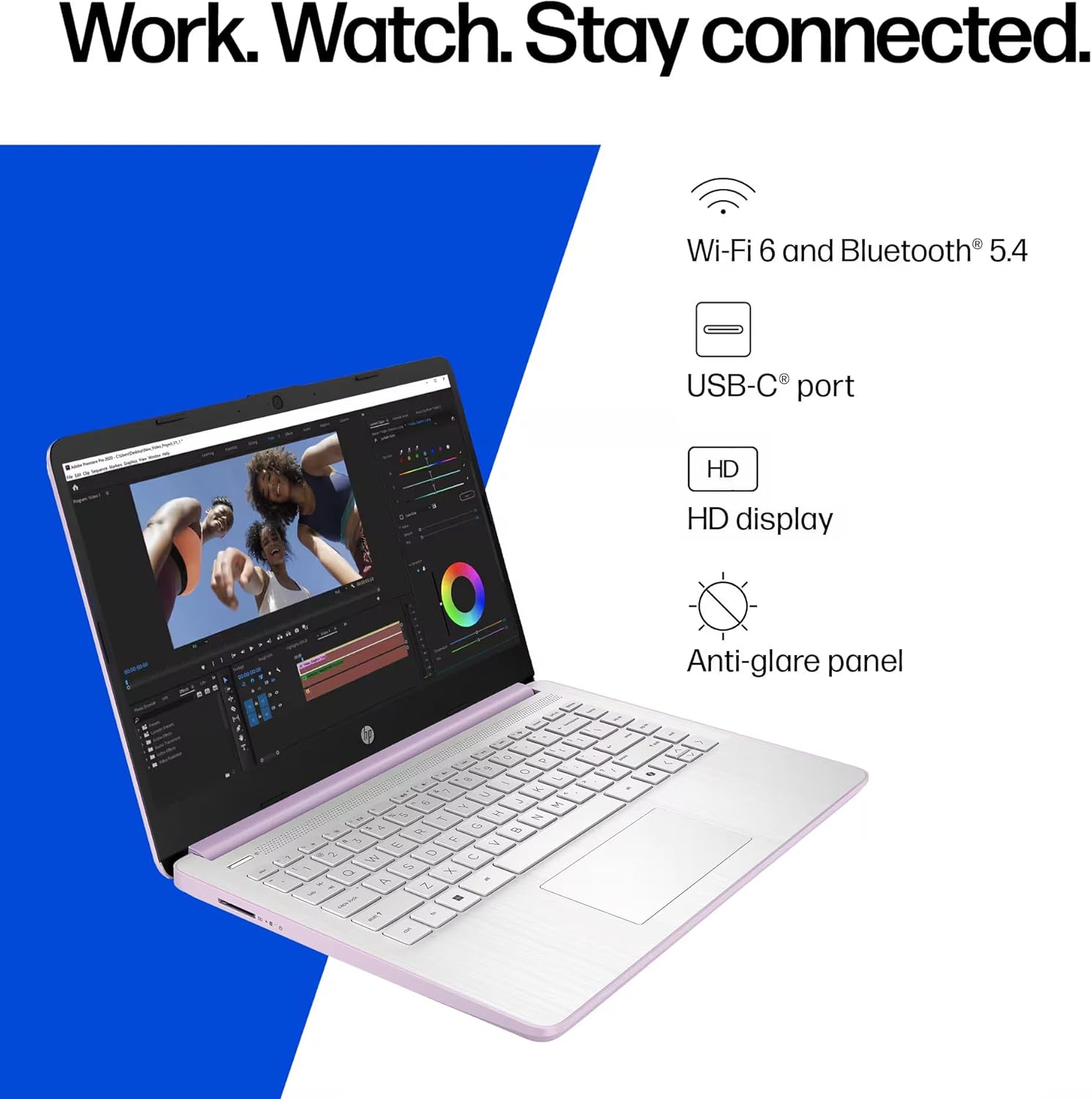
Figi 6: The laptop offers Wi-Fi 6 and Bluetooth 5.4 for robust wireless connectivity, alongside a USB-C port, HD display, and anti-glare panel.
2.5 Microsoft Copilot Key
The dedicated Microsoft Copilot key provides instant access to AI assistance. Press this key to launch Copilot and interact with it for various tasks, information, and creative assistance.

Figi 7: The Microsoft Copilot key on the keyboard provides quick access to AI features.
3. Antretyen
3.1 Swen Batri
- To maximize battery lifespan, avoid frequently discharging the battery completely.
- Sere laptop la nan yon kote ki fre epi sèk si ou pa itilize li pou yon bon bout tan.
- The laptop features a 3-cell, 41 Wh Li-ion battery, providing up to 9 hours of usage.
3.2 Netwaye òdinatè pòtab ou a
- Ekran: Sèvi ak yon moso twal mou, ki san pèl dampLave avèk dlo oswa yon pwodui netwayaj ekran. Pa flite likid dirèkteman sou ekran an.
- Klavye ak chasi: Sèvi ak yon twal mou epi sèk. Pou pousyè tè ki difisil pou retire, yon ti kras mouye.amp Ou ka itilize twal, pou asire pa gen likid ki antre nan ouvèti yo.
- Pò: Kenbe pò yo pwòp san pousyè ak debri. Sèvi ak lè konprese si sa nesesè, pandan w ap kenbe bwat la dwat.
3.3 Mizajou lojisyèl
Regularly update your Windows 11 Pro operating system and drivers to ensure optimal performance, security, and compatibility.
- Ale nan Anviwònman > Mizajou Windows pou tcheke epi enstale mizajou yo.
- Ensure your antivirus software is up-to-date.
NAN. Depanaj
This section addresses common issues you might encounter with your HP 14-inch Laptop.
4.1 Pwoblèm pouvwa
- Laptop la pa limen:
- Asire w ke adaptè AC a byen konekte ak laptop la ak yon priz kouran ki fonksyone.
- Verifye si priz kouran an fonksyone byen lè w branche yon lòt aparèy.
- Si batri a konplètman vid, kite l chaje pou omwen 30 minit anvan ou eseye limen l.
- Batri pa chaje:
- Tcheke adaptè kouran an ak kab la pou wè si gen nenpòt domaj.
- Ensure the AC adapter is correctly seated in the laptop's charging port.
- Try restarting the laptop.
4.2 Pwoblèm ekspozisyon
- Ekran an vid oswa nwa:
- Asire w ke laptop la limen epi li pa nan mòd dòmi.
- Connect an external monitor via HDMI to check if the issue is with the laptop's display or graphics output.
- Adjust screen brightness using the function keys.
- Ekran k ap flache:
- Mete ajou chofè grafik ou yo.
- Check display settings in Windows for refresh rate compatibility.
4.3 Pwoblèm koneksyon (Wi-Fi/Bluetooth)
- Pa ka konekte ak Wi-Fi:
- Asire w ke Wi-Fi a aktive (tcheke kle fonksyon yo oswa paramèt Windows yo).
- Rekòmanse routeur ou ak modèm ou.
- Forget the network in Windows settings and try reconnecting.
- Mizajou chofè rezo yo.
- Aparèy Bluetooth la pa konekte:
- Ensure Bluetooth is enabled on both the laptop and the device.
- Place the Bluetooth device in pairing mode.
- Remove previously paired instances of the device from Windows settings and try pairing again.
Pou plis asistans, gade sipò HP a. websit oswa kontakte sèvis kliyan.
5. Espesifikasyon
Detailed technical specifications for the HP 14-inch Laptop (Model 2026 Essential).
| Karakteristik | Deskripsyon |
|---|---|
| Non modèl | 2026 Essential HP 14 Laptop |
| Processeur | Quad-Core Intel Processor N150 (Up to 3.6 GHz Max Turbo Frequency, 6 MB Intel Smart Cache, 4 cores, 4 threads) |
| Grafik | Grafik Intel entegre |
| Sistèm operasyon | Windows 11 Pro |
| Lojisyèl enkli | Microsoft Office 2024 |
| memwa (RAM) | 4GB LPDDR5 RAM |
| Depo | 128GB UFS (Universal Flash Storage) + 500GB External Drive |
| Ekspozisyon | 14-inch diagonal, HD (1366 x 768), micro-edge, anti-glare, 250 nits, LED |
| Koneksyon | Wi-Fi 6 (802.11ax) and Bluetooth 5.4 combo |
| Odyo | HD Audio with stereo speakers |
| Webkam | Kamera HD HP True Vision 720p ak rediksyon bri tanporèl ak mikwofòn dijital doub entegre. |
| Pò |
|
| Batri | 3-cell, 41 Wh Li-ion battery, Up to 9 hours usage |
| Dimansyon (W x P x H) | 12.76 x 8.86 x 0.71 pous |
| Pwa | 3.24 liv |
| Koulè | Honey Lavender |

Figi 8: Intel Processor N150 specifications, highlighting its 4 cores, 4 threads, 6 MB cache, and up to 3.6 GHz Turbo Boost frequency.
6. Garanti ak sipò
For warranty information, please refer to the documentation included with your product or visit the official HP support website. HP provides various support resources, including drivers, software updates, and troubleshooting guides.
If you encounter issues that cannot be resolved using the troubleshooting steps in this manual, please contact HP Customer Support for assistance. Have your product model number (2026 Essential HP 14 Laptop) and serial number ready when contacting support.
Sipò sou entènèt: Vizite support.hp.com