
1. Entwodiksyon
Thank you for choosing the Tibuta 10.1-inch Android 14 Tablet, Model E100. This manual provides essential information for the safe and efficient use of your device. Please read it thoroughly before operating your tablet and retain it for future reference.
The Tibuta E100 tablet features a vivid 10.1-inch HD IPS display, a powerful quad-core processor, 6GB RAM, and 128GB of internal storage, expandable up to 512GB. Running on Android 14 with full GMS certification, it offers access to a wide range of applications from the Google Play Store.
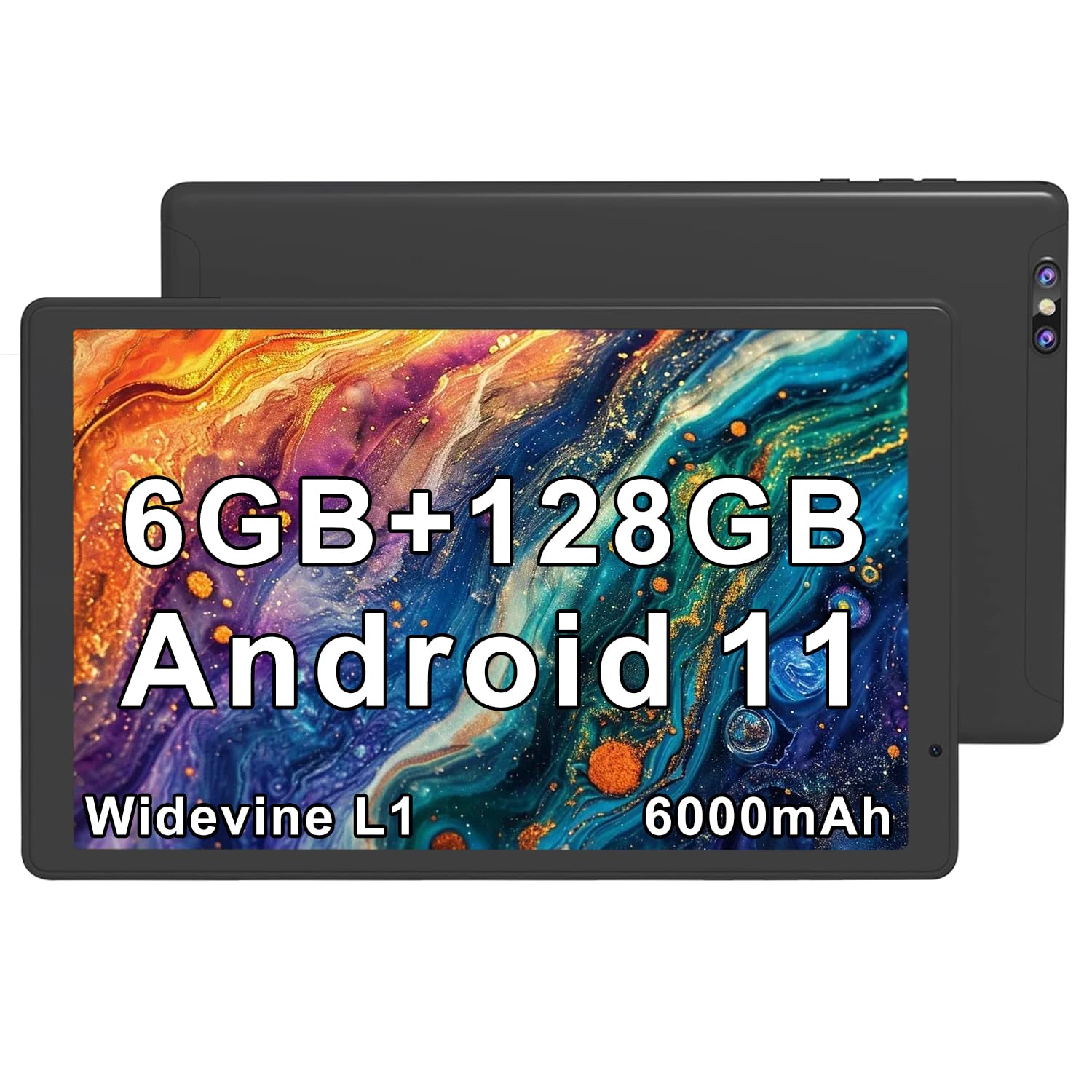
Image 1.1: Tibuta 10.1-inch Android 14 Tablet with included protective case.

Image 1.2: Key performance features of the Tibuta E100 tablet.
2. Pake kontni
Please check the package contents upon unboxing. If any items are missing or damaged, contact Tibuta customer support.
- Tibuta 10.1-inch Android 14 Tablet (Model E100)
- Ka Pwoteksyon
- Chajè (kab USB-C ak adaptè kouran)
- Manyèl Itilizatè (dokiman sa a)
3. Tablet Layout
Familiarize yourself with the physical features and ports of your Tibuta tablet.

Imaj 3.1: Plis paseview of tablet ports and buttons.
- 1. 2 MP Front-facing Camera: Pou apèl videyo ak selfie.
- 2. USB-C (2.0) Port: Pou chaje ak transfè done.
- 3. 5 MP Rear Camera: Pou pran foto ak videyo.
- 4. 3.5mm Stereo Jack: Pou konekte kas ekoutè oswa oratè ekstèn.
- 5. Volume Buttons: Ajiste volim odyo a.
- 6. Bouton pouvwa: Press and hold to power on/off or restart; press briefly to sleep/wake.
- 7. Built-in Microphone: Pou antre vwa pandan apèl oswa anrejistreman.
- 8. Oratè: Pou pwodiksyon odyo.
- 9. Plas kat MicroSD: Pou ogmante espas depo (kat pa enkli).
- 10. SIM Card Slot: For cellular data connectivity (if applicable to your model).
4. Enstalasyon
4.1 Chaje batri a
Before first use, fully charge your tablet.
- Konekte kab USB-C a nan pò USB-C tablèt la.
- Konekte lòt bout kab la ak adaptè pouvwa a.
- Ploge adaptè pouvwa a nan yon priz miray.
- Ikòn batri a sou ekran an ap endike estati chaj.
Nòt: Use only the provided charger or a certified compatible charger to avoid damage.
4.2 Limen/Etenyen
- Pou limen: Press and hold the Power Button until the Tibuta logo appears.
- Pou etenn: Peze epi kenbe bouton pouvwa a jiskaske meni opsyon pouvwa a parèt, answit chwazi "Etein".
- Pou rekòmanse: Peze epi kenbe bouton pouvwa a jiskaske meni opsyon pouvwa a parèt, answit chwazi "Rekòmanse".
- Dòmi/Reveye: Briefly press the Power Button to put the tablet to sleep or wake it up.
4.3 Inisyal Enstalasyon
The first time you power on your tablet, you will be guided through the initial setup process.
- Chwazi lang ou pi pito.
- Konekte nan yon rezo Wi-Fi.
- Sign in with your Google Account or create a new one. This is necessary to download apps from the Google Play Store.
- Follow the on-screen prompts to complete the setup, including setting up screen lock and Google services.
4.4 Mete yon Kat MicroSD
You can expand the tablet's storage up to 512GB using a microSD card (sold separately).
- Locate the microSD card slot on the side of the tablet (refer to Image 3.1).
- Gently insert the microSD card into the slot with the gold contacts facing down until it clicks into place.
- The tablet will detect the card and prompt you to format it for use. Follow the on-screen instructions.

Image 4.1: Tablet with visual representation of expandable storage.
4.5 Inserting a SIM Card (for Cellular Models)
If your Tibuta E100 model supports cellular connectivity (5G), you can insert a Nano-SIM card for mobile data.
- Power off the tablet before inserting or removing a SIM card.
- Locate the SIM card slot (refer to Image 3.1).
- Use the provided SIM ejector tool (if included) to open the SIM tray.
- Place the Nano-SIM card into the tray with the gold contacts facing down, ensuring it fits securely.
- Remete plato a nan tablèt la avèk prekosyon.
- Power on the tablet. You may need to configure APN settings in the tablet's network settings.
Nòt: Not all models support cellular connectivity. Refer to your product packaging or specifications for confirmation.
5. Itilizasyon Tablèt ou a
5.1 Navigasyon debaz
- Tape: Chwazi yon atik oubyen aktive yon bouton.
- Tape epi kenbe: Jwenn aksè nan meni kontèks yo oubyen deplase ikòn yo.
- Glise: Scroll through screens, lists, or pages.
- Zoom-pou-Zoom: Agrandi oswa diminye imaj yo epi web paj.
5.2 Ekspozisyon Karakteristik
The 10.1-inch HD IPS display provides crisp visuals and rich colors with a resolution of 1280x800 pixels.
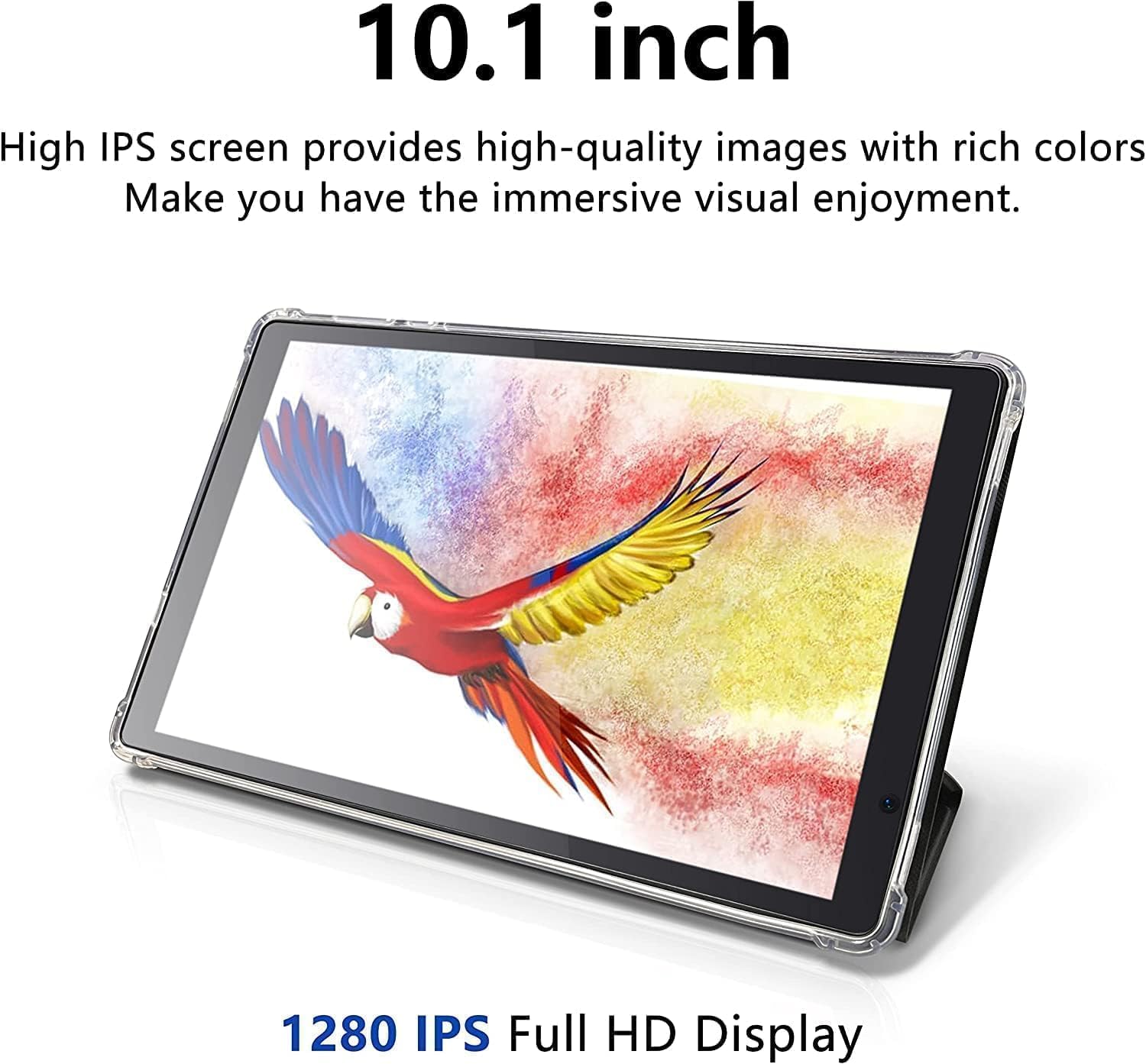
Image 5.1: The tablet's 10.1-inch HD IPS display offers high-quality visuals.
5.3 Konekte ak Wi-Fi
- Ale nan Anviwònman > Rezo ak entènèt > Wi-Fi.
- Aktive Wi-Fi a On.
- Chwazi rezo Wi-Fi ou vle a nan lis la.
- Antre modpas la si yo mande w, epi tape Konekte.
5.4 Bluetooth Pairing
- Ale nan Anviwònman > Aparèy ki konekte > Bluetooth.
- Aktive Bluetooth On.
- Ensure the device you want to pair is in pairing mode.
- Select the device from the list of available devices and follow any on-screen prompts to complete pairing.
5.5 Sèvi ak Kamera yo
Your tablet is equipped with a 2MP front-facing camera and a 5MP rear camera.
- Louvri a Kamera aplikasyon an nan ekran prensipal la oswa nan tiwa aplikasyon an.
- Tape ikòn kamera a pou chanje ant kamera devan ak dèyè.
- Tape bouton deklanchè a pou pran yon foto oswa pou kòmanse/sispann anrejistreman videyo.

Image 5.2: Tablet showcasing dual camera capabilities for capturing moments.
5.6 Jesyon Depo
The tablet has 128GB of internal storage. You can view and manage storage usage in Anviwònman > Depo.
- Free up space: Efase pa nesesè files, uninstall unused apps, or move files sou kat microSD ou a.
- Kat MicroSD: Ensure your microSD card is properly formatted and mounted for use.
5.7 Downloading Apps
Access millions of apps, games, movies, and books through the pre-installed Google Play Store.
- Ensure you are connected to Wi-Fi and signed into your Google Account.
- Louvri a Jwe magazen app.
- Chèche pou the desired app and tap Enstale.
5.8 Jesyon batri
Batri 6000mAh la pèmèt yon itilizasyon pwolonje. Pou optimize dire lavi batri a:
- Diminye klète ekran an.
- Turn off Wi-Fi, Bluetooth, or cellular data when not in use.
- Fèmen aplikasyon ou pa itilize k ap fonksyone nan background nan.
- Aktive mòd Ekonomi Batri a nan Anviwònman > Batri.

Image 5.3: Visual representation of the tablet's extended battery life for various activities.
6. Antretyen
6.1 Netwaye Tablèt la
- Sèvi ak yon twal mou ki pa gen pousyè pou netwaye ekran an ak kò a.
- Do not use liquid cleaners, aerosols, or abrasive materials.
- Evite imidite antre nan ouvèti yo.
6.2 Mizajou lojisyèl
Keep your tablet's software up to date for optimal performance and security.
- Ale nan Anviwònman > Sistèm > Aktyalizasyon sistèm lan.
- Check for available updates and follow the on-screen instructions to install them.
6.3 Jesyon Depo
Regularly manage your tablet's storage to maintain performance.
- Tanzantan review and delete old photos, videos, and documents.
- Dezenstale aplikasyon ou pa itilize ankò yo.
- Efase done kach pou aplikasyon yo nan Anviwònman > Aplikasyon yo > [Non Aplikasyon an] > Depo ak kach.
NAN. Depanaj
If you encounter issues with your tablet, try the following solutions before contacting support.
| Pwoblèm | Solisyon |
|---|---|
| Tablèt la pa limen. | Asire w batri a chaje. Konekte chajè a epi tann kèk minit anvan ou eseye limen l ankò. |
| Tablet is unresponsive. | Perform a force restart by pressing and holding the Power Button for approximately 10-15 seconds until the tablet restarts. |
| Pa ka konekte ak Wi-Fi. | Check if Wi-Fi is enabled in Settings. Ensure the Wi-Fi password is correct. Restart your Wi-Fi router and the tablet. |
| Aplikasyon yo ap plante oswa ap mache dousman. | Close background apps. Clear app cache (Settings > Apps > [App Name] > Storage & cache). Ensure sufficient free storage space. Restart the tablet. |
| MicroSD card not detected. | Ensure the card is inserted correctly. Try reinserting the card. Check if the card is damaged by testing it in another device. |
8. Espesifikasyon
Detailed technical specifications for the Tibuta 10.1-inch Android 14 Tablet (Model E100).
| Karakteristik | Detay |
|---|---|
| Mak | Tibuta |
| Non modèl | E100 |
| Sistèm operasyon | Android 14 |
| Mak processeur | Allwinner (Quad-core) |
| Memwa RAM enstale | 6 GB |
| Kapasite Depo memwa | 128 GB (Ou ka elaji li jiska 512 GB atravè yon kat microSD) |
| Gwosè ekran | 10.1 pous |
| Kalite ekspozisyon | LCD, HD IPS |
| Montre Rezolisyon Maksimòm | 1280 * 800 piksèl |
| Kalite selil batri | Lityòm Polymère |
| Lithium-Battery Energy Content | 6000 MiliampOrè (mAh) |
| Kamera devan | 2 MP |
| Kamera dèyè | 5 MP |
| Teknoloji san fil | Bluetooth, fil |
| Teknoloji selilè | 5G (Note: Requires compatible SIM card and service plan) |
| Dimansyon Atik L x W x Epesè | 20"L x 10"Lajè x 3"Epesè |
| Medya entegre | Charger |
9. Enfòmasyon sou Garanti
The Tibuta 10.1-inch Android 14 Tablet (Model E100) comes with a 1-ane garanti limite apati dat acha a. Garanti sa a kouvri domaj fabrikasyon ak atizan konn fè nan itilizasyon nòmal. Li pa kouvri domaj ki koze pa move itilizasyon, aksidan, modifikasyon san otorizasyon, oswa mete ak chire nòmal.
Please retain your proof of purchase for warranty claims. For full warranty terms and conditions, please refer to the official Tibuta websit oswa kontakte sipò kliyan.
10. Sipò pou Kliyan
For any questions, technical assistance, or warranty inquiries regarding your Tibuta tablet, please contact our dedicated customer support team.
- Sipò sou entènèt: Visit the official Tibuta websit pou FAQ, gid depanaj, ak fòm kontak.
- Sipò Imèl: Refer to your product packaging or the Tibuta websit pou adrès imel sèvis kliyan an.
- Magazen Amazon: Ou ka vizite tou Tibuta Store on Amazon pou enfòmasyon sou pwodwi a ak opsyon sipò.