
FUNYET NY-01
FUNYET 2026 14.1-inch Laptop User Manual
Modèl: NY-01
Entwodiksyon
This manual provides essential information for setting up, operating, maintaining, and troubleshooting your FUNYET 2026 14.1-inch Laptop. Please read this manual thoroughly before using your device to ensure proper function and longevity.
Ki sa ki nan bwat la
Verifye ke tout atik yo prezan nan pakè a:
- FUNYET 2026 14.1-inch Laptop
- Power Adapter (12V2A DC)
- Manyèl Enstriksyon (dokiman sa a)
- Kat Garanti
Pwodwi souview
The FUNYET 2026 laptop is designed for productivity and entertainment, featuring a powerful processor and versatile connectivity.
Karakteristik kle
- Sistèm operasyon: Pre-installed Windows 11 Pro for enhanced multitasking and security.
- Processeur: Intel Celeron N5095 (4 cores, 4 threads, up to 2.9 GHz) for smooth performance.
- Memwa ak Depo: 16GB LPDDR4 RAM and 512GB M.2 SSD, with support for up to 1TB TF Card expansion.
- Ekspozisyon: 14.1-inch IPS Full HD (1920x1080) screen, offering clear and vibrant visuals, with a 180° foldable hinge for flexible viewing.
- Koneksyon: Dual-band 5G Wi-Fi and Bluetooth 5.0 for fast and stable wireless connections.
- Pò: Includes 2x USB 3.0, 1x 3.5mm Headphone Jack, 1x 3.5mm DC Adapter port, 1x Mini-HDMI, and 1x TF Card slot.
- Batri: Integrated 5000mAh battery providing 4-5 hours of normal use and over 50 hours of standby time.
- Camera & Audio: Built-in 0.3-megapixel front camera and dual microphones for video calls and online meetings.
Idantifikasyon konpozan
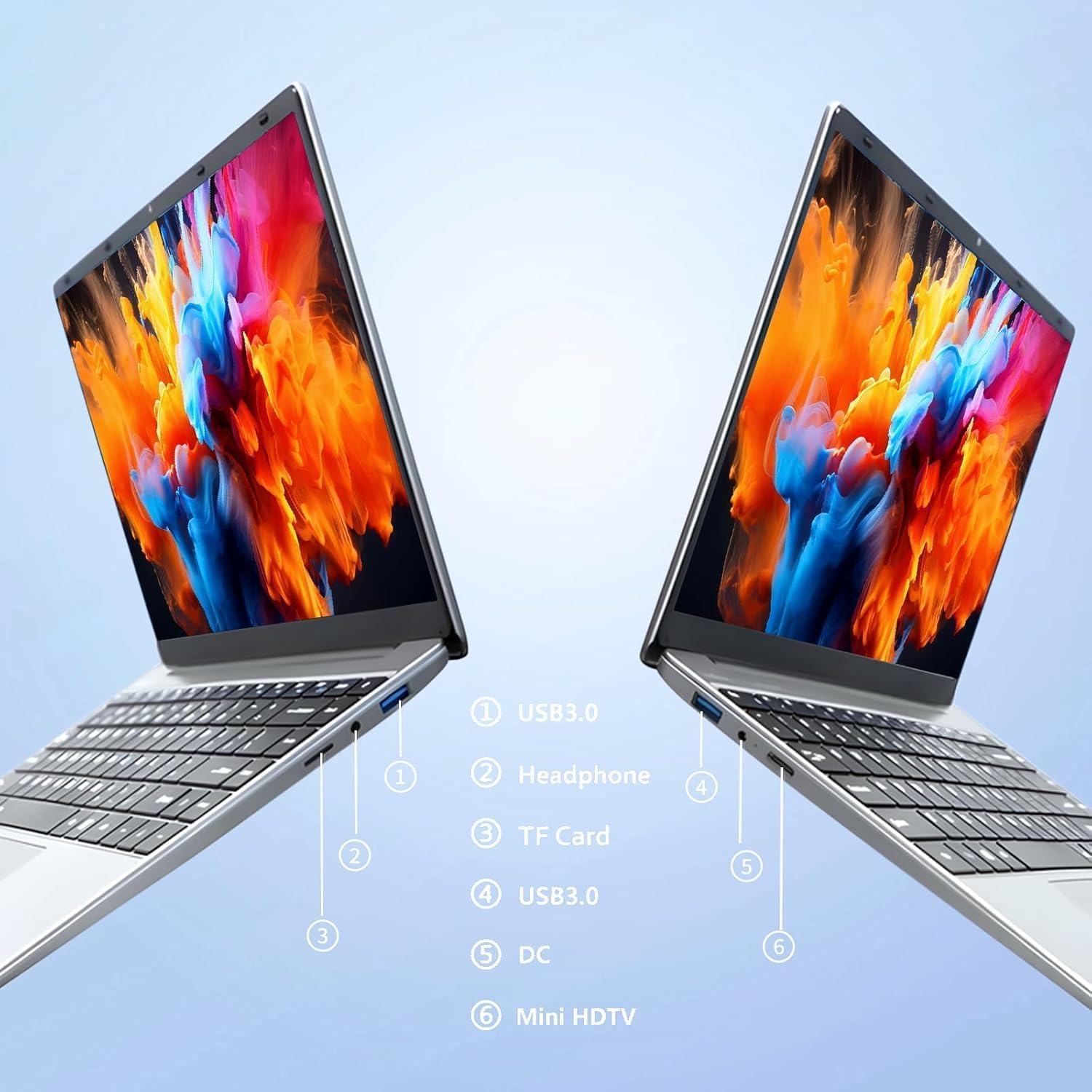
Imaj: Side view of the laptop highlighting port locations.
This image illustrates the various ports available on the FUNYET 2026 laptop. On one side, you will find a USB 3.0 port, a 3.5mm headphone jack, and a TF Card slot. On the opposite side, there is another USB 3.0 port, the DC power input, and a Mini-HDMI port.

Imaj: Laptop screen displaying its 14-inch Full HD IPS features.
The laptop features a 14-inch Full HD (1920x1080) IPS display with a 16:9 aspect ratio and ultra-narrow bezels, providing a wide perspective and vivid images.

Imaj: Laptop demonstrating its 180-degree foldable hinge.
The laptop's hinge allows the screen to fold back 180 degrees, offering versatile viewing angles and usage modes.
Gid Enstalasyon
1. Premye Chajman
- Unpack the laptop and power adapter from the box.
- Connect the power adapter to the DC input port on the side of the laptop.
- Ploge adaptè pouvwa a nan yon priz miray.
- Allow the laptop to charge for at least 30 minutes before first use, or until the battery indicator shows a sufficient charge.
2. Premye Limen
- Louvri kouvèti laptop la.
- Press the power button, usually located on the keyboard deck or side.
- Follow the on-screen instructions to complete the Windows 11 Pro setup process, including language selection, network connection, and user account creation.
3. Konekte ak Wi-Fi
- During the initial Windows setup, you will be prompted to connect to a Wi-Fi network. Select your network from the list and enter the password.
- Si w ap konfigire l pita, klike sou ikòn Wi-Fi a nan ba travay la, chwazi rezo w la, epi klike sou "Konekte".
Enstriksyon Operasyon
Jesyon pouvwa
- Pouvwa sou: Peze bouton pouvwa a.
- Mòd dòmi: Fèmen kouvèti a oswa peze bouton pouvwa a yon ti tan.
- Fèmen: Klike sou bouton Start la, answit sou Power, epi sou Close down.
- Rekòmanse: Click the Start button, then Power, then Restart.
Using the Touchpad and Touchscreen
- Touchpad: Use gestures for navigation. Single tap for left-click, two-finger tap for right-click, two-finger scroll for scrolling.
- Ekran tactile: Tap to select, pinch to zoom, swipe to scroll.
Ekstèn Ekspozisyon Koneksyon
To connect an external monitor or projector:
- Connect a Mini-HDMI cable from the laptop's Mini-HDMI port to the external display's HDMI input.
- If necessary, use a Mini-HDMI to HDMI adapter (not included).
- Peze Kle Windows + P to open the Project menu and select your desired display mode (Duplicate, Extend, Second screen only).
Using TF Card Expansion
Insert a TF card into the designated slot for additional storage. The laptop supports up to 1TB TF card expansion.
Swen ak Antretyen
- Netwayaj: Use a soft, lint-free cloth to clean the screen and chassis. For stubborn marks, slightly dampRense twal la avèk dlo oswa yon pwodui netwayaj ekran. Evite pwodui chimik ki agresif.
- Swen batri: Pou pwolonje lavi batri a, evite dechaje batri a nèt souvan. Sere laptop la nan yon kote ki fre epi sèk si ou pa itilize li pou yon bon bout tan.
- Tanperati: Operate the laptop within a temperature range of 5°C to 35°C (41°F to 95°F). Avoid direct sunlight or extreme heat/cold.
- Vantilasyon: Ensure the ventilation openings are not blocked to prevent overheating. Do not place the laptop on soft surfaces like beds or sofas during operation.
- Mizajou lojisyèl: Mete Windows ak chofè yo ajou regilyèman pou asire pèfòmans ak sekirite optimal.
Depanaj
Pwoblèm komen ak solisyon yo
| Pwoblèm | Solisyon posib |
|---|---|
| Laptop la pa limen. | Ensure the power adapter is securely connected and plugged into a working outlet. Check if the battery is charged. Try holding the power button for 10-15 seconds for a hard reset. |
| Pwoblèm koneksyon Wi-Fi. | Check if Wi-Fi is enabled in Windows settings. Restart your router and the laptop. Ensure you are within range of the Wi-Fi signal. Verify the Wi-Fi password. |
| Pèfòmans ralanti. | Close unnecessary applications. Check for background processes in Task Manager. Ensure Windows is updated. Consider running a disk cleanup. |
| External display not detected. | Ensure the Mini-HDMI cable is connected correctly. Check the input source on your external display. Press Kle Windows + P pou chanje mòd ekspozisyon yo. |
| Batri vide byen vit. | Adjust screen brightness. Close power-intensive applications. Check power settings in Windows and select a power-saving plan. Disconnect external peripherals when not in use. |
Espesifikasyon teknik
| Mak | FUNYET |
| Non modèl | NY-01 |
| Gwosè ekran | 14.1 pous |
| Rezolisyon | 1920 x 1080 (Full HD) |
| Teknoloji ekran | IPS LCD |
| Processeur | Intel Celeron N5095 (jiska 2.9 GHz) |
| RAM | 16 GB LPDDR4 (2400 MHz) |
| Depo | 512 GB M.2 SSD (expandable via TF Card up to 1TB) |
| Sistèm operasyon | Windows 11 Pro |
| Grafik | Grafik Intel entegre |
| Koneksyon san fil | 5G Wi-Fi (2.4 GHz, 5.8 GHz), Bluetooth 5.0 |
| Pò | 2x USB 3.0, 1x 3.5mm Headphone, 1x 3.5mm DC Adapter, 1x Mini-HDMI, 1x TF Card Slot |
| Webkam | 0.3 Megapixel Front Camera |
| Kapasite batri | 5000 mAh / 38.5 Wh |
| Dimansyon (L x W x H) | 32.2 x 21 x 2.1 cm (12.68 x 8.27 x 0.83 pous) |
| Pwa | 1.4 KG (3.09 liv) |
| Karakteristik espesyal | 180° Foldable Hinge |
Garanti ak sipò
Enfòmasyon sou Garanti
Your FUNYET 2026 laptop comes with a 2-ane garanti from the date of purchase. Please retain your proof of purchase for warranty claims. The warranty covers manufacturing defects and malfunctions under normal use. It does not cover damage caused by misuse, accidents, unauthorized repairs, or normal wear and tear.
Anplis de sa, a 6-month free exchange/return policy may apply, subject to the terms and conditions of your purchase platform.
Sipò pou Kliyan
For any issues, questions, or technical assistance, please contact FUNYET customer support:
- Sipò sou entènèt: Available 24/7. You can typically find support by logging into your Amazon account, navigating to "Your Account" -> "Your orders", and selecting "Ask Product Question" for your FUNYET laptop.
- Imèl: funyestore@outlook.com
- Telefòn: +49 800-000-7147 (Please note operating hours may vary)

Imaj: Customer service contact details and warranty information.
This image provides a visual summary of the support options, including the 2-year warranty, 6-month exchange/return policy, and contact information for phone and email support.
Ask a question about this manual
Ask about setup, troubleshooting, compatibility, parts, safety, or missing instructions. Manuals+ will review the question and use this page’s manual context to help answer it.